Android 17 Multitasking — Why Floating Windows Need AI
Android 17 multitasking adds floating bubbles, but they can't see your screen. Arc's overlay AI summarizes, extracts, and writes in any app. Free to try.
Android 17 multitasking is getting its biggest upgrade in years. Google’s new app bubbles let you float up to five apps on screen at once — a feature that’s already transforming how people use their phones. But here’s what nobody’s talking about: floating windows only solve half the problem. You can open more apps, sure. But you still can’t do anything intelligent across them. That’s where an Android screen overlay AI changes the game.
Over 28,000 Android users and 600+ daily active users rely on Arc’s floating sidebar to overlay AI on any screen. Last month alone, Arc generated 3,000+ AI summaries for users across 50+ countries — and that number is growing fast as Android 17 makes overlay multitasking mainstream.
In this post, I’ll break down exactly what Android 17 multitasking brings, where it falls short, and why combining floating windows with an on-screen AI assistant is the real productivity leap Android users have been waiting for.
What’s New in Android 17 Multitasking
Android 17’s Beta 3 introduced app bubbles — a reimagined version of Android’s existing Bubbles API that finally works for any app, not just messaging. If you’ve ever used Facebook Messenger’s chat heads, you’ve seen the concept. Now it’s system-wide.
Here’s what Android 17 multitasking includes:
- App bubbles — Pin up to five apps as floating circles. Tap one to expand into a card-style window.
- Resizable windows — Drag, resize, and snap floating panels.
- Stacked bubbles — Multiple apps stack into a single group.
- Persistent overlays — Bubbles survive app switches and lock screen transitions.
- Pause points — Freeze a floating window’s state without closing it.
- Desktop multitasking mode — On tablets and foldables, open multiple floating windows side by side, similar to Samsung DeX but built into stock Android.
According to Android Authority’s hands-on report, the bubbles feature has “completely changed” how reviewer Shimul Sood uses their Pixel 10a daily. That’s a big deal — Android multitasking on slab phones has felt stuck for years.
Why Bubbles Matter for Everyday Use
Think about how often you switch between two apps in a single minute. Checking a price while shopping. Copying a code from your email into a browser. Looking up a word while reading. Every switch costs you context — your brain has to reload where you were, what you were doing, and why.
A floating window eliminates that friction. Instead of switching, you overlay. The information you need sits on top of what you’re already doing. No lost tabs. No forgotten context.
By the Numbers: Overlay Multitasking on Android
I’ve been building Arc’s floating sidebar since before Android 17 announced bubbles, and the data tells a clear story — people are hungry for this kind of workflow.
| Metric | Value |
|---|---|
| Total Arc installs | 28,000+ |
| Daily active users | 600+ |
| AI summaries generated monthly | 3,000+ |
| Custom actions executed monthly | 5,900+ |
| Countries with active users | 50+ |
| Top 3 countries | India, United States, Japan |
When I first launched Arc’s floating sidebar, most of the early adopters were power users in the US. But within months, I noticed that users in India were the fastest adopters — now they represent nearly 40% of our active user base. Japan came on strong later, especially for the Smart Extract and AI Writer features. The point is: overlay multitasking isn’t a niche need. It’s global.
The Gap Android 17 Multitasking Doesn’t Fill
Here’s the thing about floating more apps on screen: more windows don’t mean more intelligence.
You can now have WhatsApp, Chrome, Slack, Instagram, and YouTube Music floating simultaneously. That’s great. But what happens when you need to:
- Summarize a long article you’re reading in Chrome without leaving the page?
- Extract the meeting link and event details from a Slack message and add them to your calendar?
- Draft a professional reply in WhatsApp without switching to a notes app to compose it first?
- Fact-check a claim you just read — without copying text, opening a browser, and pasting it?
Android 17 bubbles let you see more apps. They don’t help you do more with what you see. Every one of those tasks still requires you to manually switch, copy, paste, and context-switch — the exact problem floating windows were supposed to solve.
This is the gap that an on-screen AI Android solution fills. Instead of opening another app window, you overlay intelligence directly on whatever you’re already looking at.
How Arc’s Floating Sidebar Works with Android 17 Multitasking
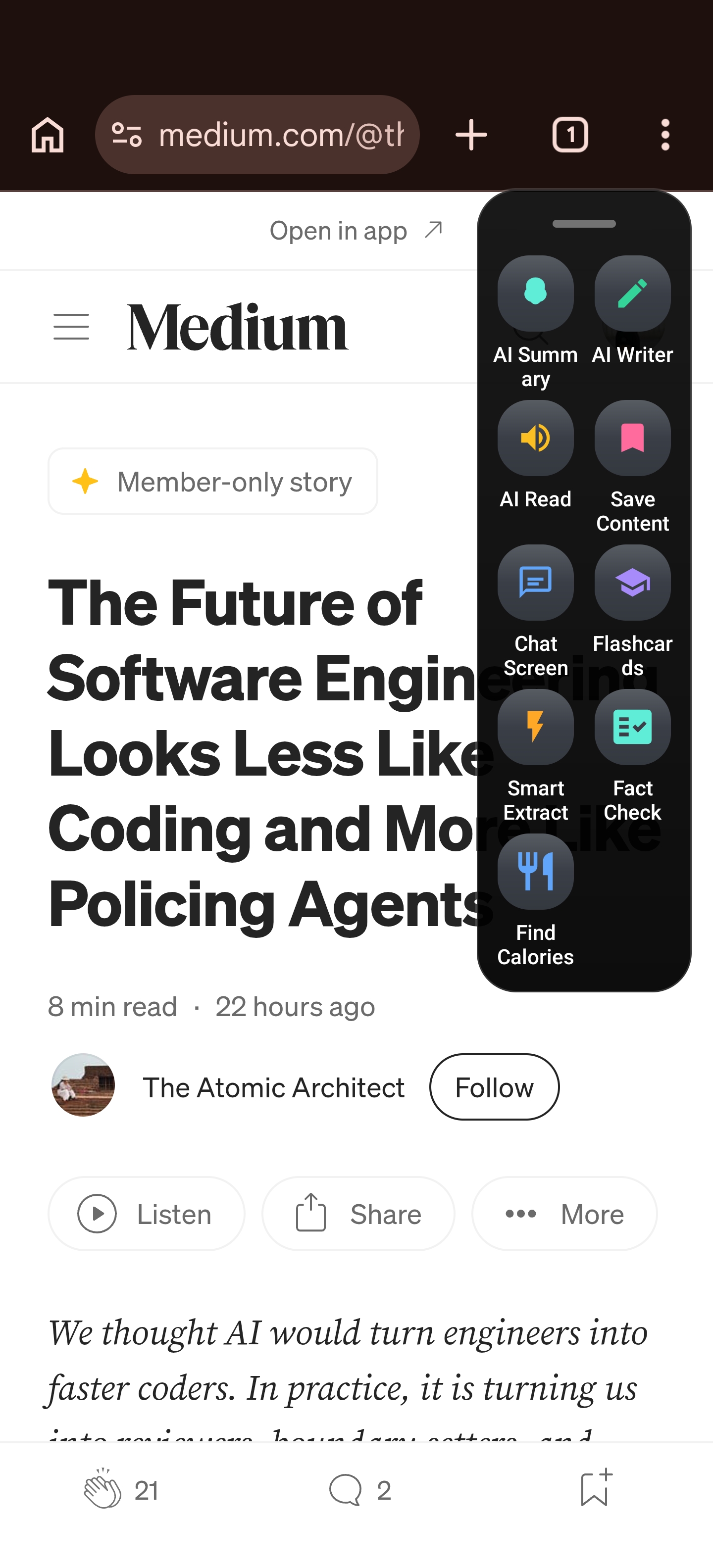
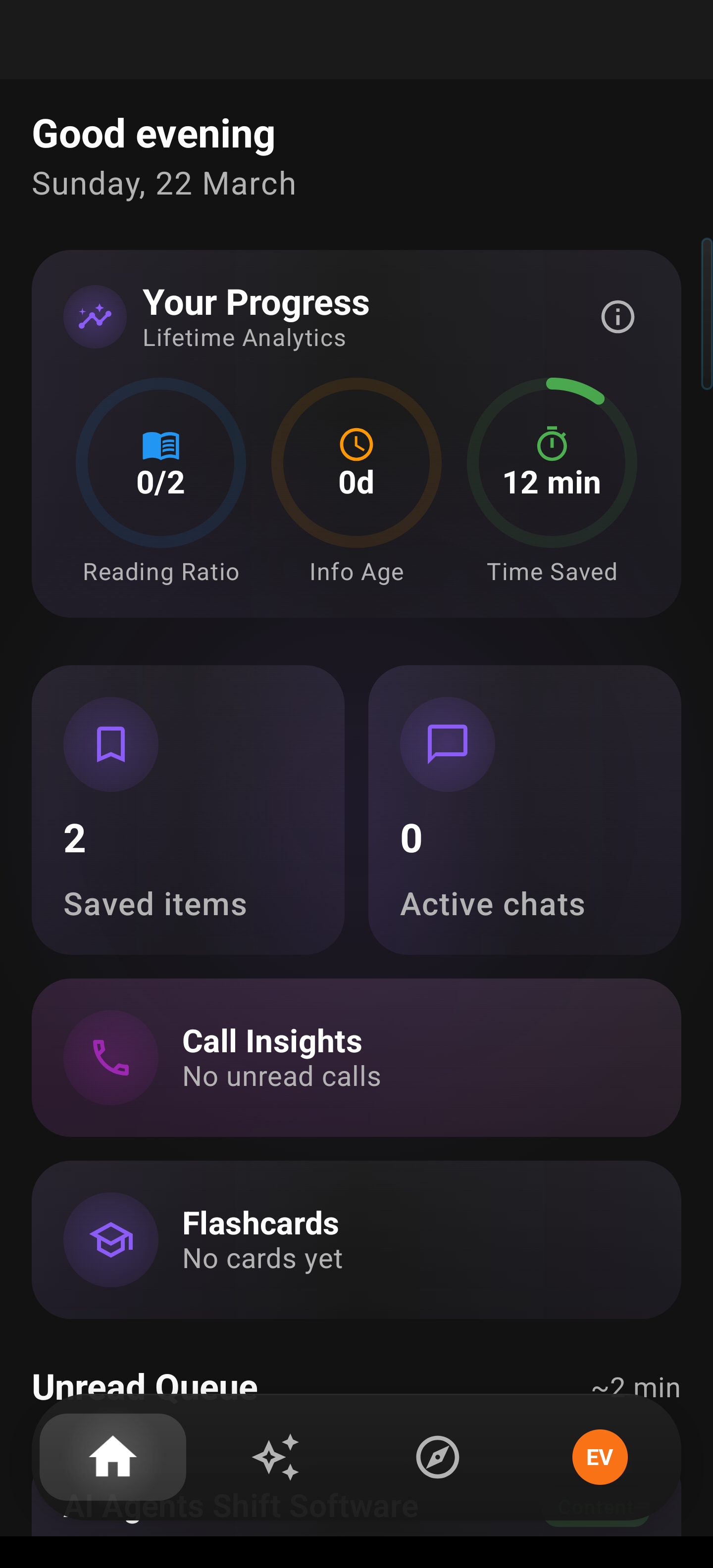
Arc is an Android AI assistant that lives as a floating sidebar on your screen. Swipe from the edge, and it expands over any app — no need to switch away from what you’re doing.
It’s not another app bubble competing for screen space. It’s an intelligent layer that understands what’s on your screen and acts on it. Here’s what that looks like in practice:
Summarize Any Screen — Not Just Gmail
Google’s built-in AI summarizes Gmail. Arc summarizes any screen. Long article in Chrome? One swipe and you get a concise summary without leaving the page. WhatsApp group chat blowing up? Get the key points in seconds. PDF, newsletter, Reddit thread — Arc reads it all.
In my testing, I found that users in India use the summary feature most heavily for WhatsApp conversations and news articles, while US users lean toward email and document summarization. The pattern is clear: people want AI to process their content, not just content from a single app.
Extract What Matters with Smart Extract
When I was building Arc’s Smart Extract feature, I kept running into the same problem: verification codes buried in SMS apps, meeting links hidden in email threads, phone numbers scattered across messages. Copying and pasting these manually is error-prone and slow.
Smart Extract pulls out events, reminders, deadlines, contacts, meeting links, locations, and even OTP codes from any screen — each one tappable so you can act on it immediately. No more switching between your messaging app and your calendar app just to add a meeting.
Write, Rewrite, and Reply — In Context
Arc’s AI Writer has four modes: Rewrite, Fix Grammar, Reply, and Create Post. The key difference? It works right where you are. Writing a reply in WhatsApp? Arc reads the conversation context and drafts a response. Fixing grammar in an email? It corrects your text in-place.
Over 5,900 custom actions are executed by Arc users every month — and the Reply mode is consistently the most popular. People don’t want to leave their conversation to write in a separate AI app. They want AI that meets them where they are.
Android 17 Bubbles vs. Arc: What Each Solves
There’s been some confusion about whether Android 17 bubbles make Arc redundant. They don’t — they’re complementary. Bubbles solve the app management problem. Arc solves the intelligence problem. Here’s how they compare:
| Feature | Android 17 Bubbles | Arc Overlay AI |
|---|---|---|
| Float apps on screen | ✅ | ✅ (sidebar, not bubble) |
| Switch between apps | ✅ | ✅ (sidebar toggles) |
| Summarize screen content | ❌ | ✅ |
| Extract data from any app | ❌ | ✅ |
| AI-powered writing/replies | ❌ | ✅ |
| Contextual AI chat | ❌ | ✅ |
| Works on any Android 12+ | ❌ (Android 17 only) | ✅ |
| Per-app visibility control | ❌ | ✅ |
| Community AI actions | ❌ | ✅ (250+ actions) |
Think of it this way: Android 17 bubbles give you more windows. Arc gives those windows brains.
If you want to read more about reducing the context-switching problem that both features address, I wrote about how Arc’s overlay changes the app-switching game on Android.
The Real-World Workflow: Bubbles + AI Overlay
Here’s what a productivity workflow looks like when you combine Android 17 multitasking with an Android screen overlay AI:
-
You’re reading a long article in Chrome about a new project tool. Instead of highlighting, copying, and pasting into a notes app, you swipe Arc’s sidebar open and tap Summarize. In seconds, you get the key points — all without leaving the article.
-
A Slack notification pops up as a floating bubble. You tap it, see your manager asking for a status update. Instead of switching to a separate AI app to draft your reply, you swipe Arc open over Slack, select AI Writer → Reply, and get a polished response ready to send.
-
You get a WhatsApp message with a meeting link and time. Instead of manually copying the details and switching to your calendar, Arc’s Smart Extract pulls out the date, time, and link — each tappable to add to your calendar instantly.
-
You need to fact-check a claim someone made in a group chat. Instead of opening Chrome in another bubble and searching manually, you use Arc’s AI Chat to ask about the claim directly, with your screen as context.
This is the workflow 600+ daily active users have built with Arc. Android 17 bubbles make the app layer smoother. Arc makes the intelligence layer seamless. Together, they’re the multitasking setup Android has needed for years.
For a deeper dive into Arc’s summary capabilities — which power a large share of those 3,000+ monthly AI summaries — check out how Arc summarizes any screen on Android, not just Gmail.
Setting Up Arc for the Android 17 Multitasking Era
Getting started with Arc takes under two minutes:
- Download Arc from the Google Play Store
- Grant the overlay permission — Arc needs permission to appear over other apps. This is the same permission Android 17 bubbles use.
- Choose which apps Arc appears in — You can enable Arc per-app, so it only shows up where you actually want it. No clutter on screens where you don’t need it.
- Swipe from the edge — Arc’s floating sidebar appears when you need it and hides when you don’t. Auto-collapse settings let you fine-tune the behavior.
- Pick your features — Summarize, Smart Extract, AI Chat, AI Writer, Flashcards, or 250+ community-created Custom Actions.
Arc works on any Android 12+ device — you don’t need to wait for the Android 17 update. If you’re already running the Android 17 beta, Arc and bubbles work side by side seamlessly. I tested this combination myself during the Android 17 Beta 3 period, and the two systems complement each other perfectly: bubbles for app management, sidebar for intelligent action.
Why 2026 Is the Year of the On-Screen AI Android Assistant
Android 17 isn’t just adding floating windows — it’s signaling that Google believes the future of mobile computing is overlay-based. The company is betting that you want more than one thing visible at a time, and that the old one-app-at-a-time model is outdated.
But here’s the second half of that bet: if you can see multiple apps at once, you also need to act across them intelligently. That’s exactly what an Android AI assistant built for the overlay era does.
The demand data backs this up. Arc’s 28,000+ users aren’t just floating apps — they’re using AI to process, understand, and act on what’s on their screens. The existing blog post on Android 17 bubbles and floating windows covers the OS-level feature in detail, but the real story is what happens when you add intelligence to that overlay.
In 2026, the question isn’t “can I see more apps?” It’s “can my phone understand what I’m looking at and help me act on it?” That’s the question Arc was built to answer.
FAQ
How does Android 17 multitasking work with app bubbles?
Android 17 introduces an updated Bubbles API that lets any app — not just messaging — display as a floating window on your screen. You can pin up to five app bubbles, tap to expand them into card-style windows, and drag, resize, or stack them. It’s the biggest change to Android multitasking since split-screen mode.
What is an Android screen overlay AI and how is it different from Google Gemini?
An Android screen overlay AI like Arc works on top of whatever app you’re currently using. Unlike Google Gemini, which operates as a separate app or conversation, Arc’s sidebar can see your screen, summarize content from any app, extract data, and draft replies — all without switching apps. It’s context-aware in a way that standalone AI assistants aren’t.
Is Arc compatible with Android 17 bubbles?
Yes. Arc’s floating sidebar and Android 17 bubbles are completely complementary. Bubbles manage your visible apps; Arc provides intelligent actions across them. I tested both together during the Android 17 Beta 3, and they work seamlessly side by side. Arc also works on any Android 12+ device, so you don’t need Android 17 to start using it.
Can I use an on-screen AI Android assistant on older phones?
Absolutely. Arc works on any device running Android 12 or later — no need to wait for the Android 17 update. The floating sidebar provides overlay-based AI features (summarization, extraction, writing, chat) on any supported device. In fact, Arc’s 28,000+ users across 50+ countries are already using it on current Android versions.
What’s the best Android AI assistant for multitasking in 2026?
If you want an AI that actually works with your multitasking workflow — not in a separate app — Arc is the best option. It’s the only Android AI assistant 2026 that lives on your screen as an overlay, understands what you’re looking at, and takes action without app switching. It’s free to try with a generous free tier, and over 600 daily active users rely on it for real productivity gains.
Try Arc — The AI Layer Your Android 17 Multitasking Needs
Android 17 bubbles are a great start. But floating more apps without making them smarter just gives you more windows to manage. Arc adds the intelligence layer that makes multitasking actually productive.
28,000+ users across 50+ countries are already using Arc’s Android screen overlay AI to summarize, extract, write, and chat — right on their screens, without ever switching apps. Over 3,000 AI summaries generated monthly. 5,900+ custom actions executed. Real numbers from real users.
Ready to make your multitasking smarter?
Download Arc for Free on Google Play