How to Reduce App Switching on Android: Arc's Overlay Changes Everything
Android users waste hours switching between apps. Arc's AI screen assistant and floating overlay let you summarize, write, and automate tasks without ever leaving your current app.
You’re reading an article in Chrome. A paragraph triggers a thought, so you switch to WhatsApp to message a colleague. Then you remember you need to reply to an email, so it’s over to Gmail. Before you know it, you’ve got twelve apps open, your train of thought is shattered, and the original article is buried under a stack of recents.
If this sounds familiar, you’re not alone. The average Android user switches between apps over 120 times per day — and each switch costs roughly 23 seconds of refocusing time. That adds up to nearly 45 minutes of lost productivity daily, just from context switching alone.
The real problem isn’t any single app. It’s the switching itself — the constant cycle of copy, swap, paste, swap back. What if you could bring the intelligence to the screen you’re already on, instead of bouncing between screens?
That’s exactly what Arc was built to solve. Let’s look at how you can reduce app switching on Android and reclaim your focus — without changing how you use your phone.
Why App Switching Destroys Your Flow
Every time you leave an app to do something in another one, you pay a hidden tax. It’s not just the physical act of swiping or tapping — it’s the cognitive cost of rebuilding context. Your brain has to reload where you were, what you were doing, and why.
Researchers call this “attention residue.” Even a brief switch to check a message or look up a fact leaves part of your attention stuck in the previous task. Over an entire workday, this residue compounds into genuine mental fatigue.
The worst offenders:
- Copying text from one app to another — a research article into a note, an email into a translator, a chat message into a calendar
- Summarizing long content — opening a dedicated AI app, pasting a URL or text, then switching back
- Drafting replies — reading a message, switching to ChatGPT for help, copying the reply, switching back to your messaging app
- Looking up information — pausing a video or article to Google something, then trying to find your place again
Each individual switch feels trivial. But dozens of them per day? That’s a productivity leak that no amount of time-management advice can patch. You need a structural fix — one that eliminates the switch entirely.
Enter the Arc Overlay: AI Where You Already Are
Most AI assistants demand the same thing every other app does: come to me. Open the app, paste your content, wait for a response, copy it, go back.
Arc flips this model. Instead of pulling you into a separate app, the Arc overlay lives as a floating sidebar on the edge of your screen. A single swipe opens it — right on top of whatever you’re doing. It reads the content already on your screen using Android’s Accessibility Services, so you never need to copy or paste anything.
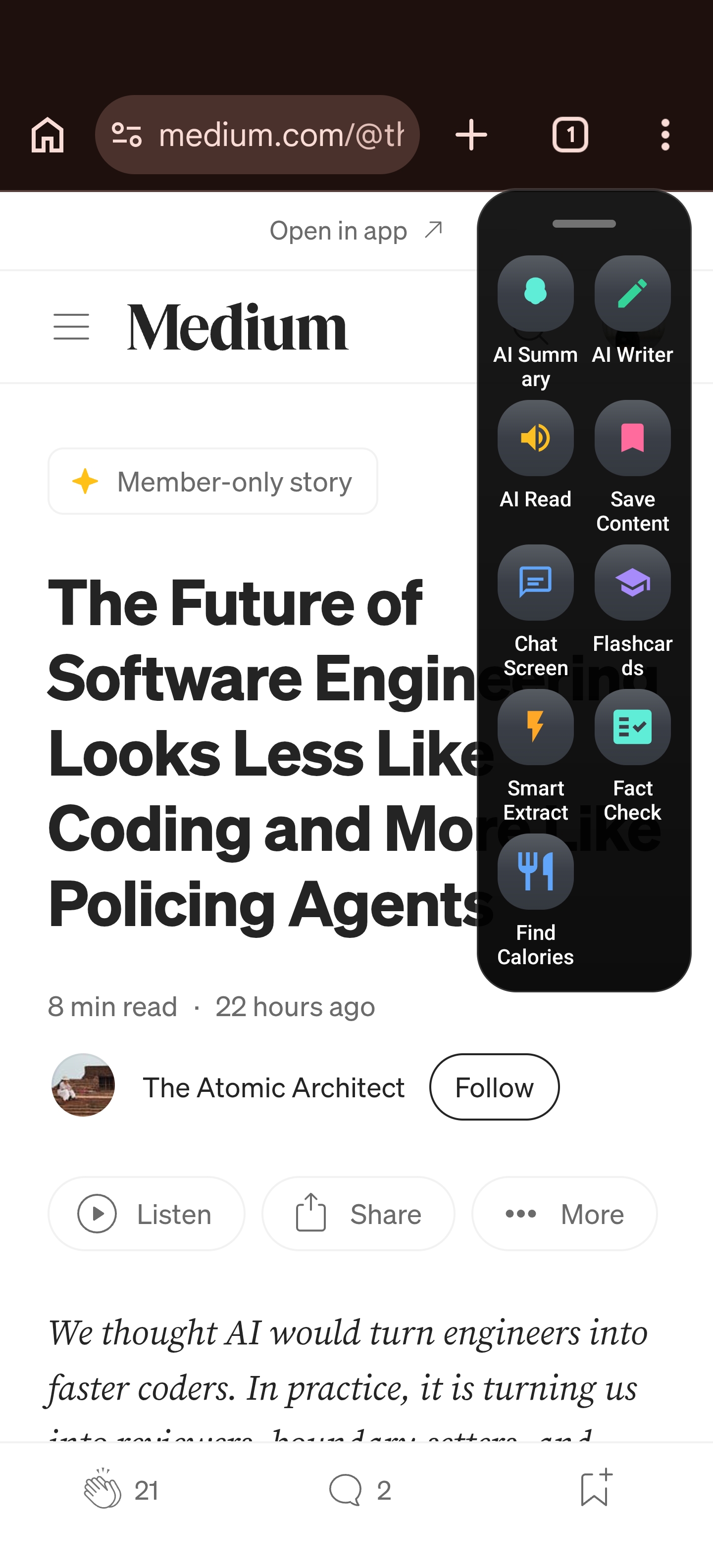
The result: you stay in your flow. No more app-hopping. No more lost context. Just the answer you need, right where you need it.
How Arc Helps You Reduce App Switching on Android
Instant Summaries Without Leaving Your App
Long article in your browser? Email thread that scrolls forever? Arc’s Instant AI Summarizer condenses any on-screen content into a concise summary with a single tap. No copying. No pasting. No switching to a separate summarization tool.
The summary appears right in the sidebar. You can read it, save it for later, or ask follow-up questions — all without ever leaving the app where the original content lives. For students tackling research papers, professionals triaging long email threads, or anyone who just wants the gist, this single feature can eliminate dozens of app switches per day.
AI Writer: Compose Without Context-Switching
Need to rewrite something in a different tone? Fix grammar in a draft? Generate a social media post based on something you’re reading? The AI Writer works directly on whatever text is on your screen.
Reply to messages with contextually appropriate responses. Rewrite that awkward paragraph in your document. Create a LinkedIn post inspired by an article you’re reading — all from the floating sidebar, all without leaving the app you’re in.
Smart Extract: One-Tap Action Items
Not every piece of information on your screen is meant to be read — some of it needs to go somewhere else. A calendar event in an email. A phone number in a chat. A verification code in a banking app.
Smart Extract identifies actionable items on your screen — events, reminders, contacts, meeting links, verification codes — and lets you add them to your calendar, contacts, or clipboard with one tap. No more manually copying details and switching to the relevant app. Arc bridges the gap.
AI Chat: Ask Questions About What’s On Your Screen
Sometimes a summary isn’t enough — you need to dig deeper. AI Chat lets you ask questions about the content currently displayed on your screen. Fact-check a claim in an article. Clarify a confusing paragraph. Explore a topic mentioned in passing. It’s like having a research assistant who has already read what you’re reading.
Android Multitasking Productivity: Beyond Split Screen
Android has tried to address the multitasking problem before. Split screen. Picture-in-picture. App pinning. These are workarounds, not solutions. They give you more apps on screen simultaneously, but you still operate each one independently — copying from here, pasting there, manually bridging the gaps.
True android multitasking productivity means something different: reducing the number of separate contexts you need to manage. Instead of running three apps side by side and juggling between them, Arc lets you accomplish everything from a single context.
Consider a common workflow: you’re reading a lengthy research article and you want to:
- Get a quick summary of the key points
- Save specific passages for later review
- Draft a response or note based on what you’ve read
- Extract any dates, names, or links mentioned
With traditional multitasking, that’s four separate apps and at least six context switches. With Arc, it’s one swipe and four taps — all without ever leaving the article.
The math is simple: fewer switches means less context-rebuilding, less mental fatigue, and more time spent on actual work.
AI Workflow Automation: Build Your Own Shortcuts
For power users, the real unlock is AI Workflow Automation. Arc lets you create custom AI actions — called Workflows — that run on any screen content with a single tap.
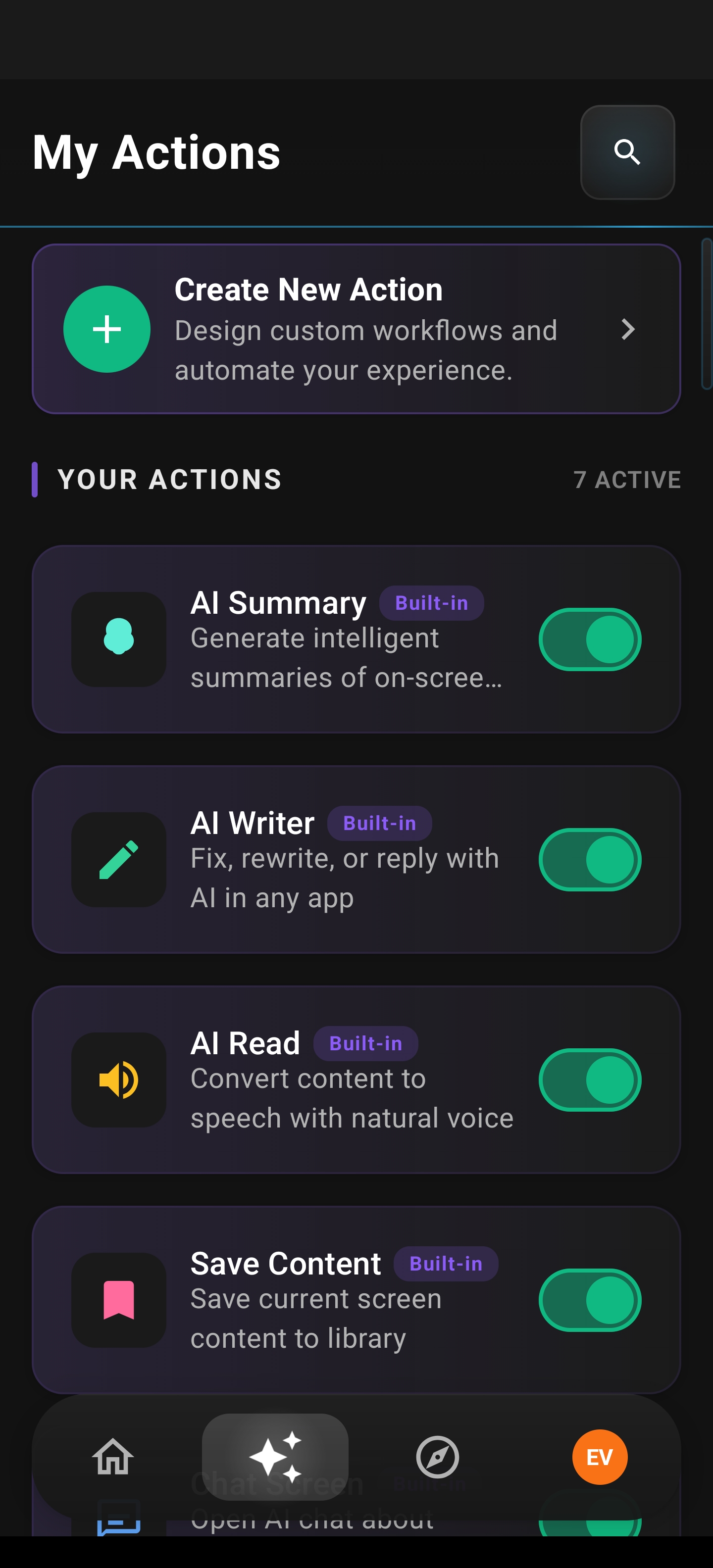
Some examples that replace entire app-switching routines:
- Translate this — Translate any on-screen text into your preferred language without opening a translation app
- Fact check — Verify claims in an article by having AI cross-reference them against reliable sources
- Meeting notes — Extract action items and key decisions from a meeting summary, formatted and ready to share
- Code review — Paste code from any screen and get an instant review or explanation
- Social media draft — Turn any article or post into a platform-specific draft ready for publishing
And you don’t have to build from scratch. Community Actions let you browse, filter, and install workflows created by other Arc users. Discover proven automations for common tasks, or publish your own to help others streamline their workflows.
Privacy-First Design: Your Screen, Your Control
An AI screen assistant that reads your screen raises an obvious question: is my data safe?
Arc was built with privacy as a foundational principle, not an afterthought:
- On-demand only — Arc never monitors your screen in the background. It only reads content when you explicitly tap a sidebar button. No passive scanning. No background data collection.
- Local storage — All your saved content, chat history, flashcards, custom actions, and personal data are stored locally on your device in protected storage. Nothing goes to the cloud unless you choose to back it up.
- Sensitive app blocking — Arc automatically blocks itself in nearly 400 sensitive apps, including banking, cryptocurrency, and password managers. You don’t have to remember to disable it — it disables itself where it should.
- No account required — Use Arc as a guest without signing in. Google Sign-In is optional and only needed for cloud backup and community features.
This is what a responsible AI screen assistant looks like: powerful when you need it, invisible when you don’t, and protective of your data at all times.
Built for the People Who Need It Most
Arc isn’t a niche tool for tech enthusiasts. It’s a broadly useful android multitasking productivity solution that serves multiple audiences:
Students — Summarize research papers and textbook chapters. Generate flashcards from lecture notes. Ask questions about complex material without switching between your reading app and a separate AI tool.
Professionals — Triagelong email threads in seconds. Draft polished replies without leaving your inbox. Extract meeting details and action items on the fly. Stay in your workflow instead of constantly breaking it.
Accessibility users — For people with dyslexia, low vision, or reading challenges, Arc’s text-to-speech reader and AI-powered summarization make digital content more accessible. The floating sidebar means you don’t need to navigate to a separate accessibility app — the tools come to you.
Multilingual users — Arc supports 10 languages including English, Spanish, German, French, Portuguese, Korean, Japanese, Indonesian, and Arabic. Both the interface and AI responses are fully localized, making it genuinely useful across languages, not just translated.
Getting Started: From Zero to Productive in Two Minutes
- Download Arc from the Google Play Store
- Enable the sidebar — Grant Accessibility permissions when prompted so Arc can read your screen content on demand
- Swipe from the edge — The floating sidebar appears over any app
- Tap any feature — Summarize, chat, write, extract, or run a custom workflow instantly
No complex setup. No account creation needed. Just download, enable, and start reducing app switches immediately.
Reduce App Switching on Android — Starting Now
The constant cycle of switching between apps is more than an inconvenience — it’s a measurable drain on your focus, your time, and your energy. Every switch fragments your attention. Every context switch steals seconds that compound into hours.
Arc’s approach is fundamentally different: instead of adding another app to your rotation, it removes the need to rotate at all. The floating sidebar brings AI-powered summaries, writing assistance, data extraction, custom workflows, and chat directly to whatever screen you’re on. You stay in your flow. You keep your context. You get more done with fewer interruptions.
If you’re tired of the copy-switch-paste-switch cycle, it’s time for a better way.
Download Arc — AI Screen Assistant for Android
Frequently Asked Questions
Does Arc work with all Android apps? Yes. Arc’s floating sidebar works system-wide across every app on your device. It automatically blocks itself in nearly 400 sensitive apps (banking, crypto, password managers) for your security, and you can customize which apps it appears in.
Do I need to create an account? No. Arc works as a guest with no sign-in required. Google Sign-In is optional and only needed for cloud backup and community features like publishing workflows.
Does Arc monitor my screen in the background? Absolutely not. Arc only reads screen content when you explicitly tap a button in the sidebar. It never scans, records, or processes your screen passively.
Can I create my own AI actions? Yes. Arc’s Workflow Automation lets you create custom AI actions that run on any screen content with a single tap. You can also browse and install community-created workflows.
What AI does Arc use? Arc is powered by Google Gemini for generating summaries, chat responses, custom action results, flashcards, and other AI outputs.
Is Arc free? Yes. Arc is completely free to use. No hidden fees, no premium tiers.