Android 17 Bubbles — Multitask on Any Screen
Android 17 adds floating window bubbles for multitasking — but Arc already overlays AI on any screen.. Free to try.
Android 17 Bubbles Floating Window: The Multitasking Feature You Need Right Now
Google’s Android 17 update brings a major upgrade to how you multitask on your phone. The android 17 bubbles floating window system turns your screen from a one-app-at-a-time viewport into a layered workspace where multiple apps coexist. Whether you’re looking for android 17 app bubbles, the android 17 pause point feature, or android 17 desktop multitasking — this guide covers everything you need to know about Android 17 bubbles and how to get the most out of floating windows on your phone.
I’ve been building Arc — a floating sidebar for Android — since before Android 17 announced bubbles, and with 28,000+ users across 50+ countries relying on overlay-based multitasking daily, the demand for this kind of workflow is real. If you’ve ever tried to reply to a message while reading an article, or check a translation while filling out a form, you already know the problem: Android forces you to choose. One app at a time. One screen. One task. But with the android 17 bubbles floating window feature, that limitation is finally fading. Google’s next major Android release is pushing floating windows and bubble overlays further than ever — and if you multitask on your phone, this is the upgrade you’ve been waiting for.
This post breaks down exactly what android 17 bubbles floating window does, how it compares to older multitasking tools, and why a floating sidebar android solution like Arc might be the most practical way to use it day-to-day. We’ll also cover the new android 17 pause point feature, android 17 app bubbles, and how these fit into the broader picture of android 17 desktop multitasking.
What Are Android 17 Bubbles? The Floating Window Feature Explained
The biggest question Android users have: what are android 17 bubbles? They’re an upgraded version of Android’s Bubbles API that allows any app — not just messaging — to display a floating window over your current screen. Think of each android 17 app bubble as a tiny, tappable circle that expands into a card-style window when you need it. Android 17 bubbles multitasking is the OS-level feature that makes this possible.
Android’s “Bubbles” API has been around since Android 10, but it was limited. Developers could pin conversation bubbles to the screen for messaging apps — think chat heads from Facebook Messenger. You tap a bubble, a small floating window expands, and you can respond without leaving your current app.
Android 17 changes the game. The updated bubbles floating window system expands beyond messaging into a full-fledged android multitasking overlay — and android 17 bubbles multitasking is now a core part of how you interact with your phone. Here’s what’s new:
- Broader app support — android 17 app bubbles: No longer restricted to messaging. Any app that implements the right API can now float over your screen as an app bubble, making android 17 app bubbles a real multitasking layer rather than just a notification trick.
- Resizable and repositionable windows: Unlike the old rigid chat heads, android 17 bubbles floating window lets you drag, resize, and snap floating panels.
- Stacked bubbles: Multiple floating apps can stack into a single bubble group, keeping your screen clean while maintaining access.
- Persistent overlays: Bubbles can now survive app switches and even lock screen transitions.
- Pause point feature: Android 17 introduces the pause point feature, which lets you freeze a floating window’s state — effectively pausing an app bubble without closing it. This is useful when you need to temporarily focus on your main app but want to resume the bubble exactly where you left off. The pause point feature is one of the most underrated additions to android 17 bubbles, and it’s something power users will appreciate immediately.
- Desktop multitasking mode: On larger screens and tablets, android 17 desktop multitasking brings windowed app management closer to a desktop experience. You can open multiple floating windows, resize them independently, and arrange them side by side — similar to Samsung’s DeX but built into stock Android.
The result? Your phone stops being a one-thing-at-a-time device and starts feeling like a real multitasking machine.
Why Bubbles Matter for Everyday Use
Think about how often you switch between two apps in a single minute. Checking a price while shopping. Copying a code from your email into a browser. Looking up a word while reading. Every switch costs you context — your brain has to reload where you were, what you were doing, and why.
A floating window eliminates that friction. Instead of switching, you overlay. The information you need sits on top of what you’re already doing. No lost tabs. No forgotten context.
How Android 17 Bubbles Floating Window Works in Practice
Let’s get specific. When you enable android 17 bubbles floating window on a supported device, here’s what the workflow looks like:
- Trigger a bubble: An app sends a notification or you manually pin it. The bubble appears as a small circle on the edge of your screen.
- Expand the floating window: Tap the bubble. A card-style window expands over your current app, showing the content you need.
- Interact without leaving: Type a reply, copy information, tap a button — all without the underlying app disappearing.
- Collapse or dismiss: Tap outside the bubble window to collapse it back to the circle, or drag it to “X” to dismiss.
This pattern turns your phone screen into a layered workspace instead of a series of isolated apps.
Google Android 17 Multitasking Bubbles: The Limitations
Google android 17 multitasking bubbles are powerful, but they’re not perfect. The OS-level feature has real gaps that affect daily use:
- Developer adoption is slow: Not every app supports the Bubbles API. You’ll see it in Google Messages and a few others, but your favorite apps might not work yet.
- Size constraints: Floating windows are still small. They’re great for quick interactions — replies, glances, single actions — but not for deep work.
- Notification dependency: Some implementations still require an active notification to trigger a bubble, which feels clunky.
- No true sidebar: The system doesn’t give you a persistent, customizable side panel. Bubbles are individual, not unified.
WhatsApp is also testing notification bubbles for improved android multitasking — a sign that even messaging apps are evolving toward overlay-based interactions. But WhatsApp’s implementation is limited to its own notifications, while Arc’s floating sidebar works across every app. These gaps are exactly why android floating assistant tools like Arc exist — to fill the space between what the OS provides and what users actually need.
If you’re specifically looking for a floating bubble android app — not the OS feature, but an app that gives you floating bubbles on your screen — see our guide to floating bubble apps for Android.
Android Floating Assistant: Why a Sidebar Beats a Bubble
Here’s the uncomfortable truth about google android 17 multitasking bubbles: they’re a great foundation, but most users will want more. Bubbles android 17 gives you the OS-level overlay — but it can’t summarize an article, extract a meeting link, or draft a reply for you. That’s where an android floating assistant comes in.
Arc takes the floating overlay concept and builds a proper multitasking layer on top of it:
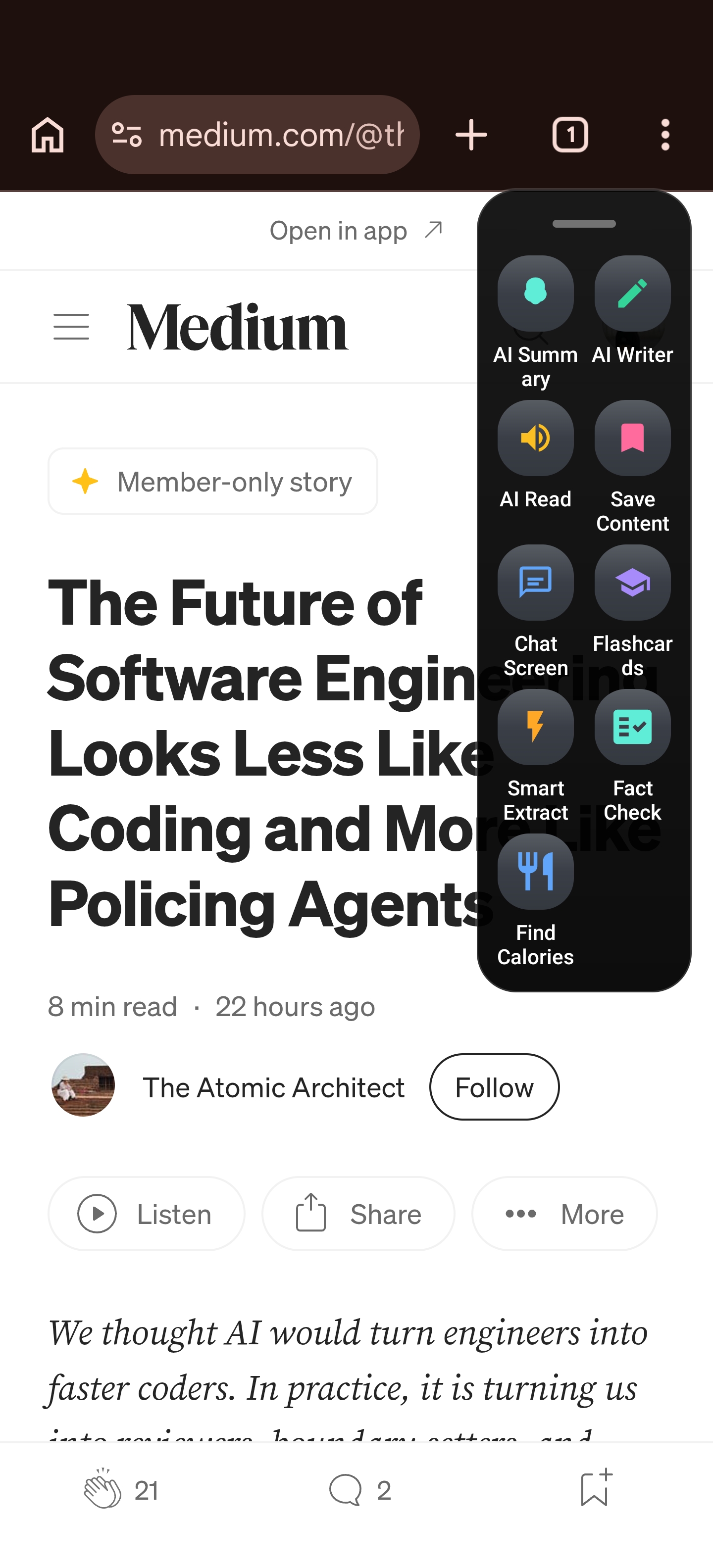
- A persistent sidebar that slides in from the edge of your screen, giving you instant access to AI tools, summaries, and quick actions.
- Custom app shortcuts so you can launch any app’s feature without digging through menus.
- AI-powered tools — summary, rewrite, reply, extract — that float right over whatever you’re doing.
- No notification required. Arc’s floating sidebar android experience is always available, not tied to an incoming message.
- Proven at scale — 28,000+ installs, ~430 daily active users, and 8,500+ monthly active users who rely on Arc’s overlay every day instead of switching apps.
Floating Sidebar vs. Bubbles: Quick Comparison
| Feature | Android 17 Bubbles | Arc Floating Sidebar |
|---|---|---|
| Trigger | Notification-based | Always available |
| Customization | Limited to supported apps | Fully customizable |
| AI tools | None | Built-in (summary, rewrite, reply, extract) |
| Size | Small card | Full sidebar panel |
| App switching | Single bubble per app | Multi-tool overlay |
| Persistent | Only with active notifications | Always on |
The point isn’t that bubbles are bad — it’s that they’re the starting point. An android floating assistant like Arc turns that starting point into a real productivity system.
Setting Up Your Android Multitasking Overlay Workflow
Whether you’re using android 17 bubbles floating window natively or pairing it with Arc, here’s how to build a multitasking workflow that actually works:
Step 1: Enable Bubbles on Your Device
If you’re running Android 17, go to Settings > Apps > Notifications > Bubbles and make sure it’s turned on. Some devices bury this under Settings > Developer Options > Bubble API. Once enabled, supported apps will start offering bubble notifications.
Step 2: Pin Your Most-Used Bubbles
Long-press a notification from a supported app and select “Pin bubble.” This keeps the bubble on your screen even after you dismiss the notification. Pin your messaging apps, task managers, or any supported tool you check frequently.
Step 3: Add Arc as Your Floating Sidebar
Download Arc from the Google Play Store and enable the floating sidebar. This gives you a slide-in panel with AI tools, custom actions, and quick-access shortcuts — all layered over whatever app you’re currently using.
Step 4: Customize Arc’s Sidebar for Your Flow
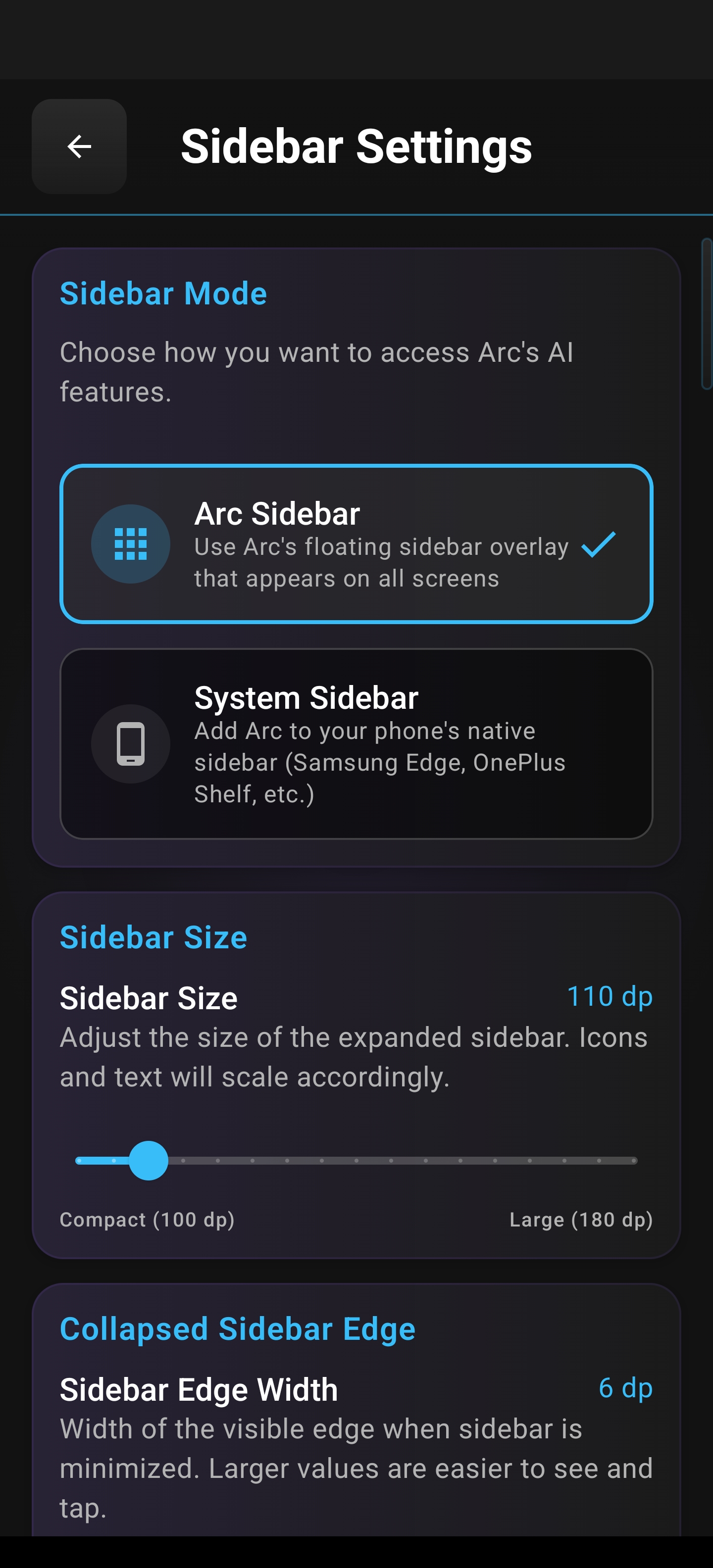
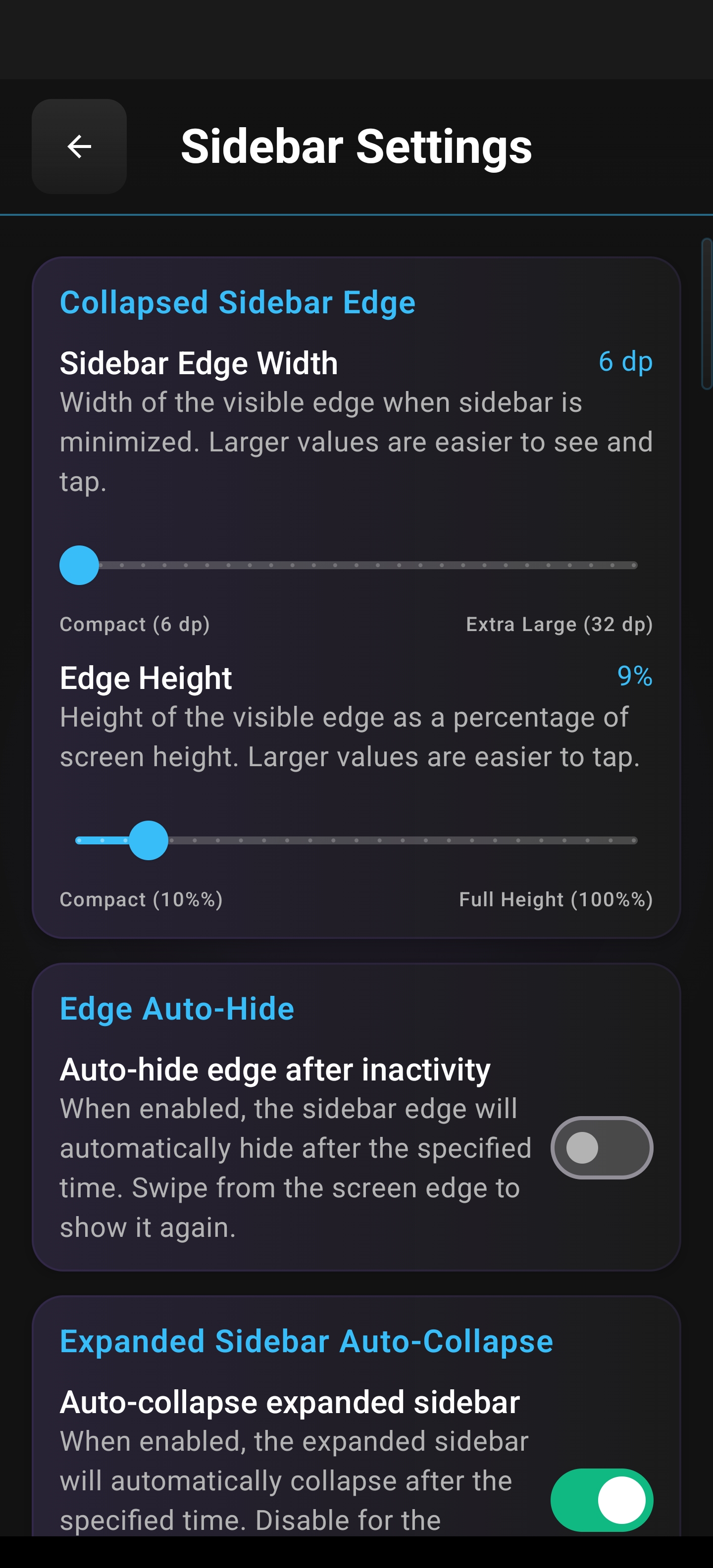
Arc lets you adjust:
- Sidebar position — left or right edge, depending on your handedness
- Trigger size — how big the edge handle is
- Auto-collapse timing — how quickly the sidebar hides after you’re done
- App-specific settings — different sidebar behavior for different apps
Step 5: Build Custom Actions for Repetitive Tasks
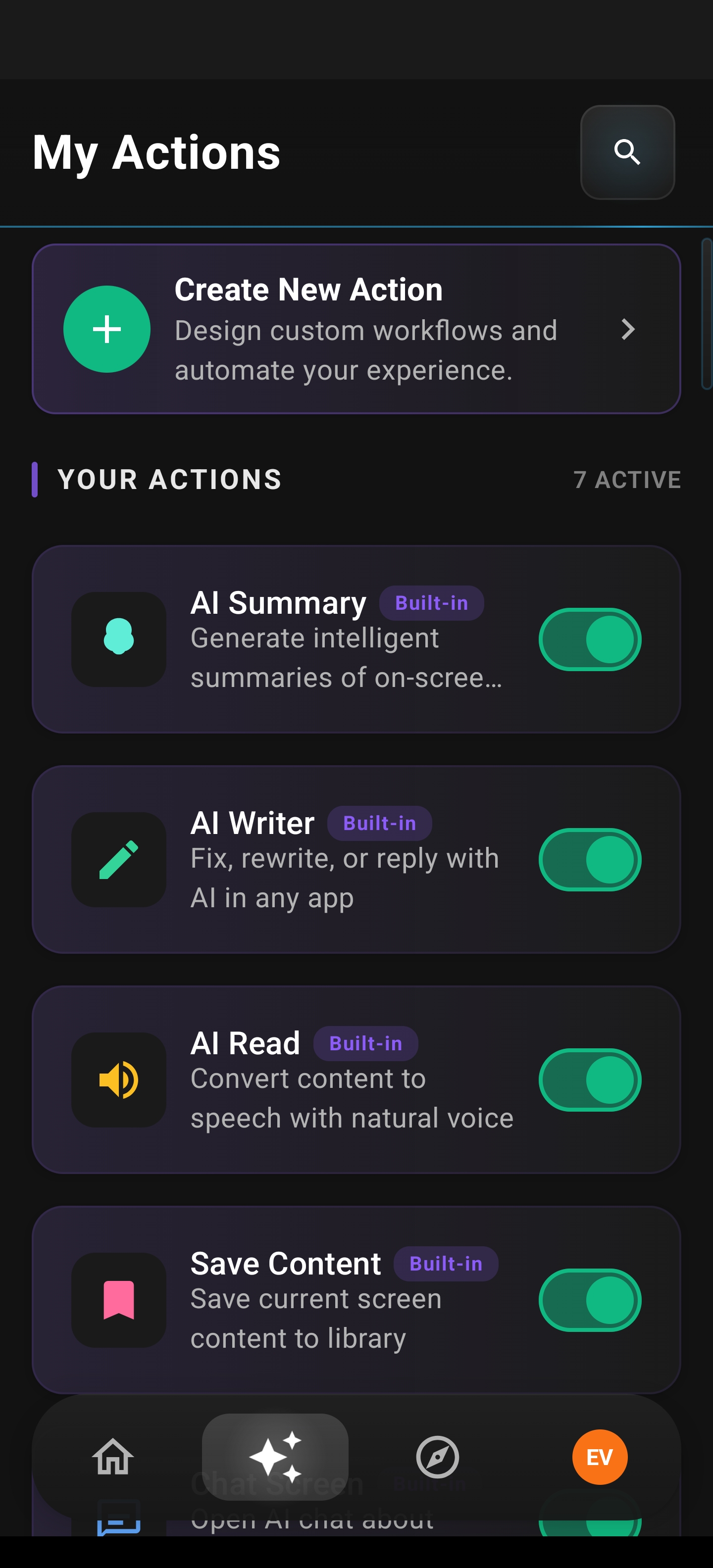
Arc’s custom actions let you create one-tap workflows. Need to fact-check something you’re reading? Create a “Fact Check” action. Want to rewrite a paragraph in a specific tone? Build a “Rewrite” action. These float over your current app, so you never lose context.
Best Floating Window Apps for Android in 2026
If you’re searching for the best floating window apps for Android in 2026, the landscape has shifted. Native android 17 bubbles handle basic floating notifications, but they lack the customization and AI tools that third-party solutions provide. Here’s how the options stack up:
If you’re looking for the best floating window apps for Android in 2026, the landscape has shifted. Native android 17 bubbles handle basic floating notifications, but they lack the customization and AI tools that third-party solutions provide. Here’s how the options stack up:
- Android 17 native bubbles — Good for message notifications, pause points, and basic app bubbles. Limited to supported apps and requires active notifications.
- Samsung Multi-Window / DeX — Solid for Samsung devices. Offers split-screen and pop-up view. Not available on stock Android.
- Arc floating sidebar — The most versatile option. Works on any Android 10+ device, includes AI tools (summary, rewrite, reply, extract), custom actions, and an always-available overlay. Consistently rated among the best floating window apps for Android in 2026.
- Floating Apps (third-party) — Basic floating browsers and notes. No AI integration, limited functionality.
For most users, the combination of android 17 bubbles (for quick notification replies) and Arc’s floating sidebar (for deep multitasking) delivers the best experience.
Real-World Use Cases for the Android Floating Assistant
Let’s move past theory. Here are five scenarios where an android multitasking overlay — whether native bubbles or Arc’s sidebar — makes a measurable difference:
1. Research While Reading
You’re reading a long article and hit a term you don’t know. Instead of switching to a dictionary app, you highlight the text and trigger Arc’s AI summary. The definition floats over your article. Done in seconds, context preserved.
2. Quick Email Replies Without Leaving Your App
A message notification pops up while you’re watching a video. With android 17 bubbles floating window, you can expand the bubble, type a quick reply, and collapse it — the video never pauses. With Arc’s AI reply tool, you can even generate a polished response without typing a word.
3. Translating On the Fly
Reading a webpage in a foreign language? Arc’s floating sidebar lets you highlight text and translate it instantly. No app switching. No copy-paste dance. The translation appears right over the original text.
4. Taking Notes in a Meeting
During a video call, use Arc’s floating sidebar to jot down action items or AI-generated summaries. The sidebar sits next to your call interface — no split-screen fumbling.
5. Filling Forms with Saved Information
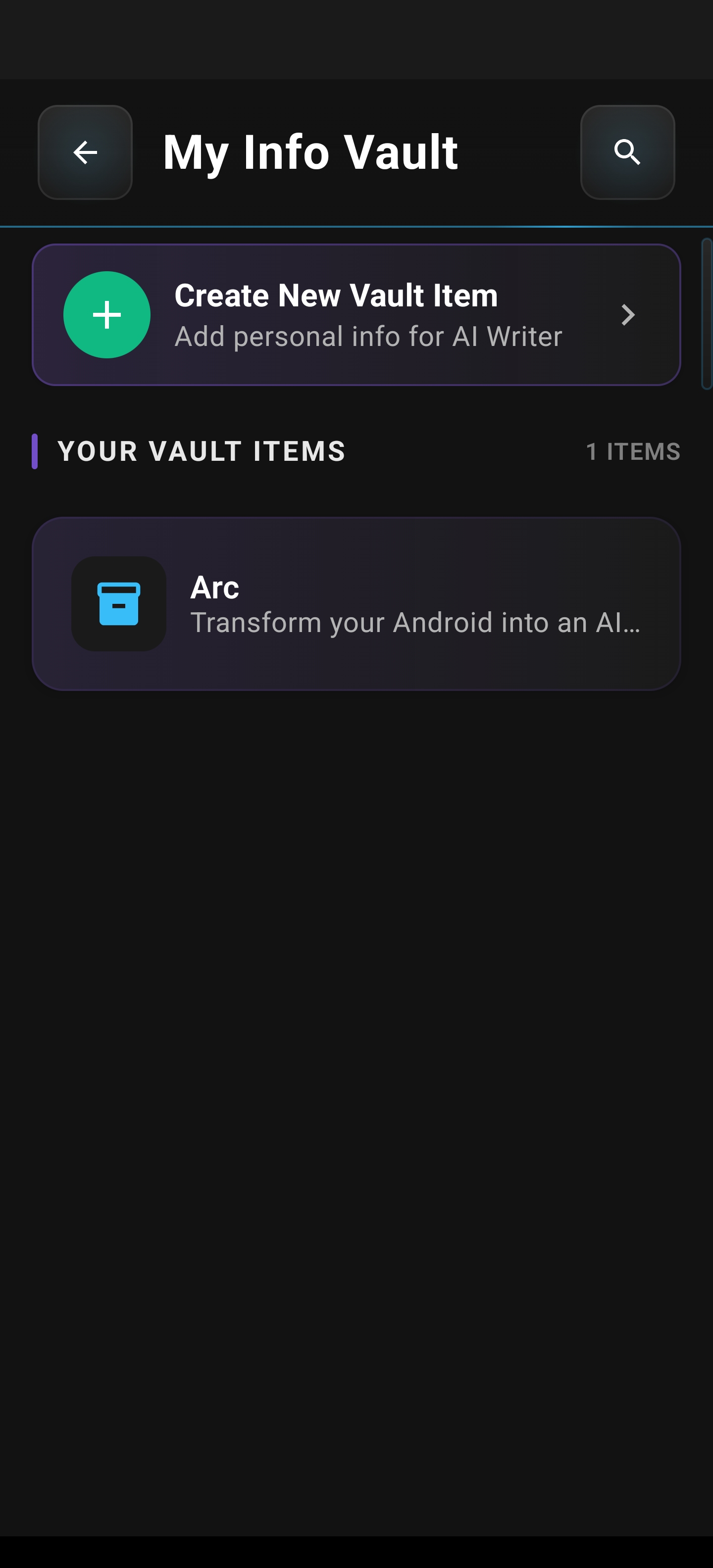
Arc’s Info Vault stores your frequently used details — addresses, account numbers, ID info. When a form needs your details, pull up the vault from the floating sidebar and paste them in. No switching to a notes app to find your own information.
The difference between “switching apps” and “overlaying tools” isn’t small. It’s the difference between losing your train of thought and staying in flow. Android 17 bubbles floating window makes overlaying possible. Arc makes it powerful.
Android 17 Bubbles vs. Third-Party Floating Assistants: What to Watch For
Not all android floating assistant tools are created equal. As you explore the multitasking overlay space, keep these considerations in mind:
Privacy and Permissions
A floating sidebar android tool has broad access — it can see what’s on your screen, read text content, and overlay UI on top of sensitive apps. Check what each tool collects and whether data stays on-device or gets sent to servers. Arc processes AI features securely and gives you control over what’s shared.
Battery Impact
Persistent overlays draw power. Look for tools that auto-collapse when not in use and minimize background activity. Arc’s auto-collapse settings help manage this — you get the overlay when you need it, and it hides when you don’t.
Compatibility with Android 17
Android 17 tightens overlay permissions. Some older floating apps may break or require re-authorization. Make sure any android multitasking overlay tool you install is updated for the latest Android version.
Customization Depth
A bubble lets you do one thing. A proper floating sidebar lets you do many things from one place. The more customizable the tool, the more useful it becomes over time. Arc’s custom actions, community actions, and AI tools give you layers of functionality that a single bubble can’t match.
What to Avoid
- Overlays that require root access — these break with OS updates and create security risks
- Tools with no privacy policy — if a company won’t tell you how they handle your data, don’t give them screen access
- Floating apps that can’t be dismissed — your overlay should serve you, not trap you on a screen
The Future of Android Multitasking Overlays
Android 17 bubbles floating window is a sign of where Android is heading. The operating system is slowly acknowledging what power users have known for years: phone screens are large enough for layered interfaces, and forcing one-app-at-a-time workflows wastes that space.
Expect future Android versions to expand overlay capabilities further — better window management, more developer APIs for floating content, and tighter integration with AI assistants. But you don’t have to wait. Tools like Arc already deliver the floating sidebar android experience that the OS is building toward.
The trajectory is clear: your phone screen is becoming a workspace, not just a viewport. The question is whether you’ll wait for the OS to get there or use a tool that’s already arrived.
Getting Started with Arc’s Floating Sidebar
If android 17 bubbles floating window sounds promising but feels limited, Arc is your next step. Here’s what to do:
- Download Arc from the Google Play Store
- Enable the floating sidebar in Arc’s settings
- Customize your position, size, and auto-collapse timing
- Add custom actions for the tasks you do most
- Try AI tools — summary, rewrite, reply, and extract — all floating over your current app
Arc works alongside Android’s native bubbles. Use bubbles for quick message replies. Use Arc’s sidebar for everything else — research, writing, translation, data extraction, and custom workflows.
FAQ: Android 17 Bubbles Floating Window
What is the android 17 pause point feature?
The pause point feature in Android 17 lets you freeze a floating bubble’s state without closing it. When you activate a pause point, the app bubble stays visible but stops consuming active resources. When you resume it, the app picks up exactly where you left off. It’s particularly useful when you need to temporarily focus on your main app but don’t want to lose your place in the floating window.
What is android 17 bubbles floating window?
It’s an updated version of Android’s Bubbles API that allows apps to display floating windows over your current screen. Unlike older implementations limited to messaging, Android 17 expands this to broader app categories with resizable, repositionable overlays.
Is android 17 bubbles floating window available on all phones?
No. It requires Android 17 (or later) and depends on the device manufacturer enabling the feature. Check your notification settings or developer options to see if it’s available on your phone.
How is Arc’s floating sidebar different from native bubbles?
Arc’s floating sidebar is always available (no notification needed), fully customizable, and includes built-in AI tools for summarizing, rewriting, replying, and extracting information. Native bubbles are notification-dependent and limited to apps that support the API.
Can I use both bubbles and Arc’s sidebar at the same time?
Yes. They serve different purposes. Bubbles work well for quick message interactions. Arc’s sidebar handles deeper multitasking — research, writing, custom workflows, and AI-powered actions.
Does Arc’s floating sidebar drain battery?
Arc is designed with battery efficiency in mind. The auto-collapse feature ensures the sidebar only draws power when actively in use. You can also adjust the collapse timing in settings to minimize battery impact.
Is Arc’s floating sidebar safe to use with sensitive apps?
Yes. Arc processes data securely and you control what information is shared. The sidebar can be configured to auto-hide in specific apps, so it won’t overlay banking or other sensitive applications if you prefer.
Conclusion: Android 17 Bubbles Floating Window Is Just the Beginning
The android 17 bubbles floating window is a meaningful step forward for Android multitasking. It proves that layered, overlay-based workflows belong on mobile — not just on desktop. But bubbles alone won’t transform how you use your phone. They’re a feature, not a system.
What actually changes your daily workflow is an android floating assistant that combines overlay access with real tools: AI summaries, custom actions, info vaults, and quick shortcuts — all floating over whatever you’re doing. That’s what Arc delivers.
If you’re tired of switching apps to do simple things, try the combination that works: android 17 bubbles floating window for quick notifications, and Arc’s floating sidebar for everything else. Your phone screen is bigger than one app. Start using it that way.
Download Arc from the Google Play Store → — or see all Arc AI Screen Assistant features