Free AI App That Summarizes, Extracts & Chats on Any Android Screen
Arc lives on top of any Android app as a floating sidebar: summarize articles, extract events and OTPs, chat with AI, draft replies in your voice, create flashcards, and transcribe calls — free to start, powered by Google Gemini. Also on macOS; Windows and iOS coming soon.
Arc AI Screen Assistant is a free Android app that works as a floating sidebar overlay on any screen. It uses Google Gemini AI to summarize articles and emails, extract events and OTP codes, chat about on-screen content, draft replies in WhatsApp or Gmail, create study flashcards, and transcribe phone calls — all without switching apps or copy-pasting. It supports Samsung Edge Panel, OnePlus Shelf, and OPPO Smart Sidebar, and includes 250 community-created AI actions in 10 languages.
AI-powered features, one swipe away
Arc AI Screen Assistant packs AI summary, screen reading, text extraction, chat, writing, flashcards, and call transcription into a lightweight floating sidebar that works in any app.
AI Summary
Get instant AI-powered summaries of any screen — articles, emails, notifications, PDFs, and more. Save, share, or listen aloud via text-to-speech. Arc reads and summarizes content so you don't have to.
Smart Extract
Automatically pull out events, reminders, deadlines, contacts, meeting links, locations, and even verification codes (OTP) from any screen — each tappable to act on. Like a screen reader that understands what matters.
AI Chat
Have a contextual conversation with AI about what's on your screen. Arc uses your screen content and screenshot as context — ask follow-up questions, get explanations, or brainstorm ideas. Save chats to revisit later.
Call Insights
Upload call recordings (M4A, MP3, WAV, and more) to get full transcripts, speaker-labeled summaries, and extracted action items. Never miss a detail from important phone calls.
AI Writer
Draft text right in any input field. Four modes: Rewrite, Fix Grammar, Reply to conversations, and Create Post — with tone and length options. Works in WhatsApp, Gmail, Slack, or any app without copy-pasting.
Flashcards
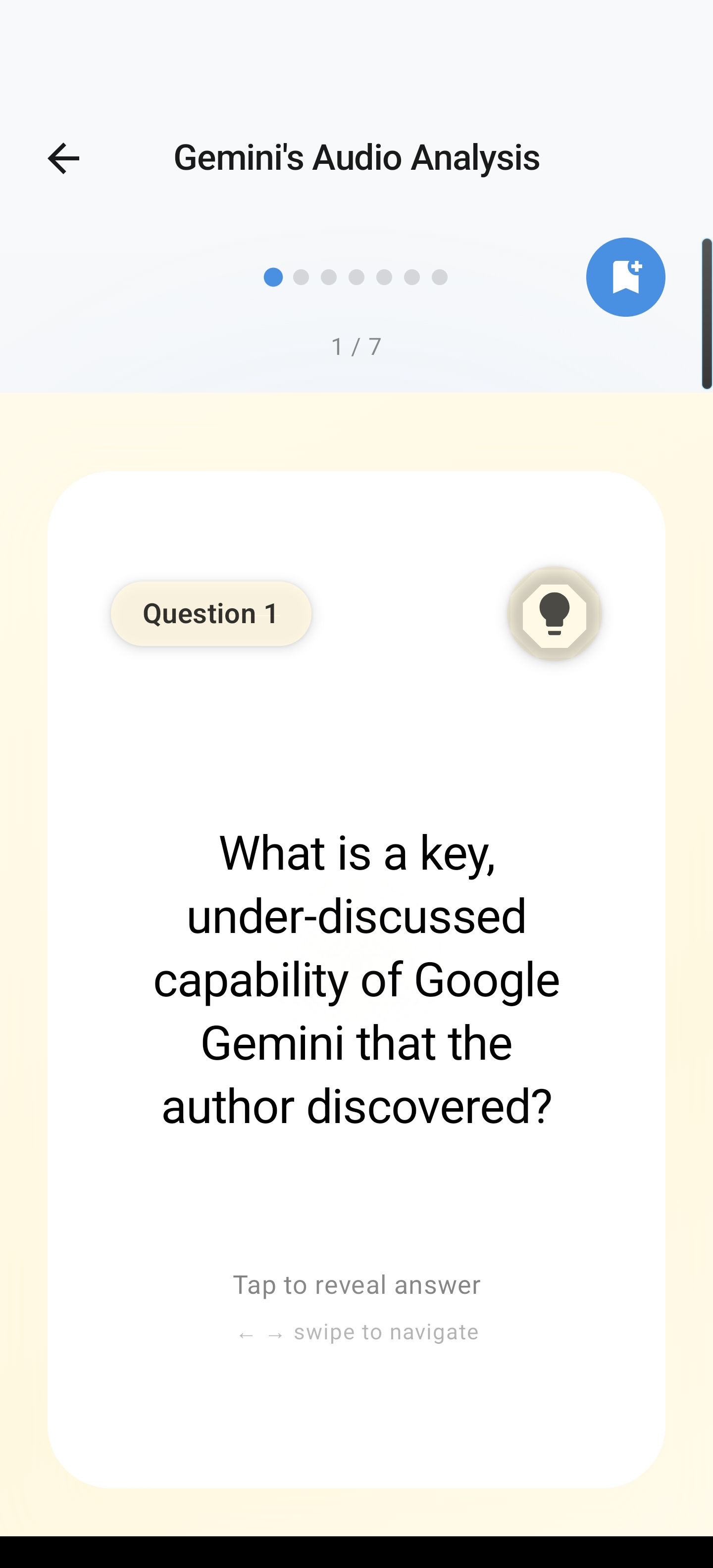
Turn any screen content into study flashcards with one tap. Swipe through them in the viewer, mark what you know, and focus on what you don't. Great for studying from textbooks, notes, or web articles.
Floating Sidebar
Swipe from the screen edge to expand Arc in any app. Drag to reposition. Choose which apps Arc appears in with per-app control. Works with Samsung Edge Panel, OnePlus Shelf, and OPPO Smart Sidebar.
Custom Actions
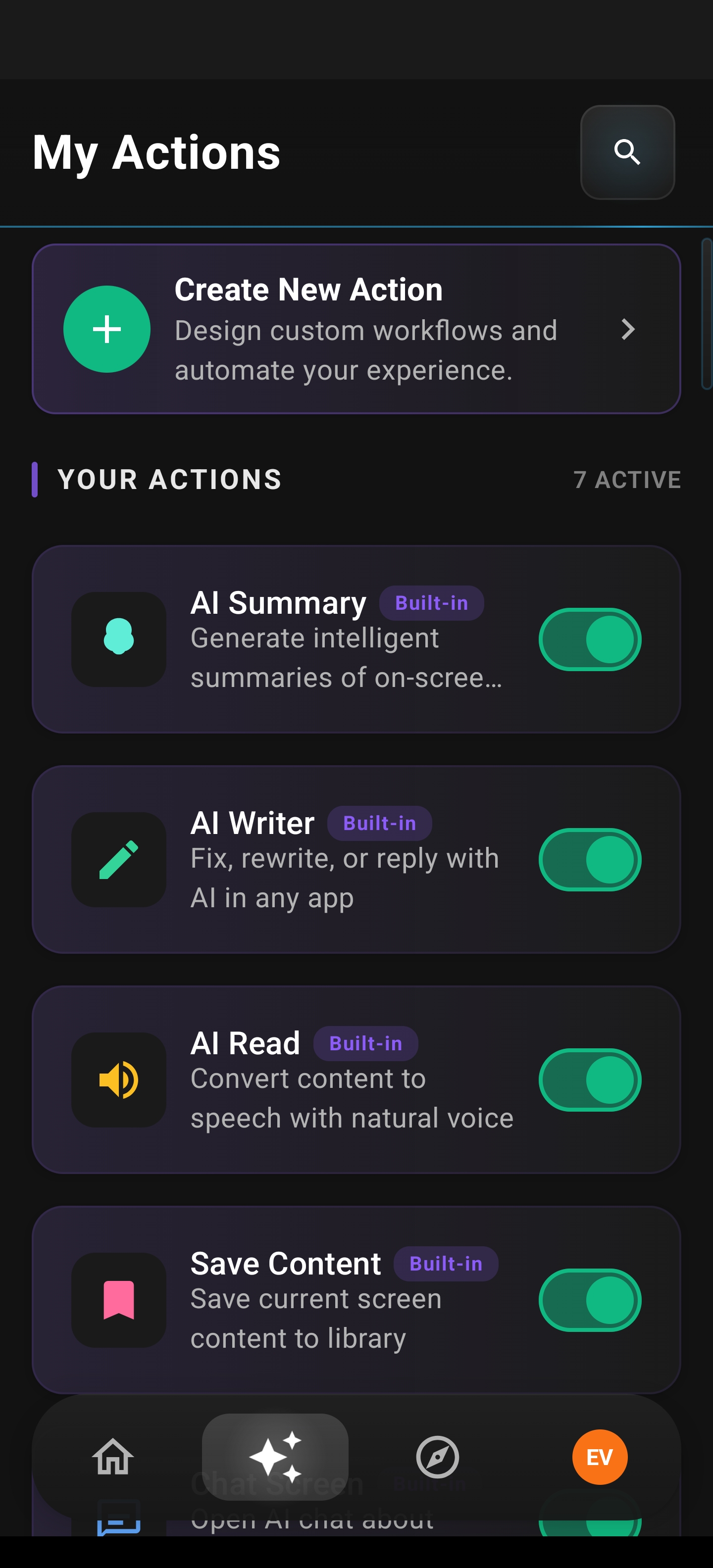
Create your own AI actions with custom prompts, or browse 250 community actions across 16 categories — with upvoting and search.
AI Read
Listen to a summary of any screen. Arc reads and summarizes the content, then plays it back via text-to-speech — perfect for multitasking, commuting, or when reading isn't convenient.
Save Content
Save any screen to your library with a single tap — with optional screenshots. Build a personal knowledge base without generating a summary. Save articles, messages, or anything you want to revisit later.
Community Actions
Browse and add AI actions created by the community. Discover workflows for productivity, writing, translation, and more — available in 10 languages including English, Spanish, Japanese, Korean, and Arabic.
Info Vault
Store reusable personal details that AI Writer pulls from automatically. Define items like "About me", "My role", or "Writing preferences" to personalize drafts and replies across any app.
Explore each feature
Deep-dive into what Arc can do for you.
Want to learn every detail?
Read our complete feature documentation with step-by-step guides and flows.
Set up Arc in seconds
No complex setup — just install, grant permissions, and start using AI on any screen.
Install & Set Up in Minutes
Download Arc from Google Play and grant accessibility and overlay permissions. Arc walks you through an interactive tutorial with demos of every feature.
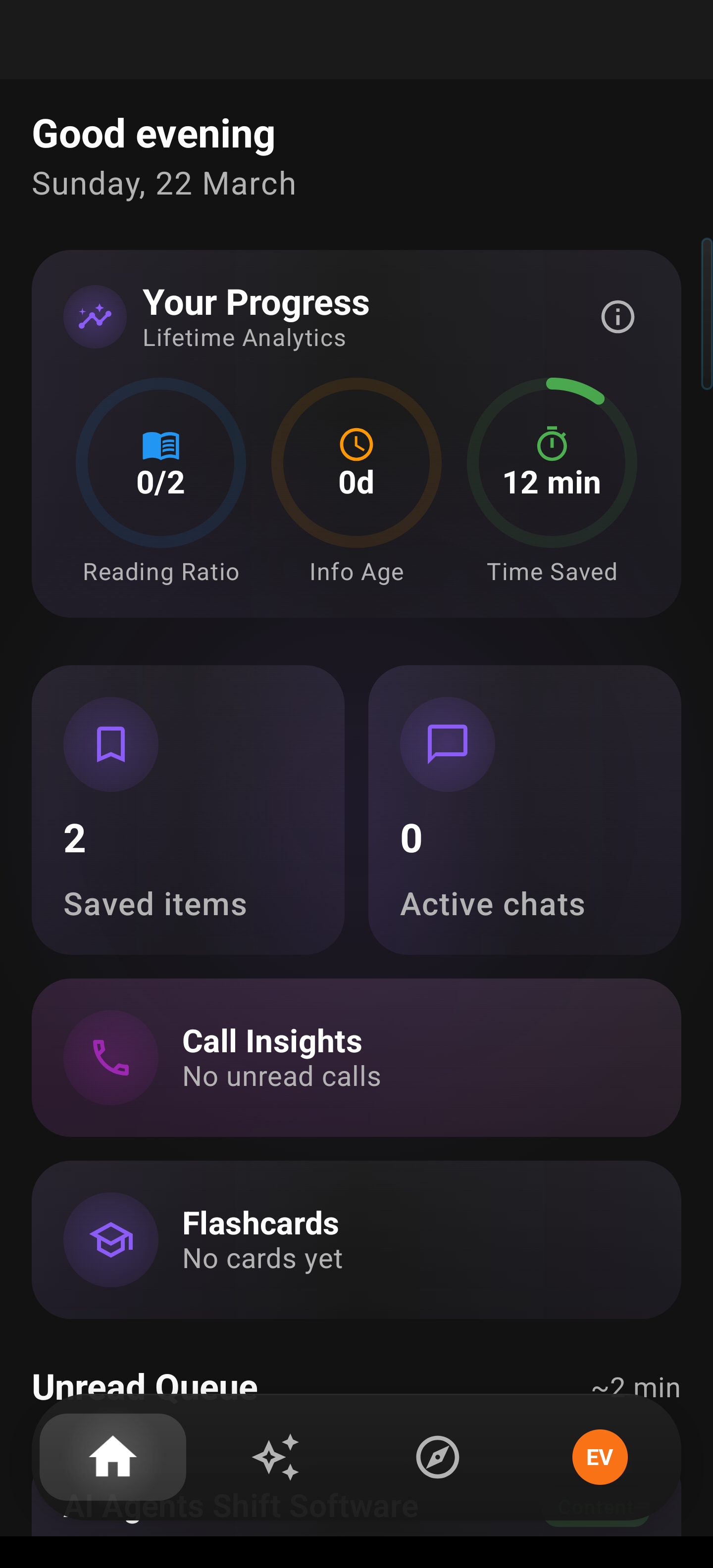
Swipe to Open the Sidebar
A floating bar sits on the edge of your screen in any app. Swipe inward to expand it and see all your AI actions. Drag it to reposition anywhere along the edge.
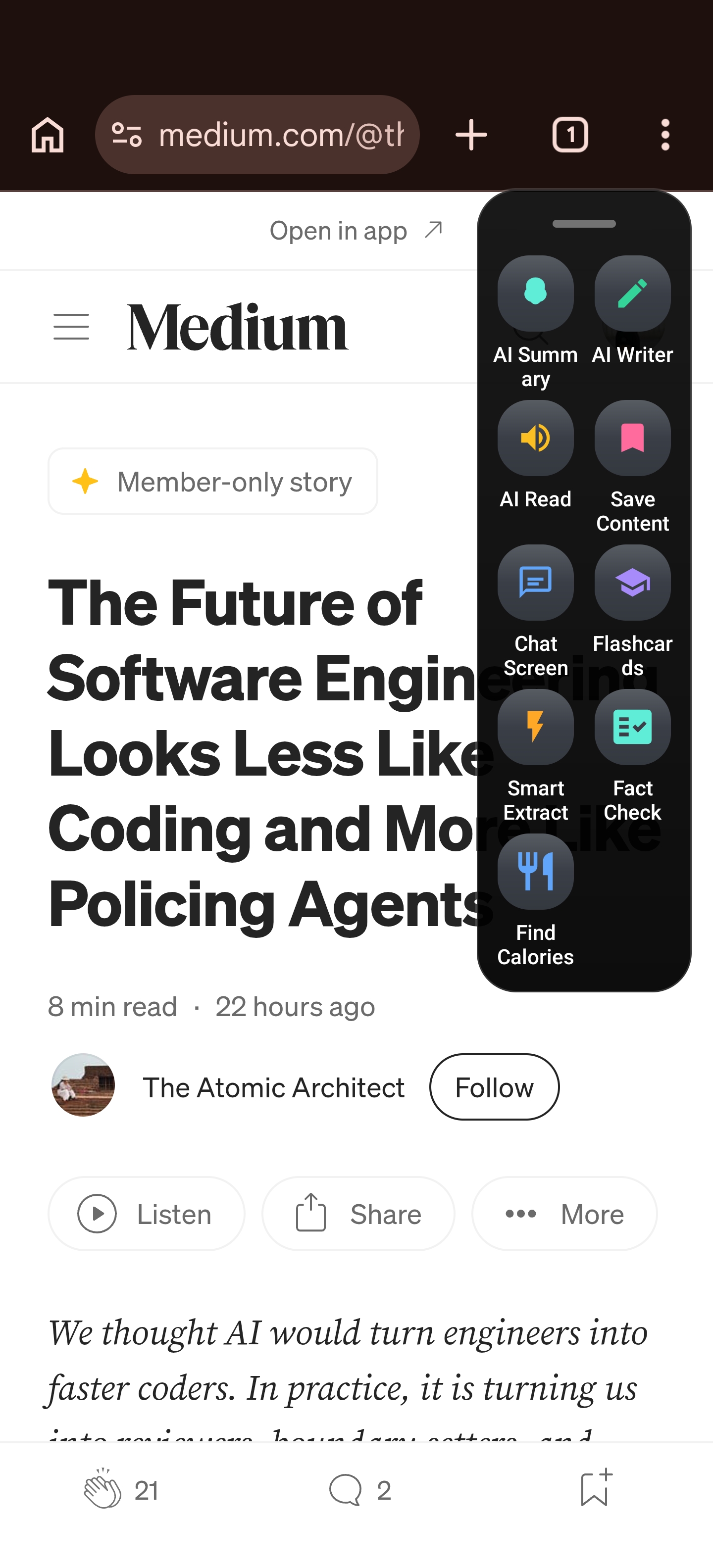
Summarize or Listen Aloud
Tap AI Summary for a concise text summary with categories, or tap AI Read to hear a summary via text-to-speech while you do other things. Save, share, or ask follow-up questions.
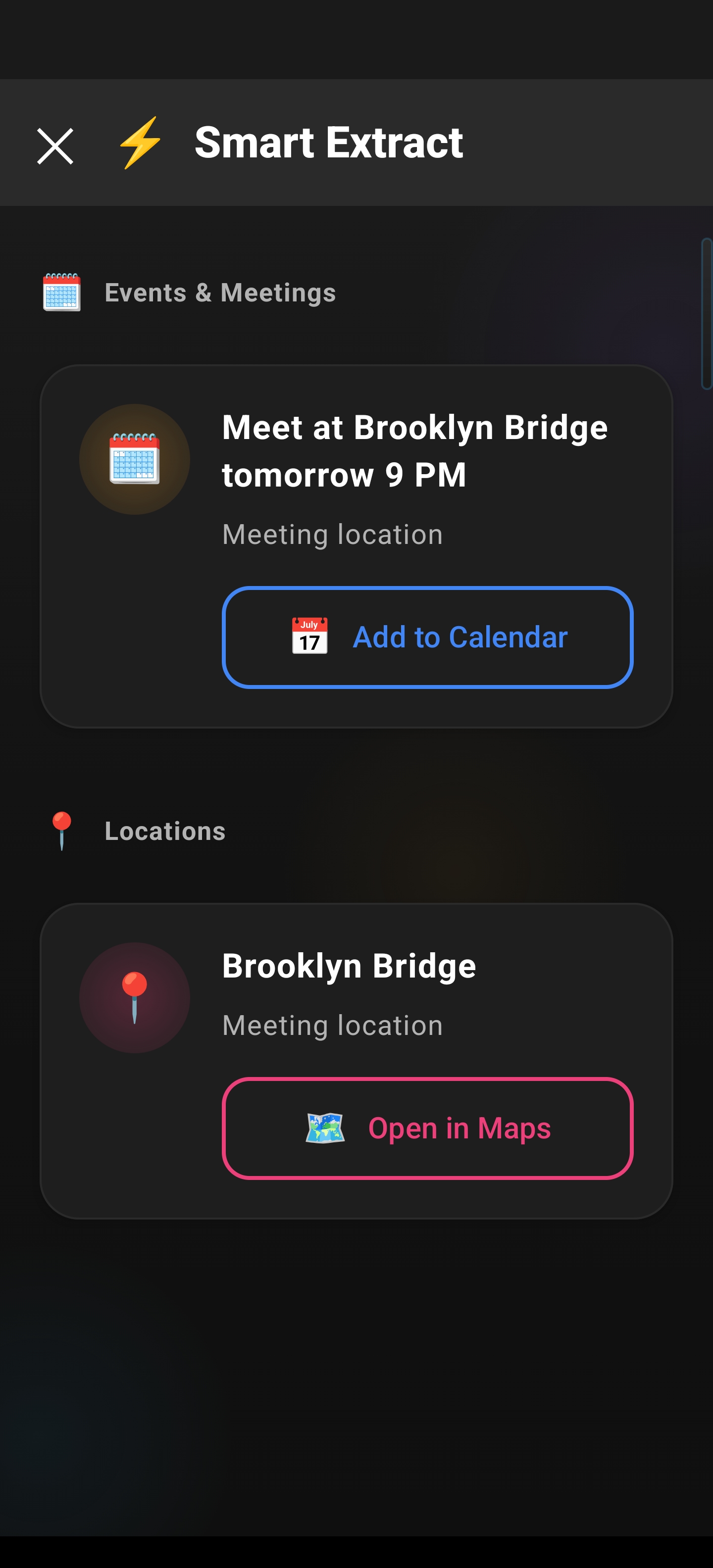
Extract, Chat & Write
Use Smart Extract to pull out events, deadlines, contacts, and OTPs into categorized, tappable results. Open AI Chat for follow-up questions. Use AI Writer to draft text in four modes: Rewrite, Fix Grammar, Reply, or Create Post.
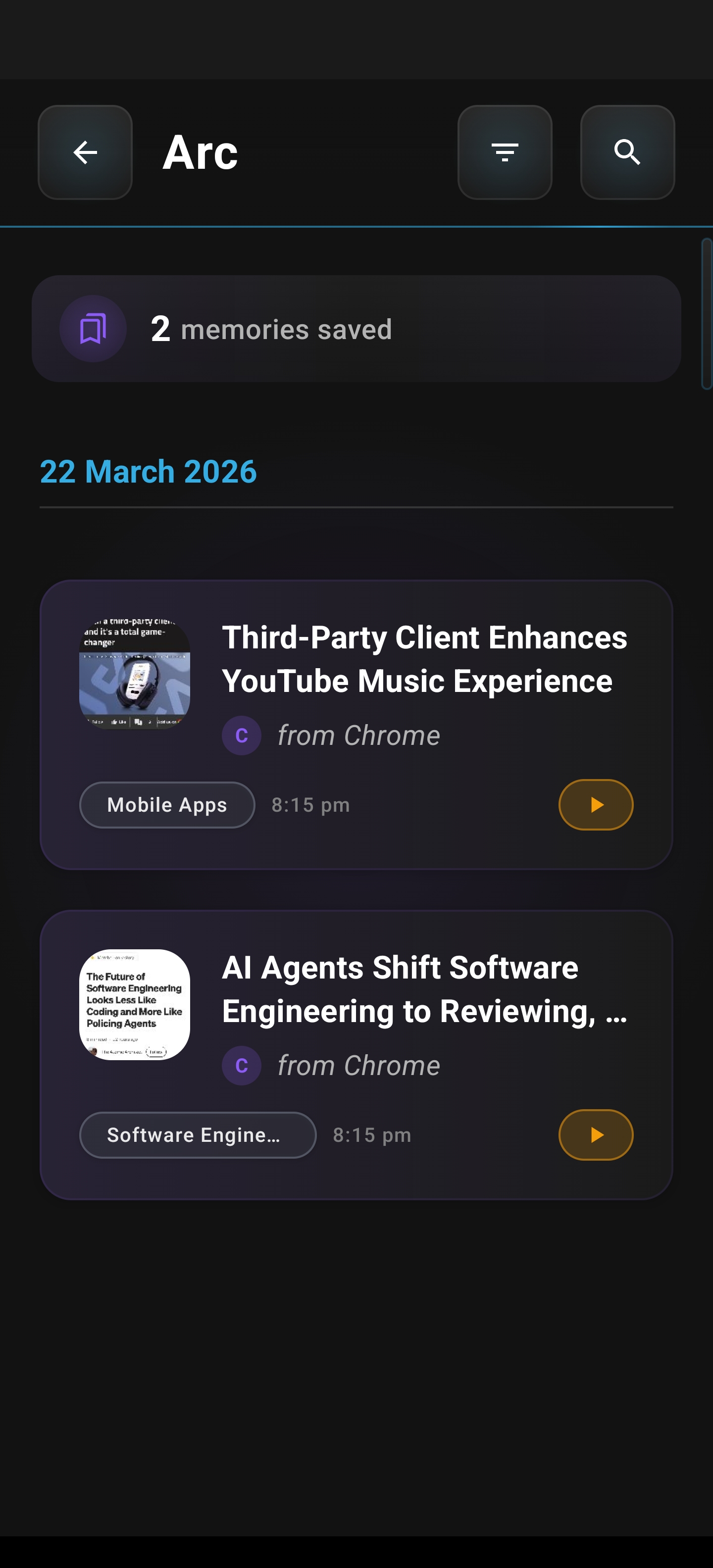
Create Flashcards & Save Content
Turn any screen content into study flashcards and swipe through them in the viewer. Or tap Save to add content to your library with optional screenshots — build a personal knowledge base.
Customize with Actions & Info Vault
Create your own AI actions with custom prompts, or browse 250 community actions across categories like productivity, writing, and translation. Set up your Info Vault so AI Writer personalizes drafts with your details.
Frequently asked questions
What is Arc AI Screen Assistant?
How do I use an AI assistant on my Android screen?
Is Arc free to use?
Does Arc work with all Android apps?
Is my data private and secure?
What Android version do I need?
How is Arc different from other AI assistants?
Does Arc work with Samsung Edge Panel, OnePlus Shelf, or OPPO Smart Sidebar?
What AI model does Arc use?
Can I create my own AI actions?
What audio formats does Call Insights support?
Does Arc support multiple languages?
Try Arc AI Screen Assistant today
Download free from the Google Play Store. Summarize, extract, chat, write, and create flashcards — all without switching apps.
Download on Google Play