Taming Digital Overwhelm with Arc AI
Managing digital noise with ADHD is a challenge. Arc's AI screen assistant helps filter, summarize, and focus on what matters. Free to try.
For those with ADHD, the modern digital experience is often less about utility and more about cognitive overload. Every webpage, article, and notification represents a potential demand on our limited executive function. This “executive function tax”—the mental energy required to parse, categorize, and act on digital information—can quickly lead to burnout.
I know this firsthand. As an indie developer building tools for neurodivergent users, I have lived the cycle: open a browser for one thing, get pulled into three tangents, and emerge 45 minutes later wondering what I originally came for. That is not a discipline problem—it is an architecture problem. The digital world is not built for ADHD brains.
Over 28,000 Android users across 50+ countries are now using Arc to push back against that architecture. Every month, they generate more than 3,000 AI summaries and start 1,800+ Read Aloud sessions — proof that when you reduce the friction between intent and action, people actually use the tools instead of abandoning them.
At Rethink, we built Arc: AI Screen Assistant to act as a supportive layer for your Android experience, specifically designed to help offload that cognitive burden. Here is how it helps you manage your digital environment.
Reducing Analysis Paralysis with AI Summary
One of the most common hurdles for neurodivergent users is “analysis paralysis”—where the sheer volume of text on a page makes it difficult to even begin reading. Arc solves this by distilling complex pages into clear, actionable summaries. You no longer have to scan walls of text to find the core message.
By instantly surfacing the key takeaways, Arc allows you to decide if a page is worth your attention without expending the mental energy to read the entire document first. It turns an overwhelming wall of text into a manageable, digestible insight, allowing you to move forward with confidence.
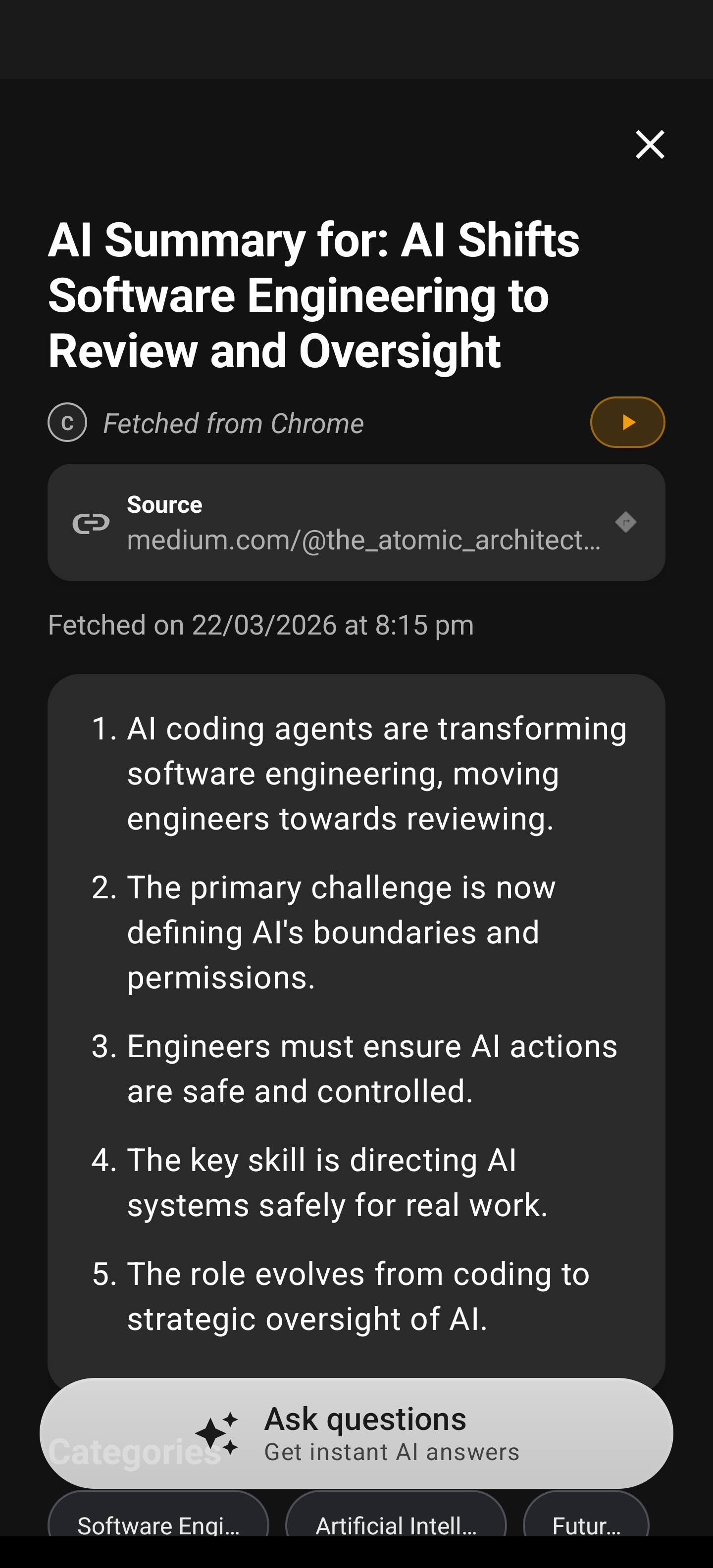
A Real Workflow: Research Without the Spiral
Here is how I use AI Summary during a typical research session. Say I am looking into “ADHD-friendly productivity methods” and my search returns ten results. Without Arc, I would open all ten tabs, start skimming the first one, get distracted by a sidebar link, and 30 minutes later have read half of one article and nothing else.
With Arc, the workflow changes entirely:
- Open the first result and trigger AI Summary from Arc’s floating sidebar.
- Read the 3-4 bullet point summary — does this page actually have what I need?
- If yes, I dive in. If not, I move on in seconds, not minutes.
- Repeat for each result until I find the right source.
What used to take 30 minutes of unfocused skimming now takes 5 minutes of decisive evaluation. The summary is not a replacement for reading—it is a triage tool that respects your limited attention budget.
When AI Summary Shines Most
- News articles — Get the facts without the editorial padding
- Long-form Wikipedia entries — Extract the key points from 4,000-word entries
- Product documentation — Quickly decide if a doc covers your specific question
- Reddit threads — Skip the jokes and get to the actual advice
- Academic papers — Surface the abstract, methodology, and conclusions without wading through the entire PDF
Offloading Strain with AI Read (TTS)
Sometimes, the issue isn’t comprehension—it’s the physical and mental strain of visual tracking. For users with ADHD who struggle with focus, reading large blocks of text can lead to fatigue. AI Read (TTS) allows you to offload this strain by listening to content while you are on the move or multitasking. By converting long-form articles into audio, you can consume information in a lower-effort, passive way, preserving your focus for when you truly need it.
Why Reading Is Not Always the Answer
If you have ADHD, you probably know the feeling: your eyes are tracking across the page, but your brain has checked out three paragraphs ago. You reread the same sentence four times. You reach the bottom of a page and realize you retained nothing. This is not laziness—it is eye fatigue compounding attention fatigue. When your visual processing is already strained, adding more reading demand just deepens the cognitive hole.
AI Read converts that text into speech so you can listen instead of strain. It is the difference between forcing yourself through a wall and walking around it.
My Favorite Read Aloud Scenarios
- Morning news catch-up — I open a few articles, hit Read Aloud, and listen while I make coffee. No screen time before my brain is ready for it.
- Walking meetings with myself — When I need to process a long document, I play it through Read Aloud during a walk. The combination of movement and audio somehow helps me retain more than sitting at a desk.
- Cooking and learning — Recipes, how-to guides, cooking blogs. I prop my phone on the counter and let Arc read the steps while my hands are busy.
- Bedtime reading without blue light — Instead of doomscrolling before sleep (we all do it), I queue up an interesting article and listen with the screen off. Better sleep hygiene, same great content.
Tips for Getting the Most from Read Aloud
- Pair it with AI Summary first — Summarize to decide if the article is worth listening to, then Read Aloud for the deep dive.
- Use it for revision — If you wrote something and need to proofread, hearing it read back catches errors your eyes skip over.
- Long-form newsletter emails — Open that 2,000-word Substack in the browser, and let Arc read it while you reply to other messages.
Eliminating the Executive Function Tax
Beyond reading, the real tax comes from acting on data. When you find an address, a phone number, or a calendar event, extracting that info and moving it to the right place is where executive function often fails. Smart Extract automates this process, pulling data out of the messy web and into structured formats.
With Smart Extract, you don’t need to manually copy-paste or switch between apps repeatedly. Arc identifies the essential data automatically, effectively removing the friction between “seeing” the information and “using” it. It is about creating a path of least resistance for your daily tasks.
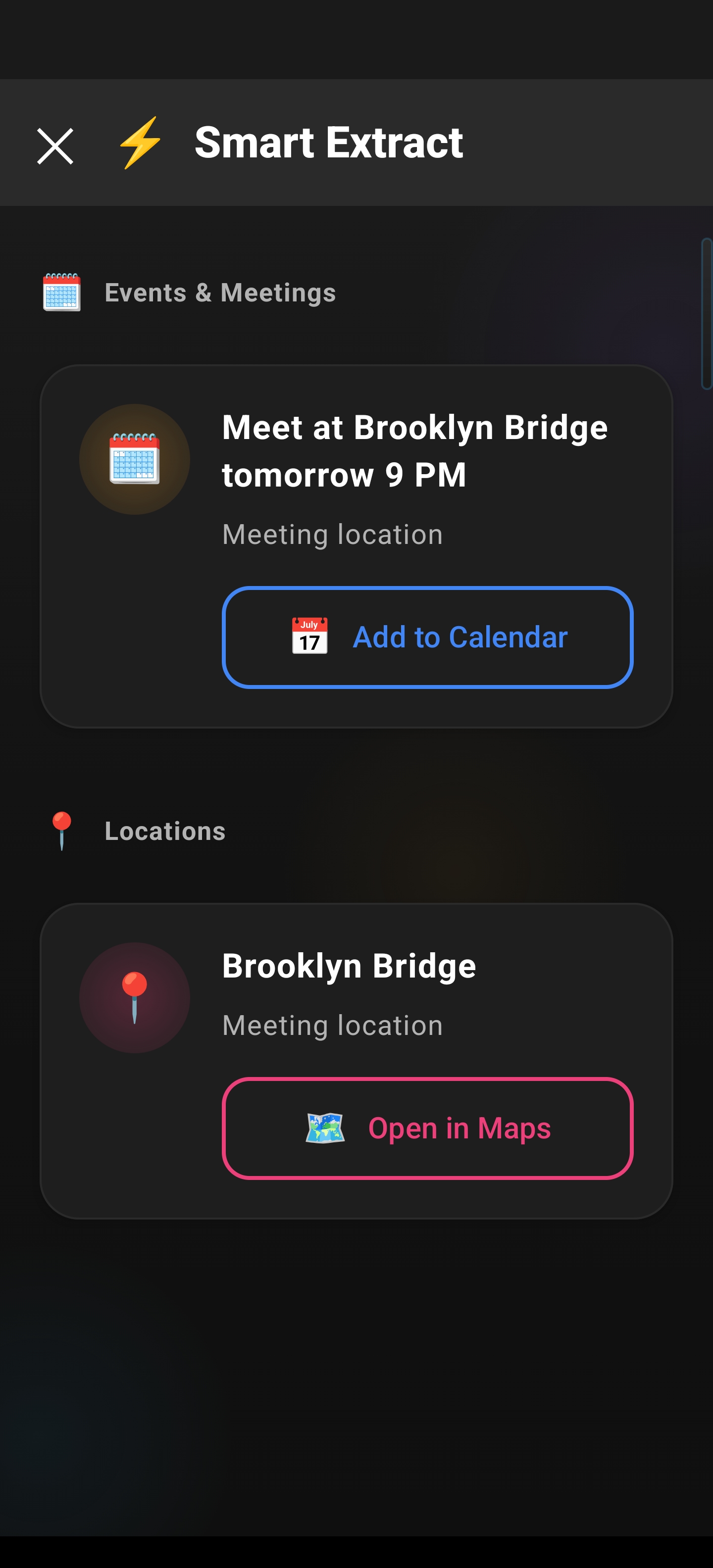
The Notification Nightmare: A Smart Extract Workflow
Notifications are one of the biggest sources of digital overwhelm for ADHD brains. Your phone buzzes, you open it, and you are hit with a cascade: a delivery OTP, a calendar invite, a promo code, a friend’s new phone number. Each one requires a different action in a different app. The context switching alone is exhausting.
Here is how I handle notification chaos with Smart Extract:
- OTP arrives via SMS — Arc detects the code and offers to copy it with one tap. No switching to Messages, finding the code, manually copying it, switching back.
- Calendar invite in an email — Arc extracts the date, time, and location. I can save it directly without opening my calendar app and manually typing everything.
- Friend sends an address — Arc identifies it as a location and offers to open it in Maps. No copy-paste dance between WhatsApp and Google Maps.
- Promo code in a shopping notification — Arc spots the code and copies it to my clipboard, ready to paste at checkout.
Each of these saves maybe 15-20 seconds. But when you process 30-40 notifications a day (and if you have ADHD, you probably get more), that is 10-13 minutes of friction eliminated daily. Over a month, that is over 5 hours of reduced context switching. The real win is not the time—it is the mental energy you stop spending on trivial logistics.
Smart Extract for Everyday ADHD Scenarios
- Restaurant menus — Extract the address and phone number without scrolling through a whole website
- Event listings — Pull event details directly into your calendar
- Flight confirmations — Grab booking references, terminal info, and times
- Product comparison pages — Extract prices and specs side by side without tab-juggling
Your External Brain: The Unread Queue
Finally, the Unread Queue acts as your “external brain.” Instead of keeping 50 tabs open “just in case” you need to read them later—a common habit that exacerbates visual clutter and anxiety—you can offload those links to Arc. It preserves your peace of mind, knowing that your interesting finds are safely stored, categorized, and ready for when you actually have the bandwidth to engage with them.
Why Tab Hoarding Is an ADHD Trap
I used to be a 60-tab person. My browser was a graveyard of “I’ll read this later” links that I never read because I could never find them again. Every tab was a micro-decision I was deferring, and each one added a tiny weight to my cognitive load. Opening my browser felt like walking into a messy room—I knew the information was there somewhere, but the clutter made me want to close the whole thing and start over.
The Unread Queue breaks this cycle. When I find something interesting but do not have the bandwidth right now, I send it to Arc’s queue instead of leaving it open. The tab closes. The mental weight lifts. And when I do have time—maybe on a Saturday morning with coffee—I open the queue and actually read things in a calm, focused way.
Building a Healthy Queue Habit
- When you find something interesting, save immediately — Do not tell yourself “I’ll remember to come back.” You will not. One tap to save, one tap to close the tab.
- Set a regular “queue time” — I do 30 minutes on weekend mornings. It is low-pressure browsing with intention.
- Prune weekly — If something has been in your queue for more than two weeks, ask yourself: do I still care? If not, remove it. Your queue should feel curated, not overwhelming.
- Summarize before committing — Use AI Summary on saved articles before reading the full version. If the summary does not grab you, delete without guilt.
Putting It All Together: An ADHD-Friendly Digital Day
Here is what a focused day looks like when you combine all of Arc’s tools:
Morning (Low friction)
- Wake up, grab coffee. Open news sites, use AI Summary to triage 5-6 articles in 10 minutes instead of 45.
- Process overnight notifications with Smart Extract—OTPs, calendar invites, and addresses handled in seconds.
Midday (Deep work)
- Research task at hand. Open results, summarize first, read only what matters.
- Hit a wall with focus? Switch to Read Aloud for the remaining articles and listen while taking a short walk.
Evening (Wind down)
- Interesting links from group chats and social feeds? Save to the Unread Queue and close the tabs. No guilt, no clutter.
- Before bed, listen to one queued article with Read Aloud. Screen off, brain engaged, then sleep.
The pattern is simple: summarize to decide, extract to act, listen when reading fails, save when you cannot engage now. Four tools, one consistent philosophy—reduce the cognitive cost of every digital interaction.
Download Arc Today
Managing cognitive load shouldn’t feel like a full-time job. With Arc: AI Screen Assistant, you can start reclaiming your focus. Arc is free to try—download it, run through a few of the workflows above, and see how much lighter your digital life feels.
Frequently Asked Questions
How does Arc help with digital overwhelm and ADHD?
Arc reduces cognitive load by summarizing content, reading screens aloud, and extracting action items — all from a floating sidebar that doesn’t require switching apps. Less context-switching means less overwhelm.
Can Arc filter my notifications?
Arc doesn’t change notification settings, but Smart Extract identifies the actionable items in your notifications (OTPs, events, contacts) so you can process them quickly instead of reading everything.
Is Arc’s ADHD-friendly approach based on research?
Arc’s design follows principles from ADHD productivity research: reducing context switching, minimizing steps to completion, and providing clear actionable output rather than information overload.
Download Arc on the Google Play Store
Frequently Asked Questions
Does Arc require a subscription? Arc is free to try with premium features available. Check the Play Store listing for the latest pricing and feature details.
Is Arc a browser? No. Arc is an AI Screen Assistant that functions as an overlay on your Android device, helping you interact with apps and content, not a standalone browser.
How does Arc protect my privacy? We prioritize your data privacy. Arc processes information locally where possible to ensure your personal data remains on your device.
Need Accessibility Tools for Android?
Arc includes built-in accessibility features for ADHD, dyslexia, and neurodivergent users — all in one floating sidebar. Explore Arc’s accessibility tools →