Personal AI Assistant: 5 Tests Before You Trust One
Most personal AI assistants are chatbots in a separate app. 5 tests show what a real one does, with Arc usage data. Free on Android and Mac.
Personal AI Assistant: 5 Tests Before You Trust One
I counted last week. Between the moment I picked up my phone in the morning and the moment I put it down for lunch, I had copied text out of an app and pasted it into an AI chat window eleven times. Eleven. Each one meant leaving what I was doing, opening another app, pasting, waiting, copying the answer, and switching back.
That is the quiet failure of most things sold as a personal AI assistant. They are personal in the sense that you have an account. They are not personal in the sense that they know what is in front of you right now.
Arc is the app I build and use, so I will be upfront: this post scores Arc too, and it does not pass every test. The numbers come from Arc’s own analytics for Oct 9 to Nov 8, 2026: 7,495 monthly users, roughly 21,200 AI requests, and over 11,000 chat messages. Arc is live on Android, macOS and Windows, with iOS coming soon.
Why “personal” is the wrong word to trust
Search for a personal AI assistant and you will find three very different products under one name:
- A chatbot with memory. It remembers your name and preferences, but you have to bring it the content.
- A voice assistant. It controls timers and smart lights, and struggles with anything that needs reading comprehension.
- A screen-aware assistant. It works on what you are already looking at, inside the app you are already in.
The first two are fine products. They just do not solve the eleven-pastes problem. The five tests below are how I tell which kind I am looking at.
Test 1: Does it work where you already are?
For me this is the test that matters most. Open your messaging app, an article, or an email. Can the assistant help without you leaving?
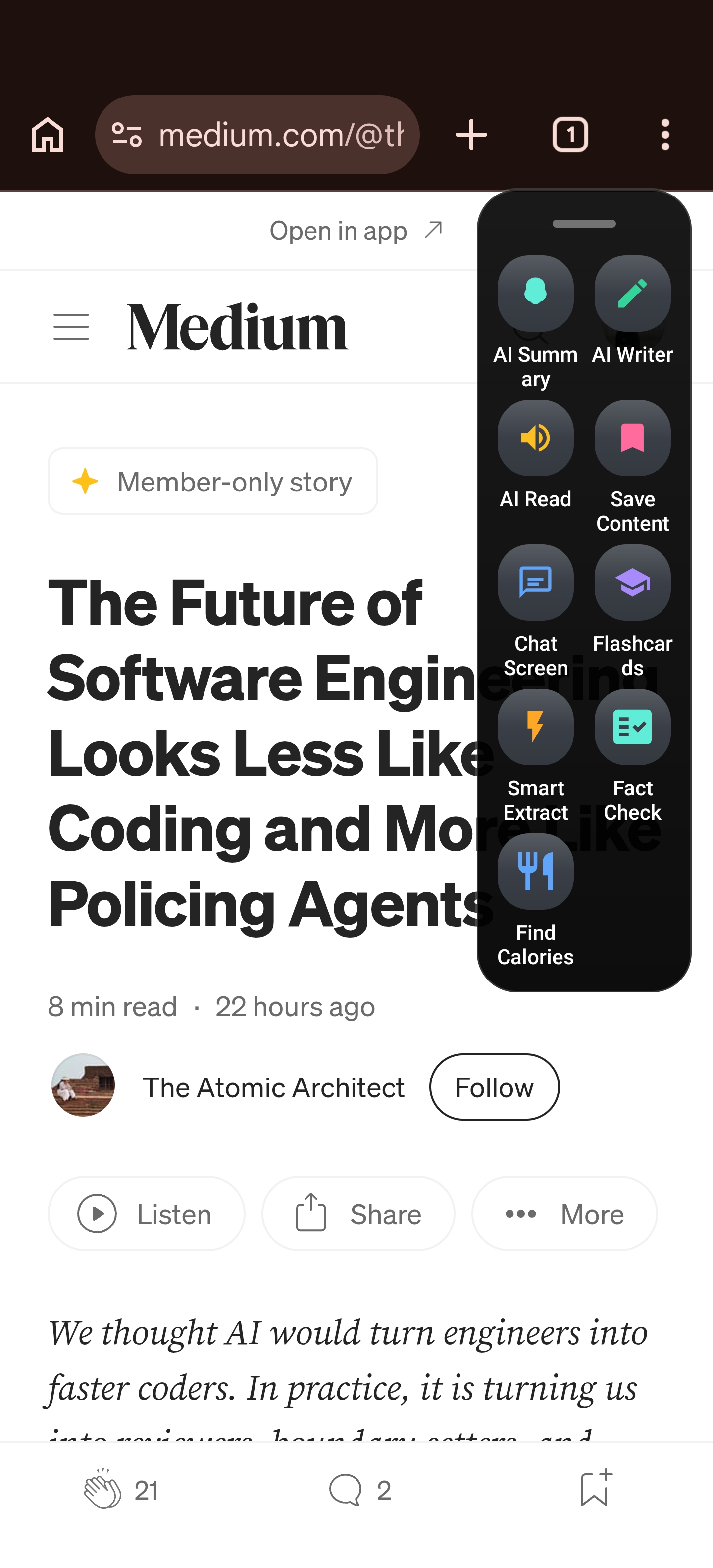
On Android, Arc answers this with a floating sidebar that sits over most apps. You tap it, pick an action, and the result appears on top of the thing you were reading. On macOS and Windows, the same job is done with a hotkey and the Arc menu.
Here is the number that convinced me this is how people want to use an assistant: the sidebar was opened 103,013 times by 4,307 people in 30 days. That is about 24 opens per person, which is not what happens with a feature people try once and forget.
If an assistant fails this test, the rest hardly matters, because you will stop reaching for it. For a deeper look at this one, see why every Android assistant makes you leave your app.
Test 2: Can it read the screen without being asked to watch it?
A useful assistant needs context. A creepy one watches everything. The test is whether it reads the screen only when you tell it to.
Arc reads nothing until you tap an action. On Android, tapping Chat Screen captures the visible text through Android’s Accessibility Service and notes which app it came from. No screenshot is taken unless you choose to attach one.
Then it opens a chat with the original text as the first message, labelled “Original Context”, so you can see exactly what the AI was given. That is a small design choice and a big trust signal.
In practice, I use it like this:
- I am reading a long vendor email with three different deadlines buried in it.
- I tap the sidebar and choose Chat Screen.
- I type “which of these dates do I actually have to act on?”
- I get a direct answer, then ask a follow-up without re-reading.
Chat sessions are common in the data: 11,727 sessions started by 1,392 people, with 11,070 messages sent. That works out to roughly eight messages per chatting user, which tells me people are having real back-and-forth conversations, not asking one question and leaving.
I wrote up the full flow in chat with AI about what’s on your screen.
Test 3: Does it know you without re-explaining yourself?
The second thing that makes an assistant feel personal is that it can write as you. That means knowing your address, your job title, your standard reply to a recruiter, the way you sign off.
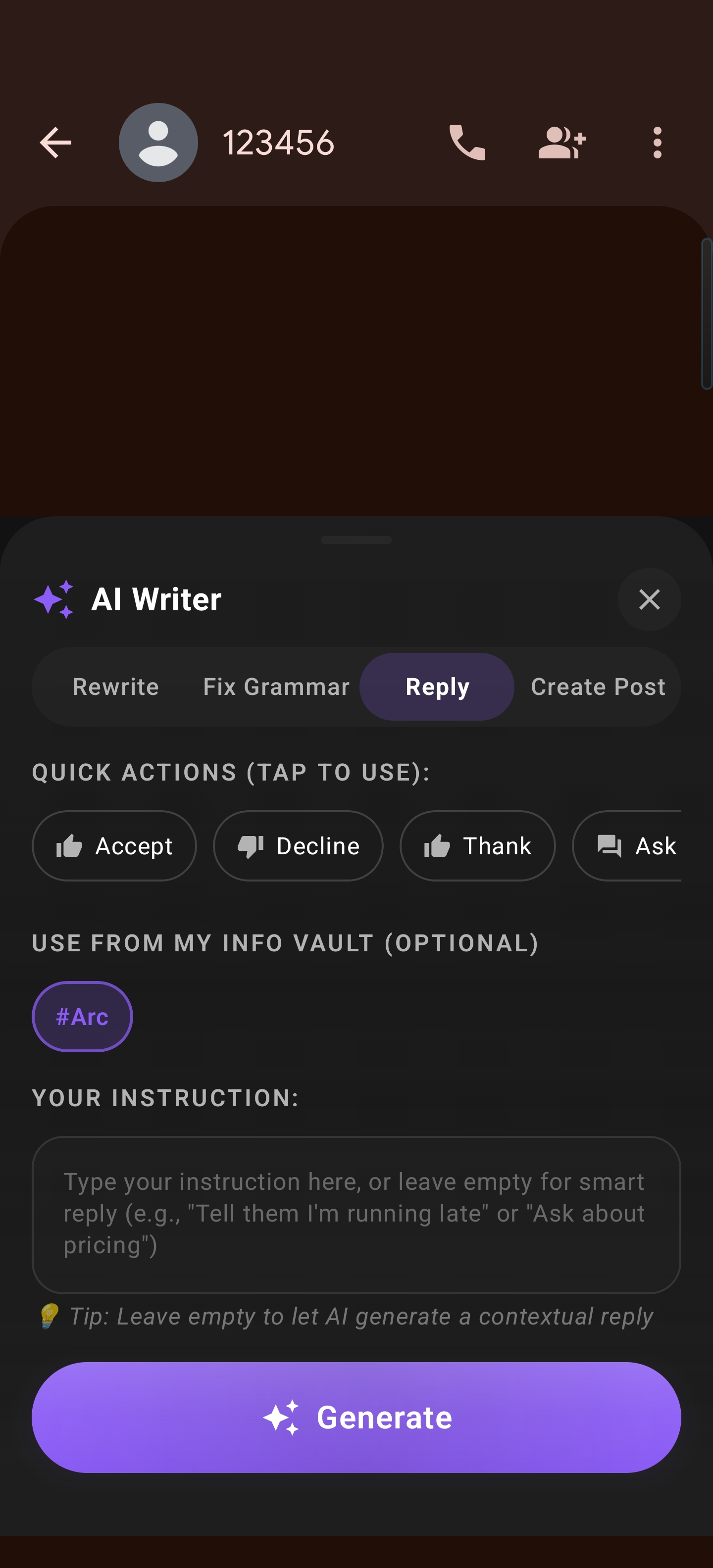
Arc handles this with My Info Vault: a list of entries, each with a title and some text, which you keep on your device. When you use AI Writer, you choose which entries to include, so the reply to a landlord uses your address and the reply to a client uses your company details.
What I like about the design is that nothing goes to the AI automatically. Vault entries are only included when you activate AI Writer and choose them.
AI Writer itself has four modes:
- Rewrite to change tone or tighten a draft
- Fix Grammar for a clean-up without a change in voice
- Reply to read the conversation on screen and draft an answer
- Create Post for starting from nothing
AI Writer was used 3,830 times by 386 people in the same window. That is a smaller group than the sidebar, around 10 uses each,, and these are the people who lean on Arc for writing. If writing is your main use, the AI Writer guide goes through all four modes, and stop retyping personal info covers the vault.
Test 4: Does it turn text into action, not just more text?
Plenty of assistants produce paragraphs. The real time saver is when a messy block of text becomes something your phone can use.
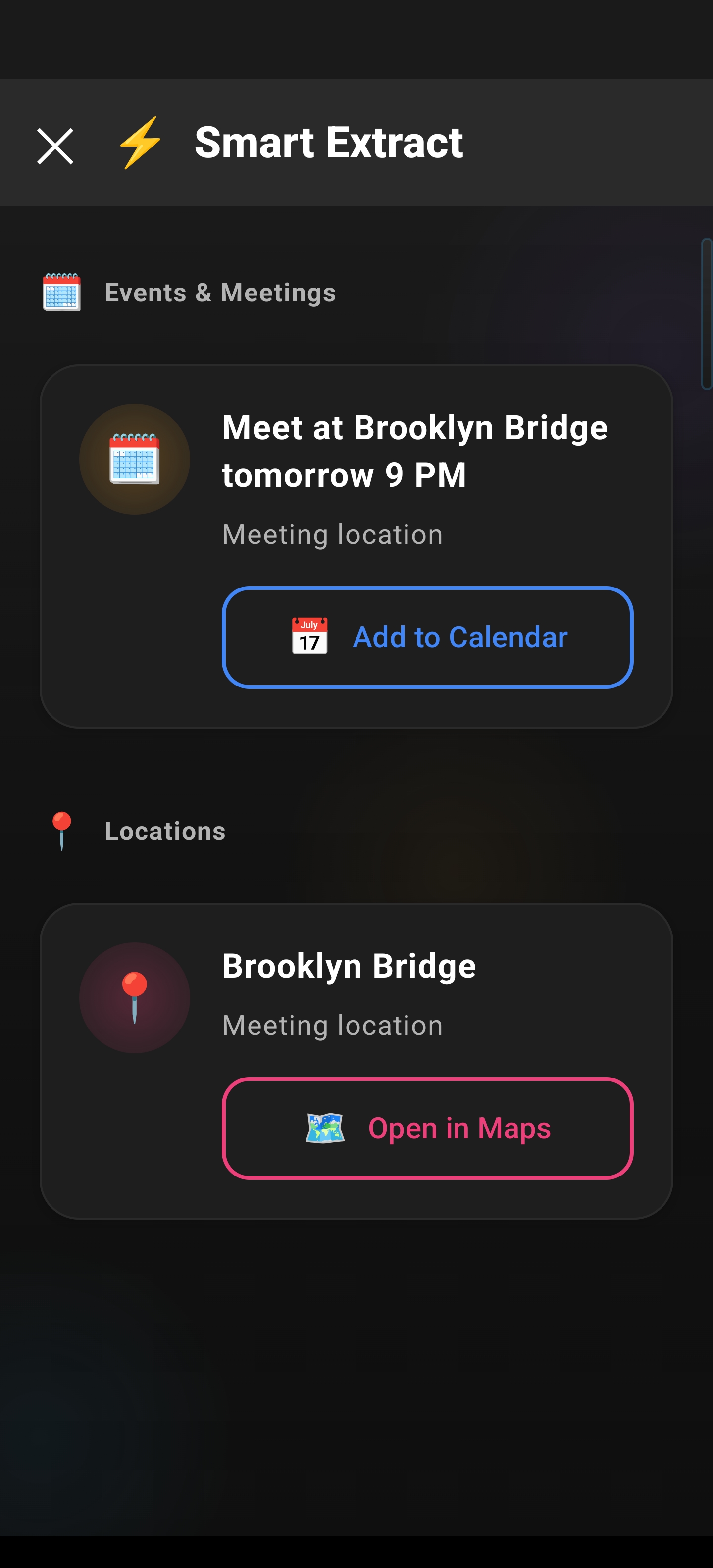
Arc’s Smart Extract pulls eight kinds of items out of whatever is on screen: events, reminders, contacts, meeting links, locations, OTPs, phone numbers and emails. Each one has a one-tap action that hands off to the right part of your phone: calendar, contacts, dialler or maps.
A group chat that says “Saturday after 6, bring the cake, Priya’s place” becomes a calendar event and a map pin in a couple of taps. You do not have to retype it, and you do not need an assistant that “understands your life”. You need one that notices the date in front of you.
Overall usage reflects this. Actions were tapped 24,182 times by 3,241 people in 30 days. If you want to see how it works with calendars specifically, read turning messy texts into calendar events.
Test 5: Can you make it yours?
Here is where a personal assistant either becomes personal or stays generic. Can you teach it a job it was not shipped with?
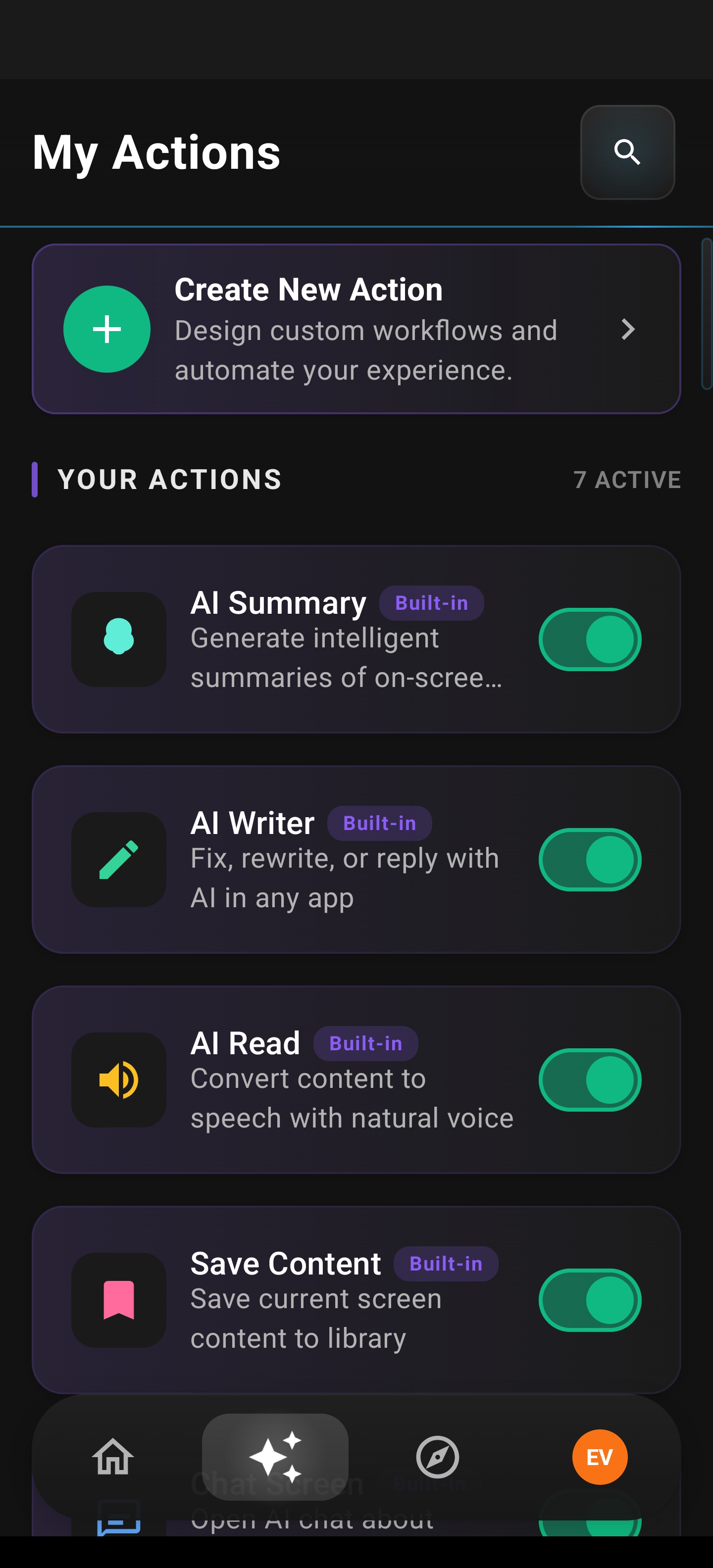
Arc lets you create custom actions: your own prompt, up to 40,000 characters, with an icon of your choice, shown in your sidebar. You can also browse community actions made by the Arc team and other users, and add them with one tap.
Mine include a “plain-English contract clause” action, a “turn this into three bullet points for my manager” action, and one that checks a draft against my own style rules. I wrote them once. Now they are one tap away in any app.
This is also where I see the most variation in behaviour. People configure their sidebars differently: settings were changed 6,199 times by 412 people, which is about 15 changes each. People who customise stay.
You can read how this works in custom actions in Arc, or browse the community actions other people have shared.
Where Arc fails these tests
I said I would be honest, so here are the gaps.
- It is not a voice assistant. Arc does not control your lights or set alarms by voice. If that is the job, you want something else alongside it.
- It is not on-device AI. Requests are processed in the cloud. If that is a dealbreaker, my private AI checklist explains exactly what is and is not sent.
- It does not act on its own. Arc works when you tap. It will not proactively book things or send messages for you, and I think that is the right default, but some people want more autonomy.
- iOS is not available yet. It is coming soon.
The reliability number I am proudest of is this one: of 21,247 AI requests started, 21,234 completed. That is 99.94%. The point of a screen-aware assistant is that it must not fail while you are mid-task.
How to try the five tests yourself
You do not need to take my word for any of this. Here is a 10-minute version:
- Install Arc on Android or macOS, and allow the permissions it asks for.
- Open an email or article and tap the sidebar. Use Chat Screen and ask one question. (Test 1 and 2)
- Add two vault entries: your email signature and your address. (Test 3)
- Open a messy message with a date in it and run Smart Extract. (Test 4)
- Create one custom action for a task you repeat weekly. (Test 5)
If after ten minutes you still prefer copying and pasting into a chatbot, that is a reasonable answer. Most people do not. You can read more on the Arc feature overview or the Arc homepage.
Platform availability
Arc is live on Android and macOS now, and also runs on Windows through the Microsoft Store. iOS is coming soon. The free tier includes a weekly AI request quota, and a Pro plan removes the limit.
FAQ
What is a personal AI assistant?
A personal AI assistant is software that helps with your own tasks, such as reading, writing, scheduling and finding information. The useful kind works on the content you are already viewing, rather than making you copy it into a separate chat window.
Is Arc a personal AI assistant for Android and Mac?
Yes. Arc is a screen-aware assistant that works over any app on Android and via a hotkey on macOS and Windows. It summarises, chats about on-screen content, drafts replies, and extracts events and contacts. iOS is coming soon.
Is Arc free?
Yes. There is a free tier with a weekly AI request quota covering summaries, chat and flashcards, and a Pro plan that removes the quota.
Does Arc watch my screen all the time?
No. It reads the screen only when you tap an action in the sidebar on Android, or use the hotkey on desktop.
How is this different from ChatGPT or Gemini?
Chatbots need you to bring them the content. Arc captures the text on your screen when you ask, answers in an overlay, and lets you keep going in the same app.
Try it on the screen you are looking at right now. Download Arc free on the Play Store.