Floating Bubble App Android — Always-On AI on Your Screen
Need a floating bubble app for Android? Arc gives you an always-available sidebar that summarizes, extracts, writes, and chats on any screen. Free to try.
Looking for a Floating Bubble App for Android?
You’re not alone. The search for a floating bubble app for Android usually starts the same way: you’re tired of switching between apps to do simple things. Copy a code from messages, check a translation, draft a reply — every task means leaving what you’re doing, opening another app, and finding your way back.
A floating bubble on Android solves this by putting a tool right on top of whatever you’re doing. No app switching. No lost context. Just tap the bubble, get what you need, and keep going.
But most floating bubble apps for Android are limited. They handle one thing — a calculator, a notes widget, a chat head. What if your floating bubble android app could summarize articles, extract OTPs and meeting links, draft replies, create flashcards, and chat with AI about what’s on your screen?
That’s Arc. I built it for exactly this problem, and today over 28,000 Android users have installed it across 50+ countries — because once you stop switching apps for every little task, you don’t go back.
What Is a Floating Bubble App?
A floating bubble app is any Android app that displays a small, tappable circle (or panel) on top of your current screen. You tap it to expand a tool or window, then collapse it when you’re done. The bubble stays visible across app switches, so you always have quick access.
Android has supported this pattern since the Bubbles API in Android 10, and android 17 bubbles expand it further. But the OS-level bubbles are notification-triggered and limited to apps that implement the API. A floating bubble app for Android — a third-party tool like Arc — works independently: it’s always there, always available, and not tied to any specific notification.
Floating Bubble vs. Floating Sidebar
Most people searching for a “floating bubble app” actually want something more versatile than a single bubble. Arc offers a floating sidebar — a thin edge panel you swipe to open. It works like a floating bubble (always on top, available in any app) but gives you access to a full suite of AI tools instead of just one feature:
- Floating bubble: Small circle, single action (e.g., calculator, note)
- Floating sidebar: Edge panel, multiple AI tools (summary, extract, write, chat, flashcards)
Think of the sidebar as a floating bubble that graduated from single-purpose to multi-purpose.
Arc: The Floating Bubble App for Android That Does More
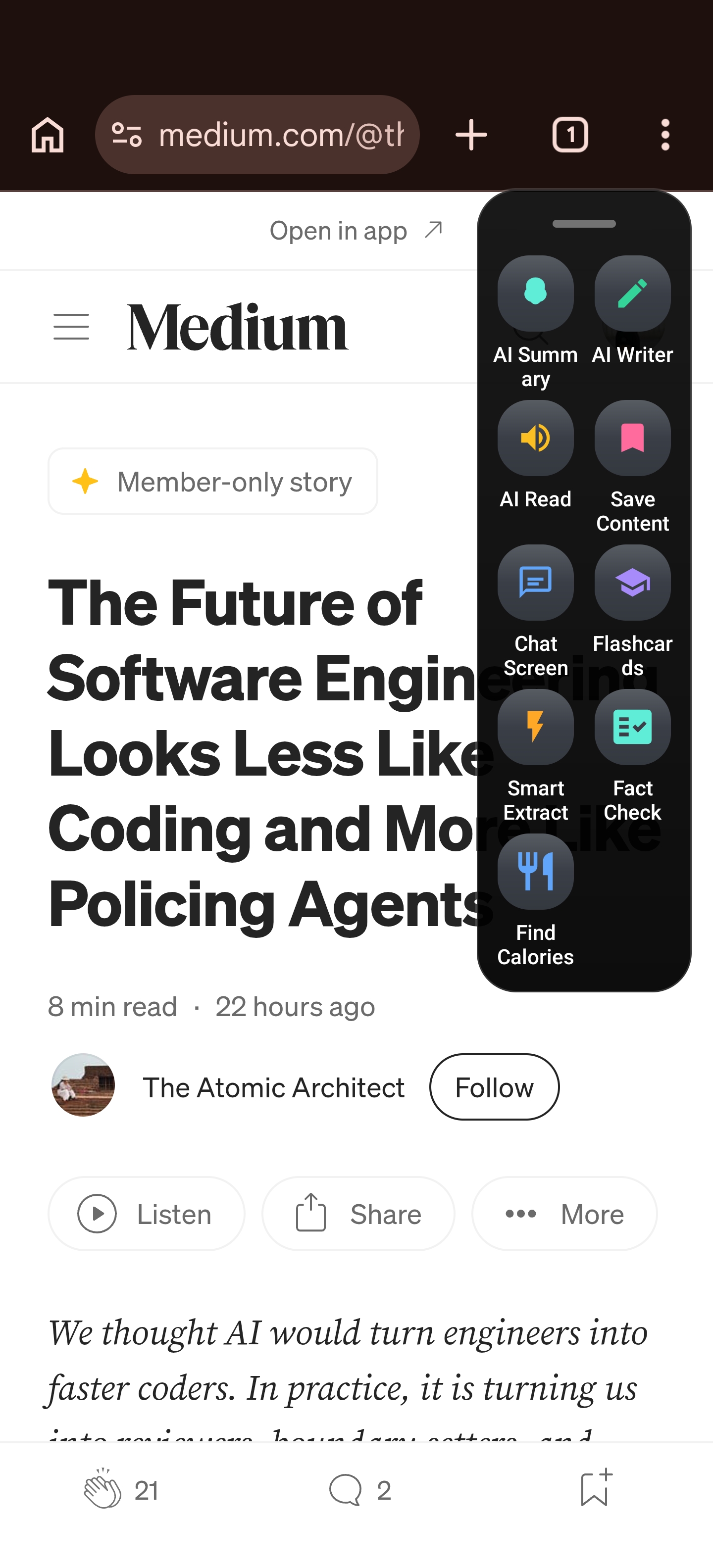
Arc AI Screen Assistant is a floating bubble app for Android that lives on the edge of your screen as a persistent sidebar. Swipe to open it, and you get instant access to AI-powered tools that work on whatever you’re looking at:
AI Summary
Reading a long article or email? Tap AI Summary and Arc condenses it into key points — right over your current app. No switching to a separate summarizer. No copy-pasting. The summary floats on top, you read it, you close it, you continue.
Smart Extract
The real superpower. Tap Smart Extract and Arc scans your screen for actionable items:
- OTP / verification codes — surfaced first with one-tap copy (auto-clears from clipboard in 2 minutes)
- Meeting & video call links — Zoom, Google Meet, Teams
- Events & dates — add to calendar directly
- Contacts — names, phone numbers, emails with one-tap save
- Addresses — open in Maps
- Phone numbers — direct dial
Each extracted item gets a tappable action button. This is what makes Arc different from any other floating bubble android app — it doesn’t just float on your screen, it reads it and acts on it.
AI Writer
Draft replies, rewrite text, fix grammar, or create posts — right in the input field of any app. Works in WhatsApp, Gmail, Slack, Instagram DMs, or anywhere you type. The floating sidebar gives you four writing modes with tone and length options.
AI Chat
Ask follow-up questions about what’s on your screen. Arc uses your current screen content as context, so the conversation is relevant to what you’re actually doing.
Flashcards
Turn any screen content into study flashcards with one tap. Swipe through them in the built-in viewer. Great for studying from textbooks, notes, or web articles — all triggered from the floating bubble on your screen.
How Arc’s Floating Bubble Works on Android
- Install Arc from the Google Play Store
- Grant permissions — Accessibility Service (to read screen content) and overlay (to display on top of other apps)
- A floating bar appears on the edge of your screen — this is your bubble
- Swipe inward to expand the sidebar and see all AI tools
- Tap any tool — Summary, Extract, Writer, Chat, Flashcards
- Collapse when done — the bar stays on the edge, ready for next time
The entire interaction takes seconds. Swipe, tap, act. No opening a separate app, no navigating menus, no losing your place.
Floating Bubble App: Why Arc Beats Single-Purpose Bubbles
Arc consolidates everything into one floating sidebar android experience. One swipe, one panel, every tool you need. And it’s not just theory — every month Arc generates 3,100+ AI summaries, 2,700+ AI Writer drafts, and nearly 6,000 custom action runs for users who’ve stopped switching apps and started swiping instead.
There are plenty of floating bubble apps for Android in the Play Store. Most fall into these categories:
| Type | What It Does | Limitation |
|---|---|---|
| Chat heads (Messenger, WhatsApp) | Floating message bubbles | Only for that app’s messages |
| Floating calculator | Quick math on top of any app | Just a calculator |
| Floating notes | Quick note-taking overlay | Just notes, no AI |
| Floating browser | Mini browser in a window | Tiny viewport, limited |
| Arc floating sidebar | AI summary, extract, write, chat, flashcards, call insights | None — works across every app |
The problem with single-purpose floating bubble apps is exactly that: they’re single-purpose. You install five different bubbles for five different tasks, and your screen becomes cluttered with circles.
Arc consolidates everything into one floating sidebar android experience. One swipe, one panel, every tool you need.
Real-World Use Cases for a Floating Bubble on Android
1. Copy an OTP Without Switching Apps
You’re logging into your bank. The verification code arrives as an SMS. Instead of switching to messages, memorizing the code, and switching back:
- Swipe to open Arc’s floating sidebar
- Tap Smart Extract
- The OTP appears first — tap “Copy Code”
- Paste it. The clipboard auto-clears in 2 minutes.
Total time: 3 seconds. Zero app switches.
2. Summarize a Long Article While Reading It
You’re in Chrome reading a 3,000-word article. You want the key points but don’t have time for the whole thing:
- Swipe to open Arc
- Tap AI Summary
- Read the condensed version floating over the article
- Close the sidebar and continue reading where you left off
3. Draft a Reply in WhatsApp
Someone sends you a long message in WhatsApp. You want to reply thoughtfully but don’t want to type a wall of text:
- Swipe to open Arc
- Tap AI Writer → Reply mode
- Arc generates a polished reply based on the conversation
- Tap to insert it into the chat field
4. Add a Meeting from an Email
A colleague emails you a meeting invite with date, time, and Zoom link:
- Swipe to open Arc
- Tap Smart Extract
- The date gets “Add to Calendar,” the Zoom link gets “Join Meeting”
- One tap each — done
Customizing Your Floating Bubble on Android
Arc’s floating sidebar is fully customizable:
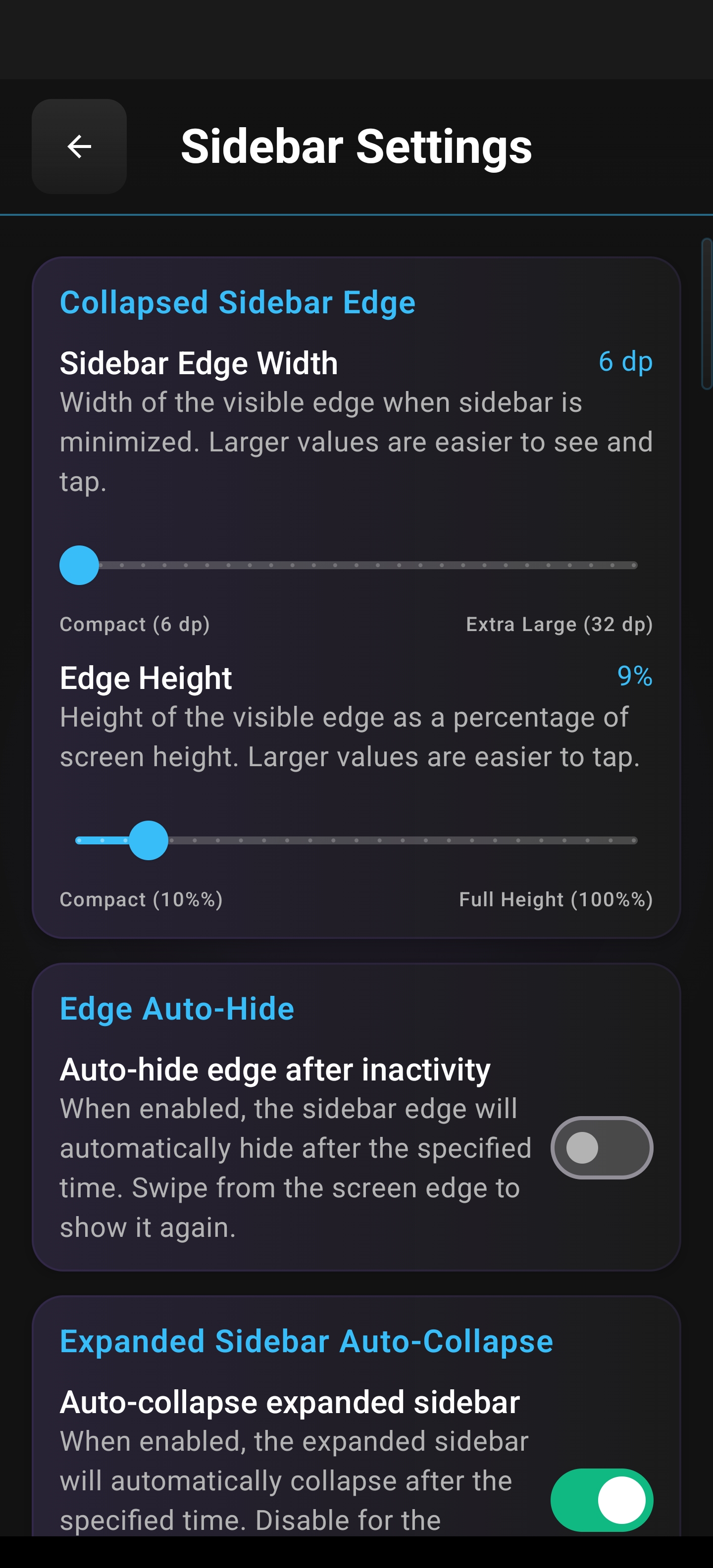
- Position: Left or right edge — pick what feels natural for your hand
- Trigger size: Small, medium, or large edge handle
- Auto-collapse timing: How quickly the sidebar hides after you’re done (instant to 5 seconds)
- Per-app settings: Show Arc in some apps, hide it in others (e.g., hide in banking apps)
- Custom AI actions: Create your own prompts for tasks you do repeatedly
- Community actions: Browse 250 community-created actions in 10 languages
Device Integration
Arc’s floating sidebar also works with your phone’s built-in sidebars:
- Samsung Edge Panel — add Arc as a shortcut
- OnePlus Shelf — quick access from the OnePlus sidebar
- OPPO Smart Sidebar — integrated with OPPO’s native panel
If your phone has a native sidebar, Arc works with it. If it doesn’t, Arc is your sidebar.
Privacy: Your Floating Bubble, Your Data
A floating bubble app for Android has broad screen access, so privacy matters. Arc’s approach:
- Screen content is processed on-demand only — Arc reads your screen when you tap a tool, not passively in the background
- Extracted items are ephemeral — nothing is stored on remote servers after you close the results
- OTP clipboard auto-clears after 2 minutes for security
- Per-app controls — block Arc from sensitive apps like banking
- Optional region selection — extract only part of the screen, not everything
The floating sidebar sees your screen only when you ask it to, acts only on what you select, and forgets immediately.
FAQ: Floating Bubble App for Android
What is the best floating bubble app for Android?
Arc AI Screen Assistant is the best floating bubble app for Android because it combines multiple AI tools (summary, extract, write, chat, flashcards) in a single floating sidebar, works across every app, and doesn’t require notifications to trigger. Most other floating bubble apps are single-purpose.
How do I get a floating bubble on my Android screen?
Install Arc from the Google Play Store, grant accessibility and overlay permissions, and a floating bar appears on your screen edge. Swipe inward to expand the sidebar with all AI tools.
Is a floating bubble app different from Android’s native bubbles?
Yes. Android’s native bubbles (including Android 17 bubbles) are notification-triggered and limited to apps that implement the Bubbles API. A floating bubble app like Arc works independently — it’s always available, not tied to notifications, and offers AI-powered tools. See our guide to Android 17 bubbles and floating windows for how the OS feature works.
Does Arc’s floating sidebar drain battery?
Arc is designed for battery efficiency. The auto-collapse feature means the sidebar only draws power when actively in use. You can adjust collapse timing and per-app visibility to minimize impact.
Can I use Arc’s floating sidebar alongside native Android bubbles?
Yes. They serve different purposes. Use native bubbles for quick message notifications. Use Arc’s floating sidebar for AI-powered multitasking — summaries, extraction, writing, and custom actions.
Get a Floating Bubble on Your Android Screen — Today
If you’re searching for a floating bubble app for Android, you already know the problem: switching apps kills your flow. Arc’s floating sidebar fixes that by putting AI tools right on your screen — always available, always one swipe away.
Summarize. Extract. Write. Chat. Create flashcards. All from a floating bubble that lives on the edge of your screen, across every app.
Download Arc AI Screen Assistant free from Google Play →
Or explore all Arc features to see everything it can do.