Private AI: 7 Checks That Separate Privacy From Marketing
Private AI usually means nothing. Here are 7 checks that separate real privacy from marketing — and how Arc scores on each. Free on Android and Mac.
Private AI: 7 Checks That Separate Privacy From Marketing
Last week I opened a product page that called itself a “private AI assistant” and tried to find the one sentence that mattered: does it keep what it reads? Eleven minutes later I had scrolled past a cookie banner, a SOC 2 badge, a “zero data retention” claim with an asterisk, and a testimonial. I still did not know.
That experience is the whole problem with the phrase private AI. It is not a regulated term, it is not a technical standard, and it is currently doing three completely different jobs in the same market: an on-device model that never calls a server, a cloud model with a no-retention contract, and a cloud model with a nice policy page and a dark-pattern settings screen. All three ship under the same three words.
So instead of reviewing another policy page, here are the seven checks I actually run now — in the order that changes the answer — plus exactly where Arc lands on each, including the checks it fails. The numbers in this post come from Arc’s own analytics for the last 30 days: 7,905 monthly users, 4,095 new installs, 3,944 people through the permission flow. If a claim below is not backed by the shipped app or the published policy, it is not in this post.
What “private AI” actually means
In practice, most assistants that read your screen fall into one of two architectures.
On-device. A small model runs locally. Nothing leaves the phone or laptop. This is genuinely private, and it is also genuinely limited — the models are smaller, slower to iterate, and they cannot use a frontier model’s reasoning. Very few assistants that read your screen do this, because screen reading plus a capable model rarely fits in a phone’s memory budget.
Cloud. The text goes to a data centre, a large model generates the answer, and the answer comes back. This is where most screen-aware assistants live today, Arc included. Everything that matters then becomes a question of contract and design: what is sent, when, what is retained, and what you can switch off.
The trick in the market is to blur those two into one word. A cloud assistant’s page says “your data stays private”, the reader hears “on-device”, and nobody has lied. That is why the checks below are questions about behaviour you can observe, not adjectives you have to trust.
The 7 checks, in the order that matters
1. Does it read your screen on its own?
This is the check that separates a tool from surveillance. Not “is there a permission” — most screen-reading apps have one — but what triggers a read.
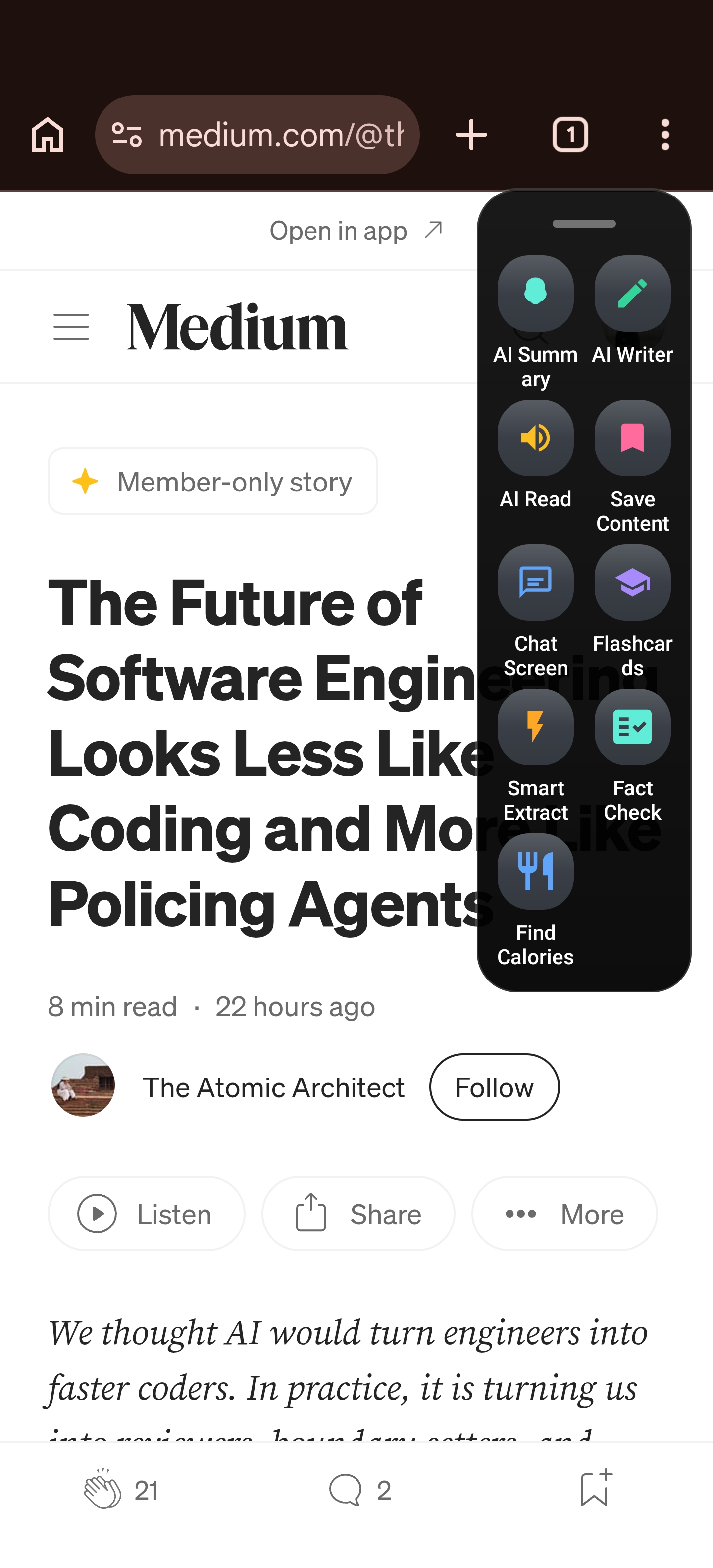
Arc’s answer: nothing is captured until you tap an action. On Android the collapsed sidebar is a thin strip at the screen edge; you swipe it in, a panel opens with AI Summary, AI Writer, AI Read, Save Content and Chat Screen, and only the action you tap causes a capture. The published policy states it directly: the app “only accesses screen content when you explicitly tap an action in the floating sidebar. It never monitors your screen in the background.” On a Mac it is Ctrl+Space to open the Arc menu over the frontmost window, and on Windows the same menu with a keyboard shortcut. On each platform the window is read through the operating system’s accessibility layer, and only for the action you invoked.
Here is the part I find more convincing than any policy sentence: 100,964 sidebar opens across 3,691 users in 30 days — 27.4 deliberate invocations per user. That is a lot of intent. It is also a number that would look completely different for an assistant that samples your screen quietly in the background, because you would not need to open anything.
2. Can you switch it off app by app?
A privacy promise that cannot be scoped to your banking app is a promise about strangers, not about you.
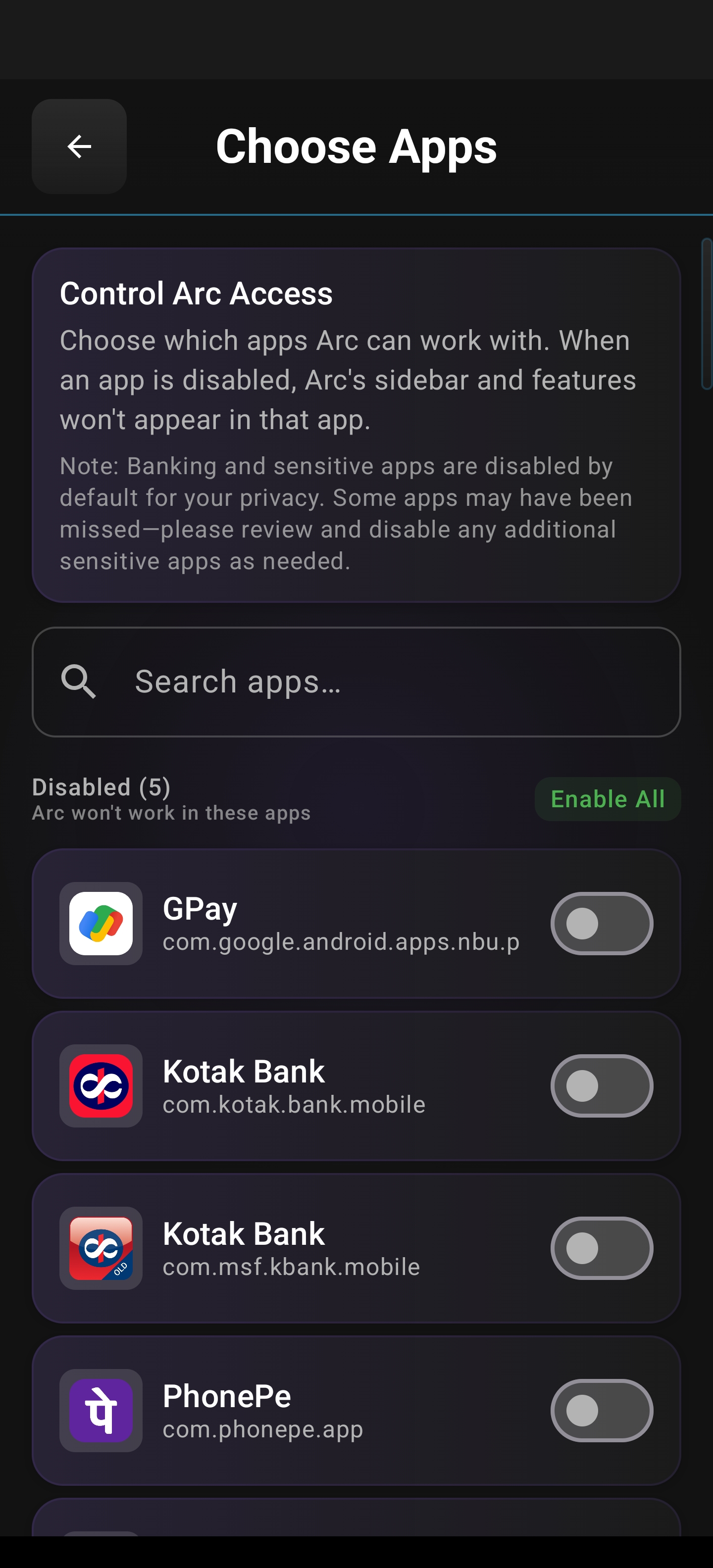
Arc’s answer: the Choose Apps screen I looked at has a search box, an “Enable All” link, and a toggle for each installed app. Turn an app off and the sidebar does not appear in it; the app itself enforces that when you switch between apps, so you do not have to remember. The card on that screen says it plainly: “Choose which apps Arc can work with. When an app is disabled, Arc’s sidebar and features won’t appear in that app.”
The default is the more interesting half. The policy says Arc “automatically disables itself for nearly 400 sensitive apps by default, including banking and financial apps (200+ verified worldwide), password managers, cryptocurrency wallets and exchanges, and government and identity apps.” On the test device I checked, the Disabled list already had GPay, Kotak Bank and PhonePe toggled off. The policy also says the installed-app list stays on your device — it “is never sent to our servers or shared with anyone” — and is used only to draw that screen.
3. Is the model on your device, or in a data centre?
Ask this one directly and watch how the answer is phrased. “Processed locally where possible” is not an answer.
Arc’s answer: in a data centre. Summaries, chat, flashcards, Smart Extract and AI Writer send the relevant text — plus a screenshot, only if you attached one — through Arc’s backend to Google’s Gemini API, with OpenAI as a fallback provider. I am not going to pretend otherwise, because a privacy post that hides the architecture is exactly the thing this post is complaining about. What Arc does claim is narrower and checkable: the text is “processed ephemerally and never stored, saved, or logged on our servers.”
The genuinely on-device parts are worth naming too, because they are real: text-to-speech uses your device’s own engine (Android system TTS, macOS and Windows built-in voices), and language detection for voice selection runs through ML Kit entirely on-device — no text is sent for it.
So: if your threat model is “no bytes may ever leave this device”, no cloud assistant passes, Arc included. If your threat model is “the vendor must not keep, log or train on what I read”, check 3 becomes a contracts question you can actually audit in writing. Know which one you are solving.
4. Where does the content you keep actually live?
Reading something leaves no trace. Saving something does, and that is where most apps quietly become storage companies.
Arc’s answer: on your device, in app-private storage. Saved summaries, chat history, flashcards, call insights, Info Vault entries and AI Writer outputs are local-only until you delete them. Screenshots land in /data/data/com.rethink.arc/files/screenshots/, inside Android’s app sandbox — not in your Gallery, not readable by other apps. Info Vault entries live in a local database with Android’s EncryptedSharedPreferences protecting sensitive fields, and vault content is appended to a prompt only when you explicitly use AI Writer with the vault enabled.
On macOS the same data sits in Arc’s own Application Support container under your user account; on Windows it is private app storage with sign-in credentials encrypted by Windows’ Data Protection API. Backups are opt-in and scoped to Google Drive’s hidden appdata folder — the app’s own folder, not your Drive.
The behaviour back in the numbers: people kept 561 flashcard sets and copied 1,214 summaries out of the app in 30 days, and none of that required an account.
5. Is the account optional?
An app that requires an email address to summarise a web page has chosen a business model, and it is not the one its landing page describes.
Arc’s answer: yes, optional. The app works fully signed out. Sign-in exists for Drive backup and Community Actions, and when you do sign in it stores a Google ID and an email address — not your name, not a profile picture, not your contacts, not a listing of your Drive files. If you never sign in, there is no account record to delete.
6. Can you turn telemetry off?
Every app measures something. The check is whether it measures your content and whether you can stop it.
Arc’s answer: feature names and counts only, never content. Android uses Firebase Analytics and Crashlytics — event names, navigation patterns, settings names without values, crash stack traces. On macOS and Windows the same anonymous events go out over the GA4 Measurement Protocol with a random per-install id, and there is a single switch: Settings → Privacy → “Share usage data & crash reports.” Turn it off and analytics and crash reporting stop immediately, queued events are discarded, and any crash report waiting to be sent is deleted. Desktop crash reports are written locally first; only a summary — error type, truncated message, one stack line — is ever transmitted.
Whether people actually use settings like this is worth knowing: 6,772 setting changes from 444 users, about 15 changes per person who opens settings. The screen is not decorative, and neither is the switch.
7. What happens when you hit delete?
The final check, and the one almost nobody tests until they need it.
Arc’s answer: local deletion is immediate. Android’s Clear Storage wipes summaries, screenshots, chat history, custom actions, flashcards, call insights, vault entries and AI Writer responses in one action. Unpublishing a community action removes it from the server immediately. Revoking Drive access deletes the appdata backup automatically. Account deletion is a support request with a stated seven-business-day commitment — slower than a button, and I would rather say that than imply otherwise.
In 30 days, app_clear_data fired 114 times from 76 users. People do use the delete button, which is precisely why it should do what it says.
What Arc gets right — and what it does not claim
Put together, the design has a shape: no background reading, a per-app allow-list with the dangerous categories pre-disabled, ephemeral cloud processing with no server-side retention, local-first storage of everything you keep, an optional account, and switchable telemetry. That is a real position, and it is a better one than most assistants ship with.
It is also not the position the phrase “private AI” implies. Arc is not offline. It is not on-device AI. If a bank adds a new app tomorrow, that app may not yet be on the default block list — which is exactly why the per-app toggle exists and why you should use it on anything financial. Call Insights can only read folders you deliberately grant through Android’s document picker, and the audio is transcribed in the cloud even though the transcript stays local. Custom actions with web search enabled can send your query and screen content to Google Search grounding.
A privacy page that cannot list its own exceptions is a marketing page. These are the exceptions.
How to run these checks on any AI assistant in ten minutes
- Find the capture trigger. Ask what causes a read: a tap, a hotkey, a wake word, or nothing visible. If you cannot describe the trigger, that is your answer.
- Hunt for the allow-list. Open settings and look for a per-app list. If there isn’t one, the assistant is available in your banking app whether or not you want it there.
- Search the policy for retention. Use Ctrl+F for “retain”, “store” and “log”. One clear sentence beats a badge on the homepage.
- Check where saved items live. If saved content requires an account, it lives on their servers.
- Try using it signed out. Every feature that breaks tells you what the account is really for.
- Find the telemetry switch. If you cannot find it in settings, assume it is on and not optional.
- Delete something on purpose. Delete one saved item, then check whether it is really gone.
Ten minutes, seven answers, no adjectives required.
The short version
“Private AI” is not a feature you can buy, it is a set of design decisions you can check. Arc passes some of these checks and fails one of them honestly: the model is in the cloud, and the app says so on the same policy page where it says what it does not keep. What you get for that trade is the thing I actually use it for — reading the screen in front of me without uploading it anywhere, keeping the results on my own device, and turning the rest off if I want to.
Arc is live on Android, macOS and Windows today; iOS is coming soon. It is free to try, and the Choose Apps screen is in Settings before you ever need it. If you want the category view first, the Arc assistant overview covers what it does on each platform.
FAQ
Is Arc’s AI on-device or cloud-based?
The AI model itself runs in the cloud — screen text is processed through Arc’s backend by Google’s Gemini API, with OpenAI as a fallback. Text-to-speech and language detection do run on your device. Arc’s claim is that processed content is never stored, saved or logged on its servers, not that it never leaves your phone.
Does Arc read my screen in the background?
No. Nothing is read until you tap an action in the sidebar on Android, or press the Arc hotkey on macOS or Windows. The app does not monitor the screen in the background and does not log keystrokes, and it skips known password managers on desktop.
Can I stop Arc from working in my banking apps?
Yes, and it already should be off. Arc disables itself by default for nearly 400 sensitive apps, including 200+ banking and financial apps, password managers, crypto wallets and government identity apps. You can review and change that list in Settings → Choose Apps.
Where is my saved content stored?
On your device, in app-private storage protected by the operating system’s sandbox. Screenshots are not visible in your Gallery and cannot be read by other apps. Google Drive backup is optional, uses the hidden appdata folder only, and can be disconnected at any time.
Is Arc free?
Yes — there is a free tier with a weekly AI request quota covering summaries, chat and flashcards, and a Pro plan that removes the quota. No account is needed to use the free tier.
Try it on the screen you are looking at right now. Download Arc free on the Play Store, or read the full privacy policy and the feature overview before you decide. If you keep notes about your own details, the Info Vault guide explains what Arc stores locally and when it is used, and Chat with AI about what’s on your screen shows the read-only part in practice.