PDF to Flashcards: Turn Any PDF Into a Study Deck, Free
Turn any PDF into flashcards free — lecture slides, textbook chapters, notes become a study deck in one tap. Free flashcard generator on Android & Mac.
PDF to Flashcards: Turn Any PDF Into a Study Deck, Free
By the third week of every semester, the same folder shape appears in my Google Drive: course lecture slides exported to PDF, chapters of the textbook that the professor shares as PDFs, a course reader, a stack of past papers. It’s all the right material for a flashcard deck. None of it is a flashcard deck. Last month I tried a different move: I stopped exporting, stopped copy-pasting, and started tapping one button next to the open PDF. 531 flashcard sets got generated on Arc in the last 30 days by 385 people doing versions of this, and in this post I’ll walk you through exactly how a PDF becomes a deck you can study in one tap — on Android and Mac, free.
Why PDFs are where studying breaks down
Searches like “pdf to flashcards” and “make flashcards from pdf” exist for a boring reason: the material students are handed lives in PDFs, and the studying students do happens against those same PDFs. When you sit down to turn a 40-page immunology chapter into cards, your options are worse than the syllabus made it look:
- Type them by hand. Read, decide what matters, write a question, write the answer, repeat until evening is gone. A 500-to-5,000-word section — the length where flashcard generation works best — can easily become an hour of card factory work instead of twenty minutes of review.
- Upload the PDF to a converter website. Wait for a server job, download a CSV or an Anki deck, import it into yet another app. Some converters cap pages behind a paywall, and you’ve moved your material through two other services before you’ve read a single card.
- Paste chunks into a chatbot. PDFs run too long to paste whole, so you split sections, prompt for cards, copy the results out of the chat, and reformat them. It works, and it’s still slower than the studying you were avoiding.
And then there’s the paper crowd. “Printable flashcards” is searched about 1,900 times a month in the US with essentially zero competition — a lot of people still want cards they can shuffle on paper, hand to a study partner, or use on a flight with no desire to unlock a phone. The honest answer is that a good deck should live on screen when screens are convenient and become plain Q/A text the moment paper is convenient. That’s the shape of the workflow below.
The one-tap version: Arc’s Flashcards from any screen
Arc is a screen-context AI assistant — an overlay sidebar that lives in your apps, reading the actual content you’re looking at rather than fetching URLs. One of its actions is what students searching “pdf to flashcards” are after: tap Flashcards, and the text on your screen becomes a question/hint/answer deck. If your PDF is open in Chrome (Drive PDFs, textbook chapters) or in whatever PDF reader you already use with Arc, you’re one swipe away from study cards.
How to turn a PDF into flashcards on Android
- Open the PDF in whatever app you’d normally read it in — Chrome, Drive’s PDF viewer, a dedicated reader.
- Expand Arc’s floating sidebar (a translucent edge bar that lives across your Android apps — banking and other private apps are disabled by default).
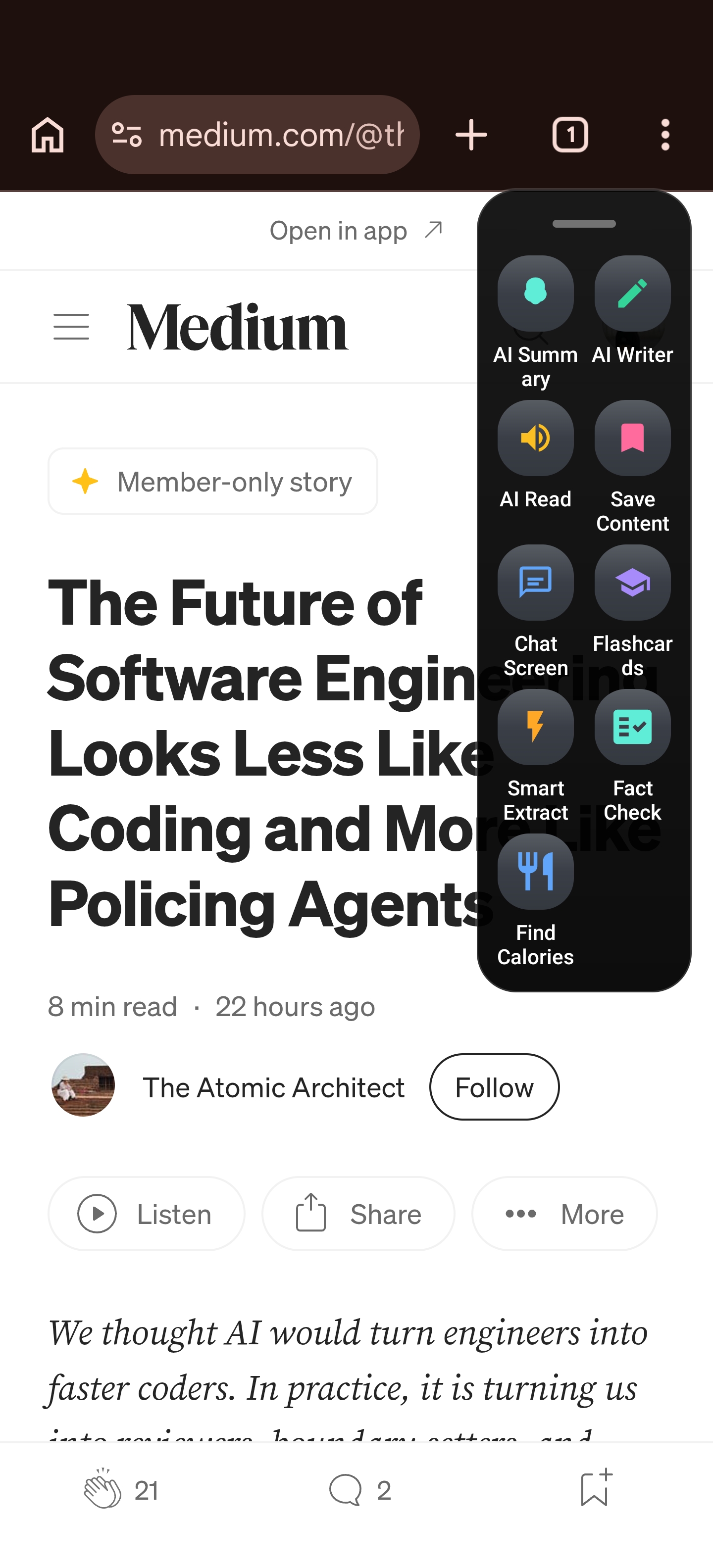
- Tap Flashcards.
- Arc captures the visible screen through the accessibility permission you granted at setup: it extracts the visible text, notes the source app and URL, and sends the context to the AI.
- You’ll see a “Generating flashcards…” progress indicator, usually done in 3 to 5 seconds. The AI identifies the key concepts, facts, and definitions and builds a deck — typically 5 to 15 cards depending on how much content is in view.
- A preview screen appears: an auto-generated deck title, the card count, and the full list of cards. Tap any card to expand it and read the hint and answer.
- If the deck misses the mark — too easy, wrong focus — tap Regenerate for a fresh take on the same content before committing anything.
- Tap Save Set. The deck is stored in Arc’s library, timestamped, tagged with its source, and slotted into your Unread Queue so “review this” shows up next to the other things you’re working through.
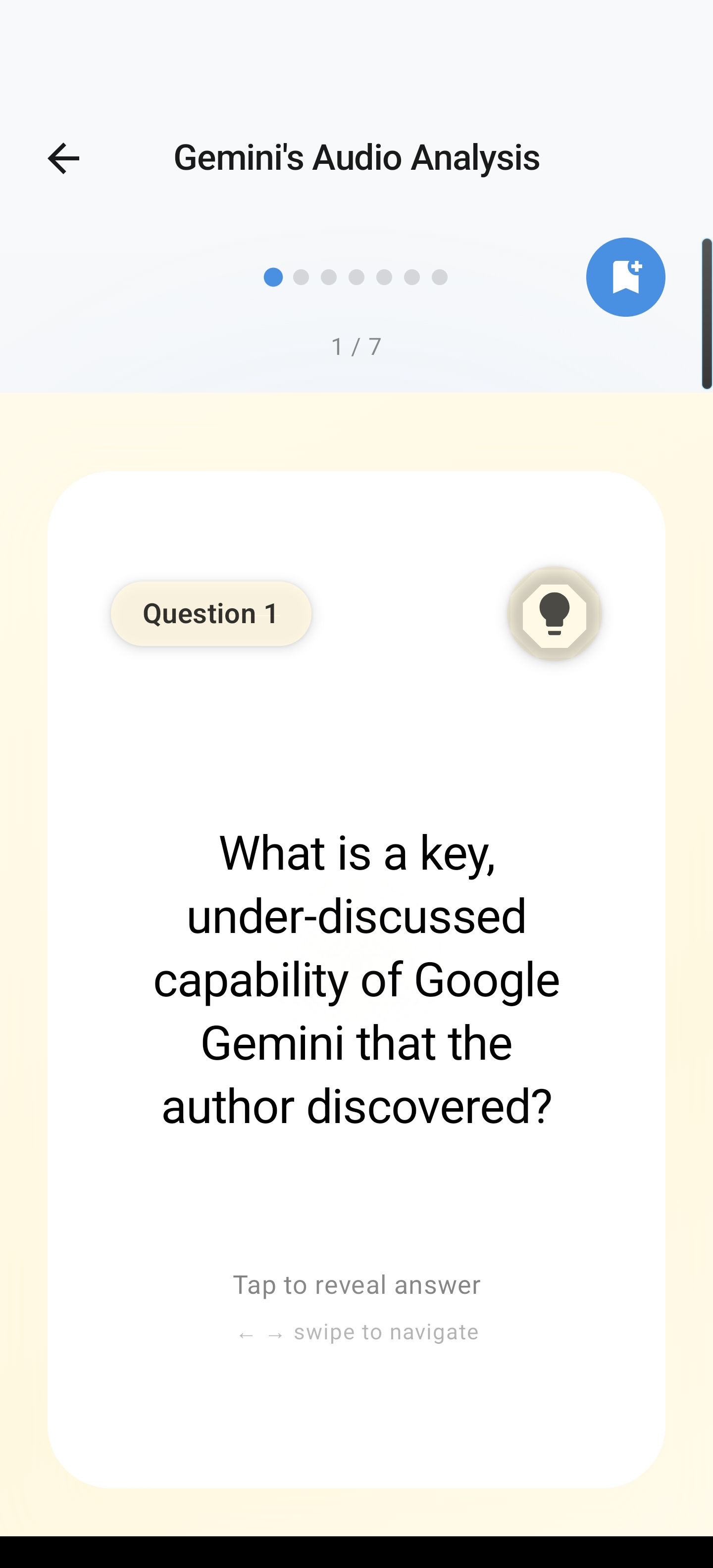
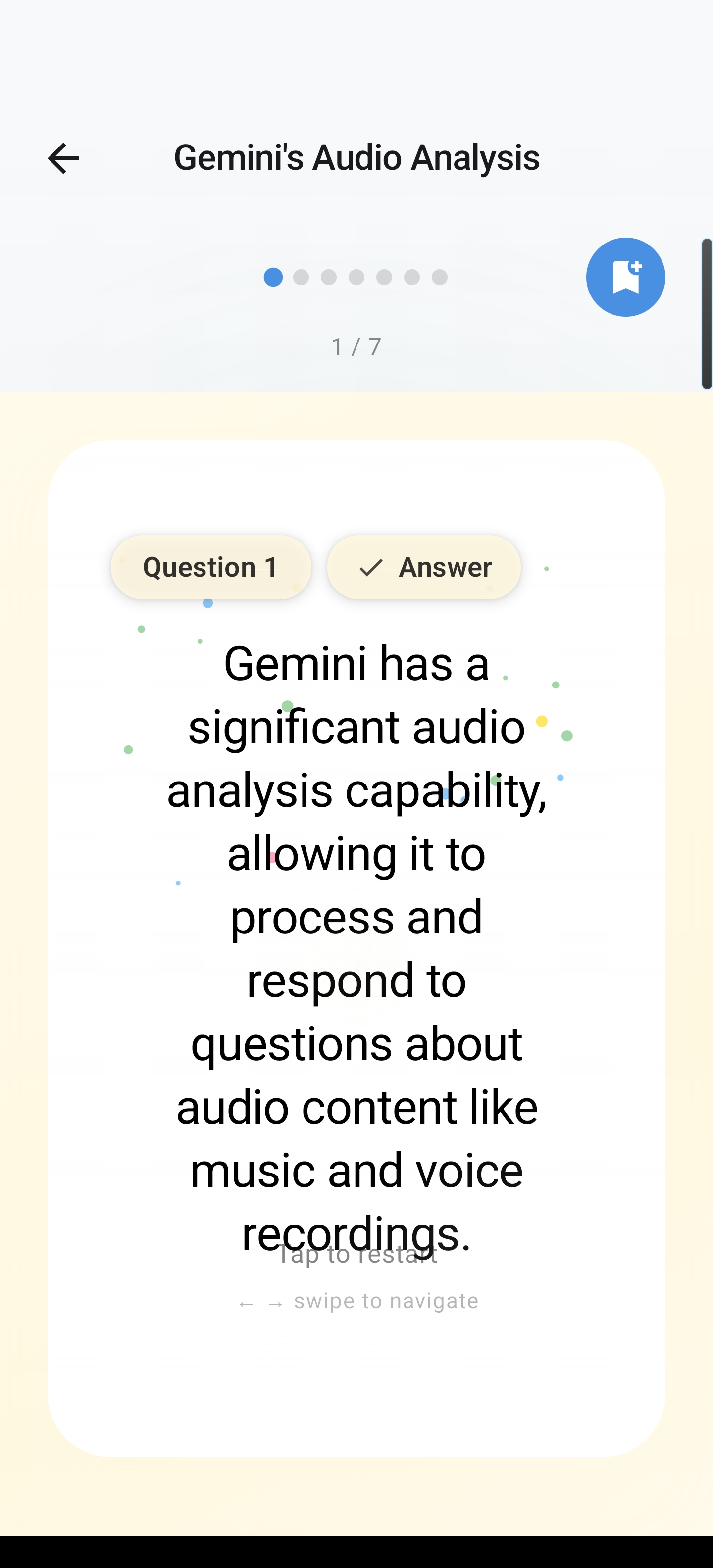
Each card carries three faces: a Question (“What is the speed of light in a vacuum?”), a Hint (“Think about the famous physics constant ‘c’”), and an Answer (“299,792,458 meters per second — approximately 300,000 km/s”). The hint is the underrated part: on a card you half-remember, a nudge is the difference between giving up and recalling the answer — which is the entire point of studying.
What a PDF becomes: the deck, then the study mode
The generated deck lands in a library you can search by title, source, or even text inside the cards. Tap a set and study mode opens full-screen: “Card 1 of 12,” the question face, and a big Flip control. The card does a 3D flip to the answer side, your progress bar fills as you go, and the finish screen offers Study Again or Done. Decks you haven’t touched sit in the Unread Queue with an unread badge, so the deck from Tuesday’s lecture slides doesn’t quietly rot in a folder.
On Mac: Ctrl+Space, Flashcards, same deck format
If your study material lives on a laptop — plenty of course readers do — the same flow runs on macOS, live now. Press ⌃ Space (Ctrl+Space) over your reading, pick Flashcards, and a click-through overlay handles the generation while Arc reads the screen (Chrome and other Electron apps work through a manual-accessibility flag). The viewer opens over your current app with the deck title, a source chip (“Google Chrome · 5 cards”), and a card counter.
The Mac deck is keyboard-first, which makes grinding a deck feel like it costs nothing: Space flips the card, H peeks at the hint, ← → pages between cards, Esc closes. Saved decks live in a Flashcards sidebar with a Reviewed counter per deck — after two weeks you can see at a glance which sets you’ve drilled and which are orphaned. Decks sync across platforms through the Google Drive backup: a deck generated on your phone appears in the desktop app after a restore, and the other way around.
The Windows and iOS builds are coming soon — the decks, the viewer, and the keyboard flow carry over when they ship. Right now, Android and Mac are live and cover the two places students actually read PDFs.
PDF converters vs. chatbots vs. Arc’s flashcard generator
Here’s the comparison I wish someone had handed me at the start of term:
| Upload-a-PDF converter | Paste-into-chatbot | Arc Flashcards | |
|---|---|---|---|
| Setup | Upload whole PDF, wait for job | Split into chunks, paste, prompt | PDF already open on screen |
| Output | CSV / Anki deck to import | Text to copy out and reformat | Live deck + preview in one overlay |
| Third app required | Yes (import step) | Yes (reformat step) | No |
| Study in place | No | No | Yes — full study mode |
| Paper/export path | Built-in | Manual | Share/copy plain Q/A text |
| Cost | Often per-page paywalls | Subscription tiers | Free plan, weekly quota |
The pattern in that table repeats across study tools: the good parts (a model making cards) get wrapped in setup overhead (upload, convert, import). Arc’s advantage is that the PDF stays in the app it’s open in — the deck generates from what’s on your screen, you preview it in the same overlay, and deciding “keep or regenerate” happens before anything enters your library.
For med and nursing students who want the full Anki comparison — scheduling algorithms, 86%-of-students context, where Arc sits in that workflow — the AI flashcards for med students post goes deep on it. This post stays on the specific PDF workflow.
Getting the cards onto paper (printable flashcards)
Some of you genuinely want paper. Study group with five people and one phone? A screen-free study evening because your eyes are done for the day? Printing a compact deck to bring to a lab session? For that, a deck’s content can move out as plain text — question, hint, answer — through the share options Arc offers on Android, into your notes app, and from there to your printer. It’s the same reason “printable flashcards” keeps pulling 1,900 searches a month: paper decks work, and a hybrid — generated on screen, reviewed on paper the night before — is a completely reasonable way to run it.
Two habits worth copying from the people who do this weekly (a couple of hundred of the 385 deck-generating users are on repeat rounds):
- Generate per section, not per book. The AI builds the best decks from 500–5,000 words — a chapter section, one lecture’s slides — not a whole 300-page textbook. Move through the PDF a section at a time and tap Flashcards per section.
- Preview before saving; regenerate once if the focus is off. The preview screen is there so you can drop weak decks before they enter your library. One regeneration usually shifts the focus; if it still doesn’t land, the content may not be card-worthy — and you found that out for the price of a tap.
Does anyone actually study this way? The numbers
I track Arc’s usage carefully, and the last 30 days (Sep 21 – Oct 21) say something specific about flashcards:
- 531 decks generated by 385 users — a little over a deck per generating user
- 1,555 flashcard views by 229 users — about 6.8 cards viewed per studying user; the deck isn’t just generated, it’s opened and flipped through
- 99.9% of AI requests completed (15,668 of 15,680) — generation reliability is effectively not your failure mode
- 8,299 monthly active users, and the sidebar — the entry point for Flashcards — was opened 78,871 times by 3,789 users, about 21 opens per sidebar user per month
I’ll be honest about what that data doesn’t say: flashcards is a niche action inside a bigger toolbox. The same sidebar runs AI summaries (317 generated in the window), AI Writer, Chat (7,436 sessions), and saved content — a lot of students arrive for the reading side and stay for the cards. If that reading side is what you’re missing, the free AI summarizer post covers it (feature page: AI summary reader hub), and listening to any screen covers the commute-side: have the PDF’s text read aloud on the way in, make cards from the section that matters when you sit down.
Setting it up today
- Android: install Arc from the Play Store, finish onboarding (it walks you through the accessibility permission that makes the sidebar work), then open any PDF and swipe the sidebar.
- Mac: grab the desktop app, press ⌃ Space over your reading, choose Flashcards.
- Free tier: deck generation counts against a weekly AI quota — no per-card or per-document charges, no upload fees. Pro removes the quota if you outgrow it.
- Coming soon: Windows and iOS builds. Decks you build now sync forward through Drive backup.
The full feature breakdown lives on the Flashcards hub page — the arcassistant.app home covers the rest of the assistant — and if your starting point is “I have a wall of PDFs I haven’t read,” start with the companion piece on turning any screen into flashcards — this post is the PDF-specific version of that workflow, plus the paper angle.
One last framing: as I read the studying research, the learning comes from reviewing cards, not typing them. Every hour you spend as a card factory is, in my view, an hour the research never asked you to invest. Open the PDF you’ve been circling, tap Flashcards, and see whether ten seconds of generation beats your current evening routine — I expect it will, because that’s exactly what 385 people did last month.
FAQ
Can Arc turn a PDF into flashcards on Android?
Yes — open the PDF in any app (Chrome, a PDF reader, a course app), expand Arc’s sidebar, and tap Flashcards. Arc reads the visible screen, generates a 5-to-15-card deck with question, hint, and answer faces in a few seconds, shows you a preview, and saves the set to your library when you confirm. If the PDF is longer than one screen, work section by section for the best decks.
Do I have to upload my PDF anywhere?
No. Arc’s flashcard generation is screen-based: it reads the text visible on your screen through the accessibility permission you granted during onboarding, so the PDF stays in the app it’s already open in. There’s no upload step, and saved decks live in a local database with optional Drive backup that stays off unless you enable it.
Does it work on Mac, not just Android?
Yes. Flashcards is live on both Android and macOS. On Mac, press Ctrl+Space over your reading, pick Flashcards, and study with keyboard controls — Space to flip, H for the hint, arrows to page. Decks sync between your phone and desktop through the Google Drive backup. Windows and iOS are coming soon.
Is the PDF-to-flashcards feature free?
Yes. Deck generation is included on Arc’s free plan with a weekly AI usage quota covering all features; Pro removes the quota. There are no per-card, per-page, or per-document charges, unlike the page-capped converters that commonly charge per PDF.
What makes a good source for AI-generated flashcards?
Material with real facts and definitions — textbook sections, lecture slides, course notes, definitions-heavy articles. Arc’s decks are typically 5 to 15 cards and work best from 500 to 5,000 words of content: a chapter section or one lecture’s slides. Regenerate once if the focus is off; preview before saving so weak decks never enter your library.