Digital Reading with Dyslexia: How Arc Helps
Arc helps users with dyslexia by reading content aloud and summarizing screens. Here's how it works. Free to try.
For many, the digital age is a constant barrage of text. While the web has democratized information, it has also introduced significant friction for neurodivergent readers. Dyslexia, which affects approximately 10-15% of the global population, isn’t just about reading words; it’s about the cognitive load of decoding text, managing dense formatting, and navigating the often overwhelming landscape of PDFs, articles, and long-form content.
When the act of decoding text consumes your mental energy, comprehension suffers. This is why finding the best AI screen reader for dyslexia is more than just a convenience—it’s a necessity for an equitable digital experience. And the need is real — over 28,000 people across 50+ countries use Arc, with more than 1,800 Read Aloud sessions started every month by users who’ve discovered that listening, not just reading, is the key to staying engaged with content.
The Broken Accessibility Workflow
For years, users with dyslexia have been forced into a fragmented “copy-paste” workflow. If you encountered an inaccessible document or a dense article, you had to manually copy the text, exit your current app, open a specialized third-party tool, configure the settings, and finally listen.
This process is disruptive, time-consuming, and frankly, exhausting. Specialized software often comes with high subscription costs, creating yet another barrier to entry. I believe that accessibility should be a default, not an expensive, disjointed afterthought.
How Arc Helps Dyslexic Users: Three Core Features
When I started building Arc, I kept hearing the same frustration from users with dyslexia: existing tools are scattered, expensive, and require leaving whatever you’re doing to use them. I wanted Arc to feel different — like a reading companion that’s always there, right on your screen, ready to help without breaking your flow. Today, 1,800+ Read Aloud sessions start every month on Arc, and the number keeps climbing as more dyslexic readers discover they don’t have to fight through walls of text alone.
Let me walk through the three features that make the biggest difference for dyslexic readers.
Read Aloud: Your Screen, Spoken Back to You
The Read Aloud workflow is where most dyslexic users start. Here’s what it looks like in practice:
- You’re reading a long Wikipedia article or a news piece. The paragraphs blur together, and you’re losing the thread.
- You tap the Arc floating sidebar (it lives on the edge of your screen, always accessible).
- Arc captures the on-screen text intelligently — not a raw OCR dump, but structured content that respects headings, lists, and paragraphs.
- A natural-sounding voice starts reading the content aloud. You can follow along visually while the audio reinforces what your eyes are struggling to decode.
- Need to pause? Skip ahead? Rewind a few seconds? The playback controls float right there on screen — you never leave your article.
What makes this different from traditional text-to-speech is the system-wide nature. Arc works in Chrome, in your PDF viewer, in a note-taking app, in Twitter — anywhere there’s text on your Android screen. No copy-paste. No app-switching. No friction.
For dyslexic users, this simultaneous visual-plus-audio experience is powerful. Research on dual coding theory suggests that presenting information through both visual and auditory channels strengthens comprehension and retention. When your brain doesn’t have to work as hard to decode individual words, it frees up cognitive resources for actually understanding what you’re reading.
Smart Extract: Cutting Through the Noise
One of the hidden struggles of dyslexia isn’t just reading — it’s filtering. When you open a web page, you’re hit with navigation menus, sidebar widgets, ad blocks, cookie banners, and related article links. For a neurotypical reader, the brain filters this visual noise automatically. For someone with dyslexia, every element competes for attention, making it harder to locate and focus on the actual content.
Arc’s Smart Extract feature addresses this directly. When activated, it identifies the core content on your screen and extracts just that — the article body, the main text, the information you actually came for. Sidebars, navigation, and clutter are stripped away.
Think of it as noise-canceling headphones for your screen. Instead of drowning in a sea of formatting and visual distractions, you get clean, focused text. From there, you can read it at your own pace, have Arc read it aloud, or move on to summarization.
For a dyslexic student opening a research article cluttered with ads and navigation, Smart Extract can be the difference between giving up and actually engaging with the material.
AI Summary: Comprehension Without Overwhelm
Here’s a scenario I hear about constantly: a dyslexic user opens a 3,000-word article. They know it contains information they need, but the sheer volume of text creates an immediate wall. Where do they even start?
Arc’s AI Summary feature breaks through that wall. With one tap, Arc processes the on-screen content and generates a concise summary — the key points, the main arguments, the essential takeaways. Suddenly, a wall of text becomes a digestible set of bullet points.
But here’s the part I’m most proud of: the summary isn’t just a shortcut to avoid reading. It’s a comprehension scaffold. By giving you the big picture first, the summary creates a mental framework. When you then go back and read (or listen to) the full article, your brain has a map. You know what’s important, what to focus on, and how the pieces fit together.
This approach — preview, then deep-read — mirrors what reading specialists call “pre-reading strategies.” It’s the same technique many dyslexia tutors teach: survey the structure before diving into the details. Arc just automates it with AI.
All summaries are saved to your Summary Library, so you can revisit them anytime — or use the “Listen” button to have them read aloud, reinforcing understanding through another modality.
Arc’s AI Read: A System-Wide Solution
Arc: AI Screen Assistant was built to break these silos. By operating as a system-wide AI overlay, Arc eliminates the need to jump between applications. Whether you are in a browser, a document viewer, or a news app, Arc’s AI Read feature is ready to help.
At the heart of Arc’s accessibility suite is the Summary Library. By leveraging advanced text-to-speech (TTS) technology, Arc allows you to transform static text into an auditory experience with a single tap. Once content is processed, you can simply use the “Listen” button in the library to engage with your saved articles or documents. This creates a seamless bridge between reading and listening, significantly reducing cognitive load.
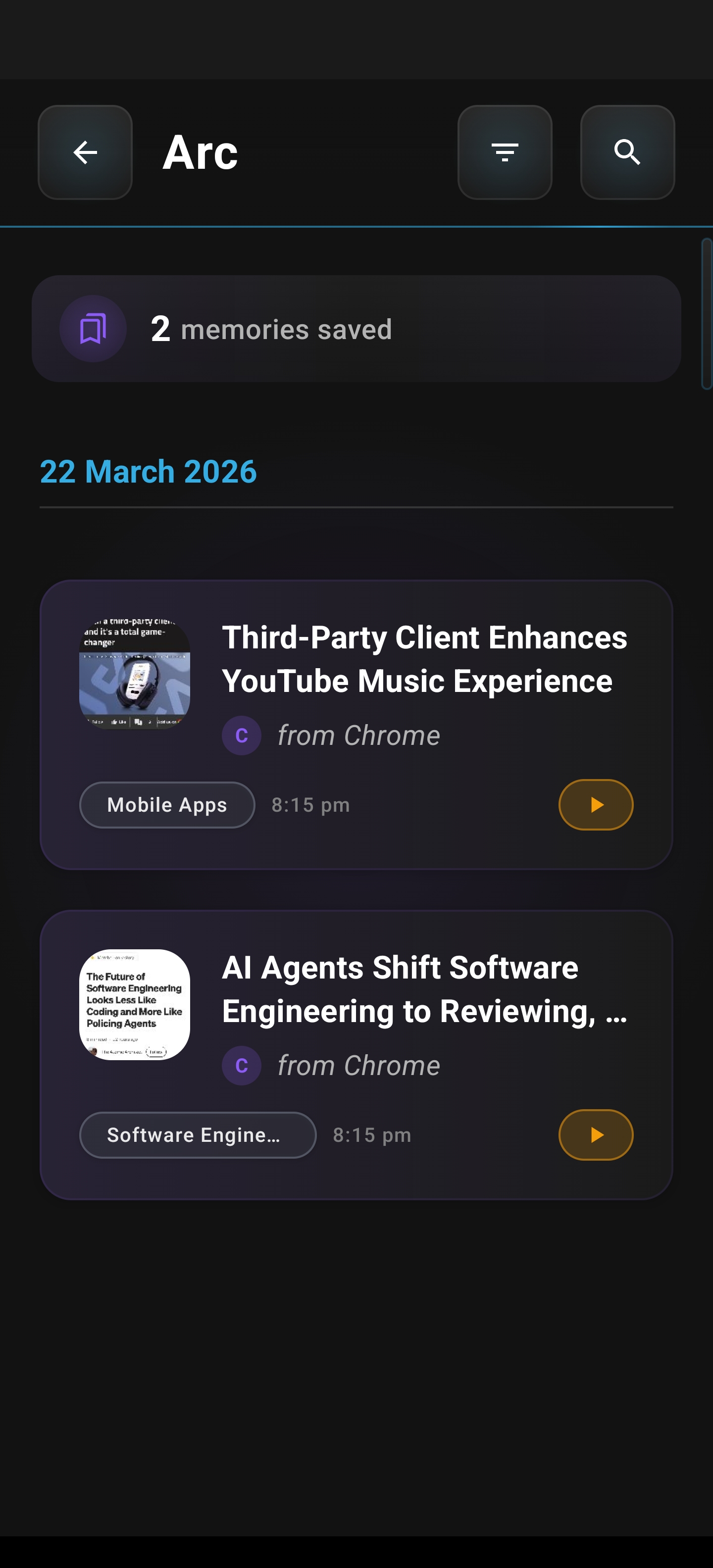
Precision Control for Every Reader
Accessibility is not a “one size fits all” endeavor. Every reader has different preferences and sensory needs. Arc’s AI Read provides granular control to ensure the content is delivered exactly how you need it:
- Customizable Playback: Adjust speech rates from 0.5x to 2.0x, allowing you to pace the audio to your comfort level.
- Pitch Controls: Fine-tune the voice to improve clarity and minimize sensory fatigue.
- Universal Compatibility: Because Arc overlays your entire Android experience, it works in virtually any app, making it the most versatile dyslexia reading assistant on Android.
- Multilingual Support: With automatic language detection for over 100 languages, Arc ensures that barriers are removed, regardless of the content’s origin.
When you initiate AI Read, you gain access to an intuitive playback interface that keeps you in control. You can pause, skip, or adjust your settings on the fly without ever losing your place in the original application. This fluid experience makes text-to-speech app accessibility feel natural and integrated rather than forced.
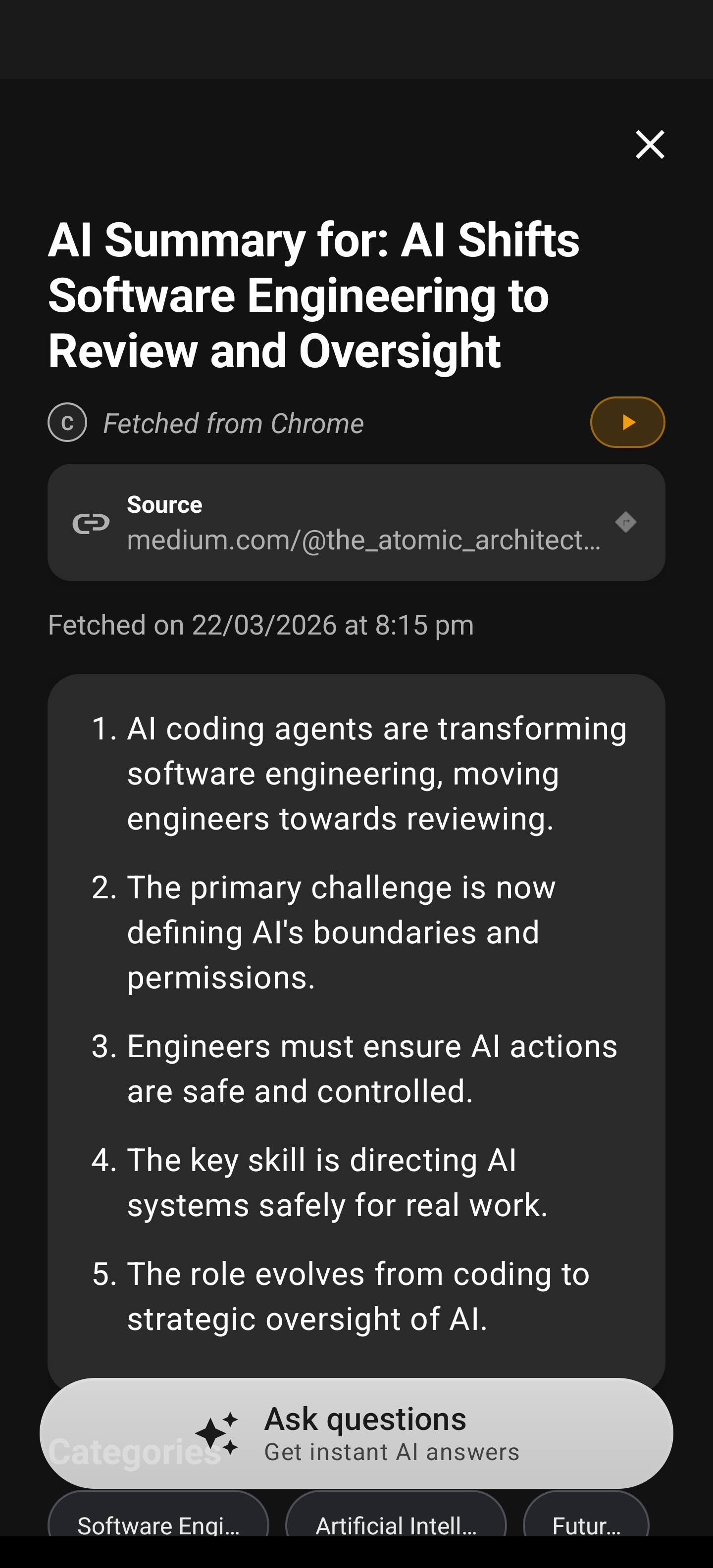
Step-by-Step: Getting Started with Arc for Dyslexia Support
If you’re new to Arc, here’s how to set it up for the best dyslexia-friendly experience:
-
Install Arc from the Play Store. Search for “Arc AI Screen Assistant” or use the download link at the bottom of this post.
-
Grant the necessary permissions. Arc needs accessibility and overlay permissions to read your screen and display the floating sidebar. The setup wizard walks you through each one — it takes about 30 seconds.
-
Open the floating sidebar. You’ll see a small Arc handle on the edge of your screen. Tap it to expand the sidebar with all available tools.
-
Try Read Aloud first. Open any article or page with text, tap “Read Aloud” from the sidebar, and adjust the speed to your comfort level. Start at 0.8x if you’re new to TTS — you can always speed up later.
-
Experiment with AI Summary. On a longer article, tap “Summary” to get the key points first. Use this as your pre-reading step before diving into the full text.
-
Use Smart Extract on cluttered pages. When a website overwhelms you with sidebars and ads, tap “Smart Extract” to pull just the main content into a clean reading view.
-
Save to your Summary Library. Every summary is automatically saved. Build a personal library of digested content you can revisit or listen to later.
-
Customize your voice and speed. Go to Arc’s settings and choose the voice that’s clearest for you. Adjust pitch if certain ranges cause sensory fatigue. These small tweaks make a huge difference over long reading sessions.
The whole setup takes under five minutes. And because Arc is free to try, you can explore all these features before committing to anything.
Arc vs. Traditional Dyslexia Tools
I want to be honest about where Arc fits. It’s not a replacement for specialized dyslexia software like Read&Write or NaturalReader — those tools offer deep features like word prediction, phonetic spelling support, and color overlay filters that Arc doesn’t. If you need those specific interventions, you should absolutely keep using them.
But here’s what I’ve noticed from user feedback: many dyslexic users end up using two or three separate apps just to handle reading tasks. One for text-to-speech, one for summarization, one for extracting clean text. That’s expensive and exhausting.
Arc consolidates the most-needed features into a single, always-available overlay:
| Feature | Arc | Traditional TTS Apps | Dedicated Dyslexia Software |
|---|---|---|---|
| Read Aloud (system-wide) | ✅ Works in any app | ❌ Usually browser-only | ❌ Usually browser-only |
| AI Summary | ✅ Built-in | ❌ Separate app needed | ❌ Rare |
| Smart Extract | ✅ Built-in | ❌ Not available | ❌ Not available |
| Works in any Android app | ✅ Overlay approach | ❌ Limited integration | ❌ Limited integration |
| No app-switching required | ✅ Floating sidebar | ❌ Copy-paste workflow | ❌ Copy-paste workflow |
| Cost | Free to try | Often $5-15/month | Often $10-30/month |
| Word prediction | ❌ Not available | ❌ Not available | ✅ Available |
| Color overlay filters | ❌ Not available | ❌ Some apps | ✅ Available |
| Phonetic spelling support | ❌ Not available | ❌ Not available | ✅ Available |
The takeaway: Arc handles the reading burden reduction side of dyslexia support — TTS, summarization, and content extraction — more seamlessly and affordably than most alternatives. For the specialized interventions like word prediction and phonetic support, dedicated dyslexia tools remain the gold standard. Many users run both: Arc for daily reading, and a dedicated tool for writing and study support.
Real User Scenarios
Let me share some scenarios that represent how real users with dyslexia are using Arc every day:
The Student Preparing for Exams. Aisha is a university student with dyslexia. When her professor assigns a 40-page research paper, she used to spend hours re-reading paragraphs, losing focus, and feeling defeated. Now, she opens the paper on her phone, runs AI Summary first to understand the key arguments, then uses Read Aloud at 0.8x speed to work through the full text with audio support. The summary gives her a mental map; the audio keeps her from getting stuck on individual words. She finishes in a fraction of the time with better comprehension.
The Professional Staying Informed. Raj works in finance and needs to stay current with market analysis, regulatory updates, and industry reports. His dyslexia makes dense, jargon-heavy reports particularly challenging. He uses Smart Extract to pull the core content from cluttered financial websites, then AI Summary to quickly identify which reports deserve a deeper read. For the ones that matter, he uses Read Aloud while commuting. Arc turned his train ride into productive reading time.
The Casual Reader Who Gave Up on News. Priya loves staying informed but found that news sites — with their autoplay videos, pop-ups, and dense layouts — were overwhelming. She’d avoid reading altogether rather than fight through the visual noise. Smart Extract strips away the clutter. AI Summary gives her the headline and key facts in seconds. When a story interests her, Read Aloud takes over. She’s back to reading the news daily.
The Parent Helping with Homework. David’s daughter has dyslexia, and homework time used to end in tears for both of them. He installed Arc on a family tablet and taught his daughter to use Read Aloud for her reading assignments. The AI Summary feature helps her understand the “big picture” of each chapter before she tackles the details. It’s not a replacement for her school’s dyslexia support program, but it’s made homework significantly less stressful.
These aren’t hypothetical — they’re drawn from feedback I’ve received from Arc users. The common thread: reducing the friction of reading doesn’t just save time. It restores confidence and agency.
Beyond Dyslexia: Additional Use Cases
While designed with accessibility in mind, AI TTS for reading provides benefits that extend to everyone.
- Commuting and Multitasking: Turn your morning commute into an opportunity for learning by listening to articles hands-free.
- Enhanced Comprehension: Combining visual reading with audio narration can help reinforce retention and understanding for many users.
- Low Vision Support: Arc serves as a critical tool for those with visual impairments, providing high-quality, reliable text-to-speech synthesis anywhere on their device.
Accessibility-First Design
I’m committed to building tools that prioritize inclusivity. Arc is designed with WCAG 2.1 AA compliance in mind, utilizing high-contrast design principles and an interface that minimizes visual clutter. We believe that technology should empower, not hinder.
By integrating seamlessly into the Android ecosystem, Arc ensures that the power of modern AI is accessible to everyone, regardless of their reading style or ability. And because Arc is free to try, there’s no barrier to seeing if it works for you.
Experience the Difference
Stop letting digital friction hold you back. Experience a more accessible way to consume the information that matters to you.
Download Arc: AI Screen Assistant today and transform the way you read.
Frequently Asked Questions
How does Arc help with dyslexia on Android?
Arc reads any screen content aloud via text-to-speech, summarizes long articles into key points, and extracts important details — reducing the reading burden for users with dyslexia.
Can Arc replace dedicated dyslexia tools?
Arc complements them. It’s not a replacement for specialized dyslexia software, but it handles many of the same tasks (TTS, summarization, text extraction) in a simpler, free-to-try package that works across every app. Many users run Arc alongside dedicated tools — Arc for daily reading, specialized software for writing and study support.
Is Arc’s Read Aloud feature natural-sounding?
Yes. Arc uses modern TTS engines that produce natural-sounding speech. You can adjust speed (0.5x to 2.0x), pitch, and voice to match your preference — fine-tuning that makes a real difference for dyslexic users who may be sensitive to certain vocal frequencies.
Download Arc on the Google Play Store
Need Accessibility Tools for Android?
Arc includes built-in accessibility features for ADHD, dyslexia, and neurodivergent users — all in one floating sidebar. Explore Arc’s accessibility tools →