Gemini Can't See Your Screen — Arc Can
Google replaced Assistant with Gemini on Android, but it still can't read your screen or pull OTPs. Arc is the screen-aware AI that actually can. Free to try.
If you’ve picked up your Android phone recently, you already know the story: Google Assistant is gone. Is Google Assistant gone? Yes — Google has officially replaced it with Gemini on most Android devices. And if you’re wondering what replaced Google Assistant, the answer is Gemini — a conversational AI that can draft emails, summarize articles, and answer trivia. But if you’re one of the millions who relied on Google Assistant for actual doing — setting timers, sending texts, controlling smart home devices — the transition has been rough. The Gemini vs Google Assistant Android conversation isn’t just about which chatbot is smarter. It’s about whether your phone’s AI can actually do things for you.
Here’s the part nobody talks about: neither Gemini nor the old Google Assistant could see your screen. They couldn’t read the OTP sitting in your messages, couldn’t pull a meeting link from an email, couldn’t save a contact from a signature block. The Gemini transition didn’t just remove features — it highlighted a gap that’s existed all along. Your Android AI assistant replacement needs to be more than a chatbot. It needs screen-level awareness and real system actions. I built Arc to fill that exact gap, and today over 3,000 AI summaries are generated on Arc every month by users who need their assistant to actually see what’s on screen. (Learn more about how accessibility services power screen-aware AI assistants.)
What Replaced Google Assistant on Android?
The short answer: Gemini. Google replaced Google Assistant with Gemini on most Android phones starting in 2025. But the longer, more honest answer is that nothing truly replaced Google Assistant’s doing capabilities. Gemini is a better conversational AI — it can write, explain, and brainstorm — but it can’t see your screen, copy an OTP, or add a meeting to your calendar. The “what replaced Google Assistant” question reveals a deeper problem: Google replaced an action engine with a conversation engine, and the actions got left behind.
Is Google Assistant Gone for Good?
Yes. Is Google Assistant gone? — permanently, on most devices. Google has confirmed the transition to Gemini is not reversible on new Android versions. The old voice command system that handled “set a timer,” “call Mom,” and “turn off the lights” has been replaced by a conversational AI that tells you how to do things instead of doing them. If you’re asking is Google Assistant gone for good, the answer is: the brand is gone, and so are most of the direct-action capabilities that made it useful.
Google Assistant, for all its quirks, was an action engine. “Set a timer for 10 minutes.” “Call Mom.” “Turn off the living room lights.” It understood commands and executed them. Gemini, by contrast, is a conversation engine. Ask it to summarize a webpage, write a poem, or explain quantum computing, and it excels. Ask it to copy the verification code from the text you just received, and it can’t. Ask it to add the meeting from your email to your calendar, and it’ll tell you how — but it won’t do it.
So what replaced Google Assistant? Technically, Gemini. But functionally, nothing did — at least not for the “doing” part. The conversational AI replaced the command engine, and the actions got left behind.
This isn’t a minor feature gap. It’s a fundamental design limitation. Gemini operates in a conversational layer, disconnected from what’s actually visible on your screen. It doesn’t have eyes. It doesn’t have hands. And for Android users who just want their phone to help — not talk — that’s a dealbreaker.
The frustration is everywhere: Reddit threads, support forums, Play Store reviews. People don’t want a smarter chatbot. They want an assistant that can see what they see and act on it.
What “Screen AI Assistant Android” Actually Means
A true screen AI assistant Android users need isn’t just another chat window. It’s an AI that:
- Reads what’s on your screen — every pixel of text, every button, every link
- Understands what matters — separates signal from noise, identifying actionable items like OTPs, meeting links, phone numbers, and addresses
- Takes system-level actions — one tap to copy, call, navigate, add to calendar, save contacts, join meetings
- Stays accessible everywhere — not buried in an app you have to switch to, but present as an overlay across every application on your phone
This is the gap between “AI that talks” and “AI that does.” And it’s exactly where Arc comes in.
Arc’s Floating Sidebar: AI That Lives on Your Screen
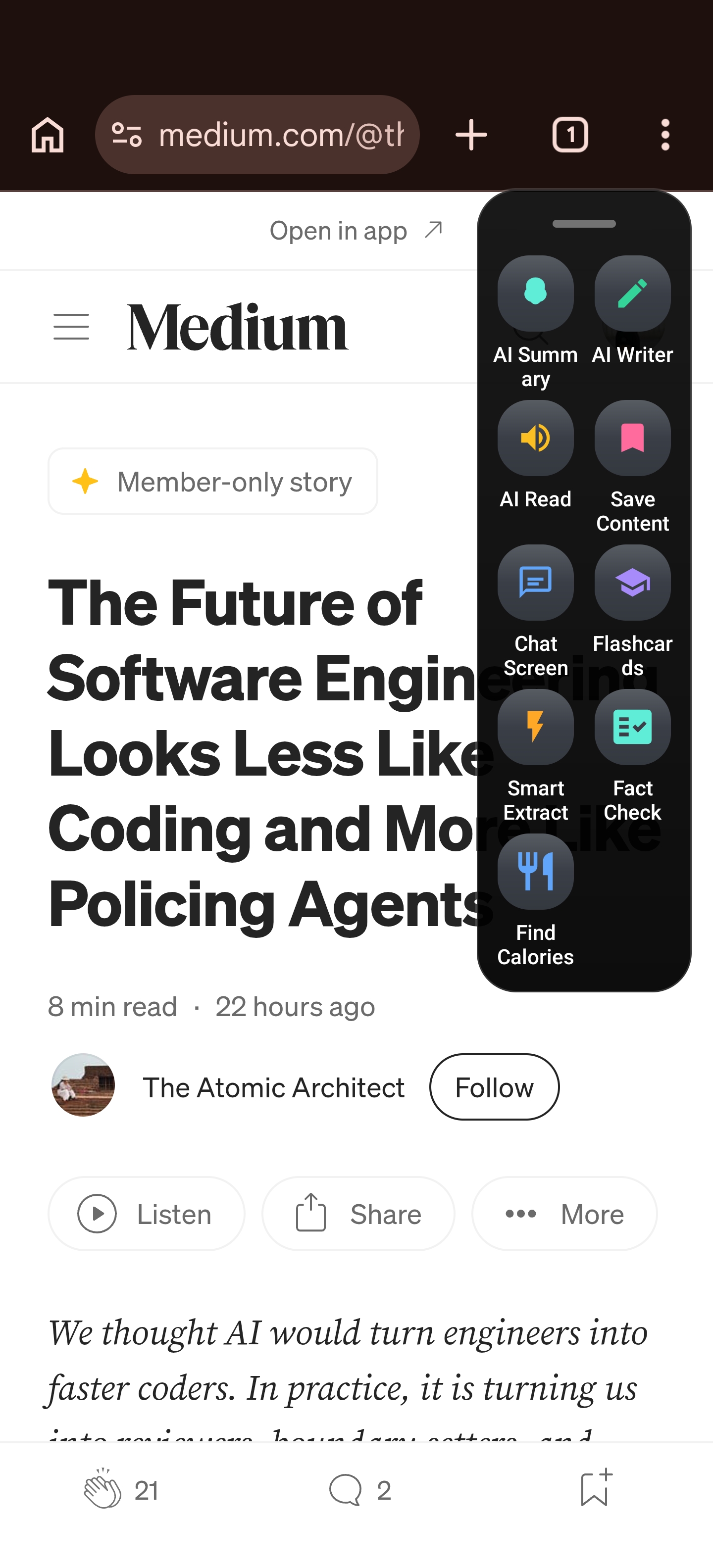
Arc takes a fundamentally different approach. Instead of a separate app you open and close, Arc provides a system-wide floating overlay — a semi-transparent sidebar that lives on the edge of your screen across every application. Swipe to expand it, tap to act, and it collapses back out of your way.
With 28,000+ installs across 50+ countries, Arc has become the go-to screen-aware AI for Android users — particularly in India (47% of users) and the US (13%), markets where context-switching friction is highest and the need for an assistant that actually sees your screen is most acute.
The floating sidebar isn’t just a UI trick. It’s an architectural decision that solves the core problem: AI that’s always present without being intrusive. You don’t leave your email app to use it. You don’t switch away from your browser. It’s there, on the edge, ready the moment you need it.
The sidebar uses Android’s Accessibility Service to read what’s visible on screen — not just text you’ve selected, but the entire content of whatever app you’re in. This is what makes it a genuine screen AI assistant Android has been missing: it sees what you see, in context, in real time.
Smart Extract: Turning Screen Content Into Action
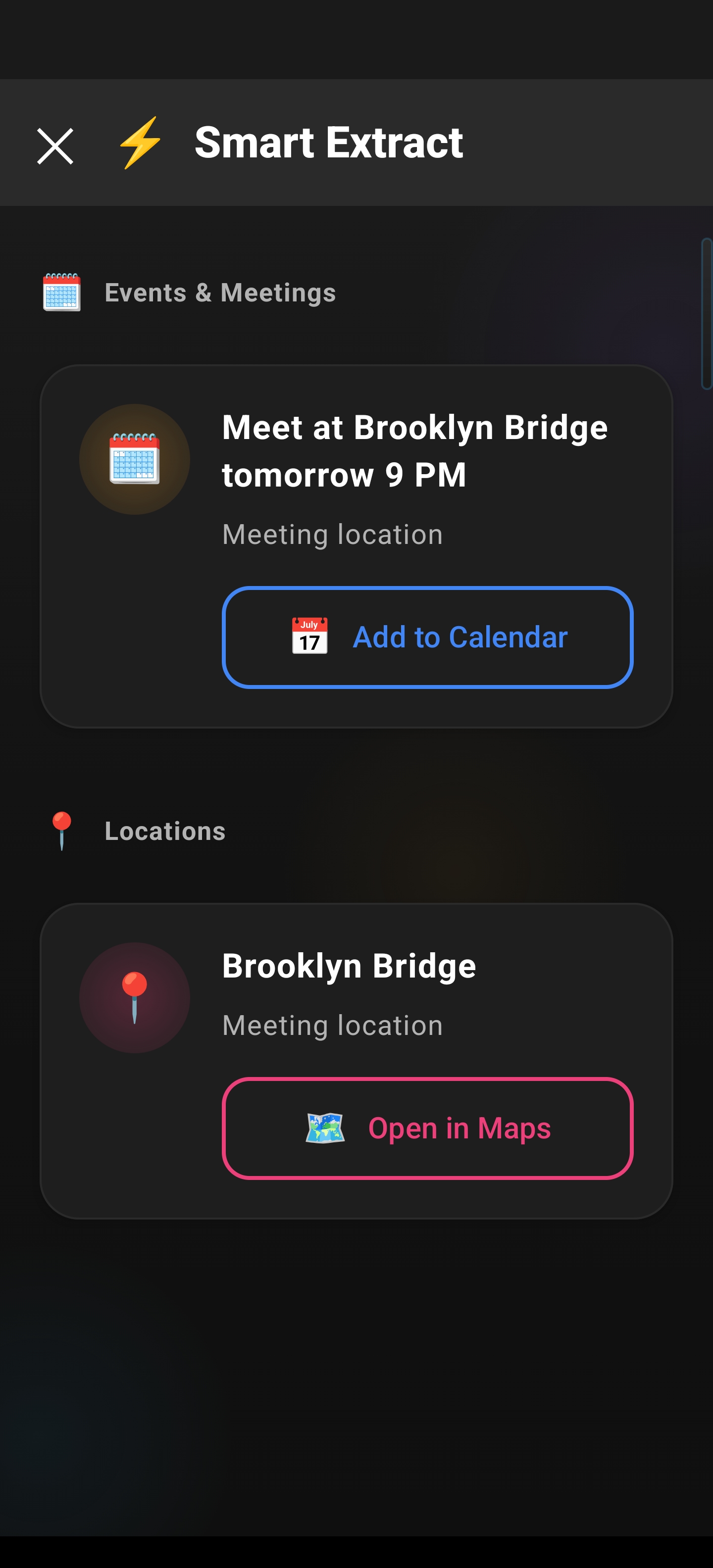
This is where Arc goes from “useful overlay” to “essential tool.” Smart Extract is Arc’s AI-powered screen analysis engine. Tap it, and it scans everything visible on your screen, identifies actionable items, and presents them with one-tap system actions.
Smart Extract recognizes eight types of actionable content:
- OTP/verification codes — surfaced first, always at the top
- Meeting/video call links — Zoom, Google Meet, Teams
- Events and dates — with calendar integration
- Reminders and deadlines
- Contacts — names, phone numbers, email addresses
- Locations and addresses — with Maps integration
- Phone numbers — direct dial capability
- Email addresses — one-tap compose
The priority sorting is deliberate and intelligent. OTPs appear first because you need them now — they expire. Meeting links come next because you’re likely about to join. Contacts and locations follow. It’s the same prioritization your brain uses, built into the extraction engine.
Each extracted item comes with a context-appropriate action. An OTP gets a “Copy Code” button. A meeting link gets “Join Meeting.” An address gets “Open in Maps.” A phone number gets “Call.” A contact gets “Save Contact” — which opens Android’s native contact editor with every field pre-filled.
These aren’t deep links that just open another app. They’re system-level actions that execute immediately. One tap. Done.
Real-World Scenarios: What Gemini Can’t Do, Arc Does in One Tap
Let’s make this concrete with the situations Android users hit every day.
Scenario 1: The OTP That’s Buried in a Text
You’re logging into your bank. The verification code arrives as an SMS. With Gemini, you’d need to switch to your messaging app, find the code, memorize it or copy it, switch back, and paste it. With Arc:
- Tap Smart Extract
- The OTP appears first in the results
- Tap “Copy Code”
- Paste it in. The clipboard auto-clears after 2 minutes for security
No app switching. No memorizing six digits. No leftover code sitting in your clipboard for the next app to accidentally read.
Scenario 2: The Meeting Invitation Email
A colleague sends a meeting invite with a date, Zoom link, their contact info, and an RSVP deadline. With Gemini, you’d ask it to summarize the email — and then manually create a calendar event, copy the link, and save the contact. With Smart Extract:
- The date gets an “Add to Calendar” action
- The Zoom link gets a “Join Meeting” action
- The organizer’s email gets a “Save Contact” action
- The RSVP deadline gets a “Set Reminder” action
Every actionable item from that email, surfaced and handled in seconds.
Scenario 3: The Business Email Signature
You receive an email from a new vendor. Their signature has a name, title, company, phone number, and email. Normally you’d manually type each field into your contacts app. Smart Extract identifies the full contact card and offers “Save Contact” — which opens Android’s contact editor with every field pre-filled. Review, tap save, done.
Scenario 4: The Delivery Address
Someone texts you a delivery address. Smart Extract identifies the location and offers “Open in Maps” — one tap launches Google Maps with navigation ready. No copying, no switching apps, no pasting into a search bar.
These aren’t edge cases. They’re the mundane, repetitive tasks that eat minutes every single day. And they’re exactly what Gemini can’t do anything on screen — because Gemini doesn’t have screen awareness.
Privacy by Design: Smart Without Being Creepy
Screen-level access raises an obvious question: what happens to my data?
Arc answers this clearly:
- Extracted items are ephemeral. Nothing is sent to or stored on a remote server. The AI analysis happens, results are presented, and that’s it.
- OTP clipboard auto-clears after 2 minutes. Verification codes don’t linger in your clipboard for other apps to scrape.
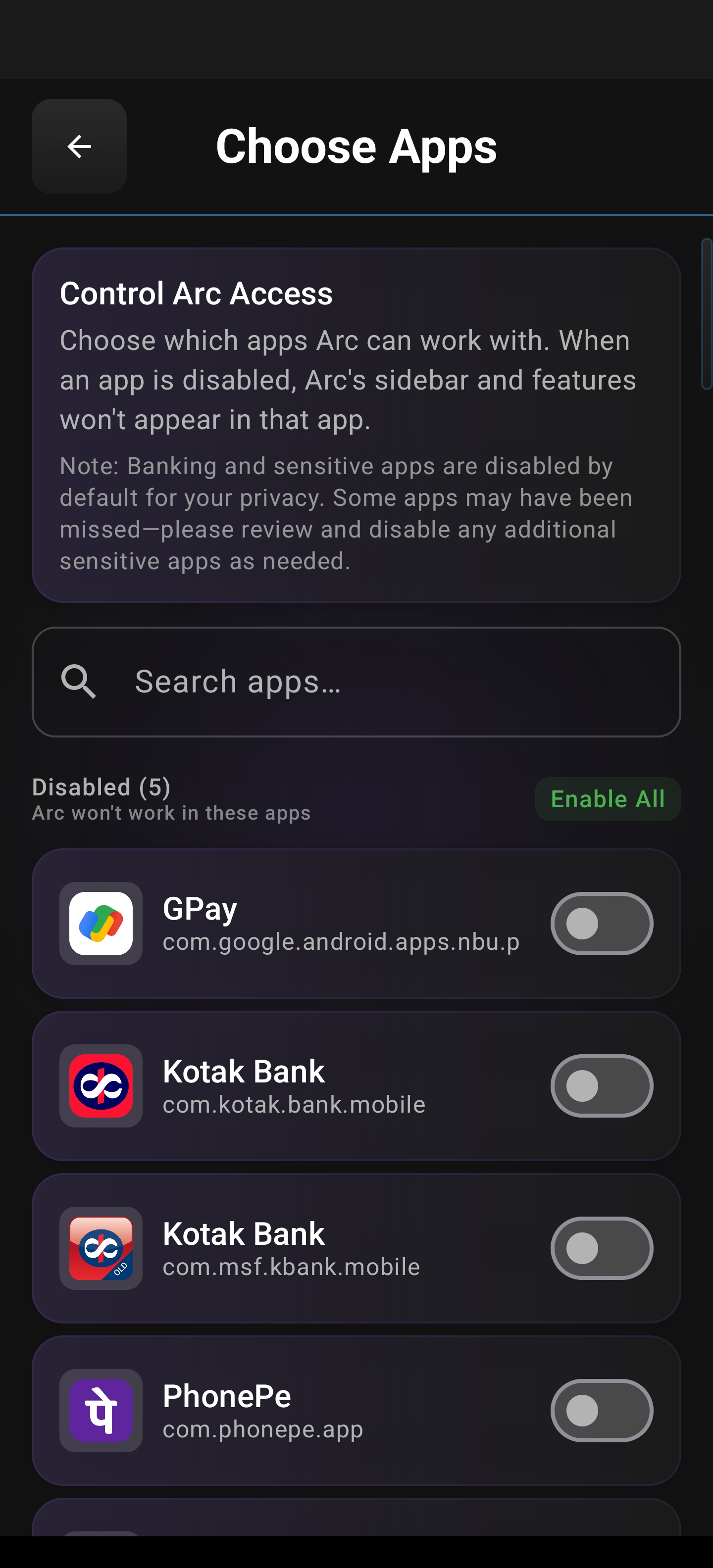
- App-level allow/block controls let you decide which apps Smart Extract can see. Banking apps are auto-blocked by default.
- Optional region selection means you can choose to extract only a specific part of the screen — not the whole thing.
The privacy model is simple: Arc sees your screen only when you ask it to, acts only on what you select, and forgets everything immediately. It’s the difference between an assistant who reads over your shoulder constantly and one who looks only when you point something out.
Accessibility: An Overlay That Actually Helps
The floating overlay isn’t just a productivity feature — it’s an accessibility win. For users with motor impairments, visual impairments, or anyone who finds the constant app-switching dance exhausting, Arc’s persistent overlay eliminates the need to navigate away from what you’re doing.
- TalkBack fully supported, with auto-hide disabled when TalkBack is active
- WCAG 2.1 AA compliant touch targets (44–48dp) — every button is easy to hit
- High contrast mode, reduced motion, and text scaling all respected
- Haptic feedback on OTP copy — you feel the confirmation
For someone using TalkBack, the overlay stays on-screen across apps, meaning they never lose their place. That’s not a nice-to-have. That’s the difference between a tool that works for some people and one that works for everyone.
Gemini vs Google Assistant Android: The Wrong Debate
Here’s the uncomfortable truth: the Gemini vs Google Assistant Android argument is solving the wrong problem. Google Assistant could act but couldn’t think. Gemini can think but can’t act on your screen. Neither of them could see what’s on your display and do something about it.
What Android users actually need isn’t a better chatbot or a revived voice command engine. They need a screen AI assistant — one that reads what’s on screen, identifies what matters, and takes immediate action. That’s not an incremental improvement over Gemini. It’s a different category entirely.
The gap is clear:
| Sees Your Screen | Extracts Actionable Items | Takes System Actions | Always-Accessible Overlay | |
|---|---|---|---|---|
| Google Assistant | No | No | Voice commands only | No |
| Gemini | No | No | No (tells, doesn’t do) | No |
| Arc | Yes | Yes (8 types) | Yes (one-tap) | Yes |
The Android AI Assistant Replacement You’ve Been Waiting For
If you’ve spent the last months frustrated by Gemini’s limitations — the inability to act on screen content, the endless app-switching, the “I can help with that” followed by nothing actually happening — Arc isn’t just another option. It’s the Android AI assistant replacement that picks up where both Google Assistant and Gemini fall short.
Arc doesn’t try to be a conversational AI. It tries to be a doing AI. One that sees your screen, understands what’s actionable, and does it — immediately, privately, across every app on your phone.
Download Arc from the Play Store and experience screen-level AI assistance that actually works. Learn more at appsrethink.com.
Frequently Asked Questions
Does Arc replace Gemini on my phone? No. Arc is a complementary tool. Gemini handles conversational AI tasks; Arc handles screen-level awareness and actions. They serve different purposes and can coexist.
How does Smart Extract read my screen? Arc uses Android’s Accessibility Service to capture visible screen content. This is the same system-level permission used by screen readers and other accessibility tools. It only activates when you tap Smart Extract — it doesn’t passively monitor your screen.
Is my data sent to a server? No. Extracted items are not stored on any remote server. OTP clipboard entries auto-clear after 2 minutes. You control which apps Smart Extract can access through app-level allow/block settings.
Does Smart Extract work in all apps? Yes, across your entire system — with one important exception. Arc auto-disables Smart Extract in banking and financial apps by default for privacy. You can also manually block any app through the settings.
Does Arc support accessibility features like TalkBack? Fully. TalkBack is supported with auto-hide disabled during active TalkBack sessions. Touch targets meet WCAG 2.1 AA standards (44–48dp). High contrast, reduced motion, and text scaling are all respected. Haptic feedback confirms actions like OTP copy.
What Android version does Arc require? Arc requires Android 10 or later with Accessibility Service permissions enabled.
Frequently Asked Questions
Can Gemini read my screen on Android?
No. Gemini can access some notifications and Gmail summaries, but it cannot see what’s on your screen in real time. Arc uses the AccessibilityService API to read any screen, any app.
What can Arc do that Gemini can’t?
Arc can: summarize any screen (not just Gmail), extract OTPs/events/contacts from any app, read content aloud via TTS, draft context-aware replies, and create flashcards from screen content — all without leaving your current app.
Should I use both Arc and Gemini?
Yes. Gemini is great for general queries and voice commands. Arc handles screen-level tasks that Gemini simply can’t do. They work well together — Gemini for questions, Arc for what’s on your screen.
Try Arc AI Screen Assistant free on Google Play — the screen-aware AI that actually does things for you. Explore all features →