Declutter Your Android Home Screen (For Real)
Rearranging apps won't fix home screen clutter. The real problem is how many apps you need. Arc reduces that. Free to try.
You’ve done it all — grouped apps into neat folders, deleted the ones you barely use, maybe even tried a minimalist launcher. Your home screen looks clean. But thirty minutes later, you’re still jumping between five apps just to summarize an article, draft a reply, and copy a phone number from a text.
The problem isn’t how your Android home screen looks. The problem is how many times you have to leave the app you’re in to get something done. A truly effective way to declutter your Android home screen isn’t about rearranging icons — it’s about reducing the need to switch apps in the first place.
I built Arc’s floating sidebar for exactly this reason. Every month, Arc users run 5,900+ custom actions and 2,700+ AI Writer drafts — all from inside the app they’re already in, no switching required. When you can summarize, extract, and reply without leaving, you stop needing five different apps for five different tasks.
Here’s why most home screen decluttering advice misses the point, and what actually works.
The Home Screen Decluttering Advice That Doesn’t Stick
Every “declutter your phone” article says the same things:
- Delete apps you don’t use — But the apps you keep are the ones causing the friction
- Organize into folders — Folders add taps. More taps, more delay
- Try a minimalist launcher — Different wallpaper, same context-switching problem
- Use widget stacks — Widgets show information, but you still leave your current app to act on it
These tips address the visual clutter, not the functional clutter. Your eyes might feel calmer looking at a tidy grid, but your workflow hasn’t changed. You still bounce between apps to get anything done.
The real clutter isn’t on your home screen — it’s the mental overhead of context-switching between apps to complete a single task.
The Real Problem: You’re Switching Apps, Not Organizing Them
Think about a typical task: you’re reading a long article in Chrome and want to save the key points. Here’s what that looks like without an Android home screen organizer that actually reduces friction:
- Read the article in Chrome
- Switch to your notes app to jot down key points
- Switch to your messaging app to share a summary with a friend
- Switch back to Chrome to continue reading
Four apps. Three switches. One simple task.
Now multiply that across your day — summarizing group chat messages, pulling details from an email into a calendar event, translating a screenshot, rewriting a work message. Each micro-switch costs attention, time, and mental energy.
A phone clutter solution that works needs to eliminate these switches, not just tidy the drawer they live in.
What an AI Sidebar Actually Does Differently
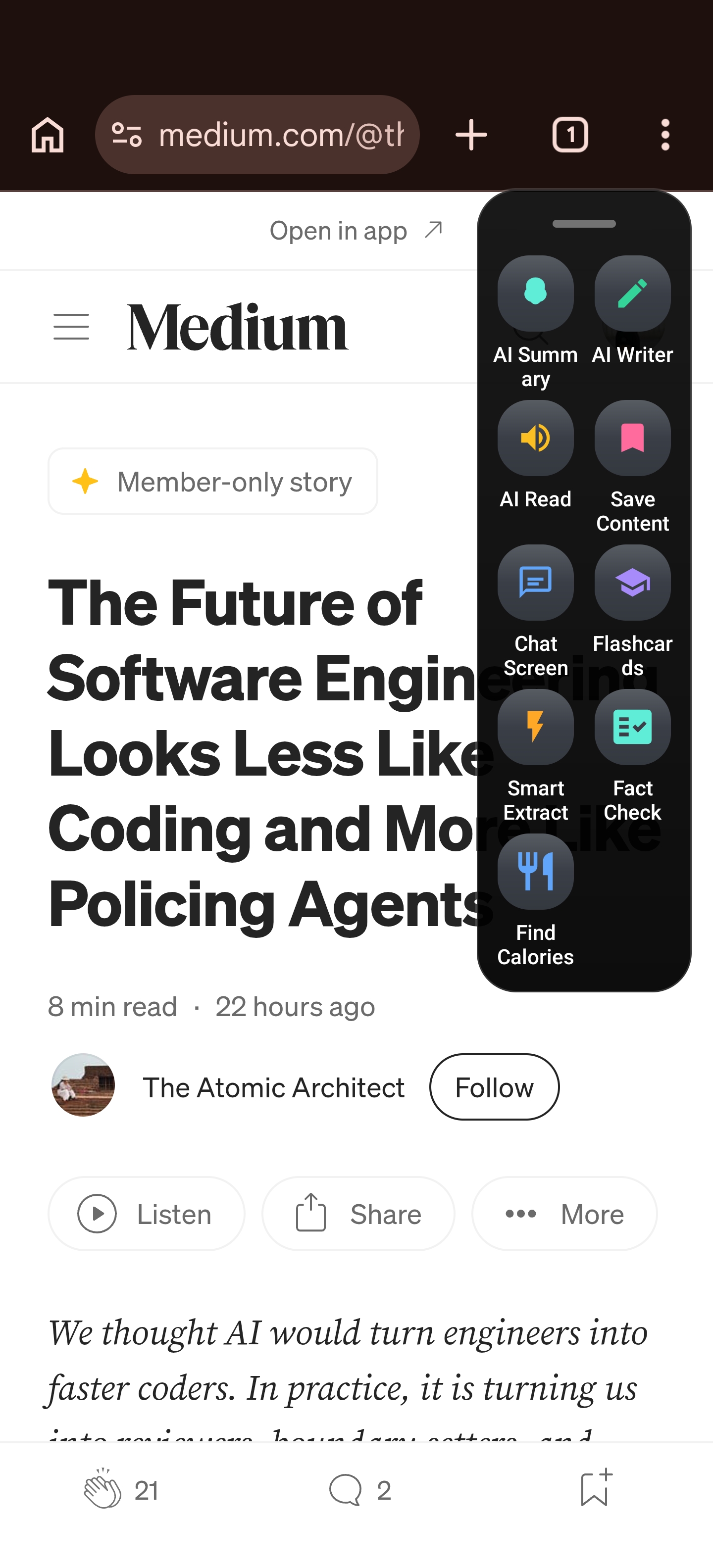
Arc’s floating sidebar is a system-wide overlay that sits on top of whatever app you’re using. Instead of leaving your current screen to open a separate AI tool, the sidebar brings the tools to you.
Here’s how it changes the workflow:
- AI Summary: Reading a long article? Tap the sidebar, get an instant summary — without leaving your browser
- AI Writer: Need to draft a reply? The sidebar generates one based on what’s on your screen and pastes it into your active app
- Smart Extract: Want to pull a phone number, address, or key detail from a text? Extract it in one tap
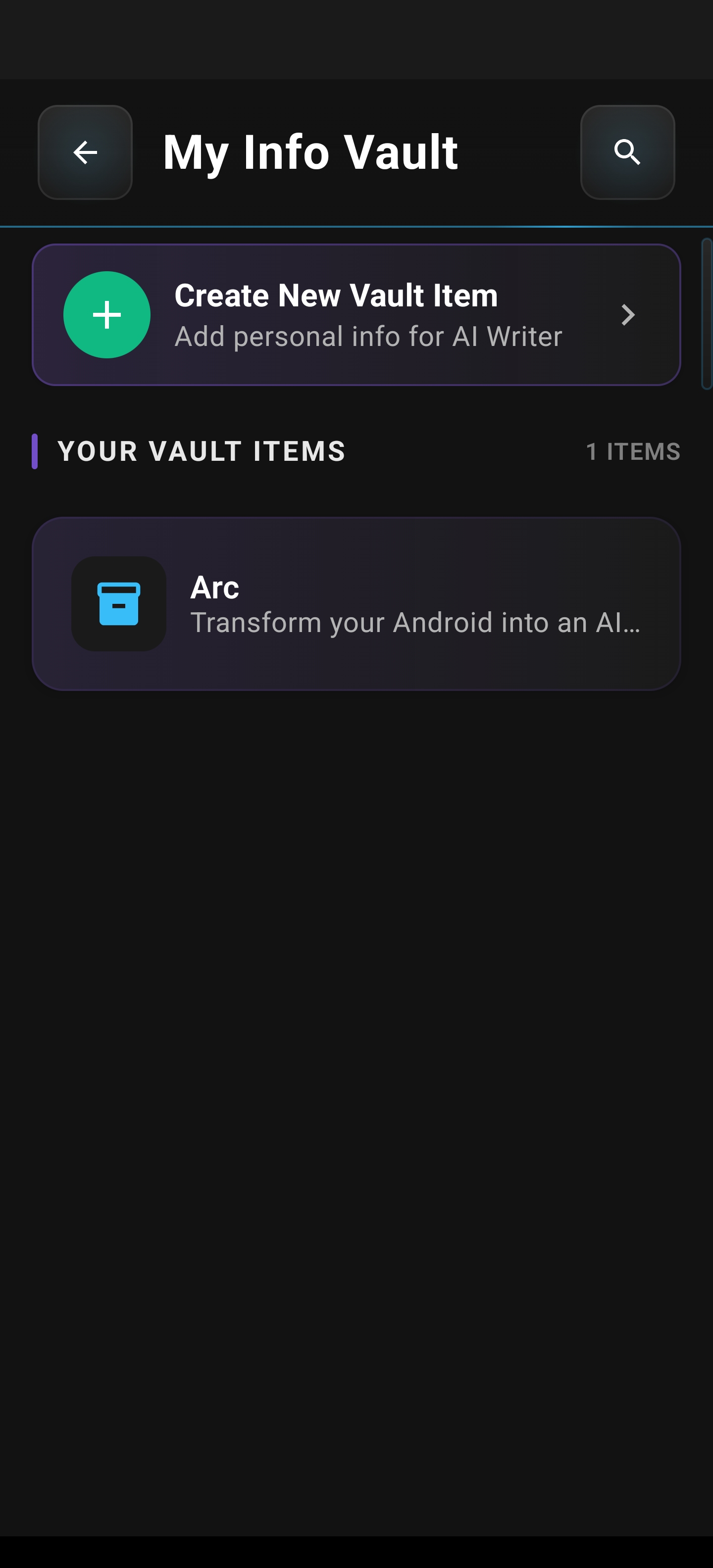
- My Info Vault: Need to auto-fill personal details? Your stored info drops right into the active field
Each tool works inside your current app. No switching. No copy-paste. No mental reload.
Real Scenarios Where Home Screen Decluttering Falls Short
Scenario 1: Summarizing a Long Article
You’re deep in a research rabbit hole on your phone. Every time you want to capture key points, you:
- Leave Chrome
- Open your notes app
- Type or paste the summary
- Switch back
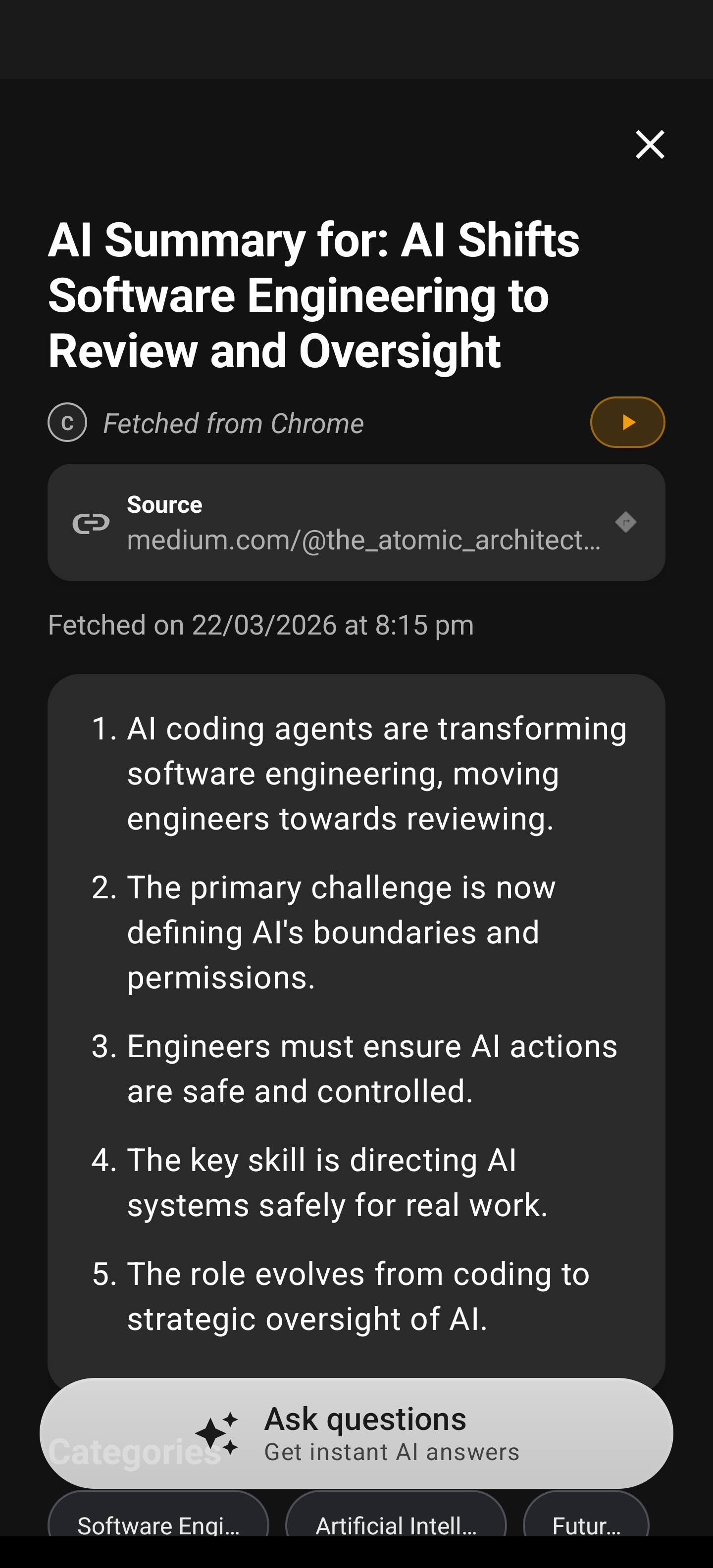
With Arc’s sidebar, you swipe the sidebar in, tap AI Summary, and the key points appear in a floating panel. You can even save the summary directly to your Summary Library for later.
Scenario 2: Drafting Replies Without App-Switching
You get a long email while checking messages. Instead of:
- Switching to your email app
- Reading the full thread
- Typing a response
- Switching back to what you were doing
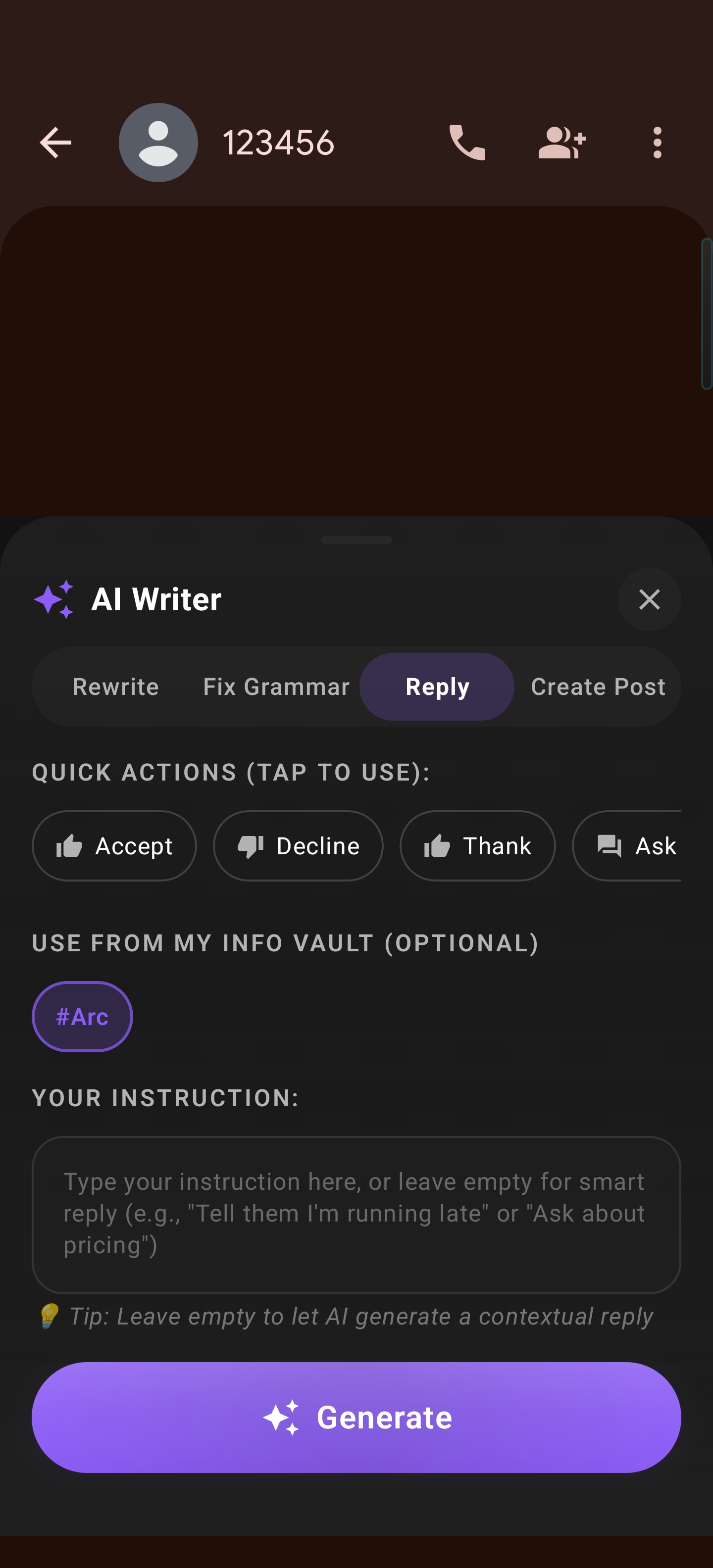
Arc’s AI Writer Reply mode reads the conversation on your screen, generates a contextually appropriate reply, and places it in the text field. One swipe. One tap. Done.
Scenario 3: Extracting Info Without Copy-Paste
Someone texts you an address for a meetup. Instead of:
- Switching to your maps app
- Manually typing or copy-pasting the address
- Navigating there
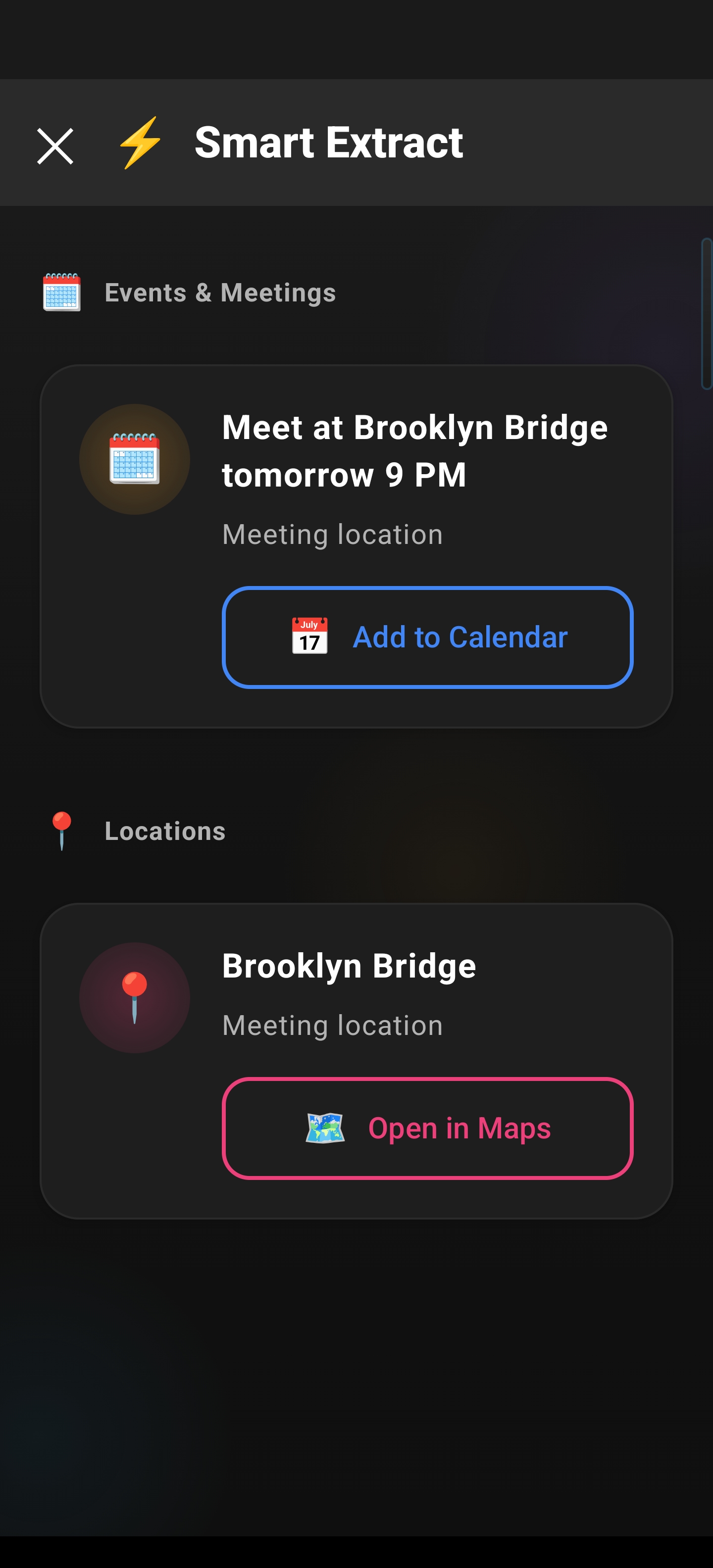
Arc’s Smart Extract identifies the address on your screen and can open it in Maps — or save it to your Info Vault — all from the sidebar overlay.
Scenario 4: Auto-Filling Personal Details
You’re filling out a form that asks for your address, email, and phone number. Instead of typing each field from memory or switching to a notes app to look them up:
Arc’s My Info Vault stores your personal details securely and auto-fills them into any form on any app. Swipe, select, done.
No more retyping the same information across a dozen apps. Your details live in one secure place and appear exactly where you need them.
Why an AI Overlay Beats a Cleaner Home Screen
| Approach | Visual Clutter | App Switching | Mental Load | Time Saved |
|---|---|---|---|---|
| Minimalist launcher | ✅ Reduced | ❌ Same | ❌ Same | Minimal |
| App folders | ✅ Reduced | ❌ Same | ❌ Same | Minimal |
| Widget stacks | ✅ Reduced | ⚠️ Partial | ⚠️ Partial | Some |
| AI Sidebar overlay | ✅ Reduced | ✅ Eliminated | ✅ Reduced | Significant |
The difference is fundamental. Organizing apps into folders doesn’t reduce app switching on Android — it just makes the switching look neater. An AI sidebar eliminates the need to switch entirely by bringing tools to you. Over 8,500 monthly active users have discovered this — and with India (47%) and the US (13%) as the top markets, the appeal spans very different phone usage patterns.
How to Set Up Arc’s Floating Sidebar
Getting started takes about two minutes:
- Download Arc from the Google Play Store
- Enable the sidebar in Settings — choose left or right edge, size, and auto-collapse behavior
- Configure your tools — enable AI Summary, AI Writer, Smart Extract, Info Vault, and Custom Actions
- Swipe to use — in any app, swipe the edge of your screen to bring up the sidebar
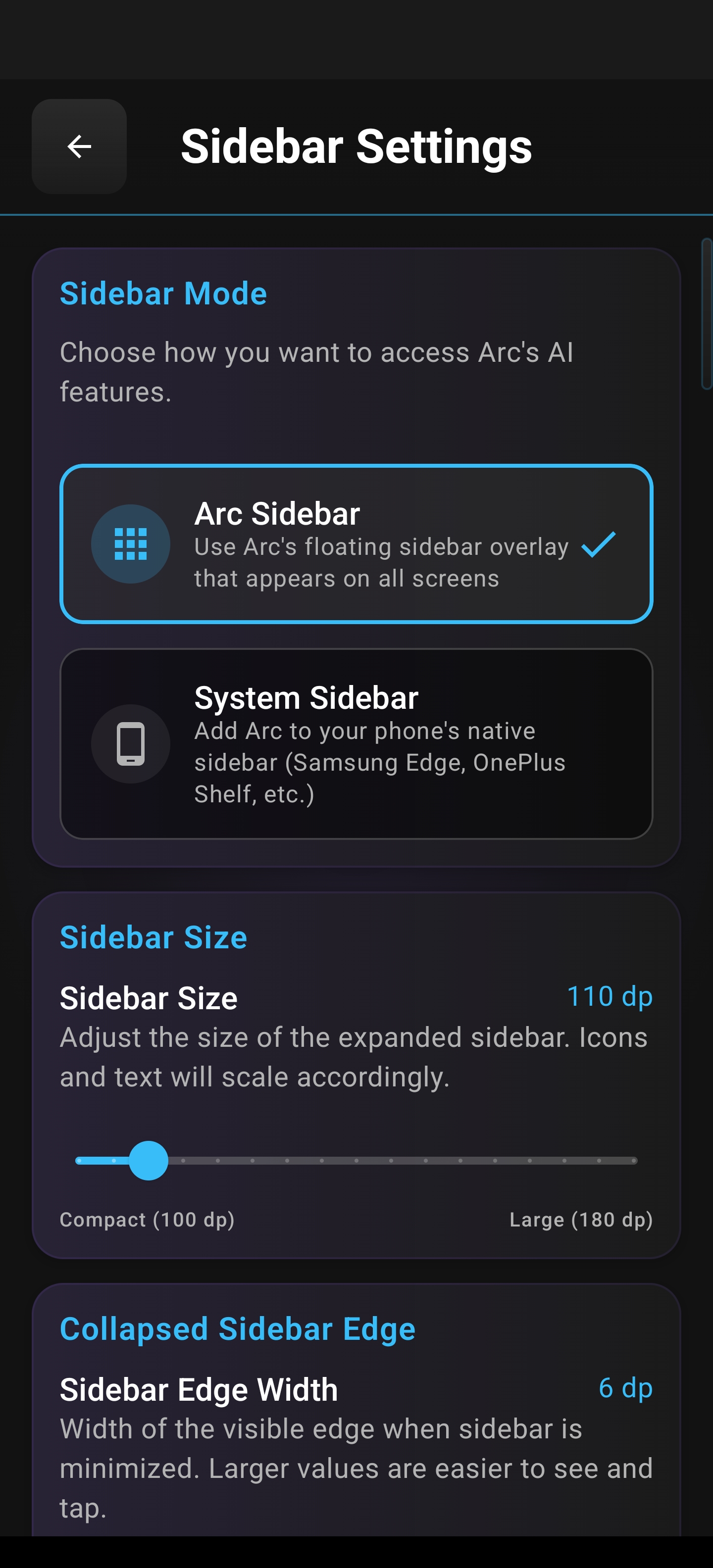
The sidebar stays out of your way when you don’t need it and appears instantly when you do. No home screen space wasted. No app switching required.
The Bottom Line
Decluttering your Android home screen by rearranging apps feels productive, but it doesn’t solve the real problem. The friction isn’t visual — it’s functional. Every time you leave an app to open another one for a quick task, you lose momentum, time, and focus.
Arc’s floating sidebar turns your phone into a workspace where tools come to you. Summarize, write, extract, and auto-fill — all without ever leaving the app you’re in. That’s not just a cleaner home screen. That’s a fundamentally better way to use your phone.
Ready to stop switching and start doing? Download Arc from the Play Store and try the floating sidebar free.
Frequently Asked Questions
Does Arc’s sidebar work on top of every Android app?
Yes. Arc’s floating sidebar overlay works system-wide on Android. It appears on top of any app — browsers, messaging apps, email, social media, documents, and more. You don’t need to grant special per-app permissions beyond the initial accessibility setup.
Will the sidebar slow down my phone or drain battery?
Arc’s sidebar is designed to be lightweight. It only activates when you swipe to open it and closes when you’re done. It runs as a system overlay, not a full background app, so battery impact is minimal.
How is an AI sidebar different from Android’s built-in split screen?
Split screen puts two apps side by side — but you still have to manage both windows, and most phones limit you to two apps at once. Arc’s sidebar is a floating overlay that provides AI tools inside your active app. No window management, no app pairing, no screen real estate sacrificed.
Can I customize which tools appear in the sidebar?
Absolutely. You can enable or disable individual tools (AI Summary, AI Writer, Smart Extract, Info Vault, Custom Actions) and customize the sidebar’s position, size, and auto-collapse behavior to fit your workflow.