Clipboard Manager Android — Arc Fixes Copy Paste for Good
Android's clipboard forgets everything when you copy something new. Here's how a clipboard manager saves your history and extracts data. Free to try.
You copy an address. Then you copy a phone number. Then you go back for that address — and it’s gone. Android replaced it the instant you copied the number. Sound familiar? Over 28,000 Android installs later, it is clear I am not the only one frustrated by this.
That’s the clipboard problem. Android gives you one slot. Copy something new, and the old thing vanishes. No history. No search. No way to pull text off a screen that won’t let you select it. It’s 2026, and copy paste on Android still feels like it was designed in 2008.
A clipboard manager for Android fixes all of this. It remembers what you copied, lets you search through it, and — with the right tool — even extracts text from your screen when copying isn’t an option. This post breaks down why Android’s clipboard is broken, what a clipboard manager actually does, and how Arc’s Smart Extract and Info Vault turn your phone into a copy-paste powerhouse.
The Problem: Android’s Clipboard Is a Black Hole
Here’s what happens with Android’s default clipboard:
- One slot only. Every new copy overwrites the previous one. Copy an email, then a URL, and the email is gone.
- No history. There’s no built-in way to see what you copied five minutes ago, let alone yesterday.
- Reboots wipe it clean. Restart your phone? Your clipboard is empty.
- No search. Can’t remember what you copied? You’re scrolling through apps trying to find it again.
- Locked text. Some apps — images, PDFs, certain chat messages — don’t let you select text at all. You’re stuck retyping it by hand.
If you’ve ever switched between three apps just to piece together information from separate messages, you know the pain. The Android clipboard isn’t a tool — it’s a bottleneck.
What a Clipboard Manager on Android Actually Does
A clipboard manager Android app keeps a running log of everything you copy. But the good ones go further.
Android Clipboard History That Actually Persists
Instead of a single slot, a clipboard manager stores every item you copy — links, addresses, code snippets, phone numbers, entire paragraphs. Your Android clipboard history becomes searchable, scrollable, and recoverable. Need that tracking number from two days ago? It’s still there.
Instant Paste From History
No more switching back and forth. A proper clipboard manager lets you pull up your history and paste any previous item with one tap. Copy three things in a row, then paste all three — in any order — without re-navigating.
Extract Text From Screen Android — Even When You Can’t Select It
This is where most clipboard managers stop and where Arc keeps going. Some content on your phone simply can’t be copied: text inside images, text in apps that disable selection, text in overlay menus or pop-ups that disappear before you can highlight them.
With extract text from screen Android capability, Arc’s Smart Extract reads what’s on your screen and pulls the text out — no selecting, no copying, no retyping. Arc’s 8,500+ monthly active users run Smart Extract over 5,900 times a month to grab text that the clipboard simply cannot handle. We’ll walk through exactly how that works below.
Why Most “Clipboard Manager” Apps Fall Short
The Play Store is full of clipboard managers. Most of them do one thing: log your copies. That’s useful, but it’s only half the problem solved.
Here’s what they miss:
- No screen extraction. They can’t pull text from images, screenshots, or apps that block text selection. You’re still manually retyping anything you can’t highlight.
- No organization. A flat list of 200 copied items isn’t helpful. You need folders, search, and categories.
- Clunky interfaces. Most clipboard managers are bolted onto Android as afterthoughts. Switching between your clipboard and your current app feels clunky and slow.
- Privacy concerns. Your clipboard contains passwords, personal info, financial details. Some apps store this in the cloud or don’t encrypt locally. That’s a non-starter.
The best clipboard tool for Android isn’t just a clipboard logger. It’s a full text-handling system — one that remembers, organizes, and extracts.
How Arc Handles Copy Paste on Android — and Then Goes Further
Arc isn’t just a clipboard manager. It’s a floating sidebar that lives on top of your apps and gives you superpowers for dealing with text on your phone. Here’s how the clipboard-related features work:
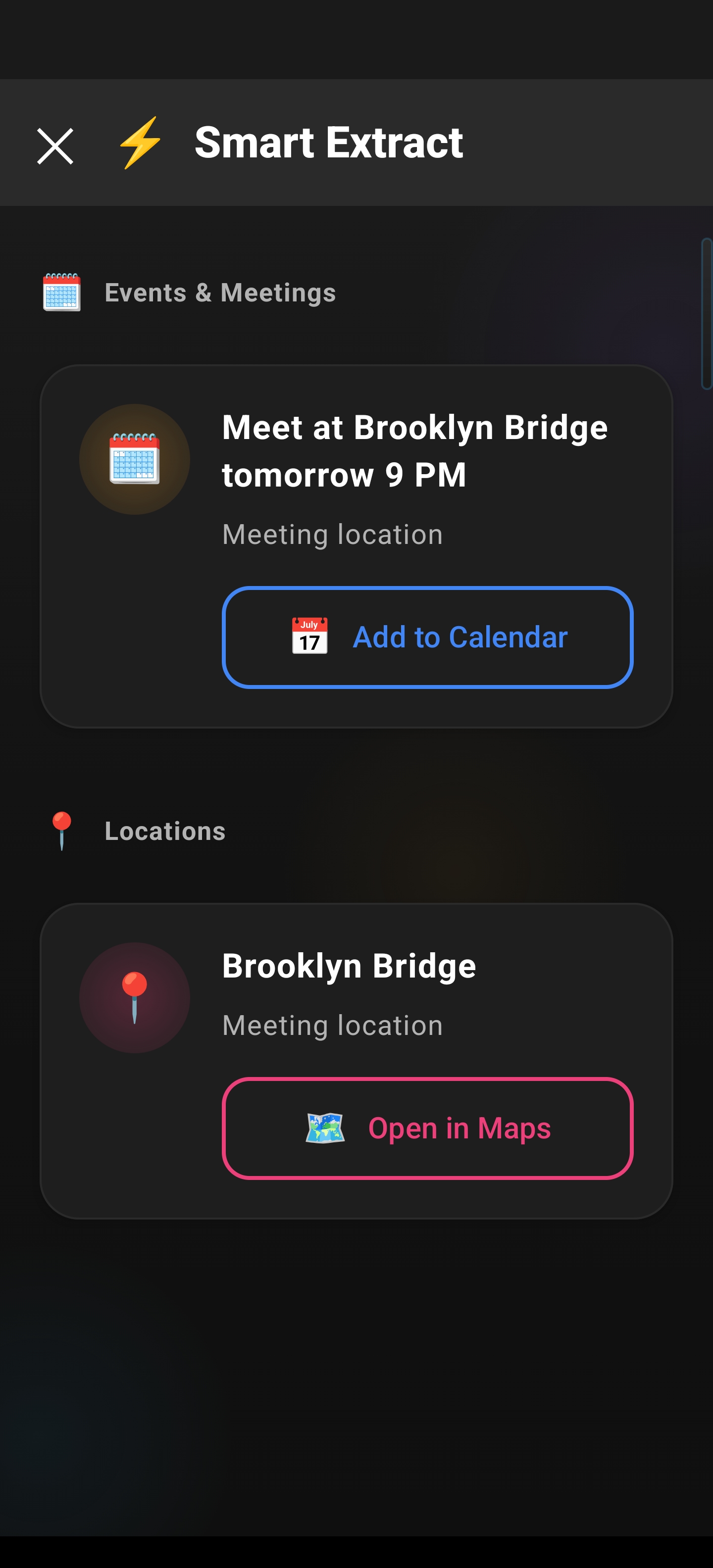
Smart Extract: Pull Text From Any Screen
This is the game-changer. Smart Extract reads what’s visually on your screen and converts it to editable, copyable text.
How it works:
- Open any app — a chat, a browser, a PDF, an image with text
- Swipe the Arc sidebar open
- Tap Smart Extract
- Arc captures the screen, identifies the text, and presents it as selectable, copyable content
No more retyping text from screenshots. No more fighting with apps that won’t let you select. If it’s visible on your screen, Arc can extract it.
This is especially useful for:
- Shipping confirmation numbers buried in email formatting that won’t select cleanly
- Addresses inside images — restaurant screenshots, flyer photos, maps with text overlays
- Chat messages in apps that disable text selection (looking at you, certain banking apps)
- Code snippets from screenshots shared in team chats
Android Clipboard History: Always On, Always Searchable
Arc remembers what you’ve copied. Your full Android clipboard history lives inside the sidebar, accessible with a swipe. Search by keyword, scroll by date, tap to paste.
No more “which app did I copy that from?” — it’s all in one place.
My Info Vault: Your Personal Clipboard on Steroids
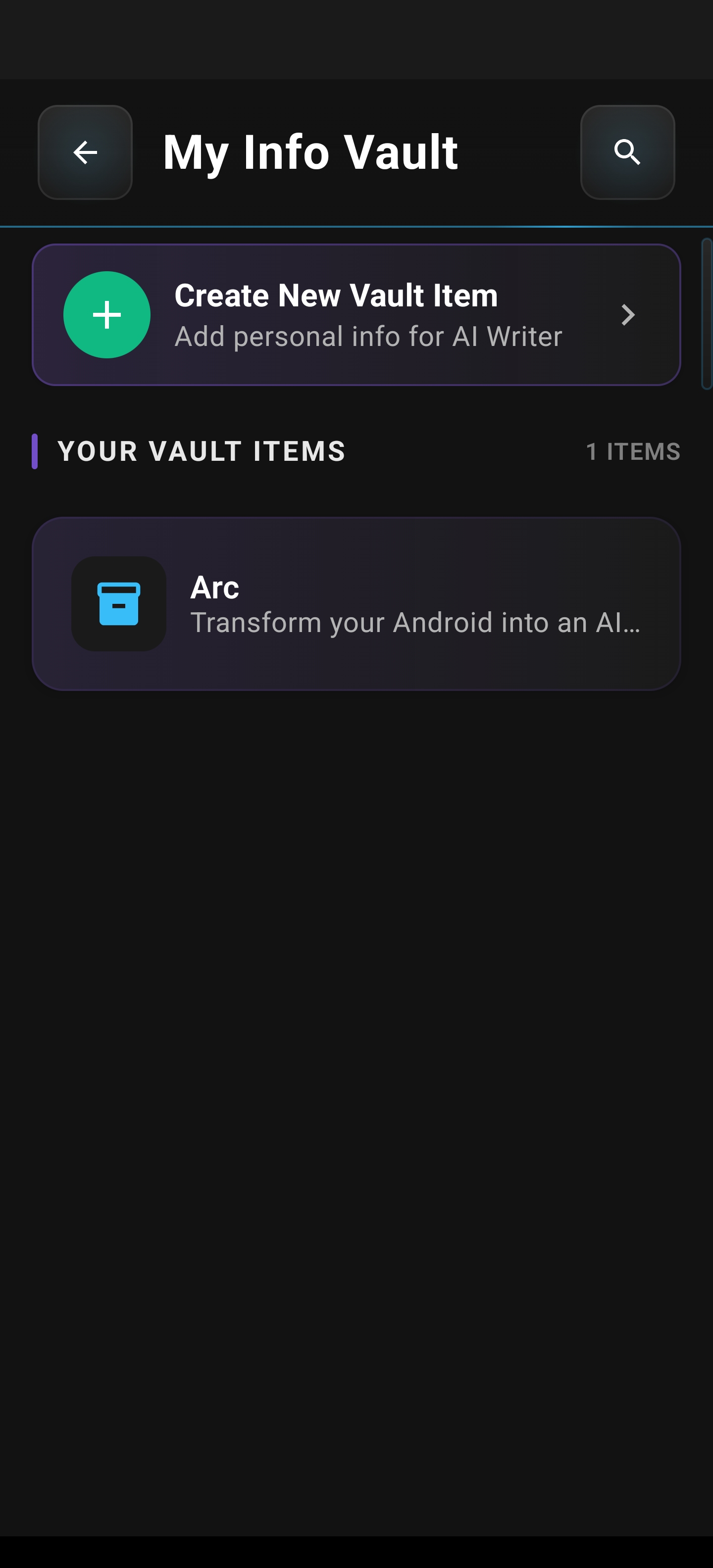
Sometimes you copy the same things over and over: your email address, your shipping address, your bank details, your frequent flyer number. Arc’s Info Vault lets you save these as permanent, encrypted entries.
Why this beats a clipboard manager alone:
- Clipboard history is temporary. Info Vault is permanent. Your saved items don’t get pushed out by new copies.
- Organized by category. Addresses, IDs, financial info — each has its own section. No digging through a list of 500 clipboard entries.
- One-tap paste. Pull up the sidebar, tap the vault entry, and it’s ready to paste into any app.
Think of it as a curated clipboard that never forgets and never gets cluttered. You store what matters once, and it’s always a swipe away.
The Info Vault also handles sensitive data responsibly — items are stored locally on your device, not in the cloud. When you need your ID number for a form, it’s two taps away instead of a scramble through your wallet or a password manager.
AI Writer: Paste With Purpose
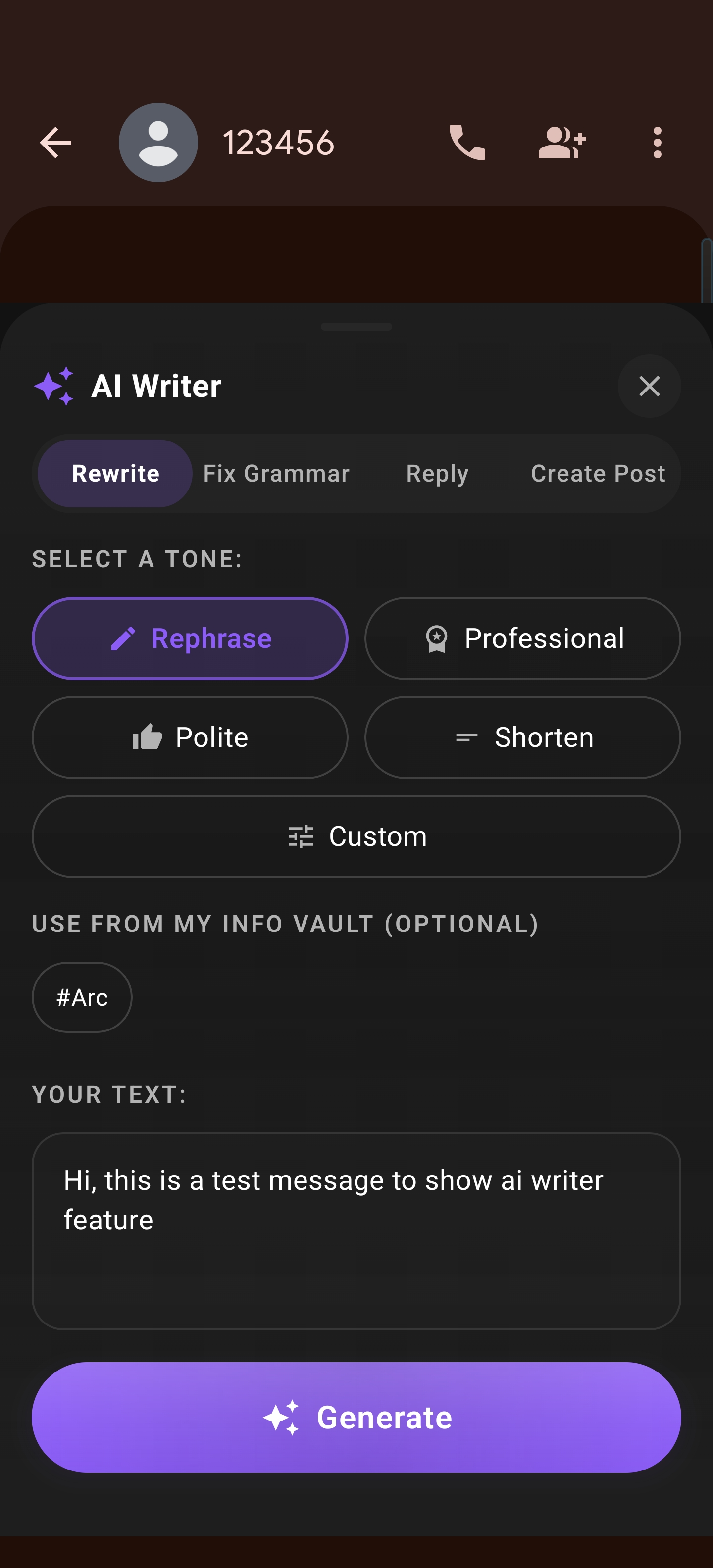
Arc’s AI Writer takes clipboard content and does something with it. Pasted an address? Rewrite it in a message. Copied a paragraph? Fix the grammar. Need to reply to a long email? Paste it in and get a drafted response.
It’s not just about holding text — it’s about acting on it. Your copy paste Android workflow goes from “move text from A to B” to “move text from A to B, then make it better.”
The AI Writer supports multiple modes: Create for drafting new content, Rewrite for rephrasing, Reply for quick responses, and Fix Grammar for cleaning up copied text. Each mode is a single tap away in the sidebar, and results can be copied or pasted directly into any app on your phone.
Real-World Scenarios: When a Clipboard Manager Saves You
Scenario 1: The Address Juggle
You’re booking a ride. The address is in a text message. The apartment gate code is in a different message. The pickup instructions are in a third app. Without a clipboard manager, you’re copying and pasting one piece at a time, switching apps between each paste.
With Arc: Copy all three pieces. They’re all in your clipboard history. Switch to the ride app and paste them in sequence. Done in seconds.
Scenario 2: The Unselectable Text
You’re looking at a bank statement in your banking app. You need the transaction ID, but the app won’t let you select text. You’d normally screenshot it and type it out manually.
With Arc Smart Extract: Open the sidebar, tap Smart Extract, and the transaction ID — along with the full statement text — is captured and ready to copy.
Scenario 3: The Repeated Info Entry
You’re filling out forms at a new doctor’s office (on their terrible mobile site, naturally). Address, insurance ID, emergency contact, pharmacy preference — all entered one field at a time. You copy your address, paste it, then have to go back to your contacts app for the next piece.
With Arc Info Vault: All your personal info is saved. Swipe the sidebar, tap “Home Address,” paste. Tap “Insurance ID,” paste. The entire form takes 60 seconds instead of 10 minutes.
Scenario 4: The Screenshot-to-Action
Someone sends you a screenshot of a restaurant recommendation with the address in the image. You can’t select text from an image natively on Android.
With Arc: Smart Extract reads the address from the screenshot. One tap to copy. One more to paste into Maps. You’re navigating there in five seconds.
How to Start Using Arc as Your Clipboard Manager on Android
Step 1: Install Arc
Download Arc from the Google Play Store and follow the setup prompts. Grant the accessibility permissions — Arc needs these to display the floating sidebar over your other apps and to read your screen for Smart Extract.
Step 2: Enable the Floating Sidebar
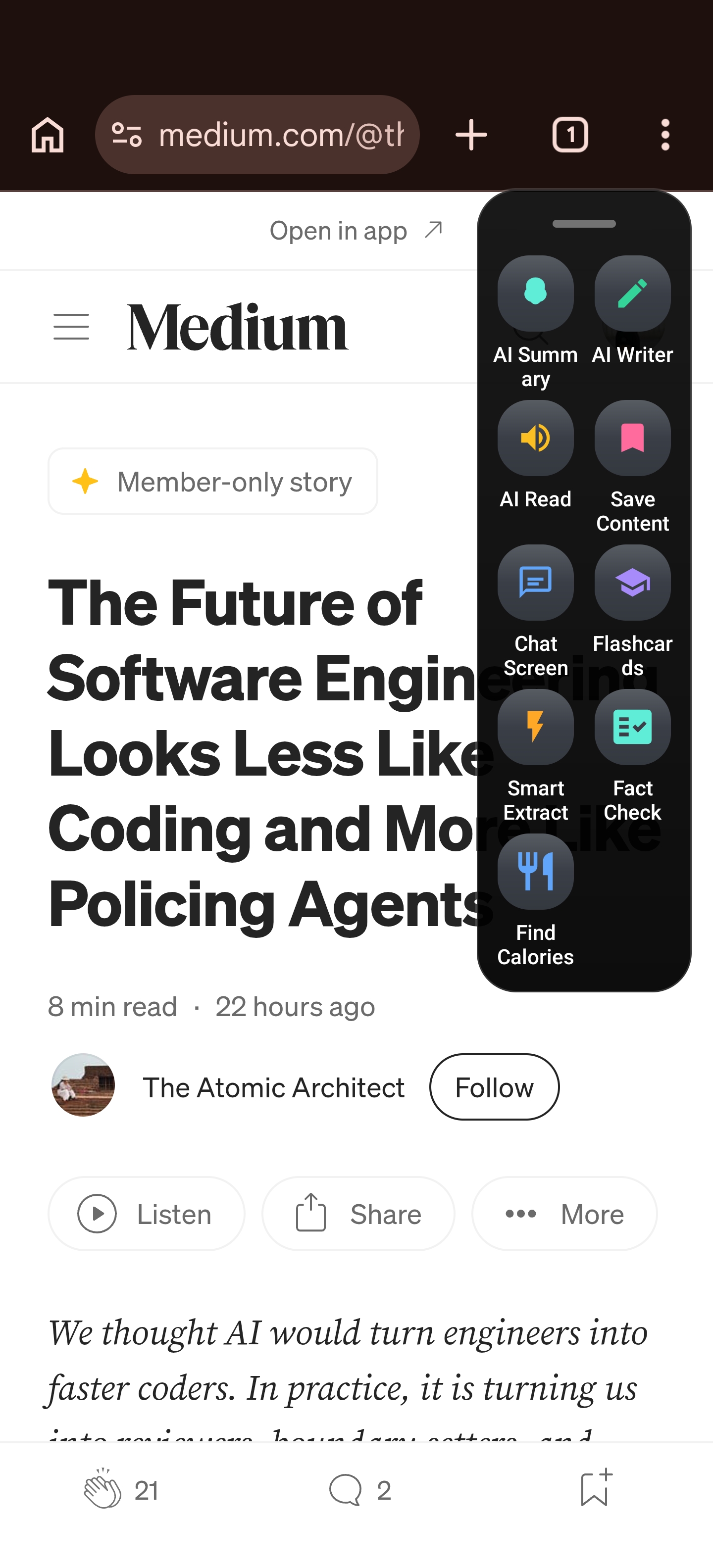
Once installed, you’ll see Arc’s floating edge trigger on the side of your screen. Swipe it to open the sidebar anytime, in any app.
You can customize the sidebar’s position, size, and behavior in Arc’s settings. Choose left or right edge, adjust the trigger sensitivity, and set it to auto-hide when you’re typing or gaming.
Step 3: Start Using Smart Extract and Clipboard History
- Smart Extract: Open any screen with text you want to capture, swipe open the sidebar, and tap Smart Extract. Done.
- Clipboard history: Everything you copy automatically appears in your Arc sidebar history. Search it, tap it, paste it.
- Info Vault: Save your most-used information — addresses, IDs, frequent details — for instant access any time.
Step 4: Customize Your Workflow
Arc’s Custom Actions let you build shortcuts for repetitive tasks. Need to extract text from a specific app and format it a certain way? Create a custom action. Want to save extracted text directly to your Info Vault? Set it up once and run it with one tap.
Clipboard Manager on Android: The Bottom Line
Android’s built-in clipboard is a single-slot, amnesiac tool that hasn’t meaningfully evolved in years. If you copy more than one thing per day — and most of us copy dozens — you’re losing time, losing information, and retyping text that should take one tap to recover.
A clipboard manager on Android fixes the core problem: it remembers what you copied and makes it searchable and reusable. But the real win comes when your clipboard tool also extracts text from your screen, stores your permanent info, and uses AI to act on pasted content.
That’s what Arc does. It’s not just a copy paste Android upgrade — it’s a complete text-handling system that lives in a sidebar and works across every app on your phone.
Stop losing clipboard data. Stop retyping what you can extract. Stop switching apps for information you should have at your fingertips.
Download Arc on Google Play and turn your Android clipboard from a limitation into a superpower.
Frequently Asked Questions
Does Android have a built-in clipboard manager?
Android has a basic clipboard that stores only the most recent item you copied. Some keyboard apps (like Gboard) offer a clipboard history feature, but it’s limited — items expire after a set time, and there’s no search or organization. A dedicated clipboard manager Android app like Arc gives you persistent, searchable clipboard history plus screen text extraction.
How do I view my Android clipboard history?
Without a clipboard manager, you can’t — Android doesn’t natively store clipboard history. With Arc, your full clipboard history is always available in the floating sidebar. Swipe open, search, and tap any item to paste it.
Can I extract text from a screenshot on Android?
Yes. Arc’s Smart Extract feature reads text from any visible screen content — including screenshots, images with embedded text, and apps that block text selection. Open the screen, swipe the Arc sidebar, and tap Smart Extract.
Is clipboard data stored safely?
Arc stores your clipboard history and Info Vault data locally on your device. It’s not uploaded to any cloud server. Your sensitive information — passwords, financial details, personal IDs — stays on your phone.
What’s the difference between Arc’s Info Vault and a regular clipboard manager?
A clipboard manager stores everything you copy, which means it gets cluttered fast and important items can get pushed out. Arc’s Info Vault is a separate, permanent storage area for your most-used information — addresses, IDs, frequently pasted text. It’s organized, encrypted locally, and never overwritten by new clipboard items.