ChatPDF Alternative: Ask Any PDF Already Open, No Upload
Chat with any PDF already open on your screen — no upload, no document limit. Free AI PDF chat on Android and Mac, with answers you can copy out.
ChatPDF Alternative: Ask Any PDF Already Open, No Upload
I had three PDFs open last Tuesday and none of them were in the same app. A tenancy agreement in Chrome, a 60-page market report emailed to me, and a scanned invoice inside a PDF viewer. Three PDFs, and the same dance every time: download the file again to somewhere the “chat with your PDF” site could reach it, upload it, wait for the indexing spinner, hit the free document limit around the third file, and then get asked for a card.
So I stopped doing the dance. The document was already rendered on my screen. I asked the question there instead. Last month 8,584 chat messages were sent through Arc by 1,222 people, about seven messages each — and 99.94% of the 18,088 AI requests in that window actually completed. That is the shape of real document Q&A: not a single summary you read once, but a conversation you keep coming back to.
This post is about doing that with the PDF you already have open, on Android and on a Mac, for free.
What “chat with a PDF” normally costs you
Search chatpdf and you get a wall of near-identical tools: a hero image of a document, an upload box, and a plan table. The workflow is the same three steps almost everywhere — hand over the file, wait for the tool to ingest it, then talk to it.
That workflow has three costs that never show up in the marketing:
- The upload step. The file has to leave the place it already lives — your email, your Drive, your course app — and land in someone else’s document library. For a tenancy agreement or a medical letter, that is a decision, not a convenience.
- The document meter. Free tiers in this category are usually counted in documents or pages per month, because the cost of indexing a file server-side is real. Which is awkward, because documents tend to be the thing you have the most of.
- The context switch. You were reading page fourteen of a report. Now you are in a browser tab at a different address, in a different mental state, scrolling to find paragraph six again so you can paste it in.
There is a fourth, quieter cost. Most of these tools answer one question well and then you close the tab, because the conversation does not follow you back to the document.
The alternative: the document is already the input
Arc does not have an upload box, because it does not need one. It reads the page that is on your screen, through the accessibility layer you grant during onboarding, and talks to you about that.
The practical consequence is that there is no “supported documents” list and no file limit, because there is no file. A PDF in Chrome, a PDF in a viewer, a PDF inside an email preview, a spreadsheet, a scanned page — if it is rendered on screen and readable, it is fair game.
On Android, the sidebar is the whole workflow
- Open the PDF however you normally would — Chrome, your viewer, a course-reader app.
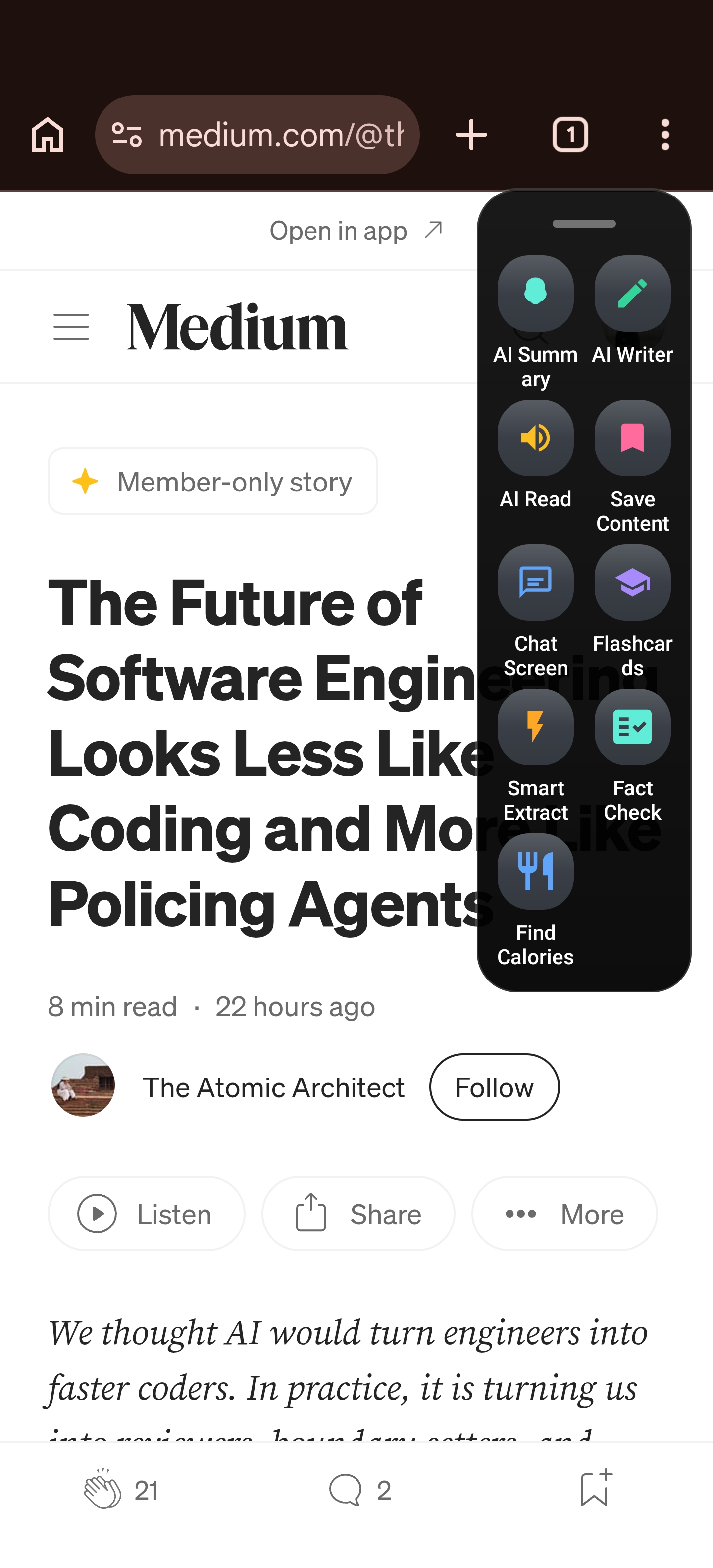
- Swipe inward from the screen edge to expand Arc’s floating sidebar. It is a small translucent strip by default, and it can stay available while you work in other apps.
- Tap AI Summary. Arc reads the visible text, the source app, and the URL if there is one, and opens a summary card in about two to three seconds. PDFs are auto-tagged as Document, and the action row is right there: Save, Share, Listen, Ask Questions, Copy.
- Tap Ask Questions and the chat surface opens with the captured page pinned at the top as an “Original Context” bubble. That bubble is labelled and expandable, which sounds like a small UI detail until you use a tool where you cannot see what the model was given.
- Ask the thing you actually want to know. “What notice period applies if I leave early?” “Which of these line items moved most year on year?” “Rewrite clause 7 in plain English.”
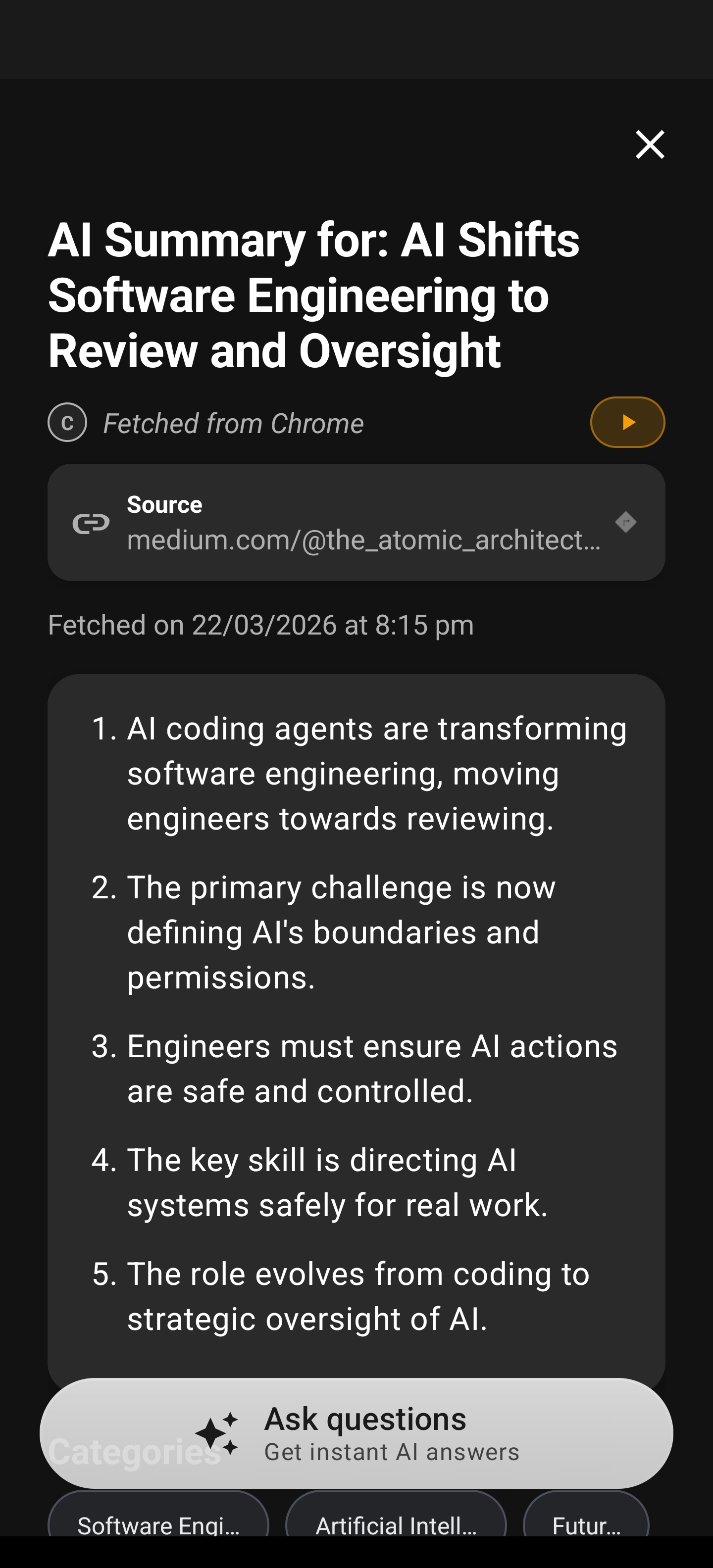
The chat starts as a small floating pill and expands into a full panel on your first keystroke, so asking one question does not feel like opening an app. Replies come with a copy button, and a long-press on the message text opens Android’s selection handles when you want a single sentence.
On a Mac, it is two keystrokes
- Press ⌃ Space (or Ctrl + Space) anywhere. The Arc menu opens over the frontmost window, including Preview, Chrome, Slack and other Electron apps.
- Pick AI Summary and hit Return — or Chat Screen if you want to skip straight to the question.
- A click-through overlay shows progress while Arc reads the window, then the result panel appears over your document: an AI title, numbered key points instead of a wall of prose, a source chip in the footer, and Share / Copy / Save / Ask questions.
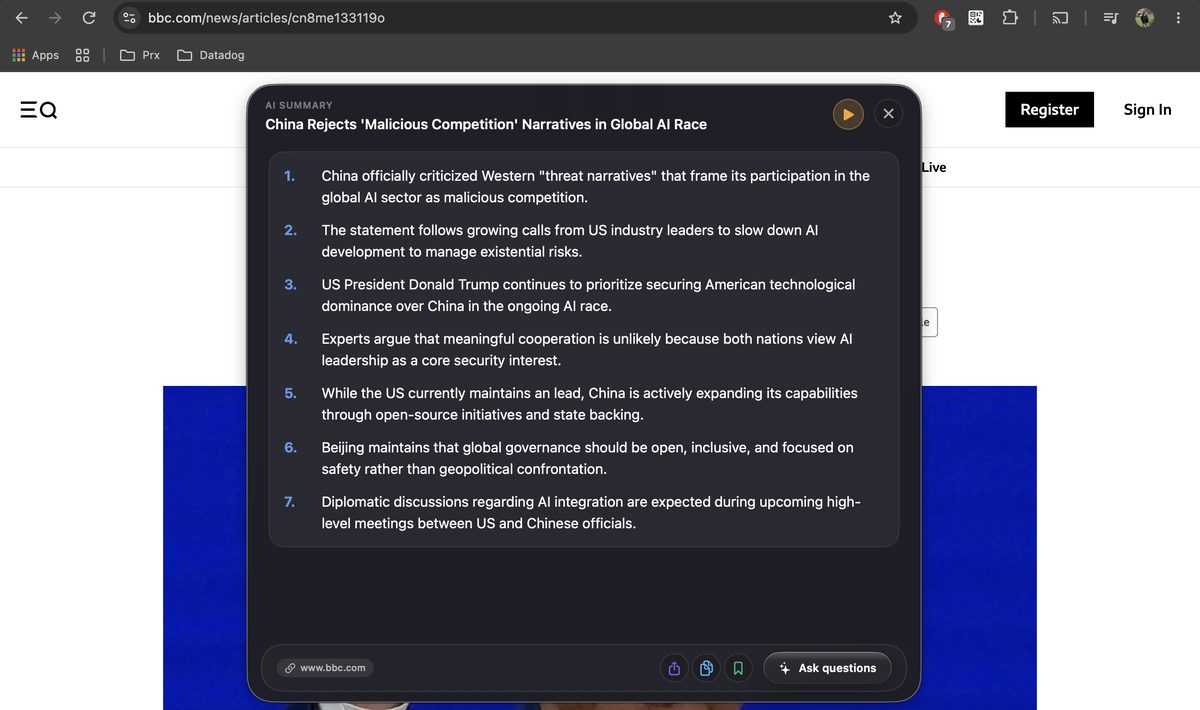
On the desktop the copy button strips Markdown, so a copied answer pastes cleanly into a ticket, a doc, or a terminal without stray asterisks. And because Arc flips Chrome’s manual-accessibility flag before reading, summarising a PDF that is open inside Chrome actually works — that detail is the difference between a feature and a demo.
What you actually ask a PDF in a week
I went back through my own chat history. The pattern is not “summarise this document” — it is four recurring jobs.
Contracts, letters, and paperwork
The questions are narrow and specific: what am I agreeing to, what is the deadline, what happens if I cancel, which number is the total. You do not need a semantic index over 400 pages. You need an answer about the page in front of you, once, in plain language. Then you copy it into an email to the other party or your flatmate, which is exactly why the copy button gets used eight times per person by the people who use it — 931 copies from 115 people last month.
Reports you have to have an opinion about
A 60-page market report arrives at 4pm and you need three defensible sentences by 5pm. Summary first for the shape of the argument, then follow-ups: “what is the counter-argument buried in here”, “which of these claims has a source attached”. On a phone this is the difference between reading on a train and not reading at all.
Textbooks, handouts, and lecture slides
This is where the second output matters. The same open PDF can become a study deck: tap Flashcards in the same sidebar and Arc generates a 5-to-15-card set with question, hint and answer faces, shows a preview, and saves what you keep. 548 decks were generated last month by 399 people. If you want the long version of that workflow, the PDF to flashcards guide walks it through.
Anything you want read aloud instead of read
A summary can be spoken: tap Listen and it plays with your configured voice, rate and pitch, keeps going in the background, and shows controls in the media notification. 2,400 playbacks started last month across 1,051 people, and 2,097 of them completed — an 87% finish rate, which tells me people are using this to get through material on a commute rather than testing it once.
Why the conversation survives the first answer
The thing that separates “asked a PDF a question” from “used a PDF tool” is whether you can come back to it.
- Sessions persist. Any chat you actually send a message in lands in Chat History with a colour-coded badge: green for a screen chat, blue for a summary chat, purple for a custom-action chat, plus a title, a preview of the source context, a timestamp and a message count.
- Search works across the conversation, not just the title, so “indemnity” finds the chat you had three weeks ago.
- Empty sessions are hidden automatically, so the list stays a list of actual work rather than a list of taps.
- Threads run to 50 messages, with the original context carried along each turn, which is enough to work through a document section by section.
- The same chat continues on the other device. Sessions and summaries live in a local store and merge through Google Drive backup, so a PDF chat started on Android is in Active Chats on the Mac.
That continuity is the part I did not expect to care about and now would not give up.
The numbers behind on-screen document Q&A
I would rather show you the usage than the pitch, because these numbers say something specific about how people interrogate documents:
- 8,124 monthly active users in the last 30 days, with 4,057 first opens.
- 99.94% AI request completion — 18,077 of 18,088 requests finished rather than timing out or erroring.
- 8,584 chat messages from 1,222 people, about seven each — document Q&A is multi-turn, not a one-shot summary.
- 94,686 sidebar opens by 4,095 users, 23.1 per person per month — people reach for the overlay constantly instead of opening an app.
- 931 summary copies from 115 people, 8.1 each — the outputs get moved into notes, docs, tickets and messages.
- 2,400 text-to-speech playbacks by 1,051 users, 87% completed.
- 548 flashcard decks generated by 399 users.
Read those together: a tool used in small, frequent bursts against whatever is on screen. Not how a document-management product gets used — how a habit gets used.
Where a dedicated ChatPDF tool still wins
Arc does not replace every document tool, and you would find out in ten minutes.
- If you need to search all 500 pages at once, a tool that ingests the whole file and indexes it is the right tool. Arc reads the page and its context, not the entire file.
- If you need citations back to page numbers across a long report, indexing tools do that better.
- If your team shares a document library with permissions and shared threads, that is a different product category.
Where Arc wins is the other ninety percent: the document is already open, the question is about this page, and you want the answer now without moving the file anywhere.
Three things to know before you start
The accessibility permission is the whole engine. On Android, Arc reads screen text through the Accessibility Service; on macOS it uses the accessibility API. Nothing works without it, and it is granted during onboarding. If a page reads oddly, it is usually a rendering problem, not an AI problem.
The free plan meters AI requests, not documents. That is a real limit and worth stating plainly: the free tier has a weekly AI quota across all features, and Pro removes it. What it does not have is a documents-per-month counter, because there are no documents to count.
Dense pages can be captured as a region. If “Ask for region” is enabled in Settings → Screenshots, Arc asks whether to use the full screen or a rectangle you drag — useful for a two-column PDF or a chart-only page. Screenshots are opt-in, with an explicit consent dialog the first time, and never captured silently.
Try it on the PDF you have open right now
- Open any PDF you have been avoiding.
- Android: swipe the sidebar in and tap AI Summary, then Ask Questions. Mac: ⌃ Space → AI Summary → Return, then Ask questions.
- Ask one narrow question — a deadline, a number, a definition — instead of “summarise this”.
- Copy the answer out and put it where the work actually lives.
- Save the summary so it is in your library tomorrow, then try Listen on the way home.
Arc is live on Android and macOS today. Windows and iOS are coming soon.
Get Arc free on Google Play — and if you want the feature overview first, the AI summary reader page covers how it handles articles, emails and documents, AI summaries on Android explains what happens under the hood, and chatting with AI about anything on your screen shows the conversation side in more depth.
FAQ
Can I chat with a PDF without uploading it anywhere?
Yes, in the sense that matters: there is no upload step and no document library to hand the file to. Arc reads the page rendered on your screen through the accessibility permission and asks the AI about that text. The page’s text is still processed by the AI service to generate the answer — that is what any AI tool does — but the file itself never becomes an item in a third-party document store.
Does Arc work with PDFs in any app?
It works with any app whose content the accessibility layer can read, which covers browsers, PDF viewers, course-reader apps, email previews, and native desktop apps including Chromium and Electron ones. If a page renders as text on screen, it is usually readable. Scanned PDFs that are images only are the exception — there is no text to extract, though a region screenshot can still carry visual context to the model.
Is there a limit on how many PDFs I can chat with?
No per-document limit, because documents are not counted. The free plan has a weekly AI request quota that covers summaries, chat, flashcards and the rest; Pro removes it. So the limiting factor is how many questions you ask, not how many files you open.
Does it work on a Mac, not just Android?
Yes. Arc is live on Android and macOS. On Mac you press ⌃ Space over the document, pick AI Summary, and get numbered key points over the window, with Ask questions, Copy, Save and Listen in the footer. Chats and summaries merge between phone and desktop through Google Drive backup. Windows and iOS are coming soon.
What is the fastest way to get a useful answer from a long PDF?
Ask a narrow question against the section that is on screen — “what is the termination notice” beats “summarise this”. For a long document, work page by page: summary for orientation, one question per section, and save the answers as you go. If you need the material to stick, generate flashcards from the same page instead of re-reading it.