Stop Copy-Pasting on Android — Smart Extract Does It for You
Arc's Smart Extract pulls events, deadlines, OTPs, phone numbers and meeting links from any screen. No more copy-paste. Free to try.
We have all been there. You receive a meeting invitation in an email, a restaurant reservation via SMS, or a flight confirmation in a browser tab. To put that information into your calendar or address book, you perform a tedious, high-friction ritual: open the app, find the date, long-press to select, copy, switch apps, open the calendar, paste, switch back, copy the time, switch apps again, paste, and finally save.
This is the “Copy-Paste Dance,” and it is stealing your focus. I built Smart Extract into Arc to end this cycle — and with over 28,000 Android installs across 50+ countries, it is clear I am not the only one tired of the dance. In a world where we demand instant gratification, this administrative friction is a significant barrier to flow. Today, we are deep-diving into Smart Extract, a powerful feature within Arc that aims to end this cycle permanently by acting as an intelligent bridge between every app on your phone.
The Hidden Cost of Context Switching
Psychologists have long documented the “switching cost” associated with multitasking. Every time you leave your primary task to copy and paste a piece of information, your brain pays a cognitive tax. It takes time to re-orient yourself in the new application, and even longer to return to the original workflow.
When you do this dozens of times a day, the impact on your mental bandwidth is substantial. By eliminating the manual transfer of data, Smart Extract does more than just save seconds—it protects your focus.
What is Smart Extract?
At its core, Smart Extract is an AI-powered intelligence layer that sits on top of your Android experience. By leveraging the Android Accessibility Service, it captures on-screen content in real-time—regardless of whether you are in a web browser, a messaging app, or deep within system settings.
It then feeds this content into the Google Gemini API, which parses the unstructured noise on your screen and converts it into structured JSON objects. It doesn’t just read the text; it understands the intent behind it.
The 8 Categories of Actionable Intelligence
Arc’s Smart Extract is engineered to identify and categorize eight distinct types of data, turning them into one-tap actions:
- Events & Meetings: Automatically extract dates, times, titles, and locations to create a new calendar entry.
- Reminders: Identify deadlines and tasks to set instant reminders.
- Contacts: Pull names, phone numbers, and emails to save a contact or initiate a call.
- Meeting Links: Detect Zoom, Google Meet, or Teams URLs to join a meeting instantly.
- Locations: Recognize addresses and places to open them directly in your preferred map application.
- Verification Codes: Effortlessly copy 6-digit OTPs with haptic feedback.
- Phone Numbers: One-tap dialing for any number found on the screen.
- Email Addresses: Automatically compose an email draft to the identified recipient.
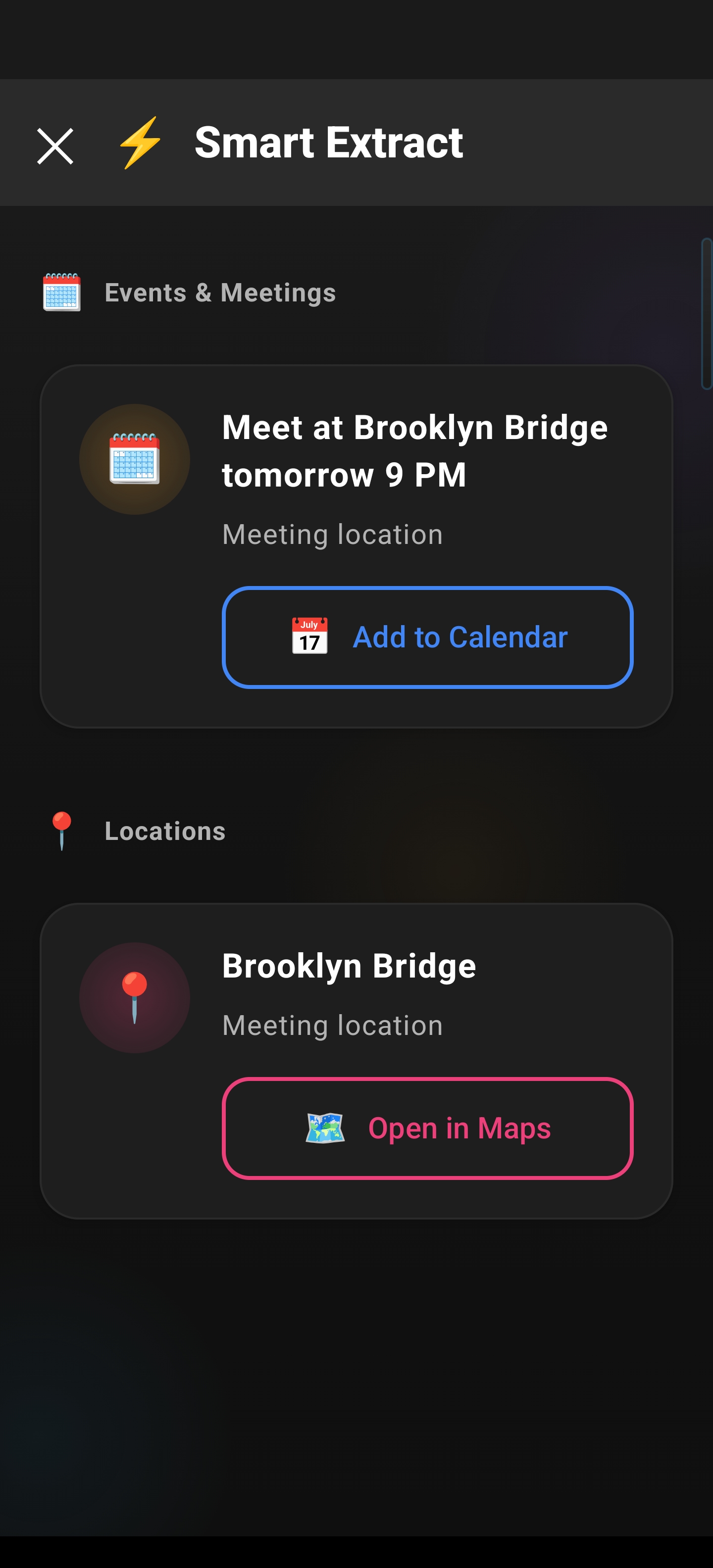
The Engineering Behind the Magic
How does Arc achieve this without requiring developers to build custom integrations for every single app? The answer lies in its app-agnostic architecture.
1. Screen Parsing vs. Rigid Integration
Unlike traditional tools that rely on specific API hooks (which only work if the app developer explicitly supports them), Smart Extract parses what is visually present on your screen. This means it works even in apps that have no deep-link support, as long as the information is visible to the human eye.
2. Standard Android Intents
Arc uses standard Android Intents (e.g., ACTION_INSERT, ACTION_VIEW, ACTION_DIAL) to execute actions. Because it relies on these universal system commands, it can seamlessly hand off data to your calendar, maps, or phone app. You aren’t “copying into Arc”—you are using Arc to command your existing apps to perform the right action.
3. Ephemeral Security Architecture
We understand that screen parsing sounds sensitive. That is why Arc is built on an ephemeral processing model. Screen content is captured, sent to the AI, analyzed, and returned as structured data—but it is NEVER stored on Arc’s servers. For sensitive data like Verification Codes, Arc includes an added layer of security: codes are auto-cleared from your clipboard after just two minutes, ensuring your data doesn’t linger where it shouldn’t.
Workflow Comparison: Before vs. After
| Step | Traditional Workflow | Arc Smart Extract Workflow |
|---|---|---|
| Discovery | Toggle apps to find data | Open Sidebar |
| Selection | Long-press, highlight, copy | Tap Smart Extract |
| Transfer | Switch app, open entry | (Automatic) |
| Parsing | Paste, edit fields, correct format | (AI pre-fills all fields) |
| Execution | Save | Tap to Confirm |
The difference is not just speed; it is the total removal of friction. When you use an AI smart extract for Android, you stop being a data entry clerk and start being a director of your own workflows. Across Arc’s user base of 8,500+ monthly active users, Smart Extract is triggered over 5,900 times a month — that is thousands of times someone skipped the copy-paste dance and got straight to action.
More Use Cases: Where Smart Extract Shines Every Day
Beyond meetings and OTPs, I have found Smart Extract incredibly useful in everyday situations that used to waste my time. Here are some of the scenarios where it really earns its keep.
Restaurant Reservations and Addresses
A friend texts you: “Let’s meet at Bombay Brasserie, 5th Floor, UB City, Vittal Mallya Road.” Normally, you would squint at the message, try to remember (or copy) the address, switch to Google Maps, type it in, and hope you got it right. With Smart Extract, the address is recognized instantly—just tap to open it in Maps. No squinting, no typos, no back-and-forth.
The same applies when a restaurant sends you a reservation confirmation via SMS or email. The date, time, and location are all parsed together. One tap creates a calendar event and pins the location. You get a complete entry without touching a single field manually.
Travel Itineraries and Flight Details
Travel is one of those areas where copy-paste friction really hurts. You are juggling flight numbers, departure times, terminal info, hotel addresses, and booking references—all scattered across emails, SMS, and browser tabs. I used to manually create separate calendar entries for each leg of a trip, and I would inevitably forget something.
Smart Extract changes this completely. Open your flight confirmation email, and it pulls the departure date, time, and airline info into a calendar event. Swipe to your hotel booking, and it grabs the check-in date and address. Even booking references and PNR numbers are detected and copied with a single tap—no more fumbling through emails at the check-in counter.
Shopping and Order Details
Online shopping confirmations are another pain point. You get an order confirmation with a tracking number, delivery estimate, and sometimes a customer support phone number. I used to screenshot these and then manually type the tracking number into the delivery app later. Now, Smart Extract identifies the tracking number and phone number on the spot. Tap to copy the tracking code, or tap the phone number to call support if your delivery is delayed. It is a small thing, but it eliminates an annoying micro-frustration.
How Smart Extract Handles Different Screen Types
One of my biggest worries when building this feature was: will it work everywhere, or only in certain apps? The good news is that because Smart Extract reads what is visually on screen—rather than hooking into specific app APIs—it works across virtually any content type.
PDFs and Documents
Reading a PDF in Chrome, Drive, or any PDF viewer? Smart Extract reads the rendered text just like you do. I have tested it with event flyers saved as PDFs, conference schedules, and even scanned restaurant menus. If the text is visible, Smart Extract can detect phone numbers, addresses, dates, and emails from it. The only limitation is with image-only PDFs that lack a text layer—but even then, Android’s built-in text recognition usually provides enough for Smart Extract to work with.
Images and Screenshots
This is where things get impressive. If someone sends you a screenshot of a business card, a photo of a flyer, or an image with text overlay (like an Instagram Story with an event date), Smart Extract can still read it. Android’s accessibility layer surfaces the text recognized by the system, and Smart Extract processes it from there. I have used it to grab phone numbers off storefront photos and addresses off event posters shared in WhatsApp groups.
Social Media Posts
Social media is a surprisingly rich source of actionable data. An Instagram post about a pop-up event, a tweet with a meeting link, a Facebook event page—Smart Extract parses all of these. The tricky part with social media is that the data is often informal: “see u tmrw at 7” instead of “Meeting: Tomorrow at 7:00 PM.” This is where the AI’s contextual understanding really matters. It interprets informal language and resolves it into proper structured data. I have been pleasantly surprised by how well it handles casual shorthand.
Smart Extract vs. Manual Copy-Paste: A Real-World Breakdown
Let me walk you through a concrete scenario to show you just how much friction Smart Extract removes. Imagine you receive a WhatsApp message from a colleague:
“Hey, let’s do lunch tomorrow at 12:30 at The Fatty Bao, 1st Cross Road, Koramangala. My number is 9876543210 if you are running late.”
The old way (manual copy-paste):
- Read the message and mentally note the details
- Open Calendar app
- Tap to create a new event
- Type “Lunch at The Fatty Bao” as the title
- Set the date to tomorrow (what date is tomorrow? Switch to check…)
- Set the time to 12:30 PM
- Type the restaurant address in the location field
- Go back to WhatsApp, long-press the phone number, copy it
- Switch to Contacts, create a new contact, paste the number
- Save everything
That is roughly 10 steps and at least 45 seconds of focused attention—if you do not make any typos.
The Smart Extract way:
- Open Arc sidebar
- Tap Smart Extract
- Tap the calendar action for the lunch event (date, time, and location pre-filled)
- Tap the phone number action to save the contact
Two steps. Under 5 seconds. Zero typos. That is the difference, and it compounds over a day, a week, a month of use.
Tips for Getting the Best Results from Smart Extract
While Smart Extract works well out of the box, I have picked up a few tips that help it perform even better.
1. Make sure the relevant text is visible on screen. Smart Extract can only parse what it can see. If the information you need is scrolled off-screen, just scroll to it first. The AI processes whatever is currently rendered in the viewport.
2. Keep the Arc sidebar accessible. I keep the Arc overlay trigger in a convenient spot—usually a swipe from the edge of my screen. The faster you can invoke Smart Extract, the more natural it feels in your workflow. If you have to hunt for the trigger, you lose the friction advantage.
3. Use it proactively, not just reactively. Do not wait until you are frantically trying to copy an OTP before a login expires. Get into the habit of running Smart Extract whenever you see actionable information. Over time, it becomes second nature—like reaching for your phone when it vibrates.
4. Verify before confirming, especially for calendar events. Smart Extract is highly accurate, but AI is not perfect. I always do a quick glance at the pre-filled fields before tapping confirm. It takes half a second and saves you from the occasional wrong date or misread time. The beauty is that the AI does 95% of the work, and you just validate.
5. Try it with content you would not expect to work. I have been surprised by how well Smart Extract handles unconventional formats—handwritten-style fonts in Instagram Stories, oddly formatted emails, even mixed-language content. Give it a shot before assuming it will not work. The AI’s contextual parsing is more flexible than you might think.
Edge Case Handling: When Data Isn’t Perfect
AI is only as good as its contextual understanding, and that is where Smart Extract shines.
- Ambiguous Dates: If an invite says “next Friday,” the AI uses system-time context to resolve the correct calendar date automatically.
- Partial Addresses: If you find a fragmented address in a text, the AI attempts to cross-reference it against map databases to resolve the full location. If it is still insufficient, it suggests a search query rather than guessing wrong.
- Overlapping Data: Sometimes a phone number looks like a date, or an email contains numbers that could be confused with an OTP. Smart Extract uses surrounding context to disambiguate—for example, a 10-digit number preceded by “Call” is a phone number, not a date.
- Multi-Language Screens: If you receive a message that mixes English and your local language (common here in India), Smart Extract still identifies actionable data in the portions it can parse. It does not need the entire screen to be in one language.
Why This is the Ultimate “Text to Calendar” App
If you have been searching for an app to automatically create a calendar event from text, you know the pain of inconsistent parsing. Most tools fail because they are rigid. Arc succeeds because it is context-aware. Whether you are dealing with a formal calendar invite or a casual text message, it treats the information as a structural puzzle to be solved, not just text to be copied.
Conclusion
Arc’s Smart Extract is more than a convenience feature—it is a fundamental shift in how we interact with mobile information. By turning static, unstructured text into dynamic, actionable events, it gives you back the most valuable resource you have: your time.
Ready to stop copying, pasting, and switching?
Frequently Asked Questions
What types of data can Smart Extract detect?
Smart Extract identifies 8 types: OTPs, dates/events, addresses, phone numbers, email addresses, URLs/links, contacts, and payment info. Each type gets a one-tap action button.
Does Smart Extract work on screenshots?
Yes. Smart Extract can read any screen content, including screenshots, images with text, and even apps that block standard text selection.
Is Smart Extract accurate with addresses and phone numbers?
Very accurate. Smart Extract uses AI models to understand context, not just pattern matching. It distinguishes between a date and a phone number, an address and a business name, etc.
Download Arc from the Play Store and experience the future of intelligent, frictionless Android productivity — or see all Arc AI Screen Assistant features.