Android Copy Paste Not Working? Fix It Without the Clipboard
Android copy paste not working? Arc's Smart Extract pulls text, links, OTPs and events from any screen — no copying needed. Free to try.
You highlight the text, tap Copy, switch apps, long-press, tap Paste — and nothing. Or worse, you get something you copied an hour ago. If android copy paste not working is a search you’ve typed out in frustration, you’re not alone. Over 28,000 Android users have turned to Arc’s Smart Extract precisely because the clipboard keeps failing them. In 2026, the Android clipboard is still unreliable, and the real fix isn’t another clipboard manager — it’s skipping the clipboard entirely.
Here’s why copy-paste keeps breaking on Android, the partial fixes that barely help, and how Arc Smart Extract lets you grab exactly what you need without ever touching the clipboard.
Why Android Copy Paste Is Not Working: The Root Causes
The clipboard is a 40-year-old desktop concept crammed into a mobile operating system. It was designed for a world where you had one screen, one window, and full control. Phones are nothing like that, and the cracks show everywhere.
The Clipboard Gets Cleared Without Warning
Android clears the clipboard after 60 minutes by default on most devices. Samsung and OnePlus sometimes clear it even sooner to free memory. If you copy text, get a notification, reply to a message, then try to paste — your clipboard is gone. No warning. No recovery.
Cross-App Copy Randomly Fails
Copy text between apps android is aminefield. Some apps restrict what you can copy (banking apps, DRM-protected content). Others use non-standard text views that don’t register long-press properly. And when an app crashes or restarts in the background while you’re mid-copy-paste, the clipboard content vanishes with it.
Cross-Device Clipboard Sync Is Unreliable
Google’s Nearby Share and Samsung Flow were supposed to make cross-device copy-paste seamless. In practice, sync randomly stops working — especially after updates, network changes, or when devices go to sleep. You copy on your phone, reach for your tablet, and the clipboard is empty. Every time.
Google Just Proved the Problem Exists
In March 2026, Google finally fixed selective text copy in Google Messages — a feature that had been broken or missing for years. The fact that a first-party Google app couldn’t reliably let you copy part of a message until 2026 tells you everything about the clipboard’s state on Android.
The Android Clipboard Fix Attempts (And Why They Fall Short)
If you search for android clipboard fix, you’ll find the same recycled advice. Here’s why none of it actually solves the problem.
1. Clear the Clipboard Cache
Settings → Apps → Clipboard → Clear Cache. This sometimes fixes a stuck clipboard, but it also wipes whatever you were trying to paste. You’re trading one problem for another.
2. Restart Your Phone
It works. Once. Then the clipboard breaks again in a few days. Rebooting your phone to copy an address is not a workflow.
3. Use a Clipboard Manager App
Apps like Clipper or Clipboard Manager keep a history of copied items. But they:
- Can’t fix cross-app copy failures — if the app you’re copying from blocks clipboard access, no manager can help
- Add another layer of unreliability — now you’re managing a clipboard manager too
- Raise privacy concerns — your copied passwords, addresses, and messages sit in a third-party database
4. Use Gboard’s Clipboard History
Gboard’s built-in clipboard history is better than nothing, but it’s limited to text, doesn’t work in all apps, and still depends on the same broken clipboard system underneath. It’s a bandage on a broken arm.
The Real Solution: Skip the Clipboard Entirely
Every fix above assumes the clipboard is worth saving. It isn’t. The clipboard is a middleman that adds friction and fails at the worst moments. What you actually need is the content — the address, the quote, the number — delivered where you need it, without the copy-paste dance.
That’s exactly what Arc Smart Extract does.
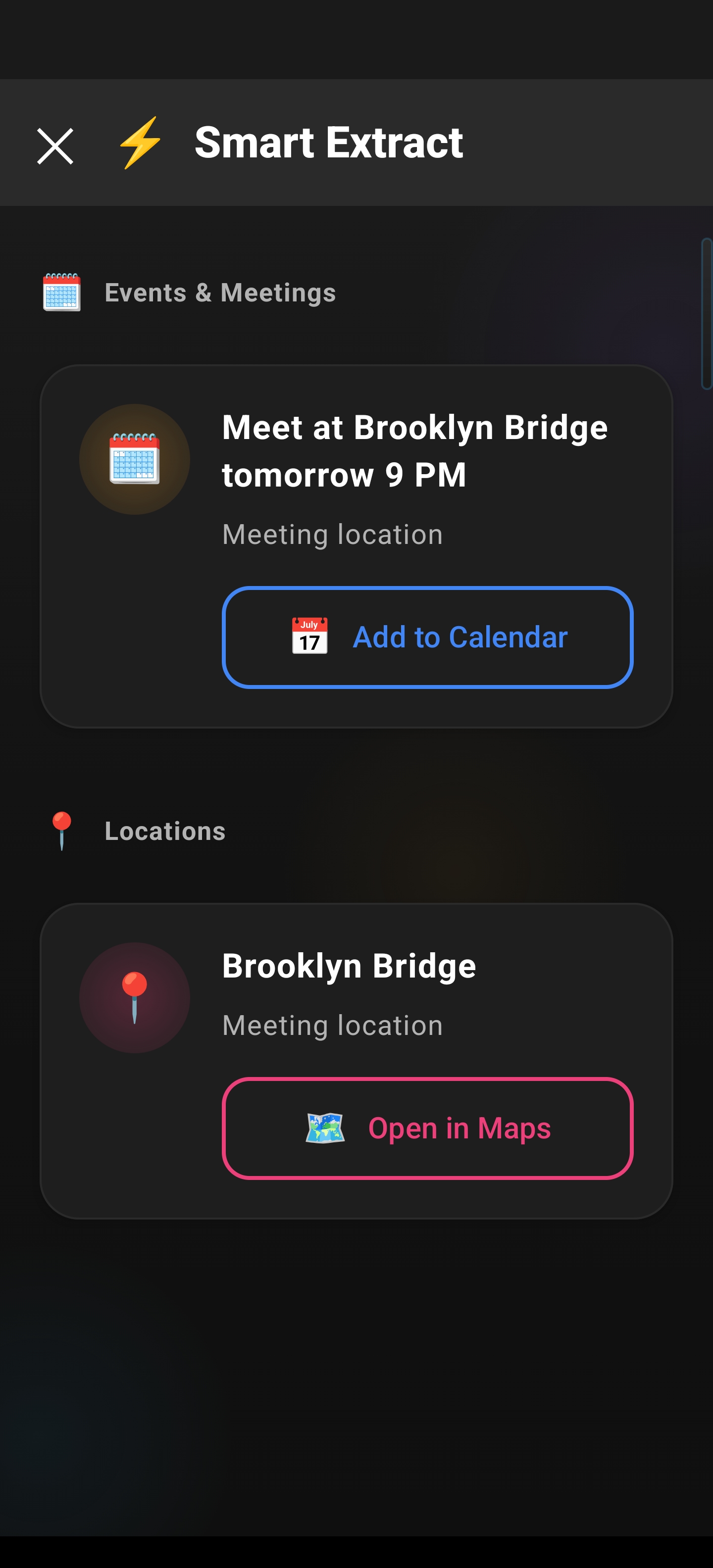
Smart Extract reads your screen — it doesn’t use the clipboard at all. Instead of hoping the clipboard holds what you copied, Smart Extract scans what’s currently visible on your screen and extracts exactly the text or data you need. No copy. No paste. No broken clipboard.
How Arc Smart Extract Works
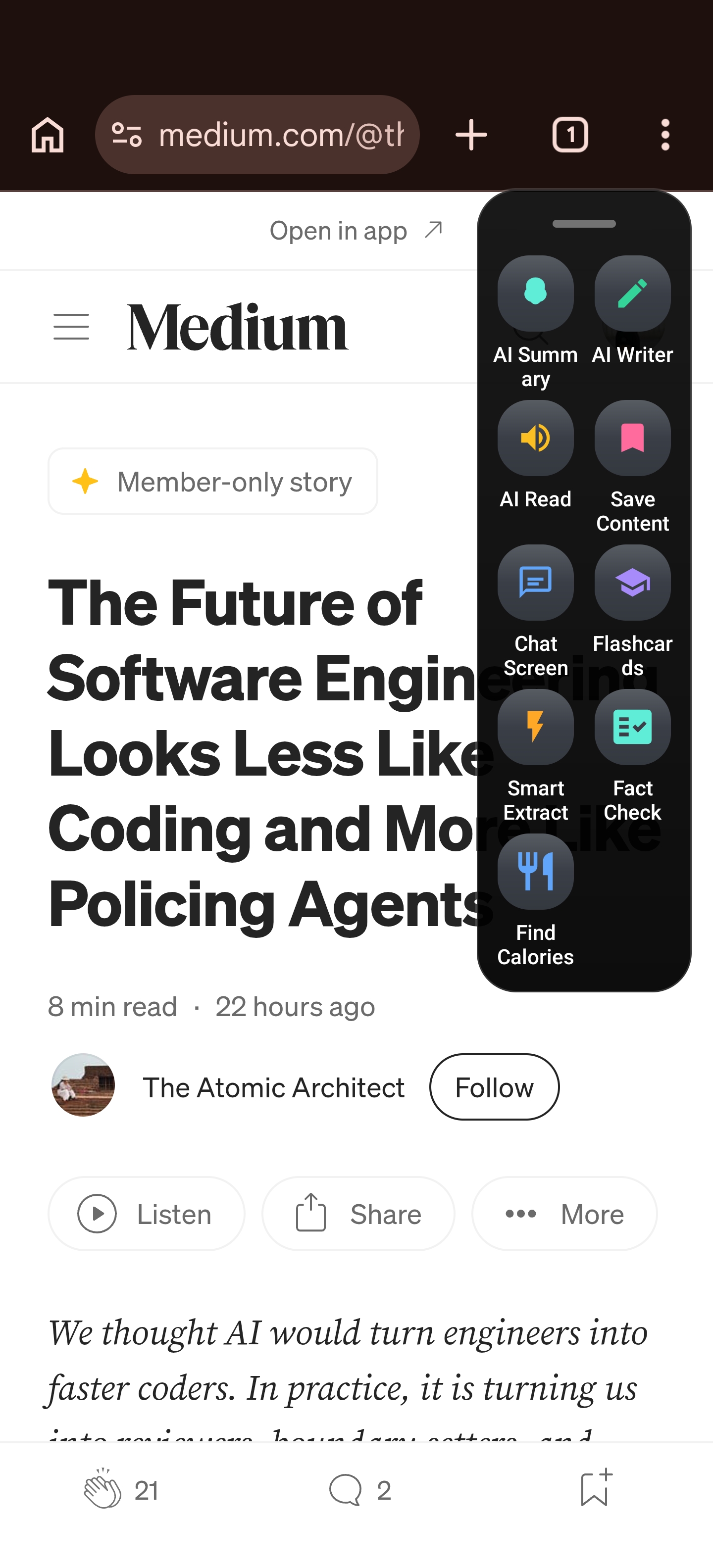
Smart Extract is built into Arc’s floating sidebar, accessible from any app on your phone. Here’s the workflow:
- Open any app — a webpage, a message, a PDF, anything with text on screen
- Tap the Arc sidebar — it slides in from the edge without leaving your current app
- Run Smart Extract — Arc reads your screen and pulls out the text you need
- Use the extracted text — paste it, save it to My Info Vault, or send it to another app
No long-press. No hoping the clipboard hasn’t timed out. No switching back and forth between apps hoping the paste button appears. The content goes directly from your screen to where you need it. And with 5,900+ Smart Extract actions executed every month across Arc’s user base, it is clear that skipping the clipboard is not just a convenience — it is how thousands of people already use their phones every day.
The Arc sidebar floats over any app, so you never have to leave what you’re doing. Whether you’re reading an article in Chrome, reviewing a document, or checking an address in Messages, Smart Extract is one tap away.
Smart Extract vs. Clipboard: When to Use Each
You don’t have to abandon the clipboard entirely — but you should stop relying on it for anything important.
| Scenario | Clipboard | Smart Extract |
|---|---|---|
| Quick copy-paste in the same app | ✅ Works fine | Overkill |
| Copy text between apps android | ⚠️ Unreliable | ✅ Consistent |
| Extracting part of a message | ⚠️ Selective copy often fails | ✅ Always works |
| Copying from restricted apps | ❌ Blocked | ✅ Reads the screen |
| Cross-device copy | ⚠️ Sync breaks randomly | ✅ Extract locally, save to vault |
| Sensitive data (passwords, banking) | ⚠️ Clipboard stores plain text | ✅ Extract and save securely |
The pattern is clear: when the clipboard works, it’s fine. When it matters, it breaks. Smart Extract covers every scenario where the clipboard fails — which is exactly when you need reliability most.
Real Scenarios Where Android Copy Paste Not Working Hurts Most
Let’s make this concrete. These are the situations where a broken clipboard isn’t just annoying — it costs you time and breaks your flow.
The Address You Need to Share Fast
Someone texts you an address. You copy it, switch to Maps, and — the clipboard is empty. You go back, copy again, switch to Maps, and now it pastes a link you copied earlier. Two minutes lost on something that should take five seconds.
With Smart Extract: Open Arc sidebar over Messages → Smart Extract grabs the address → paste directly into Maps. Done.
The Quote You Want to Save From an Article
You’re reading a long article and want to save a key quote. You long-press to select, but the selection handles snap to the wrong paragraph. You try again. The app reloads. Your clipboard is gone.
With Smart Extract: Smart Extract reads the visible text → you get the quote → save it to My Info Vault for later.
The OTP Code That Expires While You’re Switching Apps
Your bank sends a one-time password. You copy it, switch to the banking app, and the paste option doesn’t appear because the clipboard timed out or the app cleared it for security. Now you need a new code.
With Smart Extract: Extract the code from your messages without leaving the banking app. No clipboard involved, no timeout, no security conflicts.
Setting Up Smart Extract in Arc
Getting started takes under a minute:
- Install Arc from the Play Store (link below)
- Enable the floating sidebar — Arc walks you through this during setup
- Grant accessibility permission — Smart Extract needs this to read your screen
- That’s it — Smart Extract is ready from the sidebar in any app
No configuration. No clipboard manager to set up. No sync accounts to connect. It works the same way every time because it doesn’t depend on the clipboard at all.
Why This Matters Beyond Convenience
The android copy paste not working problem isn’t going away. Google’s recent Messages fix proves that even first-party apps are still patching basic clipboard functionality years after Android’s launch. The clipboard was built for desktops. Phones need something better.
Arc Smart Extract is that something better. It doesn’t patch the clipboard — it makes the clipboard optional. When your workflow doesn’t depend on a 40-year-old mechanism that was never designed for mobile, things just work.
Download Arc
Stop fighting your clipboard. Arc Smart Extract lets you grab any text from any screen, any time — no copy, no paste, no frustration.
Frequently Asked Questions
Why does Android copy paste stop working?
Android’s clipboard clears after about 60 minutes by default. Background app crashes, memory management, and app-specific restrictions can also wipe or block clipboard content. The clipboard is a legacy system that wasn’t designed for mobile multitasking.
Does Smart Extract work on all Android phones?
Smart Extract works on any Android device running Arc with accessibility permissions enabled. It reads what’s on your screen, so it works regardless of which app you’re in or whether that app allows clipboard access. Want to understand how accessibility services make this possible? See our complete guide to Android Accessibility Services.
Is Smart Extract safe for sensitive data?
Yes. Smart Extract processes data locally on your device. It doesn’t send your screen content to external servers. Extracted text can be saved securely to Arc’s My Info Vault.
Can I still use the regular clipboard with Arc?
Absolutely. Smart Extract is an addition, not a replacement. Use the clipboard for simple same-app copies. Use Smart Extract when the clipboard fails — which is exactly when you need it most.
Does Smart Extract replace clipboard manager apps?
For most use cases, yes. Clipboard managers try to solve the clipboard’s reliability problems by adding more clipboard. Smart Extract solves the problem by removing the clipboard from the equation entirely. It’s a fundamentally different — and more reliable — approach.
Try Arc AI Screen Assistant free — Smart Extract, AI summary, flashcards, and more from a floating sidebar on any screen. See all features →