Android 17 Blocks Screen Reading Apps — Here's Why
Android 17 blocks non-accessibility apps from reading your screen in Advanced Protection Mode.. Free to try.
If you’ve ever installed an Android app and noticed it asking for “accessibility permissions,” you’ve brushed up against one of the most powerful — and most abused — APIs on the platform. Google has been trying to rein in that abuse for years. With Android 17, they’re getting serious. For a deeper dive into what accessibility services can and can’t do, see our complete guide to Android Accessibility Services.
This matters for more people than you might think. Over 28,000 Android users have installed Arc — an app that relies on accessibility services to function — and they’ve chosen to trust it with screen-level access because the productivity gains are tangible. But that trust has to be earned, and the new restrictions are Google’s way of making sure it is.
Android 17 Beta 2 introduces stricter Android accessibility API restrictions inside Advanced Protection Mode. When enabled, your phone will block apps that aren’t officially classified as accessibility tools from accessing the AccessibilityService API entirely. If a non-accessibility app already has the permission, Android revokes it automatically.
It’s a bold move. It’s also one that leaves many Android users confused about which apps are safe, which ones will break, and what they should do next. Let’s break it all down.
What Is the Android AccessibilityService API?
The AccessibilityService API was built for a critical purpose: helping people with disabilities use their phones. Screen readers, switch-based input systems, Braille displays, and voice-based accessibility services all rely on this API to function.
The API grants deep system-level access. An app with accessibility permissions can:
- Read what’s on your screen — every text field, button, and notification
- Observe your interactions — taps, swipes, and gestures
- Perform actions on your behalf — click buttons, fill forms, navigate between screens
That level of access is essential for assistive technology. It’s also a goldmine for malicious actors.
Why Android Accessibility API Restrictions Matter Now
For years, the accessibility API has been a double-edged sword. The same capabilities that help a visually impaired user navigate their phone can also be weaponized by malware. Banking Trojans, ransomware, and spyware have all exploited accessibility permissions to devastating effect.
Malware families like DroidLock use the API to steal personal data and lock users out of their devices. Albiriox leverages it to install itself silently and hand remote control to attackers across the globe. Fake overlays — another accessibility trick — capture keystrokes while you think you’re logging into your banking app.
The scale of the problem forced Google’s hand. In Android 17, Advanced Protection Mode now restricts accessibility permissions to apps that genuinely need them.
What Is Advanced Protection Mode in Android 17?
Advanced Protection Mode (APM) first appeared in Android 16 as a one-tap security feature for users who want stronger safeguards. Think of it as Google’s answer to Apple’s Lockdown Mode — a setting that tightens your phone’s defenses against targeted attacks, malware, and data theft.
When APM is enabled, Android enforces:
- Stricter app installation rules — only apps from trusted sources can be installed
- USB data transfer restrictions — prevents data extraction via physical connection
- Network-level protections — stronger defenses against man-in-the-middle attacks
- Accessibility API restrictions — the new addition in Android 17
The accessibility piece is the most significant change. Under APM, any app that isn’t properly flagged as an accessibility tool gets its accessibility permissions revoked — and users can’t grant them back while the mode is active.
Which Apps Are Affected by the Accessibility Crackdown?
Here’s where it gets complicated. Many legitimate, non-malicious apps use the accessibility API not for assistive technology, but as a workaround for Android’s system limitations.
Apps that may lose functionality under APM
- Automation tools — apps that automate repetitive tasks across your device
- Customization apps — dynamic notification bars, Dynamic Island emulators, custom gesture controls
- Screen assistants and AI overlays — apps that read your screen to provide summaries, translations, or smart suggestions
- Some password managers — those that use accessibility to auto-fill credentials across apps
- Monitoring and parental control apps — apps that track screen time or app usage
Google’s own testing confirmed this. The team at Android Authority tried installing dynamicSpot (a Dynamic Island emulator) on a Pixel 9a running Android 17 Beta 2 with APM enabled. The app couldn’t receive accessibility permissions at all. The only way to use it was to turn APM off.
On a stable Android 16 QPR3 build, the same app worked fine with APM active. The difference? Android 17’s new restrictions.
Are Accessibility Service Apps Safe Under the New Rules?
This is the question most Android users are asking, and the answer depends on which app you’re talking about.
Apps that remain unaffected
Apps that are properly classified as accessibility tools continue to work normally, even with APM enabled. This includes:
- Screen readers (TalkBack, etc.)
- Switch access and switch-based input tools
- Voice-based accessibility services
- Braille display drivers
Google’s support documentation is clear: if an app’s core purpose is accessibility, it stays exempt.
The gray area
Many apps sit in an uncomfortable middle ground. They provide genuine productivity value — screen reading for summaries, text extraction for research, gesture automation for efficiency — but they aren’t classified as accessibility tools in Google’s framework.
These apps are the ones caught in the crossfire of Android screen assistant security measures. They’re not malware. They’re not trying to steal your data. But they use the same API that malware exploits, and Google has drawn a hard line.
How to Tell if an App Is Safe
With the new Android accessibility API restrictions in place, here’s a practical checklist for evaluating whether an accessibility-reliant app is safe to use:
-
Check the developer — Is it a known, reputable company? Check their website, Play Store reviews, and track record.
-
Review the permissions — Go to Settings > Accessibility and review which apps have access. Any app you don’t recognize or don’t remember granting should be removed immediately.
-
Read the privacy policy — A trustworthy app will clearly explain why it needs accessibility permissions and what data it collects.
-
Look for Play Protect certification — Google’s Play Protect scans apps for harmful behavior. Apps that pass this check are generally safer.
-
Consider whether you need APM — If you’re a high-value target (journalist, activist, executive), keep APM on. If you rely on apps that need accessibility access, you’ll need to weigh the trade-off.
What the Android 17 Restrictions Mean for Everyday Users
Let’s be honest about the trade-off. The new restrictions make your phone significantly harder to compromise, but they also limit functionality that many users rely on daily.
If you keep Advanced Protection Mode ON
- Stronger security — malware that exploits accessibility permissions simply can’t function
- Fewer app options — automation, customization, and screen assistant apps may stop working
- Peace of mind — especially important if you handle sensitive data on your phone
If you turn Advanced Protection Mode OFF
- Full app compatibility — all your accessibility-reliant apps work as before
- Higher risk — the door is open for malicious apps that abuse accessibility permissions
- Requires vigilance — you need to manually audit which apps have accessibility access
The good news is that Google has made this a choice, not a mandate. APM is opt-in. You decide whether the security benefits outweigh the functionality trade-offs for your situation.
How Arc Handles Accessibility Permissions
If you’re using Arc — the AI screen assistant that works across every app on your phone — you might be wondering where it falls under these new rules.
Arc uses accessibility permissions for legitimate purposes: reading what’s on your screen so it can provide AI summaries, extracting key information, powering AI Writer for drafting and rewriting, and enabling smart custom actions. It’s not malware. It’s not scraping your data. It’s a productivity tool that relies on the accessibility API to do its job — the same way screen readers do. With 28,000+ users across 50+ countries and 8,500+ monthly active users, Arc has earned a level of trust that reflects how seriously I take that responsibility.
Arc’s floating sidebar gives you instant access to AI-powered features without switching apps:
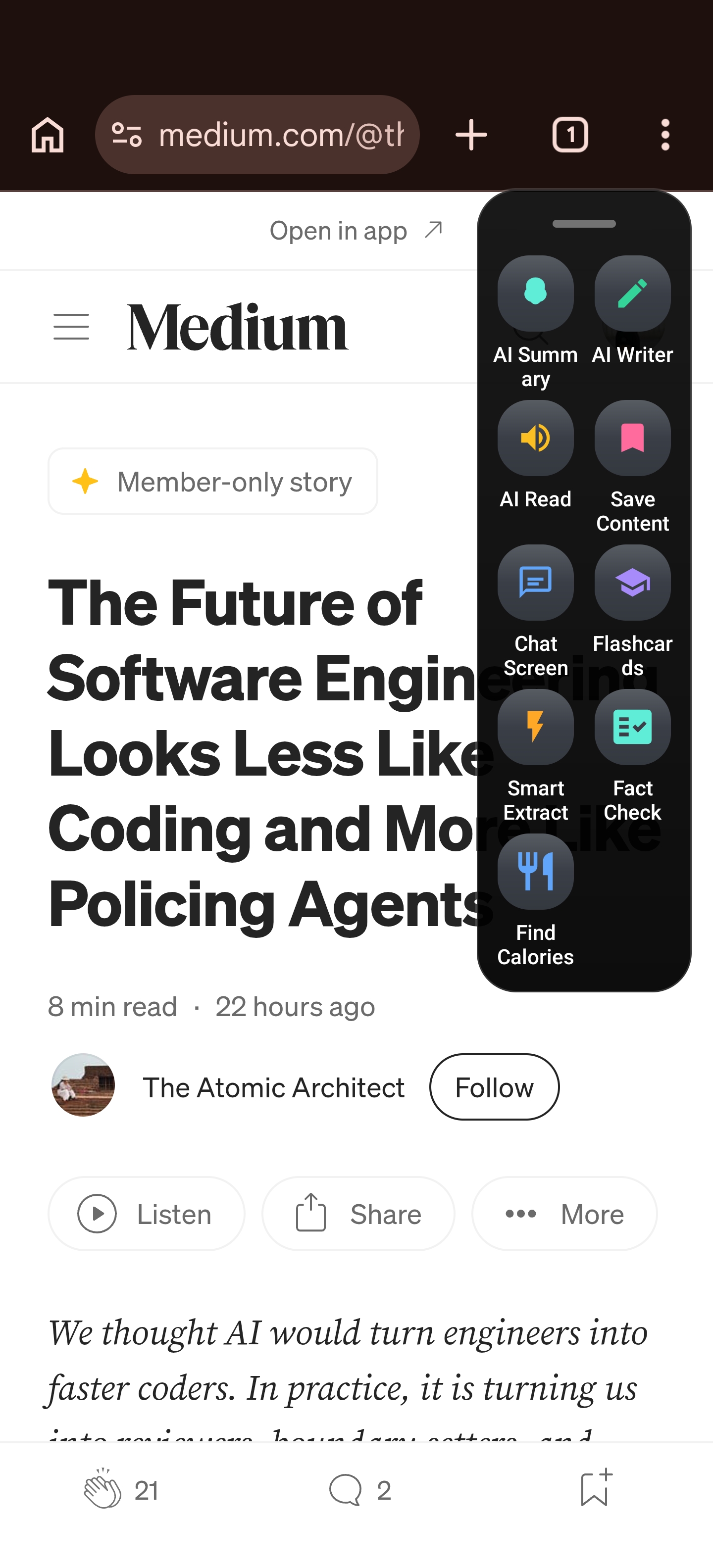
The principle is straightforward: use accessibility service apps that are safe. Read the privacy policy. Understand what data the app collects. Make an informed choice.
Practical Steps to Protect Your Phone
Whether you’re running Android 17 or an earlier version, here’s what you can do right now to tighten your phone’s security without losing the tools you depend on:
Audit your current accessibility permissions
Go to Settings > Accessibility and review every app that has access. Remove any you don’t actively use or don’t recognize.
Keep apps updated
Developers are adapting to the new restrictions. Updates may change how apps request permissions or provide alternative ways to deliver their features.
Enable Advanced Protection Mode if you can
If you don’t rely on accessibility-dependent apps, turn APM on. The security benefits are substantial.
Use trusted screen assistant apps only
Not all apps that request accessibility permissions are equal. Stick with well-reviewed, transparent apps from reputable developers. Check their data practices before granting access.
Monitor for unusual behavior
If an app starts behaving unexpectedly — draining battery, showing strange overlays, or requesting new permissions — revoke its accessibility access immediately.
The Bigger Picture: Security vs. Functionality
Google’s Android accessibility API restrictions represent a broader shift in how platforms approach security. The days of giving every app access to powerful system APIs are ending.
Apple did it first with Lockdown Mode in iOS. Now Google is following suit with Advanced Protection Mode in Android 17. The message is clear: when an API is powerful enough to be weaponized by malware, it needs guardrails.
For users, this means making harder choices. Do you prioritize the convenience of automation apps, or the security of knowing no app can silently read your screen? Do you trust every developer whose app has accessibility access, or would you rather let Google enforce a stricter standard?
There’s no universally right answer. But there is a responsible one: understand the trade-off, and choose consciously.
Frequently Asked Questions
What apps are blocked by Android 17’s accessibility restrictions?
Apps that are not officially classified as accessibility tools — including automation apps, customization utilities, some password managers, and screen assistant apps — will have their accessibility permissions revoked when Advanced Protection Mode is enabled. Legitimate accessibility tools like screen readers and switch input systems remain unaffected.
Can I still use my favorite accessibility-dependent apps on Android 17?
Yes, but you’ll need to turn off Advanced Protection Mode if those apps aren’t classified as accessibility tools. The trade-off is that disabling APM removes some of the enhanced security protections that Android 17 offers.
Is Advanced Protection Mode worth enabling?
For most users, yes. APM provides significant protection against malware that exploits accessibility permissions. If you’re a journalist, activist, or anyone handling sensitive information, the security benefits far outweigh the functionality limitations. If you rely heavily on automation or screen assistant apps, you’ll need to weigh the trade-off carefully.
How do I check which apps have accessibility permissions on my phone?
Go to Settings > Accessibility on your Android device. You’ll see a list of all apps with accessibility access. Review this list regularly and remove any apps you don’t recognize or no longer use.
Does Arc work with Advanced Protection Mode on?
Arc uses the AccessibilityService API to read your screen and provide AI-powered features. If APM restricts non-accessibility apps on your device, Arc’s functionality may be limited. The best approach is to evaluate whether the security benefits of APM outweigh your need for screen assistant features, and make an informed decision.
Stay Protected, Stay Productive
Android’s accessibility crackdown is a necessary evolution. The API was being abused at scale, and Google’s response — while disruptive — makes your phone meaningfully safer. The key is understanding which apps deserve your trust and which don’t.
If you’re looking for a screen assistant that respects your privacy while delivering real productivity gains, Arc is built on transparency. It tells you what it reads, why it needs access, and how your data is handled. Learn more about Arc’s accessibility features.
Download Arc from the Play Store and see how a responsible accessibility service app can transform the way you work on Android.