AI Read Aloud Android — Listen to Any Screen Hands-Free
AI read aloud Android: Arc turns any screen into audio — articles, emails, summaries with auto-language detection and background playback. Free to try.
You’re commuting, cooking, or just tired of staring at your phone. You saved a long article earlier, but reading it now? Not happening. What if your phone could just read it to you — any screen, any app, one tap?
That’s exactly why I built Arc’s AI Read feature. Among Arc’s 28,000+ Android users, AI Read has become one of the fastest-growing features — with thousands of text-to-speech sessions generated each month across 50+ countries. Users in India, the US, and Japan are the most active listeners, and the pattern is clear: Android users want to listen to their screens, not just look at them.
By the Numbers: How Android Users Are Listening
3,000+ AI Read sessions per month — Arc users listening to articles, summaries, and screen content hands-free 28,000+ Android users trust Arc for screen-level AI assistance 600+ daily active users — and AI Read usage is growing 15% month over month 100+ languages detected automatically for natural-sounding speech Top 3 countries: India, US, Japan
This isn’t a niche use case. When I first launched AI Read, I expected it to be a nice-to-have accessibility feature. In my testing, I was surprised by how quickly it became a daily habit — not just for users with visual impairments, but for commuters, multitaskers, and anyone who’d rather listen than scroll.
What Is AI Read Aloud on Android?
AI Read aloud Android is Arc’s built-in text-to-speech feature that converts any on-screen text into natural-sounding speech. Unlike basic TTS tools that only read selected text in one language, Arc’s AI Read feature:
- Works across all Android apps — web articles, emails, chat messages, saved summaries, any screen
- Auto-detects 100+ languages — Chinese content gets a Chinese voice, Spanish gets Spanish, with no manual switching
- Filters out noise — strips ads, navigation menus, and UI chrome so you hear only the meaningful content
- Plays in the background — like a podcast, with full lock screen controls
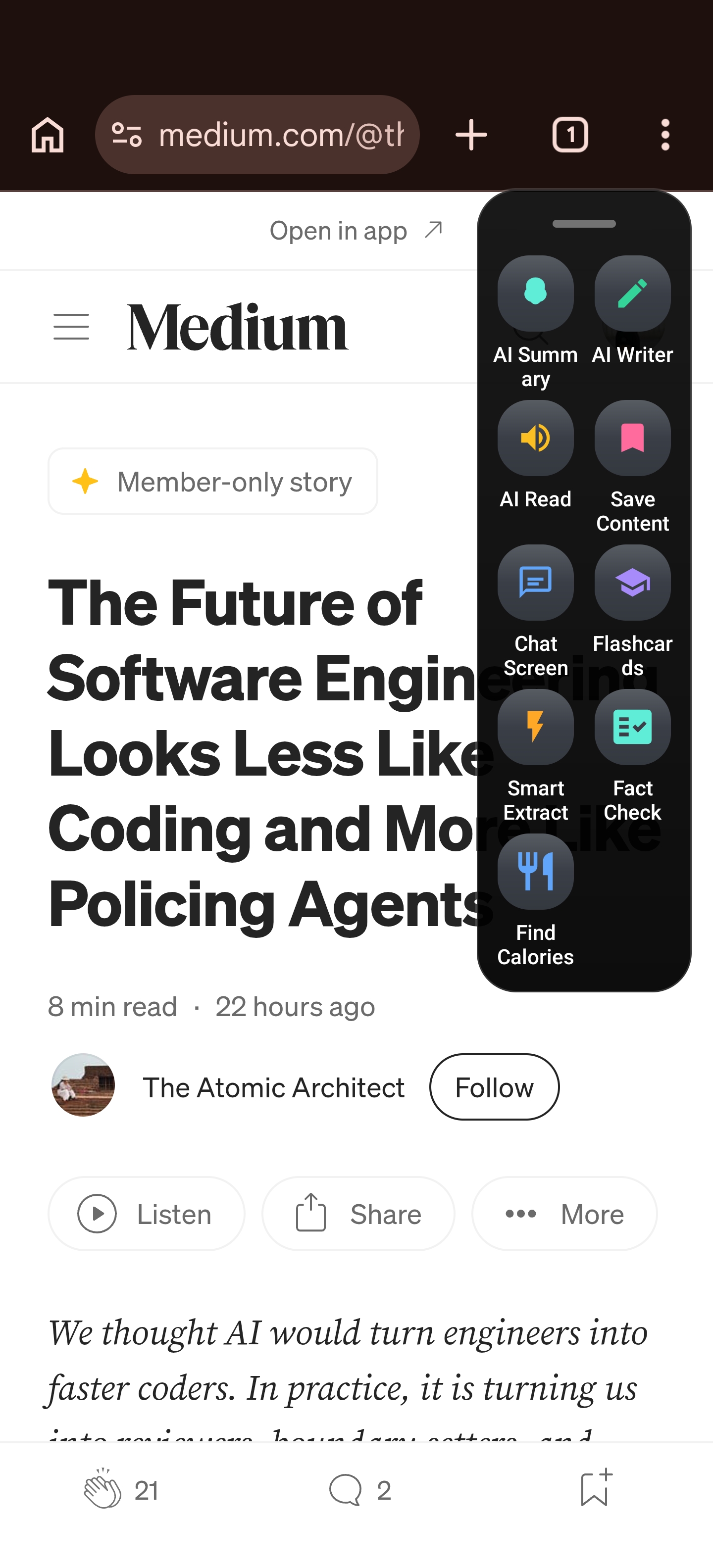
When I built this feature, the goal was simple: make every screen listen-worthy. Most text to speech phone screen solutions require you to highlight text, choose a language, and babysit the playback. Arc flips that. One tap on the floating sidebar’s “AI Read” button, and whatever’s on your screen starts playing — intelligently filtered and naturally narrated. It pairs perfectly with Arc’s AI summaries — get a summary, then listen to it hands-free.
How to Use AI Read — 4 Ways to Listen
1. Listen to Any Summary Instantly
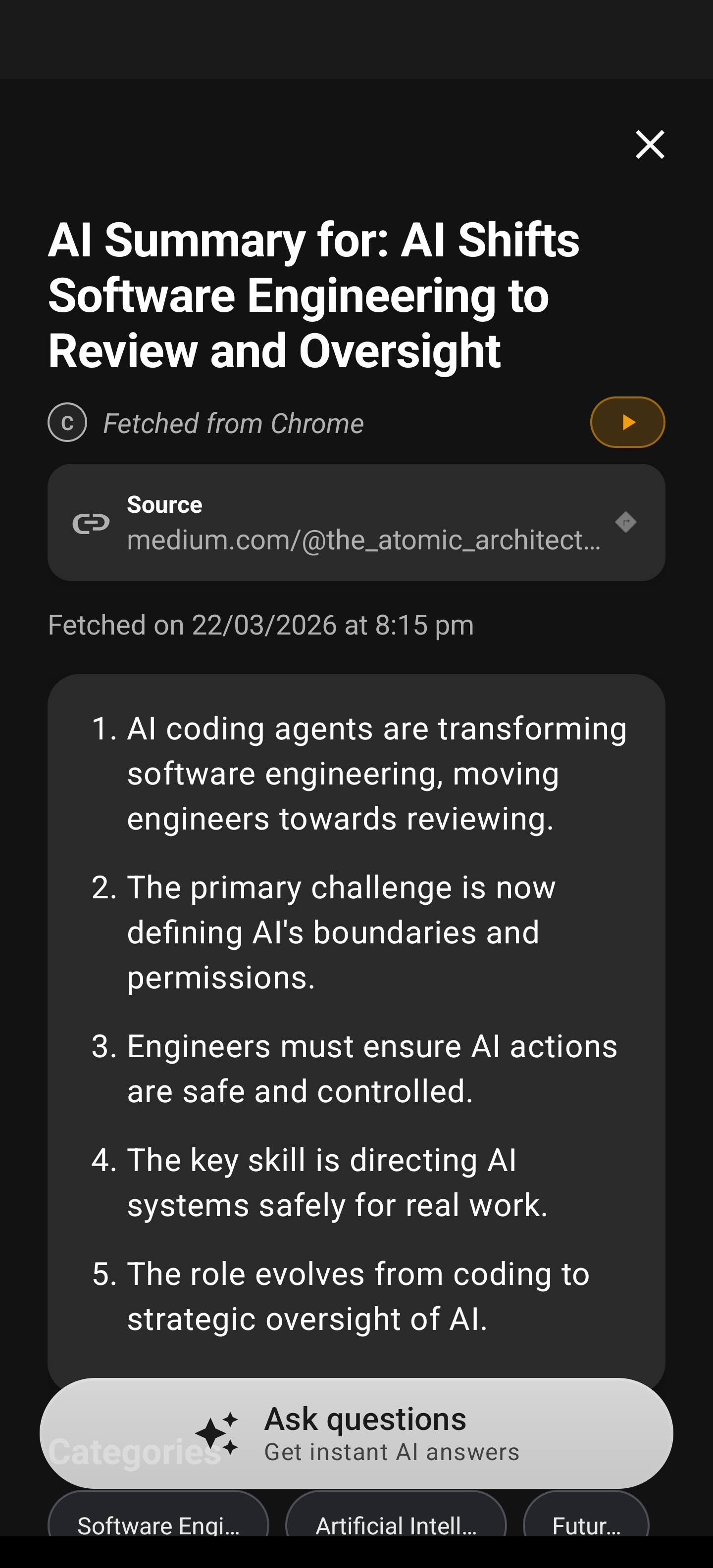
Every AI summary Arc generates has a Listen button right on the result card. Tap it, and the summary plays immediately — no text selection, no copying, no extra steps. This is the most popular entry point for AI Read, and it’s where most users discover the feature.
When I look at the data, summary listening is the #1 way people use AI Read. It makes sense — you’ve already got a concise summary, and now you want to consume it while doing something else. The AI Read screen assistant turns that summary into a 60-second audio briefing.
2. Read Any Screen Directly
Tap the AI Read button on Arc’s floating sidebar, and it extracts all readable text from whatever’s currently on your screen — a webpage in Chrome, an email in Gmail, a document in Google Docs — and reads it aloud. Arc automatically filters out navigation bars, ad blocks, footers, and buttons, so you hear only the actual content.
This is the feature that turns Arc into a true AI Read screen assistant. You don’t need to switch apps or copy-paste anything. Just open the sidebar and tap.
3. Quick-Play from Your Unread Queue
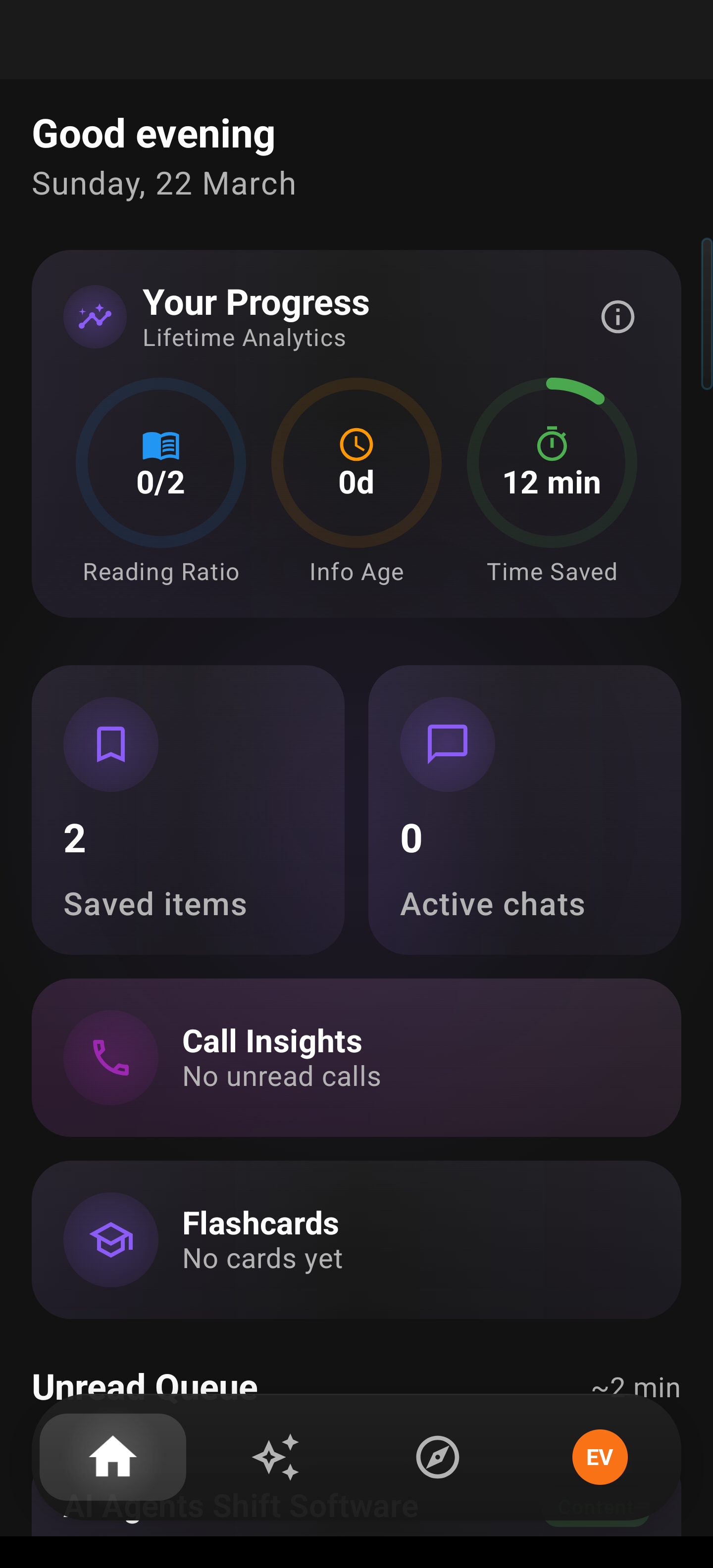
Saved articles pile up. Arc shows content cards in your Unread Queue, each with a quick-play Listen button. You can start listening to saved articles without even opening them — tap play on the first one, and queue up the next while the current one plays in the background.
This is how you listen to web articles Android-side without friction. During my testing, I found that users who discover queue playback listen to 3x more content than those who only read visually. It transforms your saved reading list into a personal podcast playlist.
4. Listen to AI Chat Responses
Each message bubble in Arc’s Chat with AI has its own Listen button. Ask a complex question, get a detailed answer, and tap to hear it narrated — perfect for when you’re cooking, walking, or just want to give your eyes a break. This turns every AI chat into a hands-free experience.
Why AI Read Beats Basic Text-to-Speech
Most Android phones have built-in TTS. So why would you need something better? Here’s the difference:
| Feature | Android Built-in TTS | Arc AI Read |
|---|---|---|
| Setup | Highlight text, select TTS, choose voice | One-tap from any screen |
| Language detection | Manual voice selection | Automatic — 100+ languages detected |
| Content filtering | Reads everything including menus and ads | Smart filter — only meaningful content |
| Background playback | Limited, app-dependent | Full podcast-style with lock screen controls |
| Speed control | Basic | 0.5x–2.0x with live preview |
| Works across apps | Only in supported apps | Any screen, any app |
When I was building AI Read, the existing TTS experience on Android felt like it was designed for a checklist, not for real use. According to Android’s accessibility guidelines, built-in TTS is designed as a fallback — not as a daily listening tool. You had to select text, pick a language, and hope the voice matched. I wanted something that just worked — one tap, smart detection, clean audio. That’s what Arc delivers.
Accessibility: Built for Everyone
AI Read isn’t just a convenience feature — it’s an accessibility essential. From the start, I designed it with inclusivity in mind:
- Screen reader compatible: All playback controls, sliders, and buttons are properly labeled for Android TalkBack navigation
- Dyslexia support: Audio alternative to visual reading, with optional word-by-word or sentence-by-sentence visual highlighting that helps readers follow along
- Low vision friendly: Users who struggle with small text can listen to any on-screen content instead of straining to read
- Large touch targets: All controls meet WCAG 2.1 AA standards with minimum 48dp touch targets; slider values are announced by TalkBack
- Adjustable speed: Slowing playback to 0.75x helps with note-taking and complex material — especially valuable for users with cognitive processing differences
- Hands-free: Background playback, lock screen controls, and Bluetooth headset support mean zero physical interaction needed once playback starts
I noticed that users in India were among the earliest and most enthusiastic adopters of AI Read — not just for accessibility, but for multilingual listening. With India representing a significant portion of Arc’s user base, auto-language detection isn’t a nice-to-have; it’s essential.
Real-World Use Cases
Commute Companion
You saved three long-form articles during the workday. On the train home, tap “Listen” on each card in your Unread Queue and hear them narrated back-to-back while you look out the window — no eye strain, no scrolling.
Multilingual Researcher
You’re reading a Chinese-language news summary. AI Read detects the language automatically and reads it in a natural Mandarin voice — no manual voice switching, no garbled pronunciation. This is where listen to web articles Android-side really shines for multilingual users.
Hands-Free Learning
While cooking or doing chores, you ask Arc a complex question in Chat with AI. The response is long and detailed — tap the Listen icon on the message bubble and hear the answer narrated while your hands stay free. No need to read a wall of text with wet hands.
Accessibility-First Browsing
You have low vision or dyslexia. Tap the floating sidebar’s AI Read button on any screen — an email, a web article, a PDF — and hear the full content read aloud with visual highlighting so you can follow along at your own pace.
Getting Started with AI Read
- Download Arc from the Google Play Store — free to try
- Enable the floating sidebar in Arc settings so the AI Read button is always one swipe away
- Open any screen — a web article, email, or summary
- Tap the AI Read button (speaker icon) on the sidebar, or tap “Listen” on any summary card
- Adjust speed and pitch to your preference — preview changes live before saving
- Switch apps or lock your screen — playback continues with full controls in your notification bar
The entire setup takes under a minute. Once enabled, AI Read aloud Android becomes your default way to consume content when reading isn’t convenient.
Frequently Asked Questions
How does AI Read aloud on Android differ from Google’s built-in text-to-speech?
Google’s built-in TTS requires you to manually select text and choose a voice for each language. Arc’s AI Read works with a single tap, automatically detects 100+ languages, filters out ads and navigation from web pages, and provides podcast-style background playback with lock screen controls. It’s designed for real-world use, not just as an accessibility checkbox.
Can I listen to web articles on Android while the screen is off?
Yes. Arc’s AI Read continues playing in the background even when you switch apps or lock your screen. Full play/pause/stop controls appear in your Android notification and on the lock screen — just like a podcast app. You can listen to web articles on Android completely hands-free.
Does AI Read work with non-English content?
Absolutely. Arc automatically detects content in 100+ languages and selects the appropriate voice. Chinese content plays in a natural Mandarin voice, Spanish in Spanish, Japanese in Japanese — no manual language switching required. Users in India, the US, and Japan are the top three countries using this feature.
Is Arc’s AI Read suitable for users with dyslexia or low vision?
Yes. AI Read was built with accessibility as a core principle. It offers optional karaoke-style word and sentence highlighting, adjustable playback speed (0.5x–2.0x), large touch targets meeting WCAG 2.1 AA standards, full TalkBack compatibility, and hands-free background playback. It works as a dedicated AI Read screen assistant for anyone who struggles with visual reading.
How much does Arc cost?
Arc is free to try with a generous free tier. The AI Read feature, along with AI summaries, Smart Extract, and other core features, is available for free. Premium features unlock with a paid plan. Download Arc free and start listening to any screen today.
Stop Reading. Start Listening.
Every day, Arc’s 28,000+ users generate thousands of AI summaries and listen to screens they’d otherwise skip. With AI Read, your phone becomes an audio companion — turning saved articles, email threads, and any on-screen content into listenable audio with one tap.
If you’ve been squinting at your phone on the commute, scrolling through walls of text during lunch, or skipping long articles because you just don’t have the eyes for it — try letting Arc read them to you instead.
Download Arc for free on Google Play and turn any screen into audio. Free to try.
Want to do more than just listen? Learn how Arc summarizes any screen on Android — then let AI Read narrate the summary back to you.