Screen Reading Fatigue Is Real — Here's How to Let Your Phone Read to You Instead
If your eyes are tired from reading on your phone all day, you're not alone. Learn how AI Read on Android turns any on-screen text into natural speech — and why listening beats staring.
You’ve been staring at your phone for two hours. Your eyes burn. The words blur. Another article, another email, another long message — and your brain just wants a break. That feeling has a name: screen reading fatigue, and it affects millions of Android users every single day.
The average person reads over 100,000 words per week on their phone. That’s a full novel’s worth of text crammed into a six-inch screen, delivered in bite-sized chunks across a dozen apps. Your eyes weren’t designed for this. Your brain wasn’t either. The result is a slow, cumulative drain — dry eyes, mental fog, headaches, and the persistent sense that you’re consuming content but not actually absorbing it.
What if you didn’t have to read any of it? What if your phone could just tell you?
What Screen Reading Fatigue Does to Your Brain and Body
Screen reading fatigue isn’t a buzzword. It’s a measurable physiological and cognitive response to extended screen reading. The symptoms are familiar to anyone who spends significant time on their phone:
- Digital eye strain — Dry, itchy, or burning eyes after prolonged screen time. The American Optometric Association calls it Computer Vision Syndrome, and mobile screens make it worse because we hold them closer and blink less often.
- Cognitive overload — When you’re skimming, scrolling, and switching between apps, your working memory gets hammered. You read the same paragraph three times because your brain is too fatigued to encode it.
- Sleep disruption — Blue light from screens suppresses melatonin. Reading before bed doesn’t help you wind down — it keeps your brain alert even when your body is exhausted.
- Neck and posture strain — “Text neck” is real. The average head tilt while reading a phone puts 27 kg of pressure on your cervical spine.
The common thread? All of these problems stem from the act of reading on a screen. Not the content itself — the delivery method. The information isn’t the problem. The tiny glowing rectangle is.
The Alternative: Listen Instead of Read on Your Phone
Here’s the shift that changes everything: you don’t have to read. You can listen instead of read on your phone — and no, we’re not talking about robotic, early-2000s text-to-speech that sounds like a GPS narrator having a bad day.
Modern AI-powered reading tools use neural voices that sound natural, expressive, and human. They pause at commas. They emphasize the right words. They don’t make you wince.
The behavioral shift is simple: when your eyes need a break, your ears can take over. You can listen to articles during your commute, emails while making coffee, or long chat responses while organizing your desk. The content is the same. The experience is dramatically better.
This isn’t an accessibility niche — it’s a productivity and wellness strategy for anyone who reads extensively on their phone. And on Android, the tool that does this best is Arc’s AI Read feature.
How AI Read on Android Solves Screen Reading Fatigue
Arc’s AI Read is a text-to-speech feature built into the Arc app for Android, but calling it “just a TTS tool” undersells it. It’s an intelligent screen reader that converts any on-screen text into natural, human-sounding speech — and it works everywhere on your phone.
Natural AI Voices That Don’t Sound Like Robots
AI Read uses cloud-powered neural voices. These aren’t the choppy, monotone synthesizers you remember from a decade ago. They sound like a real person reading to you — with proper intonation, pacing, and emphasis. You can listen at 1x speed for full comprehension or crank it up to 2x when you’re reviewing something you’ve already seen.
Works Across Every App on Your Phone
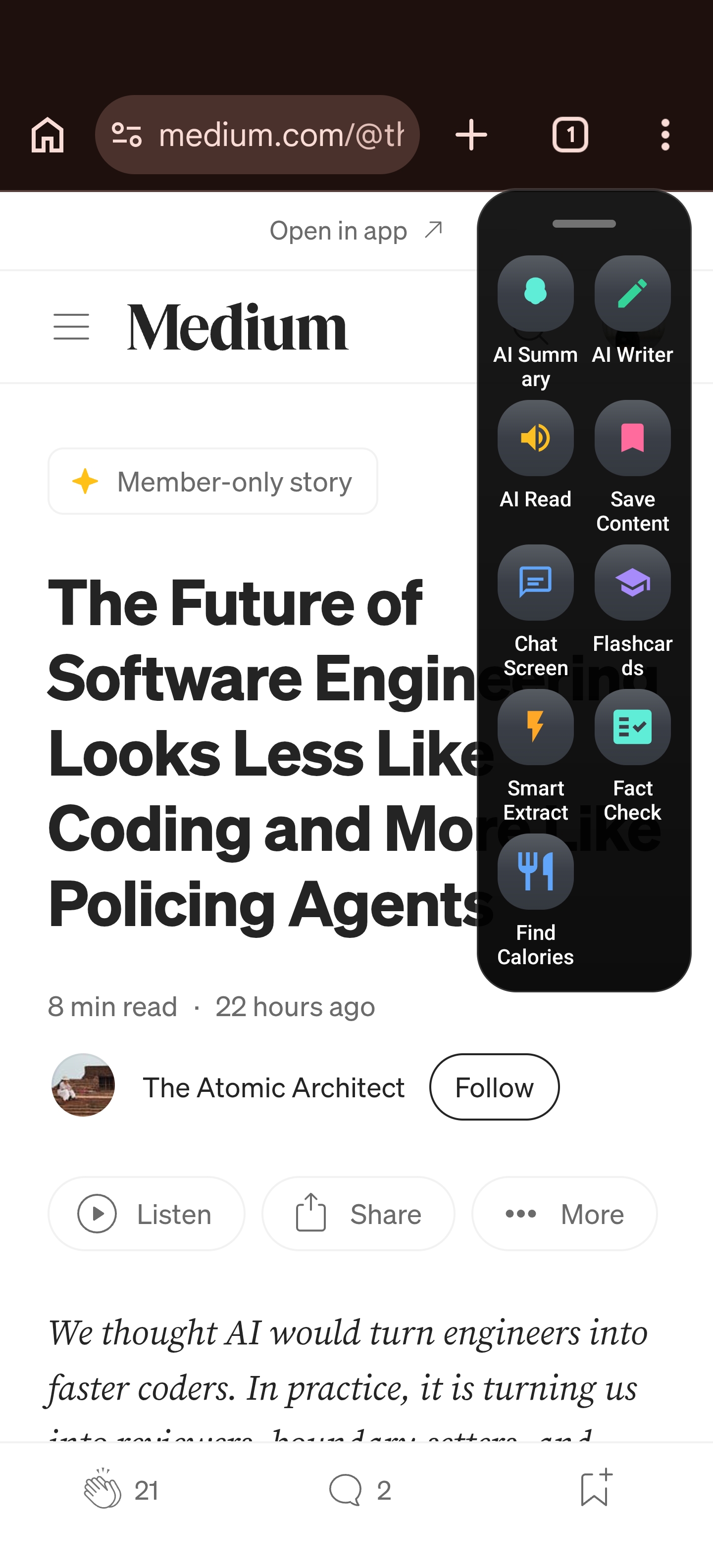
This is where AI Read separates itself from every other android text to speech app you’ve tried. It’s not limited to one browser or one file type. Arc’s floating sidebar can overlay any app — Chrome, Gmail, WhatsApp, your PDF reader — and read the main content aloud. It strips out UI clutter like buttons, menus, and ads, focusing only on what matters.
You can also listen to content directly inside Arc:
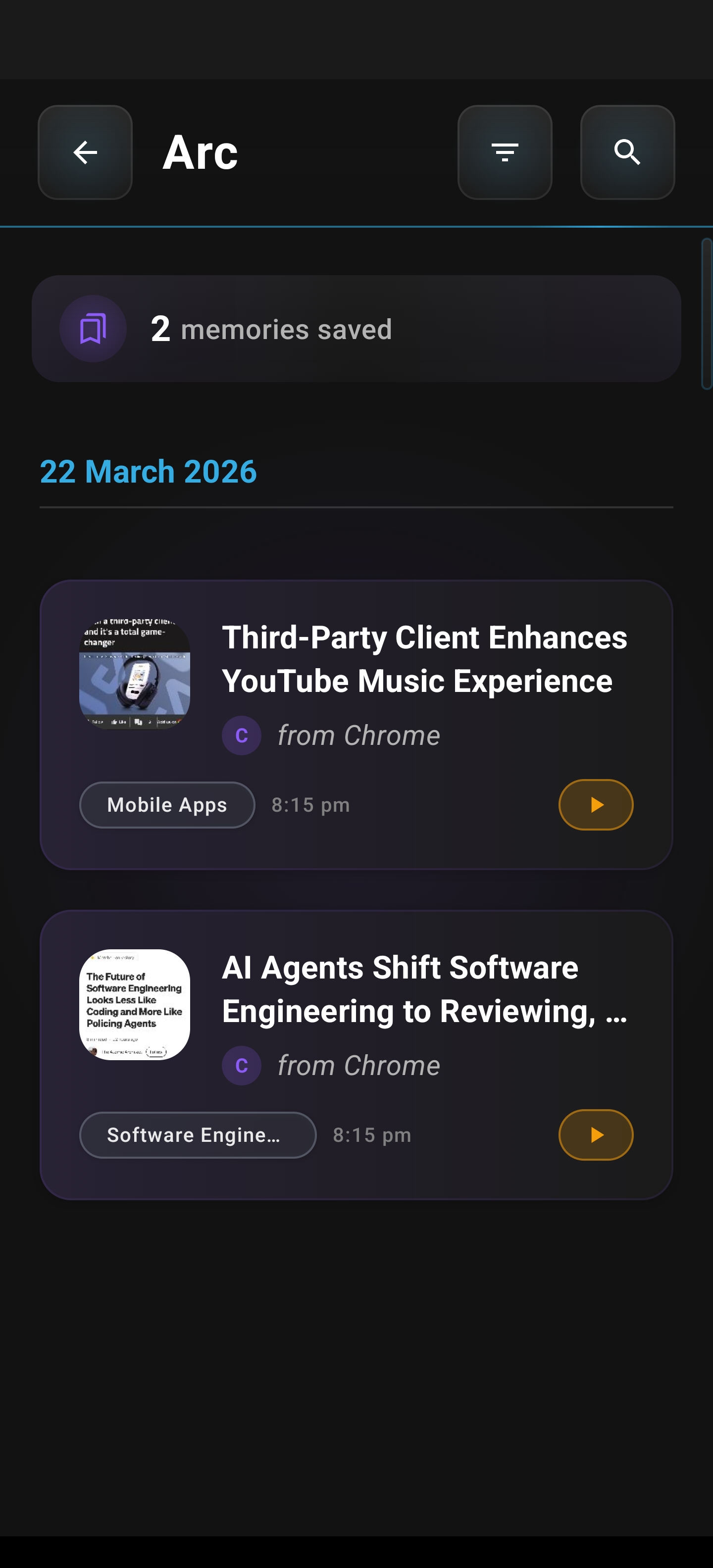
- AI summaries — Tap the Listen button on any summary card
- Chat responses — Hit the speaker icon on any AI chat message
- Saved articles — Your entire summary library has a quick-access Listen button on each card
Every piece of text that Arc processes is one tap away from becoming audio. No copy-pasting. No switching apps. No friction.
Automatic Language Detection Across 100+ Languages
Reading a mix of English and Spanish articles? AI Read auto-detects the language of each piece of content and selects the appropriate native voice. A Chinese article gets a Chinese voice. A Hindi article gets a Hindi voice. No manual switching. No wrong-language narration. This makes it an extraordinarily powerful ai read android tool for multilingual users, researchers, and language learners.
Background Playback and Hands-Free Controls
This is the feature that turns AI Read from “nice to have” into “I use this every day.” Once you start listening, you can switch to any other app and the audio keeps playing. A persistent notification gives you play, pause, and stop controls. Your lock screen shows media controls. Your Bluetooth headset buttons work too.
Cooking with a recipe? Start AI Read, put your phone down, and listen through your earbuds while your hands are busy. Driving? Same thing. Walking? You get the idea.
The floating sidebar gives you instant access to AI Read from any app. See an article in Chrome? Pull up the sidebar. Tap “AI Read.” Done. Your eyes get a break, and the content keeps flowing.
Adjustable Speed and Pitch — With Live Preview
Not everyone listens at the same pace. AI Read lets you adjust speech rate from 0.5x to 2.0x and pitch from 0.5x to 2.0x. There’s a live preview so you can hear exactly how it sounds before you commit. Slow it down for dense material you need to absorb. Speed it up for skimming through newsletters you want to clear from your inbox.
Visual Highlighting for When You Want to Follow Along
Optional karaoke-style highlighting — word by word or sentence by sentence — lets you follow the text visually while listening. This is particularly useful for language learners, people with dyslexia, or anyone who wants to reinforce audio with visual context without the strain of traditional screen reading.
Real Scenarios Where Screen Reading Fatigue Meets Its Match
Let’s get concrete. Here’s how real people use AI Read to replace screen reading with listening throughout their day.
The Commute: Five Articles, Zero Eye Strain
You saved five long-reads during the workday — industry analysis, a product review, two opinion pieces, and that recipe you actually want to try. On the train home, you don’t pull out your phone and squint at tiny text in a moving vehicle. You open Arc, tap the Listen button on the first card in your Unread Queue, and hear it narrated. When it finishes, tap the next one. Your eyes rest. The content flows. You step off the train informed instead of exhausted.
The Kitchen: Flour on Your Hands, Recipe in Your Ears
Your hands are covered in dough. The recipe blog is open in Chrome. Instead of tapping your phone with flour-covered fingers to scroll through paragraph after paragraph of “personal story before the actual recipe,” pull up Arc’s floating sidebar, tap “AI Read,” and hear the instructions. Bluetooth headset controls let you pause and resume without touching your phone at all.
The Desk: Long AI Responses, Consumed at 1.5x
You asked Arc’s Chat with AI for a detailed breakdown of a complex topic. The response is thorough — 800 words thorough. Instead of squinting at a wall of text, tap the speaker icon on the chat bubble and listen at 1.5x speed while you organize your desk, sort through papers, or just lean back and close your eyes.
Chat responses in Arc each have their own Listen button. Tap the speaker icon on any message bubble and that specific response plays aloud — no need to listen to the entire conversation from the top.
The Multilingual Research Project
You’re studying a topic and you’ve saved articles in both English and Spanish. Traditional TTS would read both in the same voice — jarring, confusing, and often incomprehensible. AI Read detects each article’s language automatically and reads it in the correct native voice. Proper pronunciation. Natural cadence. No settings to fiddle with.
Why AI Read Is More Than Just Another Text-to-Speech App
Let’s be direct: the Google Play Store has dozens of android text to speech app options. Most of them fall into one of two categories:
- Basic TTS engines — They read whatever text you paste in. Robotic voices, no context awareness, no background playback, no integration with your actual workflow.
- Specialized readers — They work great for PDFs or ebooks but can’t touch your email, your browser, or your chat apps.
AI Read is different because it meets you where you already are — inside whatever app you’re using, reading whatever’s on your screen, with zero friction. It’s not a separate reading app you have to copy-paste content into. It’s an overlay that turns your entire phone into a listening device.
Here’s the comparison that matters:
| Feature | Basic TTS Apps | AI Read (Arc) |
|---|---|---|
| Works across any app | ❌ Paste-only | ✅ Floating sidebar overlay |
| Natural AI voices | ❌ Robotic | ✅ Neural/WaveNet voices |
| Auto language detection | ❌ Manual | ✅ 100+ languages, automatic |
| Background playback | ⚠️ Some | ✅ With persistent controls |
| Lock screen / BT controls | ❌ Rare | ✅ Full media controls |
| Content filtering | ❌ Reads everything | ✅ Strips UI chrome and ads |
| Speed & pitch adjustment | ⚠️ Basic | ✅ 0.5x–2.0x with preview |
| Visual highlighting | ❌ Almost never | ✅ Word/sentence karaoke mode |
| Offline support | ⚠️ Varies | ✅ On-device fallback |
How to Start Using AI Read Today
Getting started is straightforward:
- Download Arc from the Google Play Store
- Open any content — an article, an email, a PDF, a chat message
- Tap the AI Read button — either on a content card inside Arc, or via the floating sidebar over any other app
- Adjust speed and voice to your preference using the live preview
- Put your phone down and listen
That’s it. No accounts to configure, no voices to download, no settings to puzzle through. The first time you hear a long article read to you in a natural voice while your eyes are closed, you’ll understand why this matters.
The Bigger Picture: Screen Reading Fatigue Is a Design Problem
We’ve built an entire digital lives around reading on screens that were never designed for extended text consumption. Six-inch displays. Blue light. Tiny fonts. Infinite scrolling. It’s no surprise that screen reading fatigue has become one of the most common complaints among heavy phone users.
The solution isn’t reading less — it’s reading smarter. When you shift from “I have to stare at this” to “I can listen to this” with an ai read android tool that works everywhere on your phone, you reclaim your time, your attention, and your visual comfort. You turn dead commuting time into productive learning. You turn eye-straining recipe scrolling into hands-free cooking. You turn wall-of-text chat responses into casual listening while you do something else with your eyes.
AI Read on Android isn’t just a feature. It’s a different relationship with your phone — one where the screen serves you instead of draining you.
Download Arc — Your Phone, Read Aloud
Ready to give your eyes a break? Arc’s AI Read feature is available now on Android.
👉 Download Arc from the Google Play Store
Stop staring. Start listening. Your eyes will thank you.
Frequently Asked Questions
Is AI Read free to use? Yes. AI Read is included as a core feature in the Arc app for Android. Download it from the Play Store and start listening immediately.
Does AI Read work offline? Yes. If you lose internet connectivity, AI Read automatically falls back to on-device text-to-speech voices. The quality is slightly lower than cloud voices, but you’ll never be left without audio.
Can I use AI Read while using other apps? Absolutely. AI Read supports full background playback with persistent notification controls. Start listening, switch to any app, and the audio continues. Your lock screen and Bluetooth headset controls work too.
What languages does AI Read support? AI Read supports 100+ languages with automatic detection and native voice selection. If an article is in French, it reads in French. If it’s in Japanese, it reads in Japanese. No manual configuration needed.
How is AI Read different from Android’s built-in TalkBack? TalkBack is an accessibility screen reader designed for blind and low-vision users — it narrates everything on screen, including buttons and menus. AI Read is a productivity and wellness tool that focuses on content — it strips away UI chrome and reads the actual article, email, or message you care about, with natural voices and hands-free controls.