Arc: The AI Assistant That Stays in Your App
ChatGPT, Gemini, Copilot — they all force you to switch apps. Arc's floating overlay stays inside whatever app you're using. Free to try.
You’re halfway through an article in Chrome when you want a quick summary. So you switch to ChatGPT. Copy the URL, paste it in, wait for the response, switch back. Your place is gone. Your focus is gone. And you’ve just burned 30 seconds on something that should’ve taken three.
This isn’t a ChatGPT problem. It’s an every AI assistant on Android problem. Gemini? Same app switch. Copilot? Same switch. Perplexity? Same switch. Every single one makes you leave the app you’re in, do your AI thing in a separate screen, then navigate back.
Over 28,000 Android users have installed Arc specifically to escape this cycle — and 8,500+ of them use it every month to stay in their flow. They’re not switching apps. They’re bringing AI to whatever screen they’re on, generating over 3,000 AI summaries and running nearly 6,000 custom actions every month without a single app switch.
It doesn’t have to be this way. An AI assistant on Android should come to you — not the other way around.
The App-Switching Tax Nobody Talks About
Here’s what actually happens when you use a standard AI assistant on Android:
- Leave your current app — you lose context
- Open the AI app — wait for it to load
- Type or paste your question — manually copy content over
- Read the response — in a completely different interface
- Copy what you need — highlight, copy, switch back
- Return to your original app — find your place again
Six steps. Every single time. And each step pulls you further from whatever you were actually doing.
Research from UC Irvine found that it takes an average of 23 minutes and 15 seconds to fully regain focus after a significant interruption. Even a brief app switch — the kind you make dozens of times per day — costs roughly 20-30 seconds of refocusing. Multiply that by the 30+ times you might reach for an AI helper daily, and you’re hemorrhaging over 15 minutes of pure refocusing time every single day.
The worst part? Most people don’t even notice. The ai app switching has become so normalized that we treat it like breathing — just something you do. But it’s quietly destroying your productivity, your focus, and honestly, your patience.
Why Every AI Assistant Forces You to Switch Apps
There’s a simple reason every AI assistant on Android makes you leave your app: they’re built as standalone apps.
ChatGPT is an app. Gemini is an app. Copilot is an app. They each have their own interface, their own chat history, their own ecosystem. The entire design philosophy is “come to us.” There’s no mechanism to meet you where you already are.
This made sense in 2023 when AI assistants were novel — you were exploring, not integrating. But in 2026, AI is a tool you reach for dozens of times daily. The old “open a separate app” paradigm is broken for the same reason that having a separate app for copy-paste would be broken. You don’t leave your browser to copy text. You don’t leave your messaging app to type a message. AI assistance should be no different.
What’s needed is an android ai overlay — a layer that sits on top of whatever you’re doing, ready when you need it, invisible when you don’t.
The Overlay Approach: AI That Comes to You
Arc takes a fundamentally different approach. Instead of making you go to AI, Arc brings AI to whatever screen you’re on.
Here’s how it works:
- You’re in any app — Chrome, WhatsApp, Gmail, Reddit, any app at all
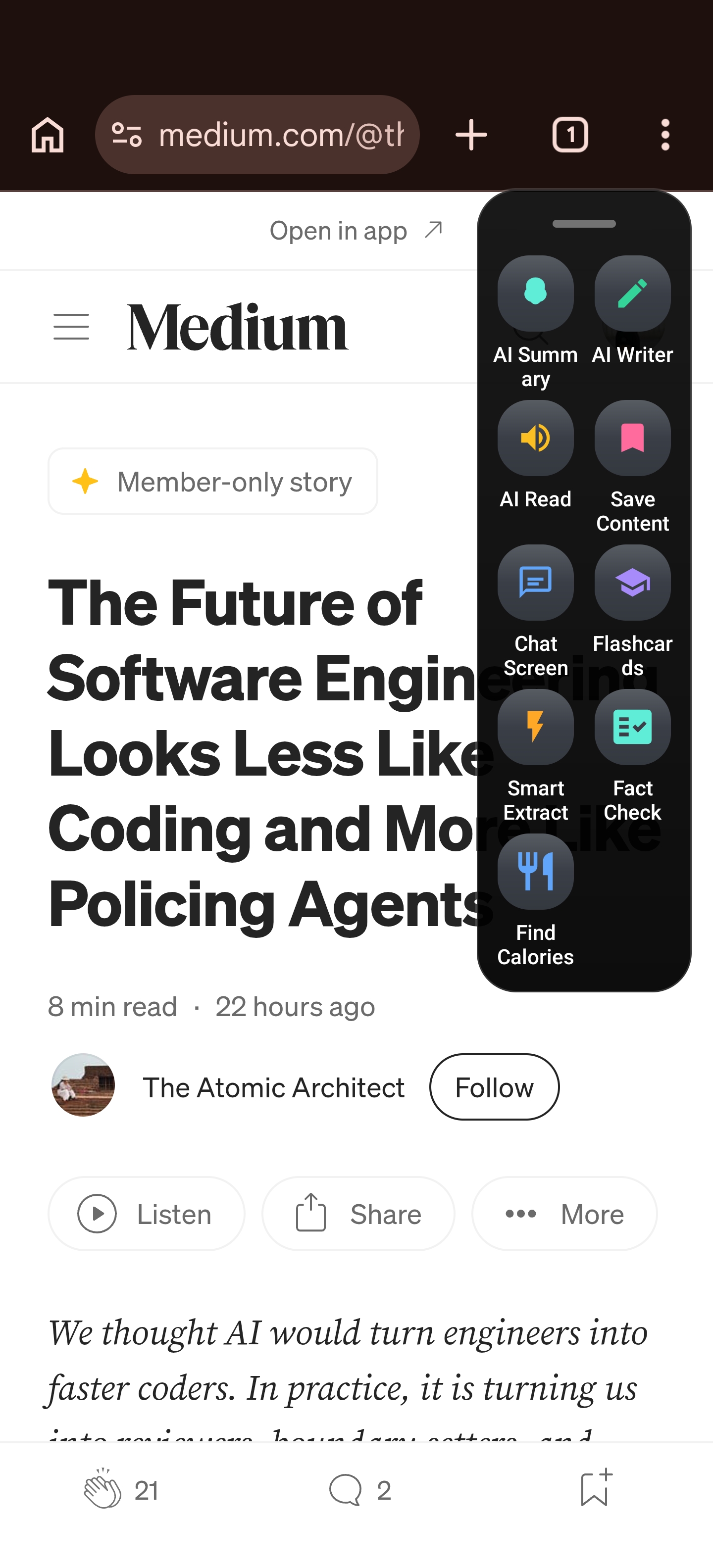
- Swipe the edge of your screen — Arc’s floating sidebar expands
- Tap what you need — Summary, Writer, Smart Extract, any action
- Get your result instantly — right there, without leaving your app
- Swipe the sidebar away — continue exactly where you were
No app switch. No copy-paste dance. No lost scroll position. The AI comes to you.
This is possible because Arc uses Android’s accessibility and overlay services to exist as a layer on top of your current screen. It reads what’s on screen, understands context, and delivers results — all without you ever leaving the app you’re in.
Real Scenarios Where Switching Kills Your Flow
Scenario 1: Summarizing an Article While Browsing
The old way: You’re reading a long article in Chrome. You want a summary, so you switch to ChatGPT, paste the URL, wait, read the summary, switch back to Chrome, and try to find where you left off.
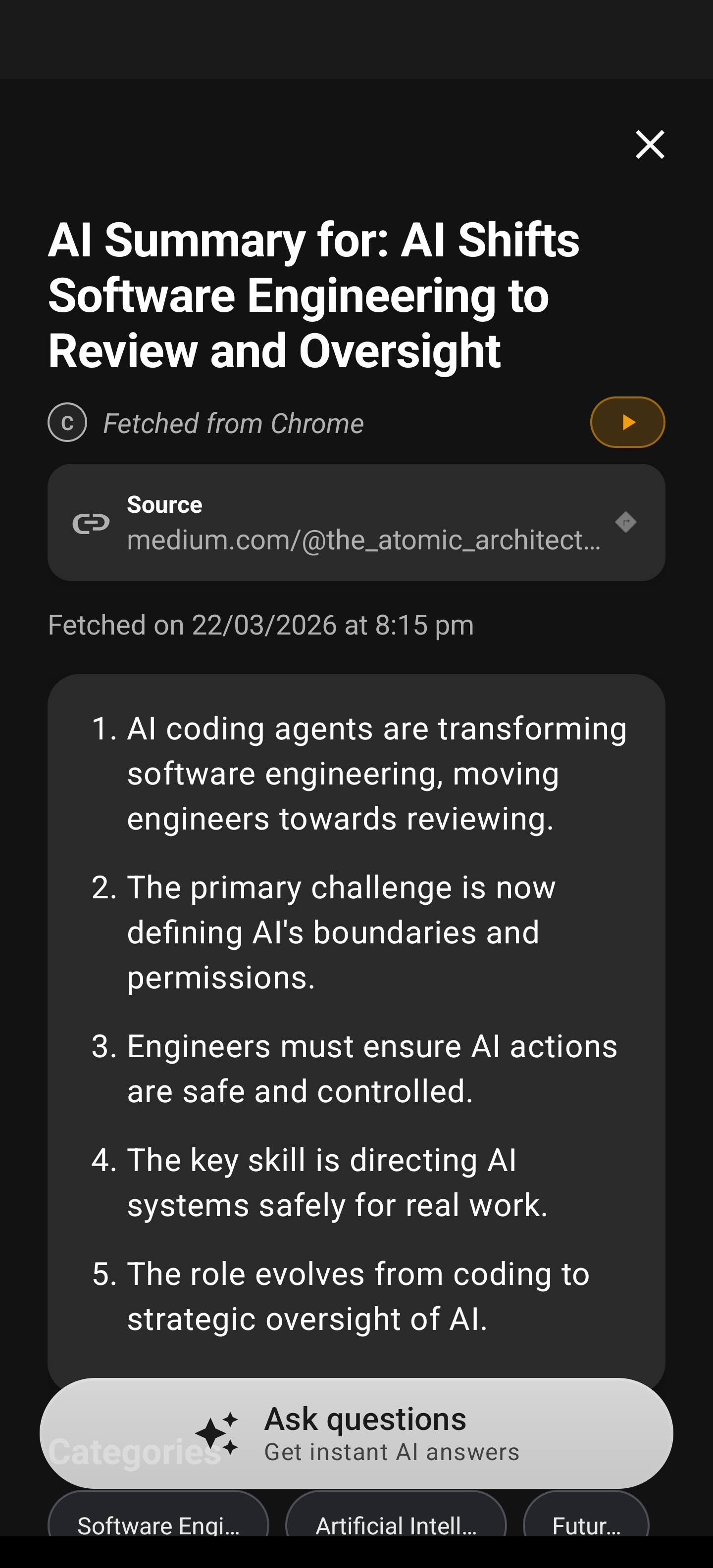
The Arc way: Swipe the sidebar, tap “AI Summary.” Arc reads the article right there in Chrome and gives you a concise summary in a floating panel. Close it, keep reading. Total time: 3 seconds.
Scenario 2: Replying to a Message
The old way: You get a WhatsApp message that needs a thoughtful reply. You switch to your AI app, type out the context, get a draft, copy it, switch back to WhatsApp, paste it. If the tone isn’t right, you repeat the whole cycle.
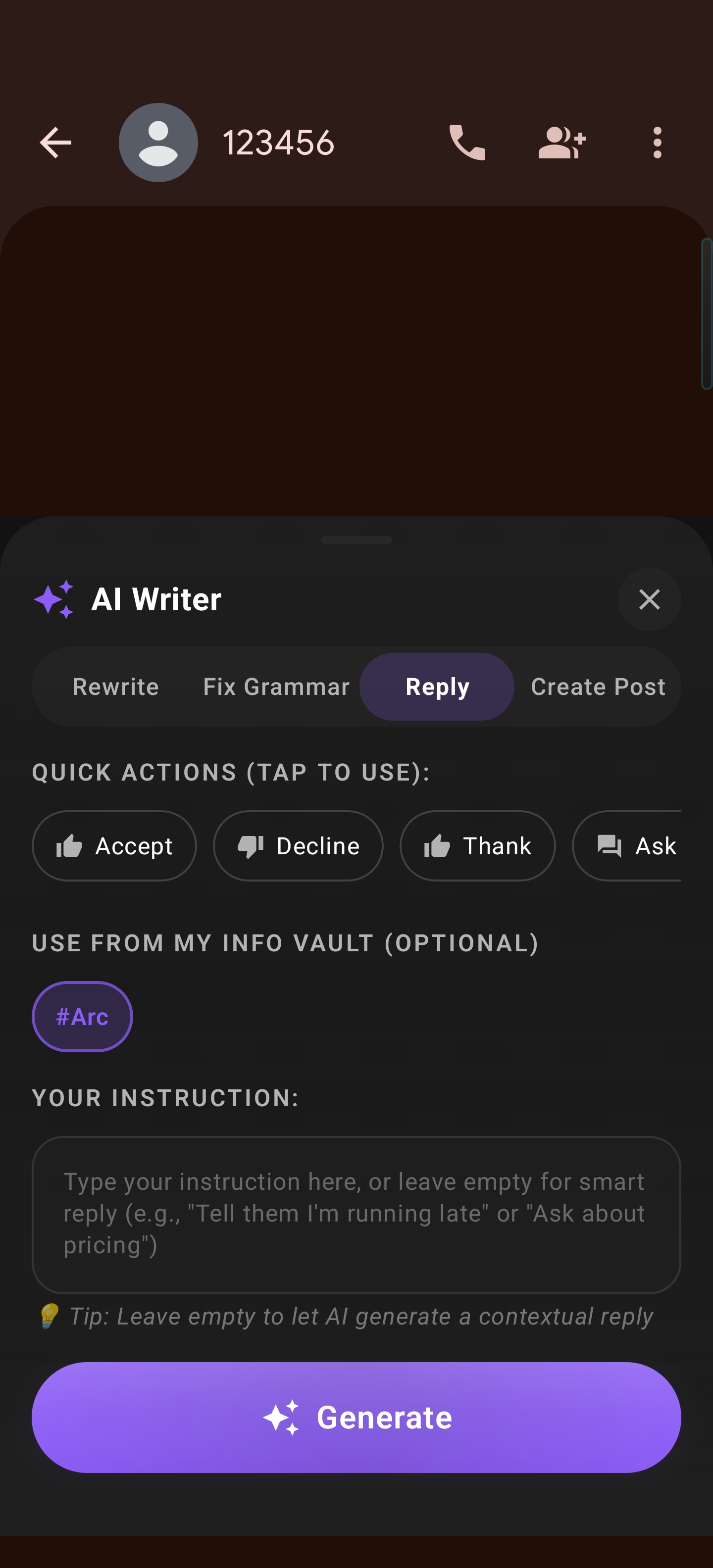
The Arc way: Open the sidebar while still in WhatsApp. Tap “AI Writer,” select “Reply.” Arc reads the entire conversation thread, understands who said what, and generates a contextual reply. Copy, paste, done — you never left WhatsApp.
Scenario 3: Extracting Details from an Email
The old way: You get an email with a meeting time, address, and Zoom link. You manually copy each piece, switch to Calendar, type it all in, switch to Maps for the address, switch back…
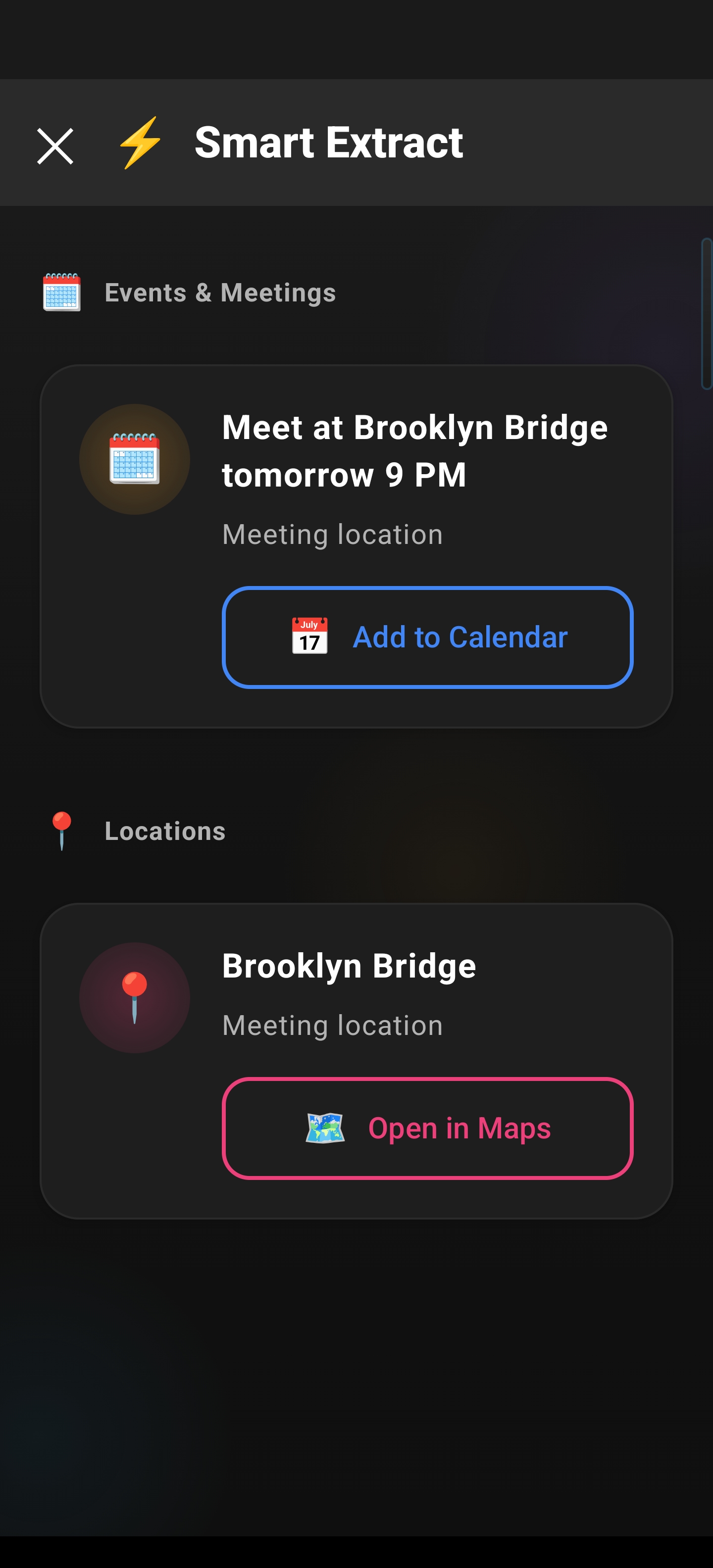
The Arc way: Swipe the sidebar, tap “Smart Extract.” Arc identifies the meeting time, location, contact info, and Zoom link — all at once. Tap “Add to Calendar,” tap “Join Meeting,” tap “Open in Maps.” Every action is one tap. Zero app switching.
Scenario 4: Writing a Social Media Post About What You’re Reading
The old way: You find an interesting article and want to tweet about it. You switch to your AI app, paste the URL, ask for a tweet draft, copy the result, switch to X, paste, edit, post. That’s four app switches for one tweet.
The Arc way: With the article still on screen, open the sidebar, tap “AI Writer,” select “Create Post.” Arc reads the article and drafts a social post based on what’s actually on your screen. Copy, paste to X, done.
What Makes Arc Different From Every Other AI Assistant
Let’s be direct about the comparison:
| Feature | ChatGPT / Gemini / Copilot | Arc |
|---|---|---|
| Where it works | Its own app | Any app on your screen |
| How you access it | Switch to the AI app | Swipe a sidebar overlay |
| Reads your screen | No | Yes — reads any on-screen content |
| Understands context | Only what you type/paste | Automatically captures screen content |
| Writes in context | No — you copy-paste results | Yes — generates replies based on your conversation |
| Extracts data | Manual copy-paste | Smart Extract with one-tap actions |
| App switching required | Every single time | Never |
The core difference is where the intelligence lives. Traditional AI assistants are destinations — places you go. Arc is a tool that comes to where you already are.
A screen assistant app like Arc doesn’t replace your AI chatbot. You might still use ChatGPT for deep conversations or Gemini for multimodal queries. But for the dozens of quick, in-the-moment tasks you do every day — summarizing, replying, extracting, writing — Arc eliminates the switching tax entirely. With over 5,900 custom actions executed monthly across 28,000+ installs, users are proving that the overlay approach isn’t just different — it’s how AI assistance should work on mobile.
The Features That Make Switching Unnecessary
AI Summary — Summarize Anything On Your Screen
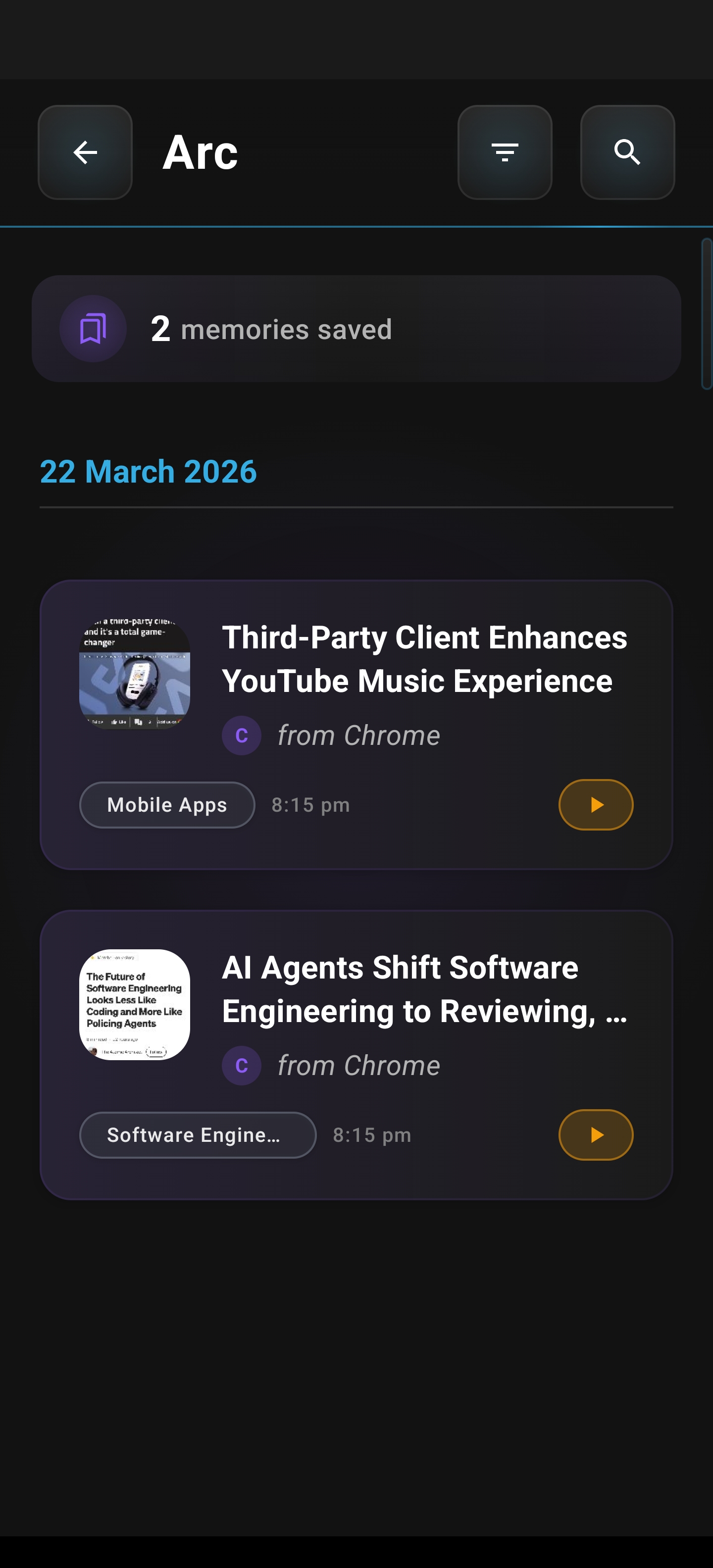
Open the sidebar, tap AI Summary, and Arc reads whatever’s on your screen — articles, emails, social posts, PDFs — and gives you a concise summary. No copying, no pasting, no switching. It even detects the content type and organizes summaries by category in your library.
AI Writer — Write and Reply In Context
AI Writer is where the “no switching” philosophy really shines. It doesn’t just generate text — it reads the conversation you’re currently in and writes from your perspective. Replying to a WhatsApp message? It knows who said what. Drafting an email? It understands the thread. Writing a social post? It reads the article you’re looking at.
Four modes: Rewrite (change tone), Fix Grammar (one-click proofread), Reply (context-aware responses), and Create Post (social content from on-screen material).
Smart Extract — One-Tap Actions From Any Screen
Smart Extract is the ultimate antidote to manual copy-paste. It scans your screen and pulls out meetings, contacts, verification codes, addresses, phone numbers, and links — then gives you one-tap actions to add them to your calendar, save contacts, join meetings, open maps, or copy OTPs. No highlighting, no copying, no switching.
Built for Real Android Use
Arc isn’t a ported iOS app or a web wrapper. It’s built specifically for Android, using the platform’s unique capabilities:
- System-wide overlay — works on top of any app, any screen
- Accessibility Service integration — reads on-screen content without you copying anything
- Customizable sidebar — position, size, and auto-hide to fit your hand and your habits
- System Sidebar Integration — prefer Samsung Edge Panel or OnePlus Shelf? Arc works there too
- Per-app control — hide the sidebar in apps where you don’t need it (banking, games, etc.)
- Low battery impact — foreground service with optimized rendering, not a background drain
Stop Switching. Start Doing.
Every time you switch apps to use AI, you’re paying a tax on your focus. It’s small per instance — 20 seconds here, 30 seconds there — but it compounds into a significant daily cost. More importantly, it breaks your flow. You lose your place, your train of thought, and sometimes your motivation entirely.
An AI assistant on Android should reduce friction, not add it. Arc was built on one simple principle: AI should come to you, not the other way around.
The floating sidebar means you never have to leave the app you’re in. AI Summary reads your screen. AI Writer understands your conversations. Smart Extract turns any screen into actionable data. All without a single app switch.
If you’re tired of the copy-paste-switch cycle every time you need AI help, it’s time to try a different approach.
Try Arc free on Google Play → Download Arc — AI Screen Assistant