Mastering Your My Info Vault: Personalize Your AI with Arc
Unlock the full potential of your AI writing assistant by personalizing its understanding of you using My Info Vault.
Unlock the full potential of your AI writing assistant by personalizing its understanding of you. Arc’s ‘My Info Vault’ offers a secure, private space to store your essential personal and professional details, ensuring your AI always writes with your unique context in mind.
Getting Started with My Info Vault
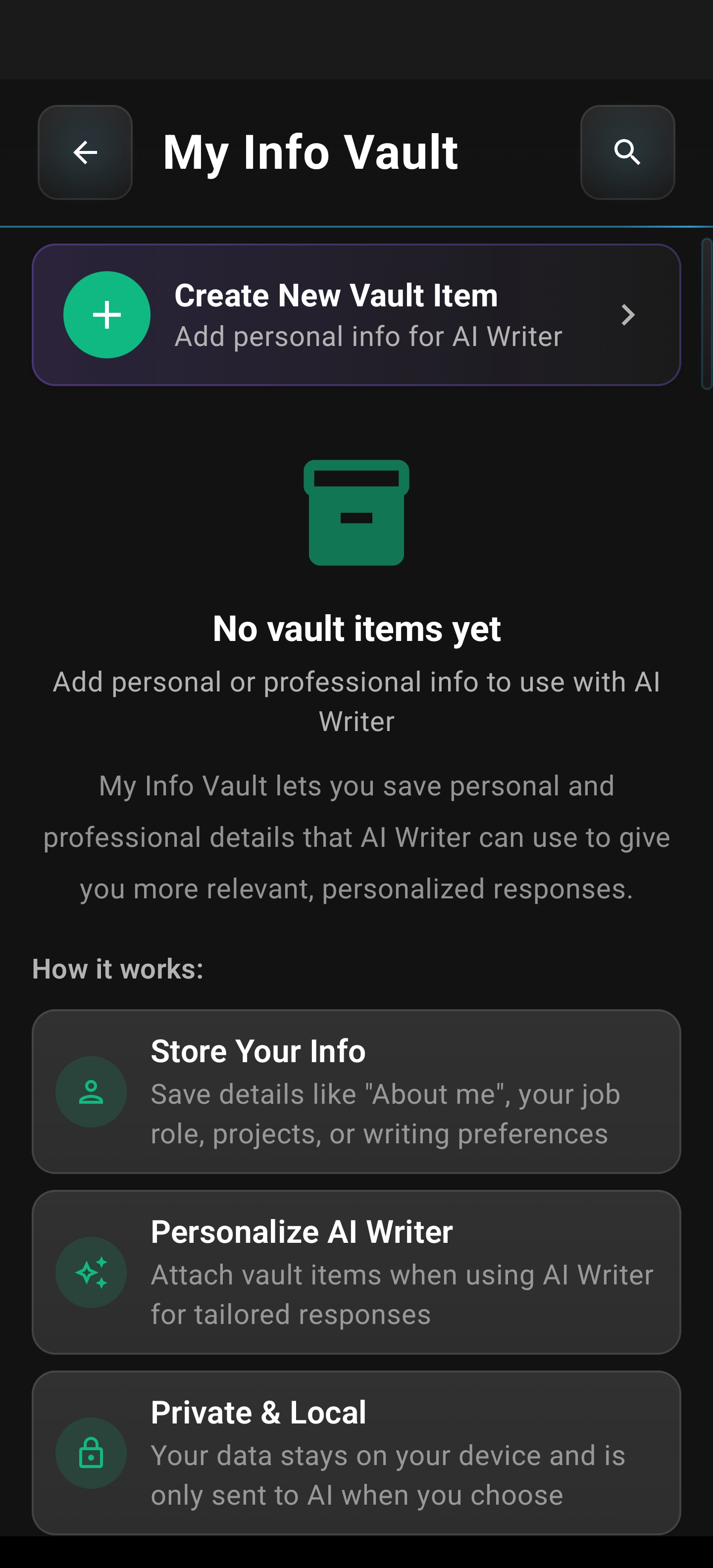
Accessing your My Info Vault is straightforward. It’s designed as a dedicated hub within the Arc application to keep your important information organized and readily available.
This is your starting point. If you’re new, it will appear empty, ready for you to populate. The interface is clean and focused, ensuring you can start building your personal AI context without any distractions.
Adding and Managing Your Information
Populating your vault is simple and intuitive. You can create as many entries as you need, each with a clear title and descriptive content.
Adding a New Item
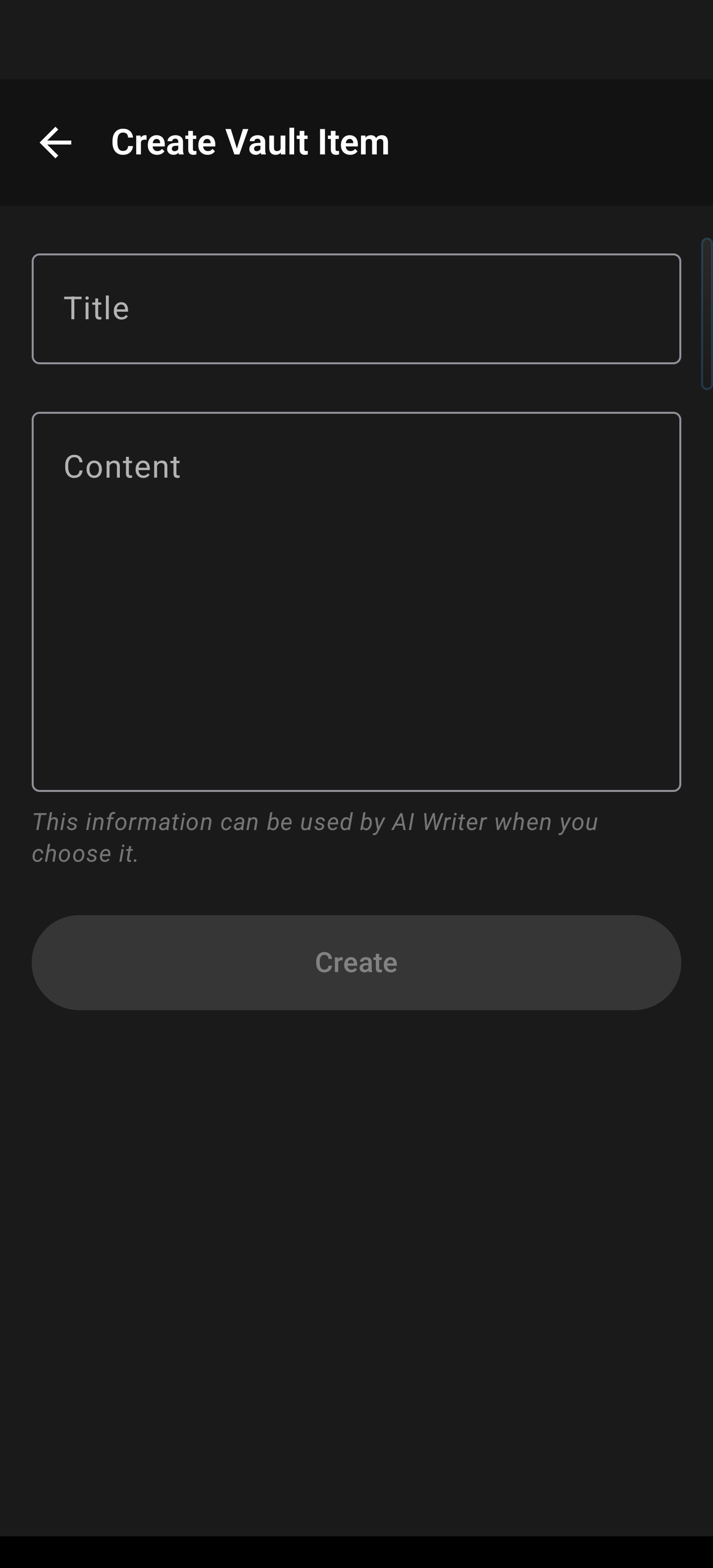
To add your first piece of information, tap the ‘Add New Item’ button or the floating action button.
You’ll see fields for a ‘Title’ and ‘Content’. Be specific! For example, a title like “My Professional Role” with content such as “Senior Software Engineer specializing in backend development with Python and AWS” provides rich context for the AI.
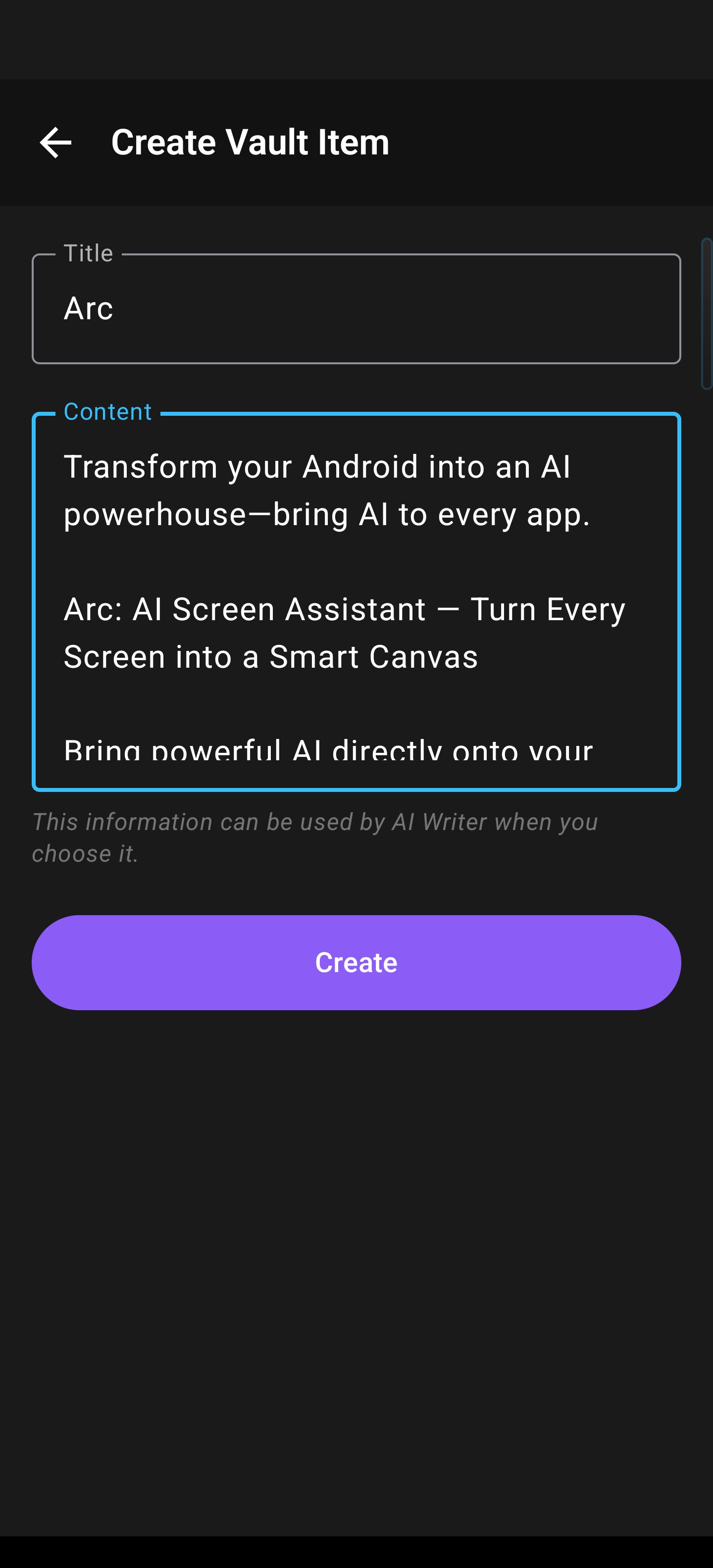
Once you have filled in your details, simply save your entry. You can see how a completed entry looks below, providing a clear reference for the AI to pull from during your writing sessions.
Pro-tip: Break down your information into smaller, logical chunks (e.g., “Contact Info”, “Current Projects”, “Writing Tone”) rather than one giant block. This allows for much more granular control when selecting context in the AI Writer.
Managing Your Vault
Your vault can grow to include job titles, personal interests, project details, or any information that helps the AI understand your needs better.
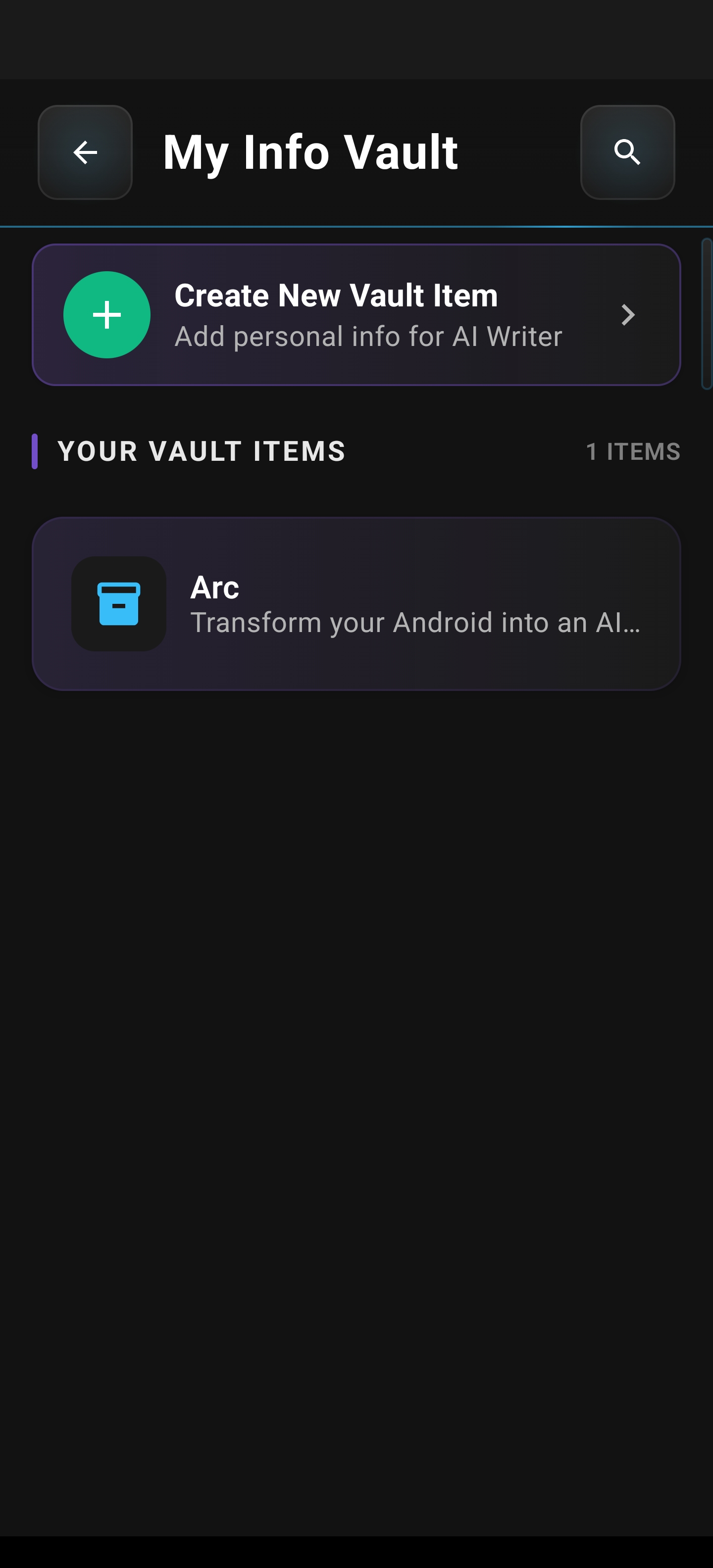
Your entries are listed clearly in your vault. To manage them effectively:
- Edit: Simply tap on an existing entry to modify its title or content at any time.
- Delete: Remove entries you no longer need by accessing the edit options for that item.
- Reorder: Grab and drag entries into your preferred order. This helps you prioritize the most frequently used information.
Using Your Vault with the AI Writer
The real power comes when you integrate your My Info Vault with the AI Writer. When you’re using the AI writer tool, you can selectively choose which vault items to include in your prompt or context.
This allows the AI to draw upon your stored information to generate responses that are specifically tailored to your background, preferences, and current needs. Whether you’re drafting an email, writing a report, or brainstorming ideas, your personalized AI context ensures maximum accuracy and relevance.
Your Privacy is Paramount
We understand the sensitivity of personal data. Arc’s My Info Vault is built with privacy first.
- Local Storage: All your vault data is stored securely and locally within the Android app’s sandbox.
- No Silent Uploads: Data is not uploaded to any independent servers.
- Explicit Control: Your information is only sent to AI services when you explicitly activate the AI Writer and select those items.
- Encrypted Backups: An optional Google Drive backup is available for your convenience, ensuring you never lose your vault.
Your data, your control.