AI Assistant vs Chatbot Android: Why Your Phone's 'Assistant' Can't Actually Do Anything
Most AI apps on Android are chatbots pretending to be assistants. Here's what separates a real android AI screen assistant from a chatbot — and why it matters for your productivity.
You’ve probably downloaded an “AI assistant” on your Android phone. Maybe two or three. And if you’re like most power users, you’ve felt the same creeping frustration: these apps talk a lot, but they don’t actually do anything.
That’s the uncomfortable truth behind the AI assistant vs chatbot android distinction. The vast majority of apps calling themselves “AI assistants” are chatbots wearing a new label. They sit in their own window, wait for you to type something, and give you text back. That’s it. They can’t see your screen. They can’t interact with your apps. They can’t take action on your behalf.
A real assistant doesn’t just answer questions. It acts.
The Chatbot in Assistant’s Clothing
Let’s be specific about what we mean. A chatbot is an AI that:
- Lives in its own isolated app or tab
- Requires you to manually copy, paste, or describe what you need help with
- Returns text responses — nothing more
- Has no awareness of what’s on your screen
Sound familiar? That’s ChatGPT on mobile. That’s Gemini. That’s Claude’s mobile app. These are extraordinary language models, no question. But on Android, they function as chatbots: you open the app, you type, you read the response, you leave.
The friction is real. Imagine reading a dense article and wanting a simplified explanation. With a chatbot, you:
- Select the text
- Copy it
- Switch to the chatbot app
- Paste it
- Type your prompt
- Read the answer
- Switch back to your article
Seven steps for something that should take one. That’s not assistance. That’s a round trip.
What a Real Android AI Screen Assistant Does Differently
A true android AI screen assistant flips this model entirely. Instead of pulling content into the AI, the AI comes to your content. It sees what’s on your screen. It takes action right there. No switching apps. No copy-paste gymnastics.
This is the difference between talking about your screen and acting on it. And it’s the distinction that matters most for Android power users who want to get things done, not just read about getting things done.
Here’s what a screen-aware assistant actually looks like:
- It overlays on your current app — no context switching
- It reads on-screen content automatically — no manual copy-paste
- It executes actions with a single tap — not seven steps
- It returns results inline — you stay in your flow
This is the core of what makes an AI that acts on your screen fundamentally different from a chatbot. It’s not about the model underneath — GPT-4, Gemini, Claude are all impressive. It’s about the interface paradigm. Does the AI come to where you’re working, or do you have to go to it?
The “Does vs Says” Test
Here’s a simple way to evaluate any AI app on your phone: does it do, or does it just say?
| Action | Chatbot | Screen Assistant |
|---|---|---|
| Simplify an article | Copy text → switch apps → paste → ask | Tap once on the article |
| Extract data from a chart | Screenshot → switch apps → upload → ask | Select region → tap action |
| Draft an email reply | Read email → switch apps → describe → copy reply back | Tap action on the email → get draft |
| Fact-check a claim | Copy claim → switch apps → ask → compare | Tap verify action → get sourced answer |
Every chatbot interaction has the same shape: you do the heavy lifting of moving information into the AI, and the AI gives you text back. A screen assistant collapses that to a single interaction: you indicate what you want done, and the AI handles the how.
This isn’t a minor convenience. It’s a category difference. It’s the difference between a calculator and a spreadsheet — both do math, but one fundamentally changes how you work.
Custom Actions: The Feature That Proves the Point
Arc’s Custom Actions is the clearest example of an android AI screen assistant doing what chatbots simply cannot. It’s the feature that makes the AI assistant vs chatbot android comparison unmistakable.
Custom Actions lets you create unlimited, personalized AI workflows that run with a single tap on any on-screen content. You define what you want the AI to do — translate text, fact-check claims, extract data, draft replies — and execute it instantly from Arc’s floating sidebar, system-wide on Android.
How it works:
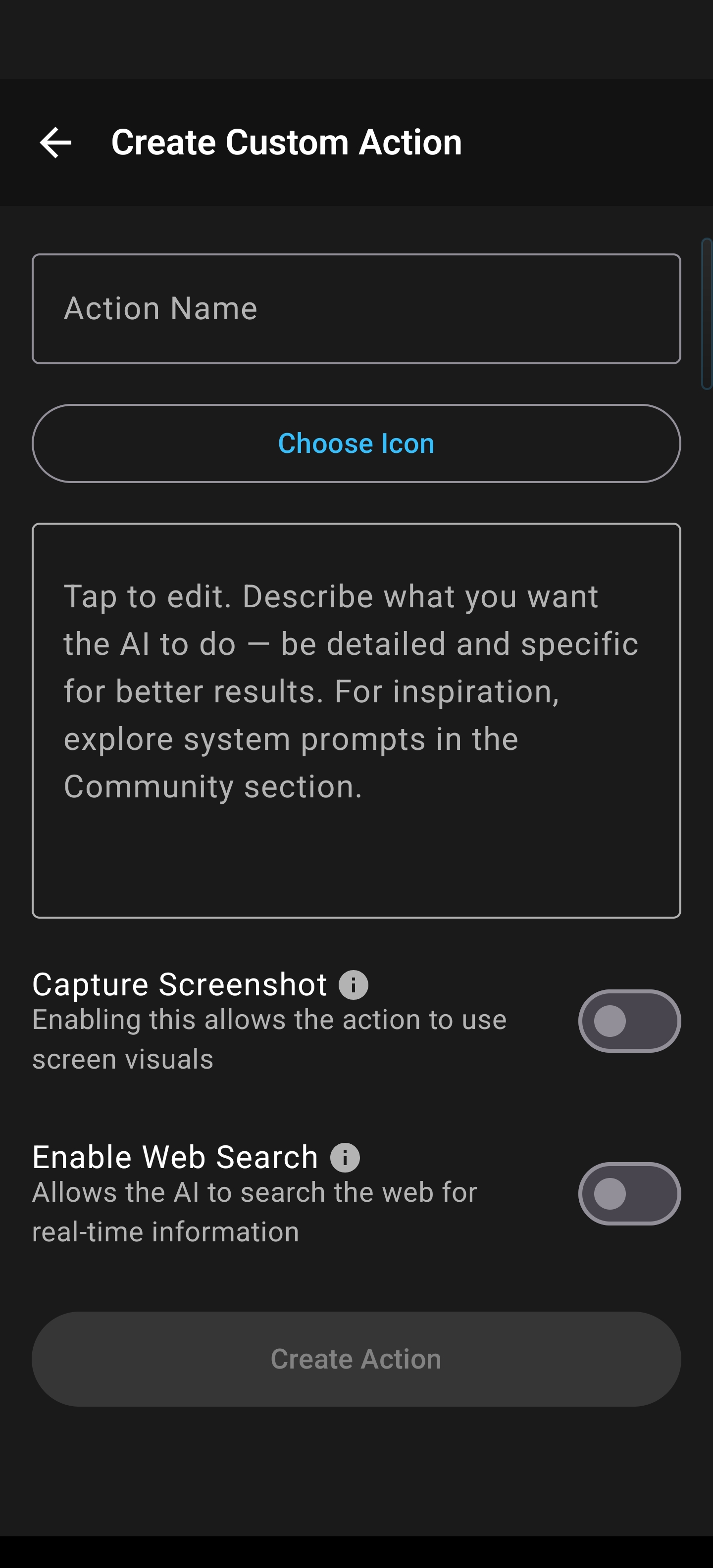
- Create a custom action — Define a prompt with up to 40,000 characters of instructions. Name it, pick an icon, set your preferences.
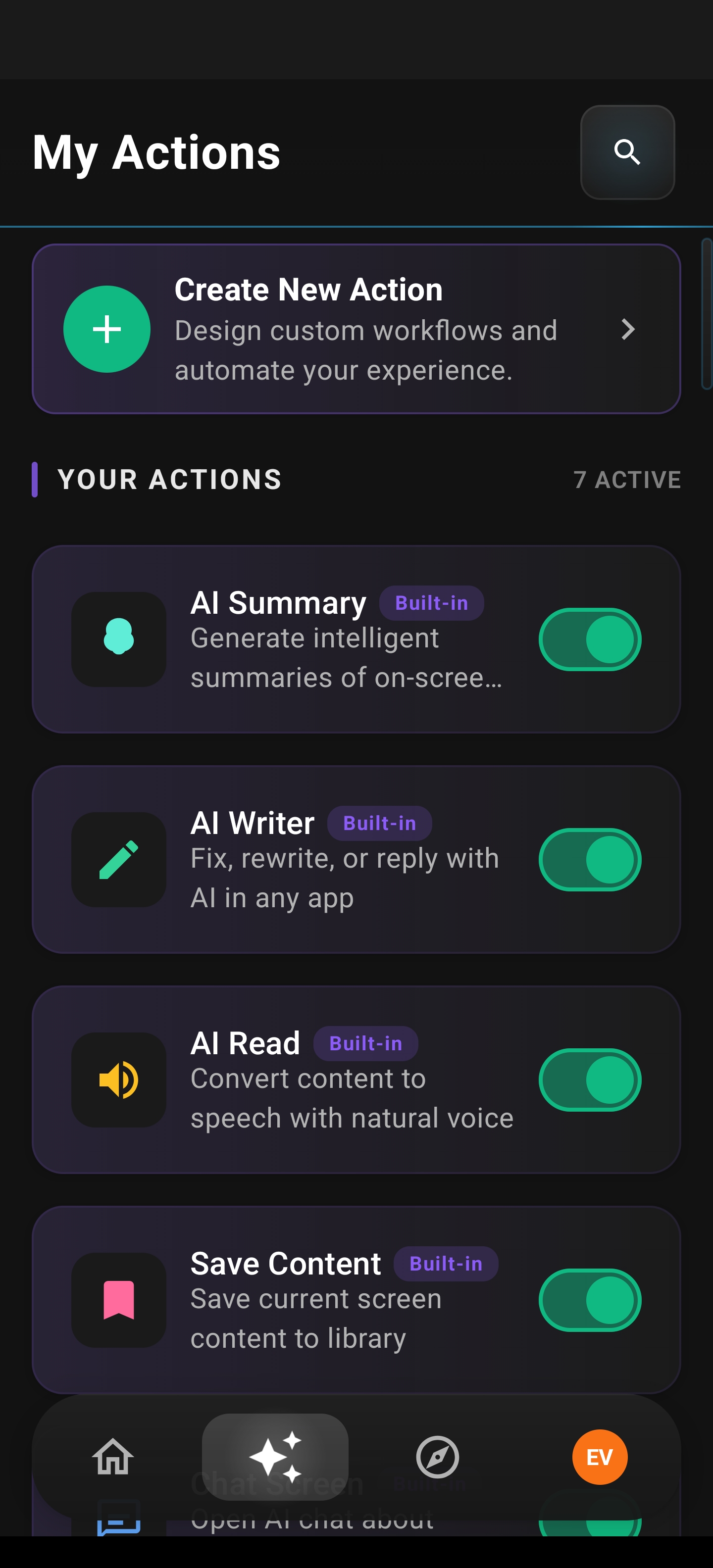
- It appears in your sidebar — Actions display in a clean 2-column grid in the floating overlay.
- Tap once from any app — Arc captures your on-screen content, applies your prompt, and returns results. No switching. No pasting. No delay.
That last point is critical. Arc reads your screen using Android’s Accessibility Service — the same system-level capability that screen readers use. This means Arc can extract text, understand layout context, and act on what it sees. Chatbots can’t do this. They’re sandboxed in their own apps, blind to everything outside.
What You Can Actually Do With Custom Actions
The power of custom actions android isn’t theoretical. Here are real workflows that people use daily:
“Explain Like I’m 5” — Reading a dense research paper or technical article? Tap your ELI5 action and get a plain-language summary instantly, without leaving your reading app.
Fact-checking with Web Search — Create a “Verify Facts” action with web search enabled. Tap it on any news article and get a sourced analysis with citations. The AI searches the web in real time to validate claims.
Chart and data extraction — Select a chart region using screenshot capture, and Arc extracts the key numbers, trends, and insights. No manually reading bars on a graph and typing numbers into a spreadsheet.
Professional email composer — Create a “Draft Client Reply” action with your tone and style preferences baked into the prompt. Tap it on any incoming email and get a polished, on-brand draft ready to send.
These aren’t hypothetical. They’re single-tap workflows that replace multi-step chatbot rituals. And because each action can include up to 40,000 characters of prompt instructions, your AI workflows can be as nuanced and detailed as your actual work demands.
The Details That Matter
Custom Actions isn’t just about the core workflow. The feature is built for power users who care about efficiency:
- 100+ icons with categories and search — Find the right action fast, not by scrolling through a list of identical buttons
- Screenshot capture with region selection — Send full-screen or user-selected regions for visual analysis, not just text
- Web Search toggle — Enable real-time web search per action for fact-checking, price comparisons, or research
- Drag-to-reorder — Long-press to enter reorder mode; arrange actions in your preferred sidebar order
- Enable/disable without deleting — Toggle actions off to keep the sidebar clean; they’re still there when you need them
- Result actions — Copy, Share, Ask Questions, or Regenerate from the result view
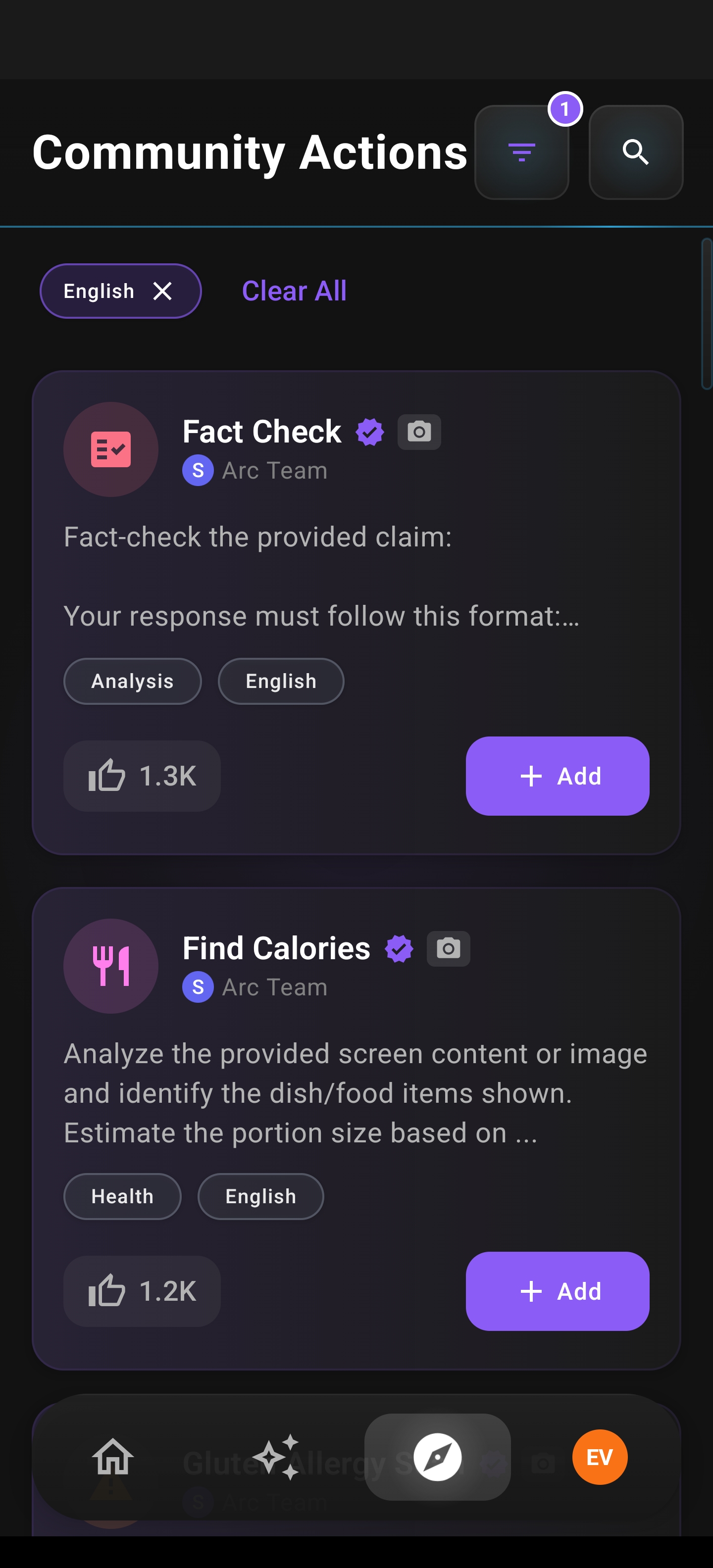
And there’s Community Actions — publish your useful actions for other Arc users, and discover actions others have shared. It’s a shared library of single-tap AI workflows, growing organically.
The core insight: Custom Actions proves that an AI assistant’s value isn’t in the model — it’s in the interface. The same GPT-4 that gives you a wall of text in a chatbot becomes a precision tool when it’s screen-aware and action-oriented.
Why This Matters More on Android Than Desktop
On desktop, you always have side-by-side windows. ChatGPT on the left, your document on the right. It’s not seamless, but it’s workable.
Android doesn’t give you that luxury. You’re in one app at a time. Every context switch is a full-screen transition. That makes the chatbot-to-assistant gap enormous on mobile — and makes the screen-aware assistant paradigm not just nice to have, but essential.
Android is also the platform where accessibility services are a first-class, system-level capability. Arc uses these services to read on-screen content — the same infrastructure that powers TalkBack for visually impaired users. This means:
- Full TalkBack support — All buttons, toggles, drag handles, and form fields are labeled for screen reader navigation
- WCAG 2.1 AA touch targets — All interactive elements meet the 48dp minimum
- High contrast visual separation — Glassmorphism UI with accent gold highlights and clear borders
And there’s a critical accessibility benefit that goes beyond compliance: standard AI chatbots require users to type queries. Custom Actions lets users with motor or dexterity challenges execute complex multi-step AI workflows with a single tap. No typing needed. Combined with Arc’s Accessibility Service content extraction, users don’t even need to select or copy text. The AI reads the screen for them.
This is what a real assistant does — it removes friction for everyone, and it especially removes barriers for those who need it most.
The Verdict: AI Assistant vs Chatbot Android
If you’re evaluating AI apps on Android, ask yourself one question: can it act on my screen, or do I have to bring everything to it?
If the answer is the latter, you don’t have an assistant. You have a chatbot. And chatbots — no matter how impressive their language models — will always leave you doing the manual work of moving information between apps, copying text, switching contexts, and pasting results back where you need them.
A true AI assistant vs chatbot android experience is defined by:
- Screen awareness — The AI sees what you see
- Action orientation — One tap replaces seven steps
- System-wide presence — Works in any app, not just its own
- Customizable workflows — Your tasks, your prompts, your way
- Community-driven growth — Shared actions make everyone more productive
Arc’s Custom Actions isn’t a feature add-on. It’s proof that the assistant paradigm works. When AI meets your screen instead of making you come to it, everything changes. Not incrementally — categorically.
If you’re ready to move beyond chatbots and experience an android AI screen assistant that actually acts on your screen, it’s time to make the switch.
Download Arc
Stop switching apps. Start getting things done.
Arc is the Android AI assistant that sees your screen and takes action — not just talks about it. Create unlimited Custom Actions, tap once from any app, and let AI do the work.
Frequently Asked Questions
What’s the difference between an AI chatbot and an AI assistant on Android?
An AI chatbot lives in its own app and requires you to manually bring content to it — copy text, switch apps, paste, and ask your question. An AI assistant, specifically an android AI screen assistant like Arc, sees what’s on your screen and takes action directly. It comes to your content instead of making you come to it.
Can ChatGPT or Gemini act on my Android screen?
No. ChatGPT, Gemini, and Claude’s mobile apps are chatbots. They operate in their own isolated apps and have no awareness of what’s on your screen. You must manually move information into them. Arc uses Android’s Accessibility Service to read on-screen content and take action from a floating sidebar overlay.
What are Custom Actions in Arc?
Custom Actions are personalized AI workflows you create that run with a single tap from Arc’s floating sidebar. Each action can include up to 40,000 characters of prompt instructions, support screenshot region selection, enable web search, and appear system-wide on Android. You define what the AI does — translate, fact-check, extract data, draft emails — and execute it instantly from any app.
Is Arc accessible for users with disabilities?
Yes. Arc fully supports TalkBack, meets WCAG 2.1 AA touch targets (48dp minimum), and uses high-contrast visual design. Custom Actions is particularly powerful for accessibility: users with motor or dexterity challenges can execute complex AI workflows with a single tap, eliminating the need to type queries.