Unread Queue
A content management system that helps you track and organize saved content you haven't read or reviewed yet. It acts as a reading list that automatically populates with saved summaries, content, and flashcard sets, then removes items once viewed. The queue provides a focused view of pending content, encouraging regular reading habits.
Browse all features (13)
Unread Queue is your reading list for saved content. When you save an AI summary, capture content from the sidebar, or save a flashcard set, it automatically appears in the queue. Items stay there until you’ve viewed them, giving you a focused view of what’s left to read or study. The queue encourages regular content consumption and helps you stay on top of your saved materials.
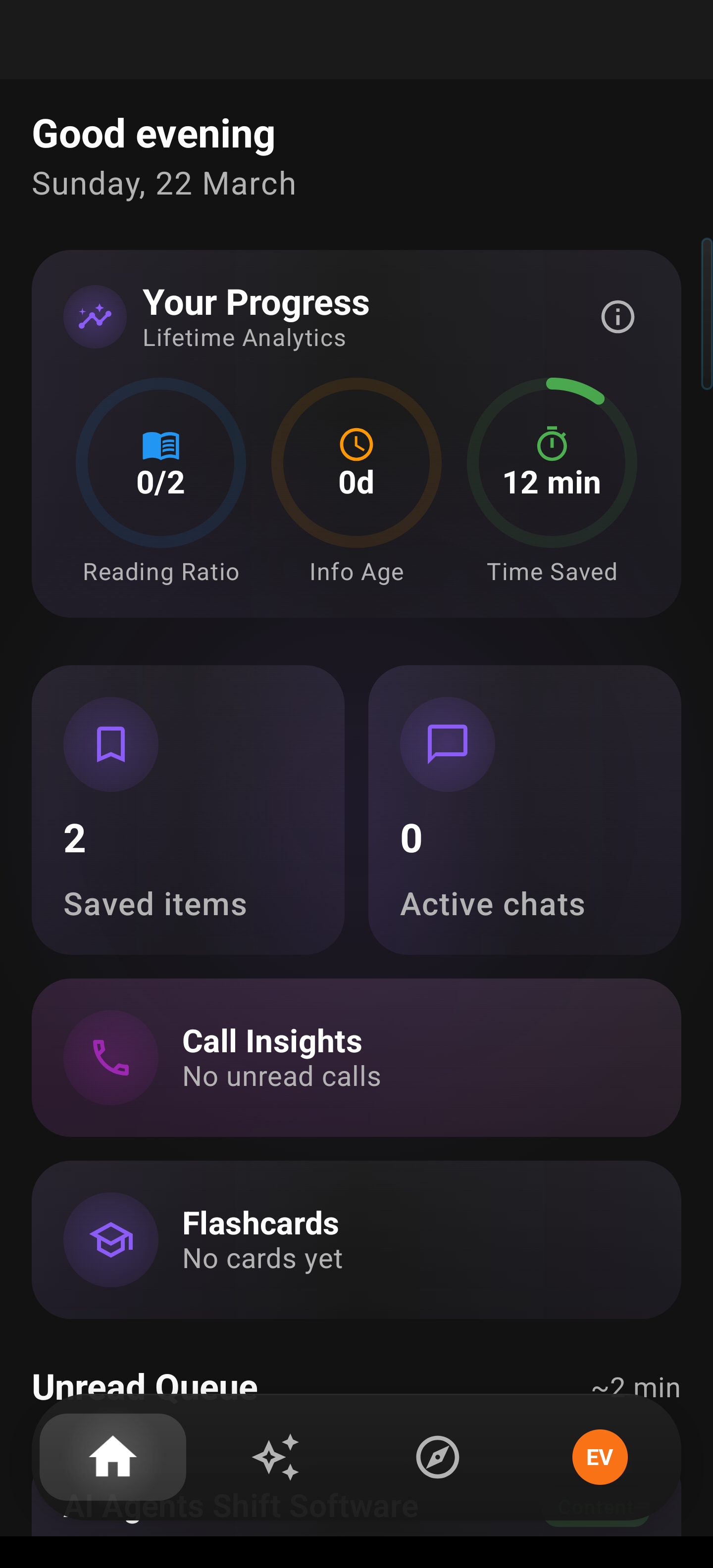
On the home dashboard, the Unread Queue appears with your other quick-access cards so pending reading stays visible alongside Saved Items, chats, Call Insights, and Flashcards.
Key Capabilities
- Automatic population when you save summaries, content, or flashcards
- Integration with AI Summary, Save Content, and Flashcards features
- Mark items as read or unread manually or automatically
- Queue filters to show only unread items
- Visual indicators for unread status
- Search and category filtering
- Bulk operations (mark multiple as read, delete)
- Priority sorting (newest first)
How to Use
What Gets Added to the Queue
Items are added automatically — no manual queue management needed. When you save an AI summary, capture content from the sidebar, or save a flashcard set, that item is marked as unread and appears in your Unread Queue right away. Only newly saved items are added; everything new starts as unread by default. The process is seamless and immediate.
Viewing Your Unread Queue
Open the Arc app and tap the Unread Queue tab in the bottom navigation. The screen shows a header with the title and item count, plus a filter button. You’ll see only items you haven’t read yet. Each card displays the content type (summary, saved content, or flashcard set), a title or preview, category badge, source, and when it was saved. An accent dot or border indicates unread status. Each card has a Read or View button to open the item, a Mark as Read checkmark to remove it from the queue, and a Listen button for text-to-speech when available. Items are sorted newest first, with date headers like “Today,” “Yesterday,” and “This Week.” You can scroll through the list, pull to refresh, search, or filter by content type or category.
When the queue is empty, you’ll see an illustration of an inbox with a checkmark, the message “Your queue is empty! 🎉,” and “All caught up on your saved content.”
Opening and Reading Items
Tap any item card or the Read button to open it. The content opens based on type: AI summaries show the full summary with Listen, Share, and Ask Questions; saved content shows the captured text and screenshot if available, with Listen, Share, and Generate Summary; flashcard sets open in study mode. After you view the content for a short time or navigate away, the item is automatically marked as read and removed from the queue. It disappears from Unread Queue but remains in your main library (Summaries, Saved Content, or Flashcards). You can mark it as unread later if you want to re-add it to the queue.
Marking Items Read or Unread
To clear an item from the queue without opening it, tap the Mark as Read checkmark on the card. The item is removed immediately and the queue count updates. This is useful when you’ve already read the content elsewhere, decided you’re not interested, or want to quickly clean up the queue. You can also swipe on a card to reveal the Mark as Read action.
To re-add an item to the queue, open it from the main library (Summaries, Saved Content, or Flashcards), tap the menu icon, and choose Mark as Unread. The item reappears in Unread Queue with its unread indicator. This helps when you want to re-read important content, accidentally marked something as read, or are using spaced repetition for learning.
Searching the Queue
Tap the search icon at the top to expand the search bar. As you type, the queue filters in real time. Search looks through item titles, content previews, source URLs, and categories. Matching items appear with a count like “3 items found.” Tap any result to open it, or tap X to exit search and restore the full queue. If nothing matches, you’ll see “No items found in queue.”
Filtering by Content Type
Tap the filter button to see options: All (default), Summaries, Saved Content, Flashcard Sets. Select one to show only that type. The count updates (e.g., “4 flashcard sets”). You can switch filters, return to All, or search within filtered results. You can also combine content type and category filters — for example, Summaries + Article to see only unread article summaries.
Bulk Mark as Read
Long-press any item card to enter multi-select mode. Checkboxes appear on all cards; the long-pressed card is selected by default. The top bar shows the selection count, a Mark as Read button, Select All, and a close button. Tap more cards to add or remove them from the selection, then tap Mark as Read. Confirm if prompted, and all selected items are marked as read and removed from the queue. A similar flow exists for bulk delete, which removes items from your library entirely and requires confirmation.
Listening to Queue Items
Items with a Listen button support text-to-speech. Tap it to hear the content read aloud. Playback controls appear on the card and in the notification; background playback is supported. After you listen for a while, the item is marked as read and removed from the queue. In queue playback mode, when one item finishes, the next unread item can auto-play. You can skip, pause, or stop the queue. The notification shows progress like “Playing 2 of 5 in queue.” Each item is marked as read after playback.
Queue Count and Progress
The Unread Queue tab in the bottom navigation shows a count badge (e.g., “Unread Queue (12)”) that updates in real time. The queue screen header shows the total count (e.g., “12 items”) and updates as you mark items read. When the queue is empty, you may see a celebratory message like “All caught up! 🎉”
Optional progress features include weekly goals (e.g., “5 items read this week”), reading streaks, and optional weekly reminders about unread items. You can disable reminders in settings.
Empty Queue Celebration
When you mark the last item in the queue as read, a celebration appears. You might see a confetti animation or checkmark, the message “All caught up! 🎉,” and “Your queue is empty.” Some variations include “Great work! You’ve read [X] items this week” or a weekly achievement message. The empty state stays until you save new content.
Queue and Library Integration
Unread Queue is a filtered view of the same items in your main library. The queue shows only unread items; the library shows everything (read and unread) organized by type. When you mark something as read in the queue, it disappears from the queue but stays in the library. You can open it from Summaries, Saved Content, or Flashcards. Read/unread status updates in real time across both views.
Tips
- Use the Mark as Read button on cards to quickly clear items you don’t need to open.
- Combine search and filters to find specific items — for example, search “meeting” and filter by Summaries.
- Long-press to enter multi-select when you want to clear several items at once.
- Use Listen for hands-free consumption while commuting or exercising.
- Mark items as unread from the library menu when you want to revisit them later.
- Queue items and actions are labeled for screen readers; unread indicators are clear. The app supports multiple languages.
Related Features
- AI Summary — Summaries you save appear in the queue
- Save Content — Saved content appears in the queue
- Flashcards — Saved flashcard sets appear in the queue
- AI Read — Listen to queue items via text-to-speech