Smart Extract
Smart Extract intelligently extracts actionable items from any on-screen content with a single tap. Using AI-powered analysis, it identifies events, reminders, contacts, meeting links, locations, verification codes, phone numbers, and email addresses — then provides one-tap actions to add them to calendar, save contacts, copy codes, open maps, join meetings, and more.
Browse all features (13)
Smart Extract lets you pull actionable items from anything on your screen with a single tap. Whether you’re reading an email with meeting details, a text with a phone number, or a confirmation page with an event and location — Arc uses AI to spot events, reminders, contacts, meeting links, locations, verification codes, phone numbers, and email addresses. You then get one-tap actions to add them to your calendar, save contacts, copy codes, open maps, join meetings, and more.
Key Capabilities
- Extract 8 types of actionable items automatically
- One-tap actions for each extracted item
- Priority sorting by relevance and urgency
- Integration with your calendar, contacts, phone, maps, and email apps
- Optional screenshot region selection for targeted extraction
- Temporary display — items are not stored unless you act on them
- Privacy-focused ephemeral processing
How to Use
Extracting Items from Your Screen
When you’re viewing content that has actionable information — an email with meeting details, a text with a phone number and address, a confirmation page with event date and location, or a chat with an OTP code — expand the Arc floating sidebar and tap Smart Extract. Arc captures the visible content, sends it to the AI for analysis, and shows a processing indicator while it works.
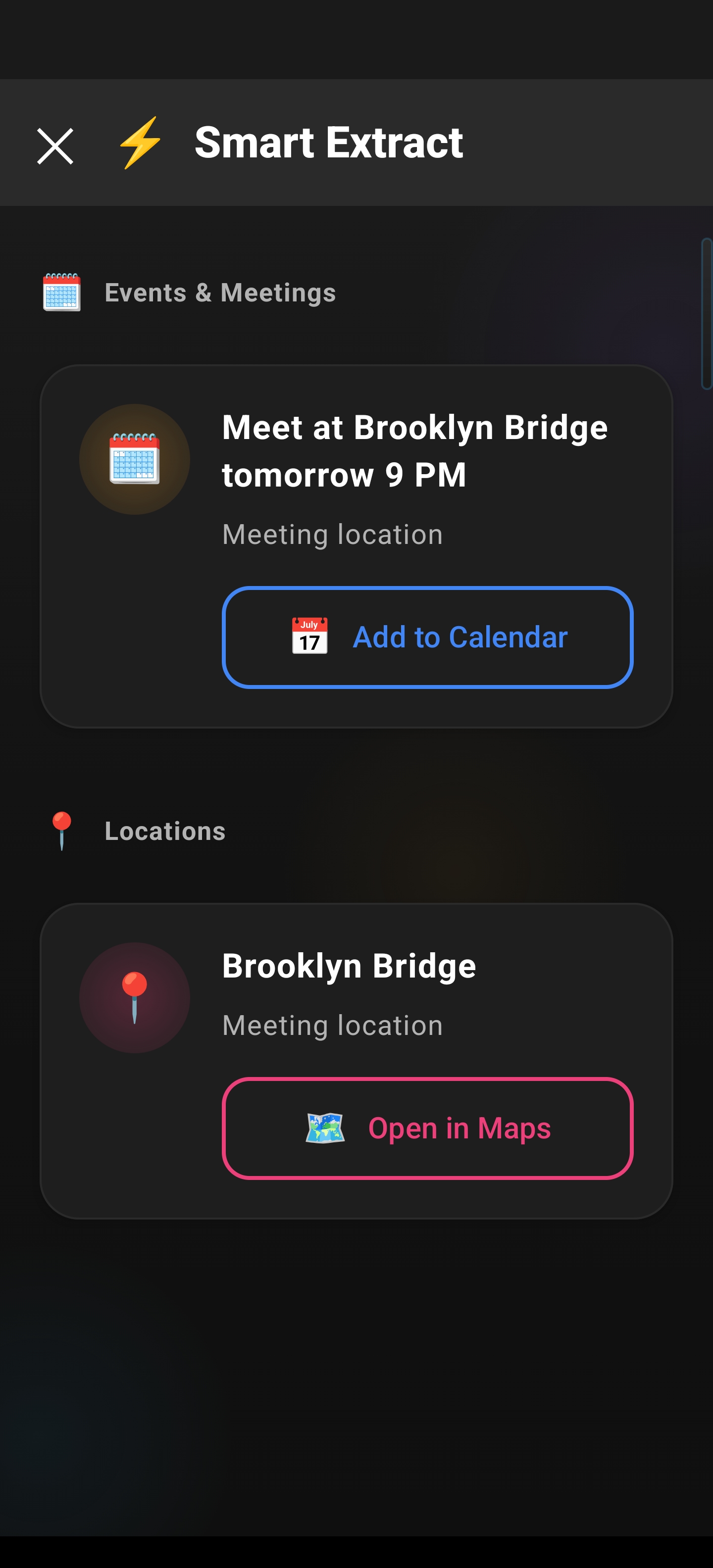
The AI identifies events and meetings (dates, times, locations), reminders (deadlines, follow-ups), contacts (names, phone numbers, emails), meeting links (Zoom, Meet, Teams URLs), locations (addresses, places), verification codes and OTPs, phone numbers, and email addresses. A results screen opens with a header like “Found [X] items” and a priority-sorted list of extracted items. Each item appears as a card with an icon, category label, extracted information, and an action button. You can review everything, tap the action button on any item, run multiple actions in sequence, or close without taking action — in that case, the items disappear.
Example results: extracted events and locations with one-tap actions such as Add to Calendar and Open in Maps.
What Gets Extracted and What You Can Do
1. Events & Meetings — Date, time, title, and location (if mentioned). Example:
📅 Event: Team Meeting
Date: Tomorrow, March 15, 2024 at 2:00 PM
Location: Conference Room B
Tap Add to Calendar to open your calendar app with the event details pre-filled. Confirm and save.
2. Reminders — Deadline and task description. Example:
⏰ Reminder: Submit report by Friday
Due: March 17, 2024 at 5:00 PM
Tap Set Reminder to open your reminder or task app with the details pre-filled and save.
3. Contacts — Name, phone number, and email address. Example:
👤 Contact: John Smith
Phone: +1 (555) 123-4567
Email: john.smith@company.com
You can tap Save Contact to open your contacts app with all details, Call to start a call, or Email to compose an email.
4. Meeting Links — Zoom, Google Meet, Microsoft Teams links. Example:
🔗 Meeting Link: Zoom Meeting
URL: https://zoom.us/j/1234567890
Meeting ID: 123 456 7890
Tap Join Meeting to open the meeting URL in your browser or native app and join directly.
5. Locations — Addresses and place names. Example:
📍 Location: 123 Main Street, San Francisco, CA 94102Tap Open in Maps to open your maps app with the location loaded and ready for navigation.
6. Verification Codes/OTPs — One-time passwords and verification codes. Example:
🔐 Verification Code: 892647
Expires: In 5 minutes
Tap Copy Code to copy the code to your clipboard instantly. You can then paste it into the verification field.
7. Phone Numbers — Callable phone numbers. Example:
📞 Phone Number: +1 (555) 987-6543Tap Call to open your phone dialer with the number pre-filled.
8. Email Addresses — Email contacts. Example:
📧 Email Address: support@example.comTap Compose Email to open your email app with the address in the “To” field.
How Items Are Sorted
Items are ordered by urgency. Verification codes and OTPs appear first (they’re time-sensitive), followed by meeting links, then events and meetings, then reminders. Contacts, phone numbers, and emails come next, and locations last.
Adding Events to Your Calendar
When Smart Extract finds an event or meeting, tap Add to Calendar. Your calendar app opens with the event title, start and end time, location, and any extra context pre-filled. Choose your calendar (Personal, Work, etc.), edit if needed, and save. The event is added without manual date, time, or location entry.
Copying Verification Codes
When you receive an OTP in a text, email, or notification, switch to the app that needs verification, open Arc, and tap Smart Extract. Verification codes appear first in the list. Tap Copy Code and the code is copied to your clipboard right away. Switch to the verification field and paste. This avoids typing long codes manually.
Joining Meetings from Links
When Smart Extract finds a meeting link in an invitation, email, or chat, tap Join Meeting. Arc opens the link in the Zoom, Meet, or Teams app if installed, or in your browser otherwise. Meeting ID and passcode are pre-filled when available. Supported platforms include Zoom, Google Meet, Microsoft Teams, Webex, and other meeting URLs.
Saving Contact Information
When Smart Extract finds contact details in an email signature, business card, or message, tap Save Contact. Your contacts app opens with name, phone, email, company, and title pre-filled. Edit or add fields, add a photo, or link to an existing contact, then save. If the contact has both phone and email, you can also tap quick action icons to call or compose an email directly.
Opening Locations in Maps
When Smart Extract finds an address or place name, tap Open in Maps. Your maps app opens with the location pinned. You can get directions, view street view, check nearby places, or start navigation without typing the address.
Setting Reminders from Deadlines
When Smart Extract finds a deadline — a project due date, bill payment, or appointment — tap Set Reminder. Your reminder or task app opens with the title, date, time, and notes pre-filled. Choose your app (Google Tasks, Todoist, Microsoft To Do, etc.), adjust the notification time if needed, and save. You’ll be notified at the specified time.
Extracting Multiple Items from One Screen
Content often has several actionable items at once. For example, a meeting invitation might include the date and time, location, Zoom link, and organizer contact. Smart Extract finds all of them and shows them in one list. Example:
Found 5 items:

📅 Event: Q1 Planning Meeting
   March 20, 2024 at 2:00 PM - 3:30 PM PST
   Location: Conference Room A (Building 5)
   [Add to Calendar]

🔗 Meeting Link: Zoom Meeting
   https://zoom.us/j/9876543210
   [Join Meeting]

👤 Contact: David Chen
   Email: david.chen@company.com
   Phone: +1 (555) 123-4567
   [Save Contact]

📞 Phone Number: +1 (555) 123-4567
   [Call]

⏰ Reminder: RSVP by March 18th
   [Set Reminder]
You can act on each item independently — add the event, save the contact, set the RSVP reminder, and join the meeting when it’s time. Related items are grouped together, and duplicate information (like a phone number that’s part of a contact) is consolidated. All items stay visible until you close Smart Extract.
Selecting a Region for Targeted Extraction
If region selection is enabled, you can extract from a specific part of the screen instead of the whole thing. After tapping Smart Extract, a region selection overlay appears. Drag a rectangle to select the area you want — for example, one message in a long email thread or just the event details on a page. Tap Extract from Selection and Arc analyzes only that content. This helps when you have long threads, pages with ads, or mixed content where you want to focus on one section.
When No Items Are Found
If the content has no actionable items — for example, a generic article with no dates, phone numbers, or emails — Smart Extract shows an empty state with a message like “No actionable items found.” You’ll see suggestions such as trying different content, making sure the content includes dates or contacts, or using region selection to focus on a specific area. You can tap Try Again to re-run extraction or Close to dismiss.
Tips
- Verification codes are always shown first — useful when you need to paste an OTP quickly.
- You can run multiple actions in one session; items stay visible until you close the results screen.
- Use region selection when you want to extract from a specific part of a long email or web page.
- Items are temporary; they’re not stored unless you tap an action. Close without acting and they disappear.
- Works with your preferred calendar, contacts, maps, and email apps — no manual copying or pasting.
Accessibility and Languages
Smart Extract works with screen readers — all items and actions are labeled. The app supports multiple languages for the interface, and AI extraction works across languages. Date, time, and phone number formats are localized.
Related Features
- Floating Sidebar — Where you access Smart Extract
- Custom Actions — Create custom extract actions with specific prompts
- Save Content — Save content for later reference