Save Content
Capture and store any on-screen content from any Android app for later access. Content is organized into a searchable library with automatic categorization, thumbnails, and source tracking.
Browse all features (13)
Save Content lets you capture and store any on-screen content from any Android app for later access. Whether you’re reading an article in Chrome, scrolling through a Reddit post, or viewing an email, you can save it with a single tap. Your saved content is organized into a searchable library with automatic categorization, thumbnails, screenshots, source tracking, and integration with the Unread Queue.
Key Capabilities
- Capture content from any app system-wide
- Automatic category detection (Article, Email, Social Media, Document, and more)
- Optional screenshot capture with consent management
- Source URL and app tracking
- Thumbnail generation
- Organized library with search and filtering
- Unread Queue integration
- Export and sharing
- Multi-language support
- Accessibility support and offline access
How to Use
Saving Content from the Floating Sidebar
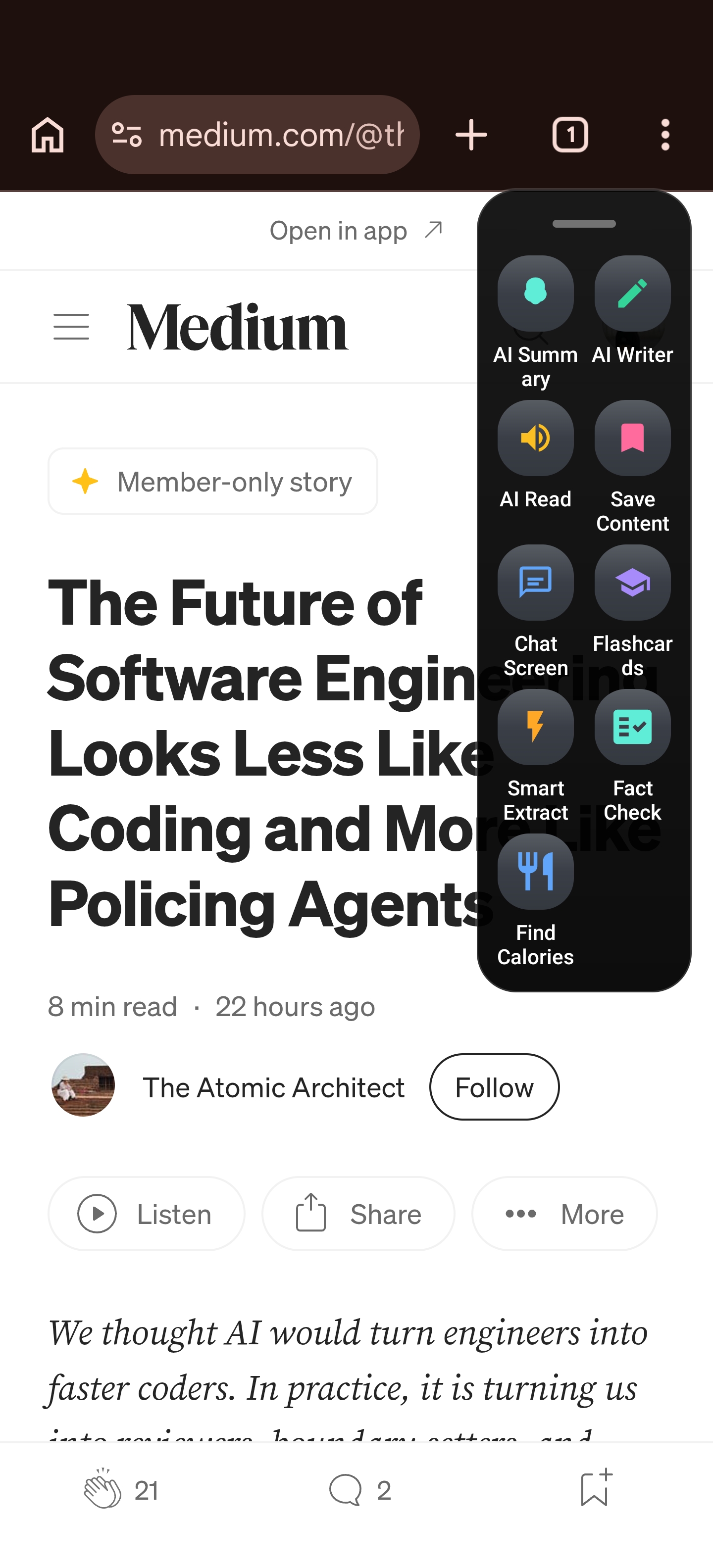
When you’re viewing content you want to save — an article, email, social post, or any other text — expand Arc’s floating sidebar and tap “Save Content.” The first time you save, you’ll see a consent dialog asking whether Arc can capture screenshots to help you remember content visually. Screenshots are stored privately on your device. You can choose “Allow Screenshots” or “Save Without Screenshots”; your choice is saved for future saves. You can change this anytime in Settings under General Settings.
Arc captures the visible text, source URL (if available from a browser or web view), and the source app name. If you’ve allowed screenshots, it captures one of those too and generates a thumbnail. You’ll see a brief “Saving content…” indicator while Arc processes everything. Arc automatically detects the category (Article, Email, Social Media, etc.), extracts metadata, and saves the content to your library. New saves are marked as unread and appear in both your Home library and the Unread Queue. A confirmation message lets you know when the save is complete.
Save Content is available from the expanded floating sidebar alongside AI Summary, AI Writer, AI Read, and other actions.
Browsing Your Saved Content
Open Arc and go to the Summaries (or Library) tab. Your saved content appears as cards with thumbnails or icon placeholders, category badges, a short preview, the source app icon and name, and when you saved it. Unread items show an indicator. Content is grouped by date — Today, Yesterday, Last Week, and so on. You can scroll through everything, tap any card to open the full view, pull down to refresh, search, filter by category, or long-press to select multiple items. If you haven’t saved anything yet, you’ll see an empty state with a hint to save content from the floating sidebar.
Viewing Saved Content Details
Tap any saved content card to open the detail view. You’ll see the category badge, source app and URL (tappable to open in a browser), and full timestamp. If a screenshot was captured, it appears in a scrollable section — tap it to open a fullscreen viewer where you can zoom and share. Below that is the full captured text, formatted for easy reading. Action buttons let you listen via text-to-speech, share the content, generate an AI summary, open Chat to ask questions about it, delete it, or mark it as read or unread. For long articles, your scroll position is remembered if you navigate away and come back.
Marking Content as Read or Unread
You can manage read status in several ways. From the detail view, tap “Mark as Read” or “Mark as Unread” — the button updates and the content moves in or out of the Unread Queue accordingly. If you open content from the Unread Queue and view it for a few seconds, it’s automatically marked as read and removed from the queue. On the list view, you can swipe a card to reveal a “Mark as Read” action. This helps you track what you’ve consumed and keeps your Unread Queue up to date.
Searching Saved Content
On the Summaries tab, tap the search icon to expand the search bar. As you type, results filter in real time. Arc searches through the full text, source URLs, app names, and categories. Matching cards appear instantly with a result count. You can refine your search, clear it to see everything again, or tap any result to open it. Search is case-insensitive and supports partial matches — for example, “java” matches “JavaScript.”
Filtering by Category
Below the search bar, a horizontal row of category chips lets you filter by type: All, Article, Email, Social Media, Document, Chat, Shopping, Education, Other. Each chip shows the category name, icon, and count. Tap a category to see only that type of content; tap “All” to remove the filter. You can combine category filters with search — for example, filter by “Article” and search “AI” to find only articles about AI.
Bulk Deleting Saved Content
Long-press any content card to enter multi-select mode. Checkboxes appear on all cards; the long-pressed card is selected by default. The top bar shows how many items are selected, plus Delete, Select All, and Close buttons. Tap additional cards to select or deselect them, or tap “Select All” to select everything visible. When you tap Delete, a confirmation dialog appears — deletion cannot be undone and screenshots will be removed. Confirm to delete the selected items; the list updates and multi-select mode exits. Tap the close button to exit without deleting.
Sharing Saved Content
Open a saved item and tap “Share.” The share sheet appears with your installed apps — messaging, email, social media, notes, and more. Shared content includes the full text (or a preview if it’s very long), the source URL when available, and an optional screenshot. You can choose to share text only, text with URL, just the screenshot, or everything. Select the target app, edit if needed, and send.
Generating a Summary from Saved Content
From the detail view, tap “Generate Summary.” Arc sends the content to the AI and creates a summary. You’ll see a processing indicator while it works. The summary screen opens with the same actions as any AI summary — save, share, listen, ask questions. If you save the summary, it appears as a separate item in your library. This is useful for quickly reviewing long saved articles without re-reading everything.
Chatting About Saved Content
Tap “Ask Questions” in the detail view to open Chat with that content as context. The first message shows the original content (and screenshot thumbnail if available) so the AI can answer questions about it. You can ask for key points, clarifications, or comparisons. The conversation is saved to your Chat History as a “Saved Content Chat” with the original content preserved.
Managing Screenshot Consent
Go to Settings and then General Settings to find the Screenshot Consent section. You’ll see your current preference (Allowed or Denied) and a toggle to change it. Turning it off stops Arc from capturing screenshots for future saves; existing screenshots are not affected. Turning it on enables screenshots for new saves. A “Reset Dialog” button lets you see the full consent dialog again the next time you save. Your preference applies only to future saves, not content you’ve already saved. Screenshots are stored privately on your device and are never uploaded to servers; you can delete them anytime from individual saved items.
Tips
- Use category filters and search together to quickly find specific content — for example, filter “Article” and search “climate” to see only climate-related articles.
- Mark items as read when you’re done so your Unread Queue stays useful.
- Generate summaries for long saved articles to review them faster.
- Use “Ask Questions” to dig deeper into saved content or compare it with other topics.
- Change screenshot consent in Settings if you want to save storage or prefer text-only captures.
- Arc supports TalkBack and respects your system font size. Saved content is available offline, which helps if you prefer to read at your own pace.
Related Features
- AI Summary — Generate summaries from saved content
- AI Read — Listen to saved content with text-to-speech
- Chat with AI — Discuss and ask questions about saved content
- Unread Queue — Track and consume unread saved content
- Floating Sidebar — Where you save content from any app