My Info Vault
A secure local storage system for your personal and professional information that personalizes AI Writer responses. Create, edit, organize, and delete vault entries (each with a title and content), then selectively include them when generating AI text. Vault data is stored privately on your device and only sent to AI services when you explicitly use AI Writer.
Browse all features (13)
My Info Vault is a secure place to store your personal and professional details so AI Writer can tailor its responses to you. You create entries with a title and content — like your name, job title, location, or interests — then choose which ones to include when generating text. Everything stays on your device and is only sent to AI when you explicitly use AI Writer.
Key Capabilities
- Create unlimited vault entries with title and content
- Edit and delete entries
- Drag-to-reorder for organization
- Integration with AI Writer for personalization
- Secure local storage
- Optional backup to keep your vault across devices
- Never uploaded to servers independently
- Informative empty state when you first open it
How to Use
Accessing My Info Vault
You can open My Info Vault from several places. In Arc, go to Settings and tap My Info Vault in the list. Or, when you open AI Writer from the sidebar, you’ll see a collapsible “My Info Vault” section at the bottom — tap Manage Vault to jump straight to your vault. If it’s your first time using AI Writer, an info card may appear suggesting you personalize with My Info Vault; tap Set Up Now to get started. The vault screen shows a header, a scrollable list of your entries, and a floating + button to add new items.
Getting Started (Empty State)
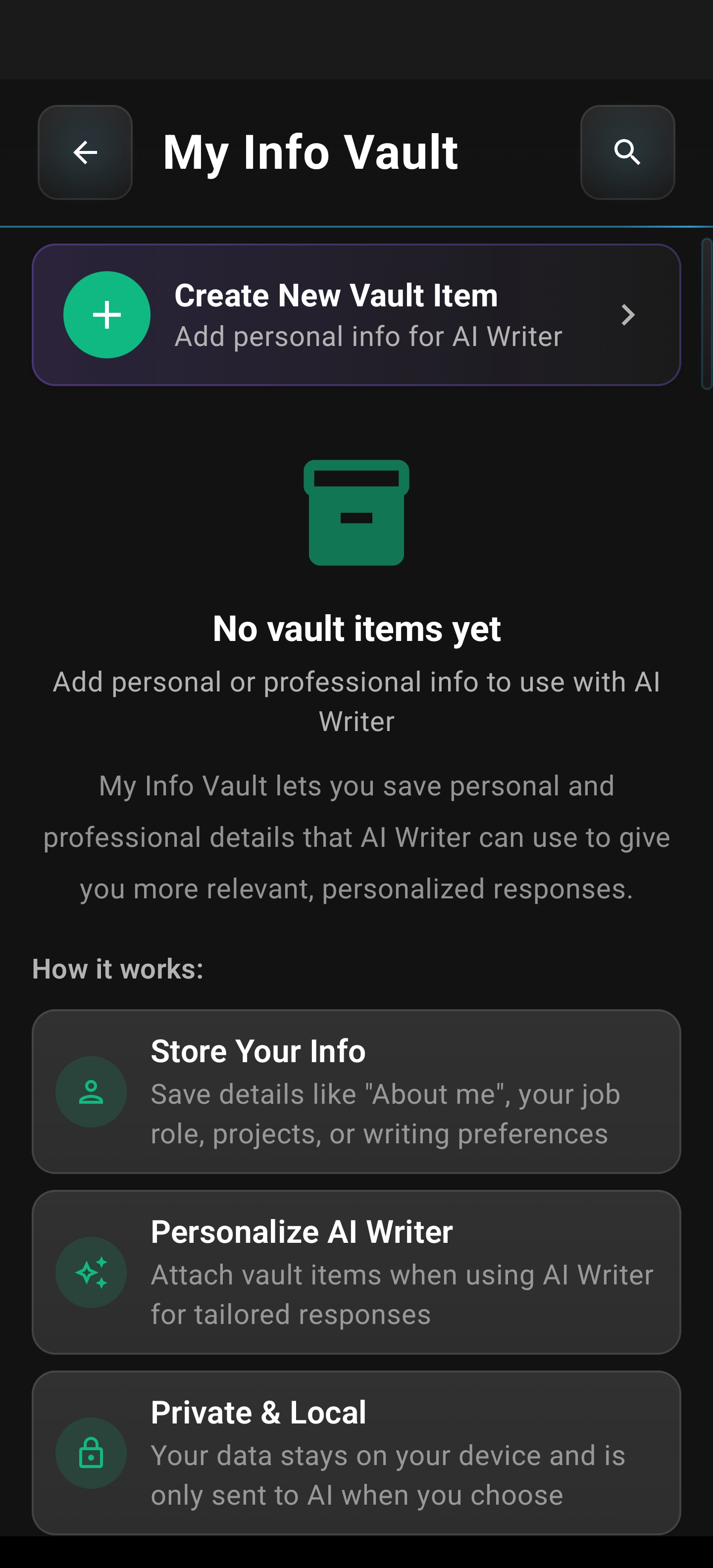
When you open My Info Vault for the first time with no entries, you’ll see an onboarding screen that explains the feature. It describes how you can save details like your name, job title, location, interests, and more; how you select which items to include when generating text; and that all data is stored securely on your device and only sent to AI when you use AI Writer. Tap Add Your First Item to create your first entry.
Empty vault: onboarding, “How it works,” and a shortcut to create your first vault item.
Creating Vault Items
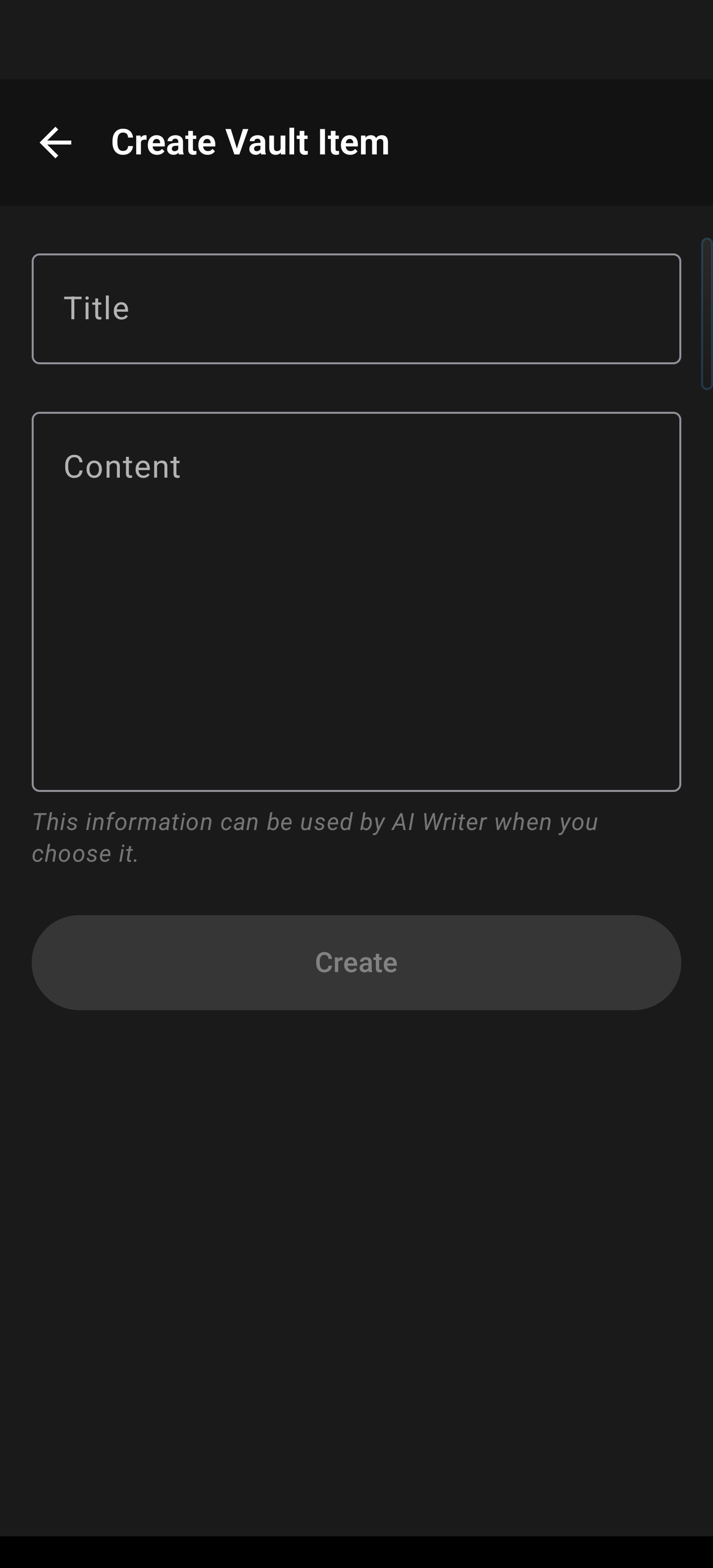
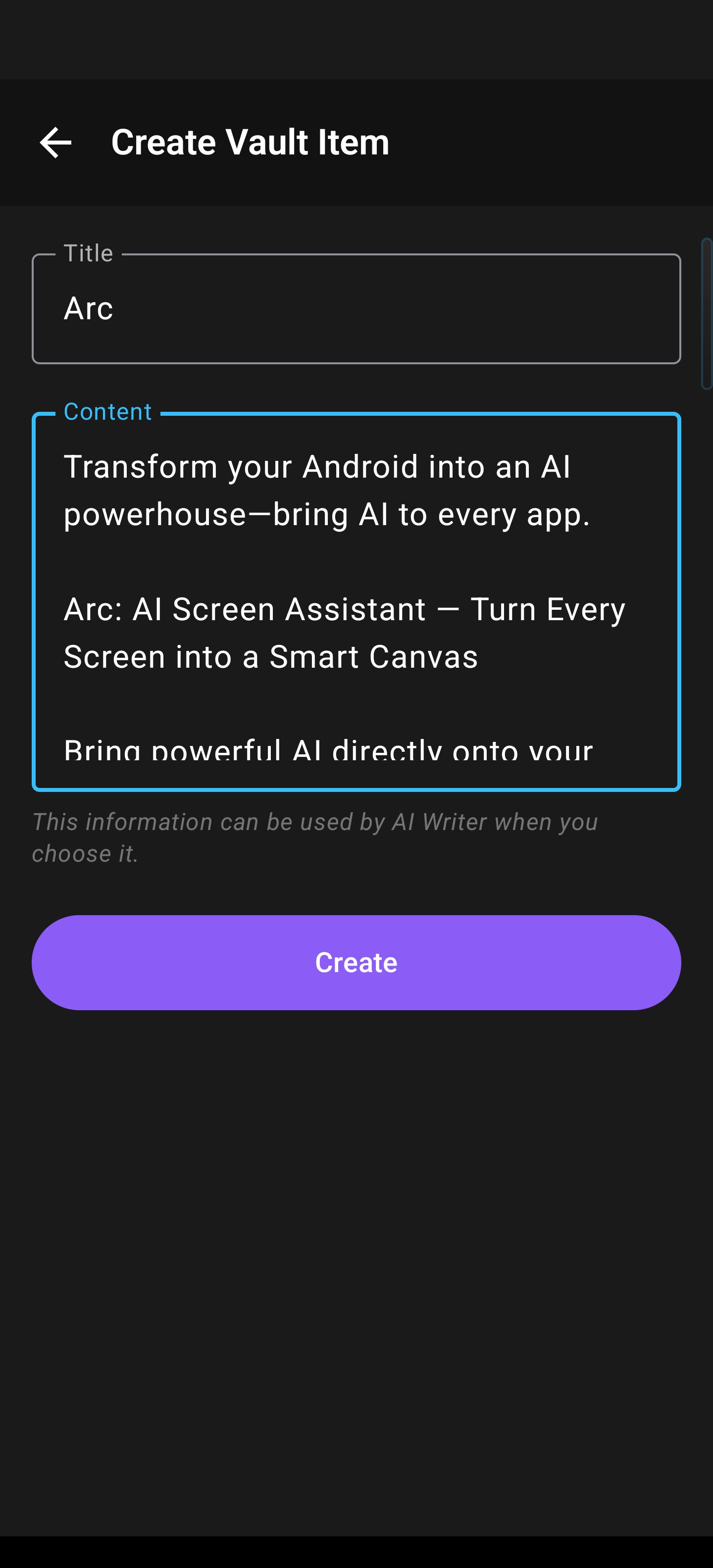
Tap the + button or Add Your First Item to open the create screen. You’ll fill in a title (for example, “Name,” “Job Title,” or “Location”) and the content. Both fields are required. The title has a character limit to keep lists readable; the content field supports longer text with a character counter. When you’re done, tap Save. Arc validates your input and, if everything looks good, saves the item and returns you to the list with a confirmation.
Create Vault Item: title and content fields; Create stays disabled until both are filled.
Filled form ready to save: active Create button once title and content are set.
Example entries you might add:
- Name: John Doe
- Job: Software Engineer at TechCorp, specializing in mobile development
- Location: San Francisco Bay Area, California
- Interests: Hiking, photography, artificial intelligence, reading sci-fi novels
- Email Signature: Best regards, John Doe, Software Engineer, TechCorp Inc., Phone: +1 (555) 123-4567
Viewing and Browsing Your Vault
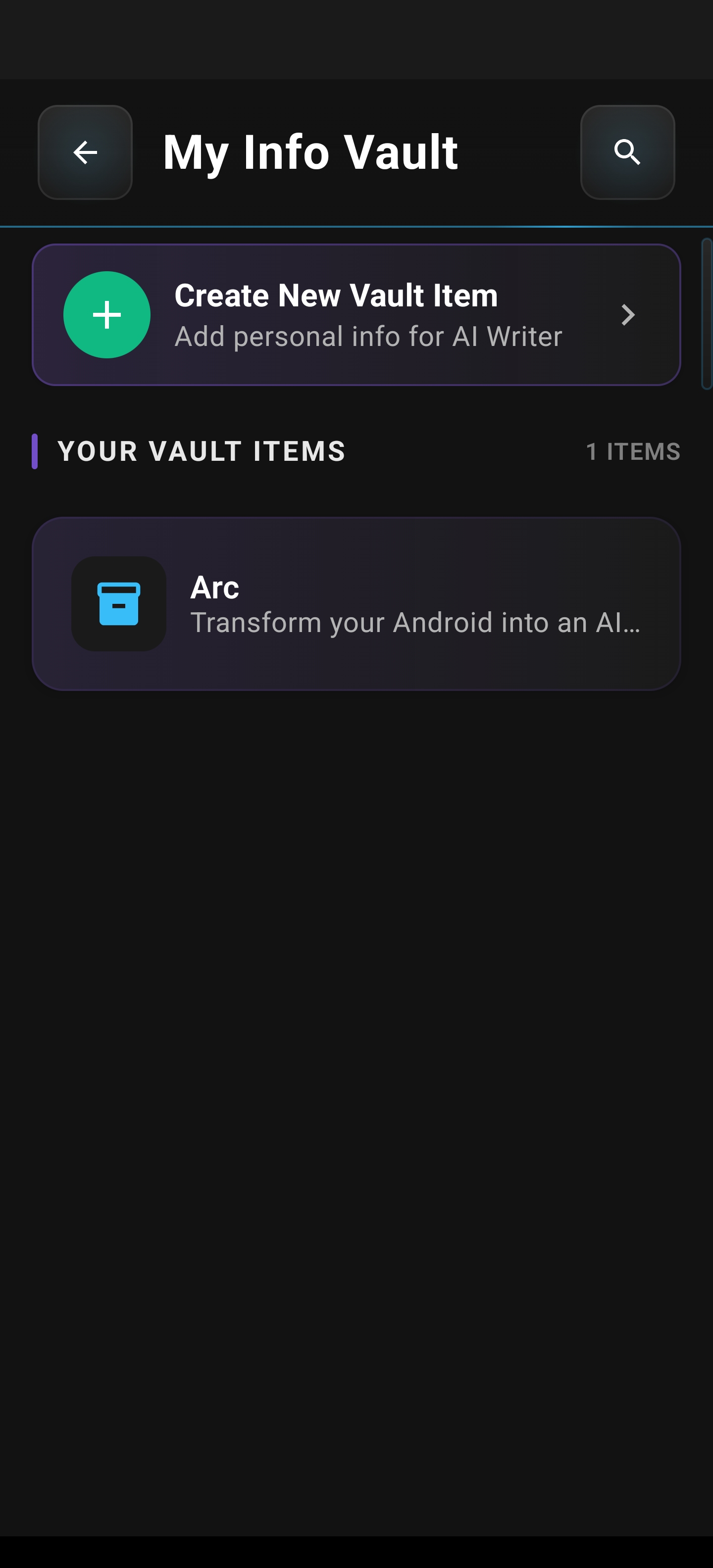
When you have entries, the vault list shows each one as a card with the title, a short preview of the content, an edit button, and a drag handle for reordering. Scroll through the list to see everything. You can tap a card to expand and view full content, tap the edit button to modify an item, or long-press to reorder. Pull down to refresh the list.
Vault list with saved items: titles, previews, and room to add more entries.
Editing and Deleting Items
Tap the edit button on any vault card to open the edit screen. The form is pre-filled with the current title and content. Make your changes and tap Save to update. To remove an item, use the Delete button at the bottom of the edit screen. A confirmation dialog appears — “Delete this item?” with the item title and a note that this cannot be undone. Confirm to delete, or cancel to keep it.
Reordering Items
Long-press any vault card to enter reorder mode. The top bar changes to show “Reorder Items” with a checkmark to save and an X to cancel. Touch and hold the drag handle on a card, then drag it up or down. Other cards shift to make space. When you’re happy with the order, tap the checkmark to save. Tap X to cancel and restore the original order. Reordering helps you put your most important info at the top or group related items together.
Using Vault in AI Writer
Open AI Writer from the sidebar. At the bottom, you’ll see a collapsible My Info Vault section. Tap to expand it. A list of your vault items appears with checkboxes. Select the items you want to include — for a professional email, you might choose “Name” and “Job”; for a social post, “Location” and “Interests.” The selection count updates as you toggle. Configure your AI Writer mode and options as usual, then tap Generate. Arc sends your selected vault content to the AI so the response is personalized with your information.
Example: Professional email reply — With “Name” and “Job” selected, you might get:
Hi [Sender],

Thank you for reaching out. I'd be happy to meet! Tuesday afternoon works perfectly for me.

Best regards,
John Doe
Software Engineer
TechCorp Inc.
Example: LinkedIn post — With “Job,” “Interests,” and “Location” selected:
As a Software Engineer in the Bay Area with a passion for artificial intelligence,
I found this article fascinating. The intersection of AI and mobile development
is evolving rapidly. What are your thoughts on these emerging trends?

#AI #SoftwareDevelopment #TechInnovation
Example: Casual social media — With “Interests” and “Location” selected:
Perfect Saturday hike in the Bay Area! There's nothing quite like
combining two of my favorite things - hiking and photography.
The views never get old!

#BayAreaHiking #Photography #NatureLovers
If you have no vault items yet, the section shows “No vault items yet” with an Add Personal Info button that opens the vault creation screen.
Vault Selection Persistence
If this feature is enabled, Arc can remember which vault items you selected for each AI Writer mode. For example, if you often use “Name” and “Job” for Reply mode, those may be pre-selected the next time you open Reply. You can still adjust the selection as needed. Selection preferences are stored locally and are not synced to the cloud unless backup is enabled.
Backup and Restore
You can enable backup in Settings so your vault is preserved across devices. When enabled, all vault entries (title, content, and order) are included in an encrypted backup. The backup runs automatically when you create, edit, or delete vault items, or when you manually trigger it. If you install Arc on a new device and sign in with the same account, Arc can detect the backup and prompt you to restore. After you confirm, your vault items are downloaded and restored with their original order. Backups are encrypted and only accessible with your account; Arc servers cannot read them. You can disable backup at any time.
Tips
- Put your most frequently used items (like Name and Job) at the top of the list for quick access in AI Writer.
- Use descriptive titles so you can easily pick the right items when generating text.
- For professional emails, select Name and Email Signature to keep your sign-off consistent.
- For social posts, include Interests and Location to make your content feel personal.
- If you use the same vault items for a specific AI Writer mode often, selection persistence can save you time.
Privacy and Security
All vault data is stored locally on your device. Nothing is uploaded to servers unless you explicitly use AI Writer — and then only the items you select are sent. Backup is optional and encrypted; only you can access it with your account. Arc cannot read your backup data.
Accessibility and Languages
The vault works with screen readers, and all fields and buttons are properly labeled. The app supports multiple languages for the interface, and you can store vault content in any language you prefer. AI Writer processes multilingual vault data without restrictions.
Related Features
- AI Writer — Use vault items to personalize generated text
- Custom Actions — Custom actions can reference vault data
- Floating Sidebar — Where you open AI Writer and access the vault