Floating Sidebar
Arc's core navigation mechanism - a persistent, system-wide overlay that provides instant access to all AI features from any screen on the Android device.
Browse all features (13)
The Floating Sidebar is Arc’s core navigation mechanism — a persistent overlay that follows you across every app and screen on your Android device. It appears as a small bar on the screen edge that you can expand to reveal all your AI actions. Whether you’re browsing the web, reading a PDF, or chatting in a messaging app, the sidebar is always one swipe away.
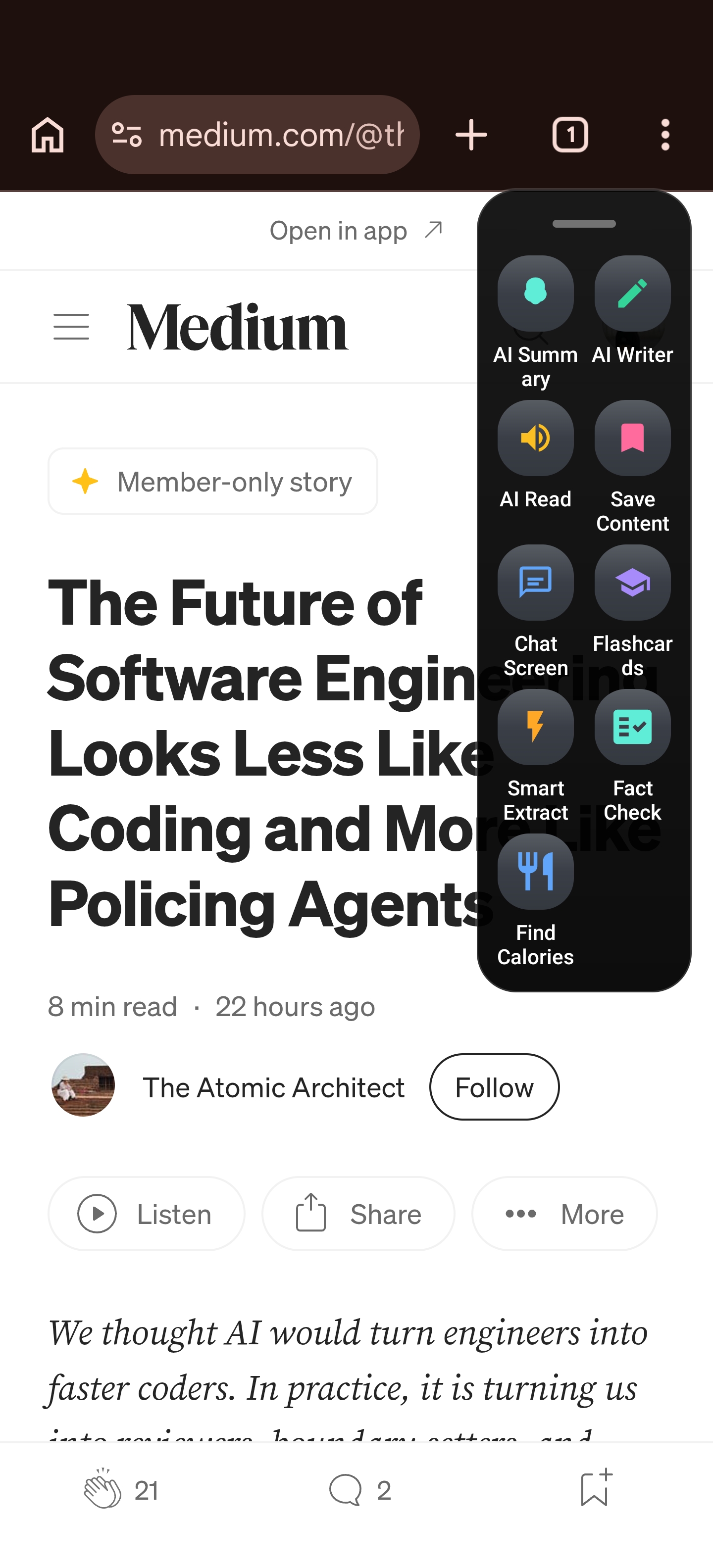
Expanded floating sidebar over a third-party app (Chrome), showing the glass-style action grid including AI Summary, AI Writer, AI Read, Save Content, Chat Screen, Flashcards, Smart Extract, and community actions.
Key Capabilities
- Works across all apps and screens (system-wide overlay)
- Customizable position, size, and appearance
- Two modes: Arc Sidebar (floating overlay) or System Sidebar Integration (uses your device’s native sidebar)
- Modern glass-style design with rounded corners
- Auto-hide to reduce screen clutter when you’re not using it
- Drag to reposition anywhere on the screen edge
- Works with TalkBack and respects system accessibility settings
- Smooth animations that respect reduced motion preferences
How to Use
First-Time Setup
When you first launch Arc after installation, you’ll complete the onboarding tutorial and grant the necessary permissions (Accessibility Service and Overlay Permission). In Settings, you’ll choose your sidebar mode: Arc Sidebar (the default floating overlay) or System Sidebar Integration (which uses your device’s native sidebar instead).
If you choose Arc Sidebar, the floating bar appears on the screen edge — by default on the right side, centered vertically. It shows as a small semi-transparent bar when collapsed. If you choose System Sidebar Integration, Arc stops its floating overlay and creates an “Arc AI Actions” shortcut instead. You can then add that shortcut to your device’s native sidebar — Samsung Edge Panel, OnePlus Shelf, OPPO Smart Sidebar, Xiaomi Floating Windows, or any sidebar app — and access Arc from there.
Expanding and Collapsing
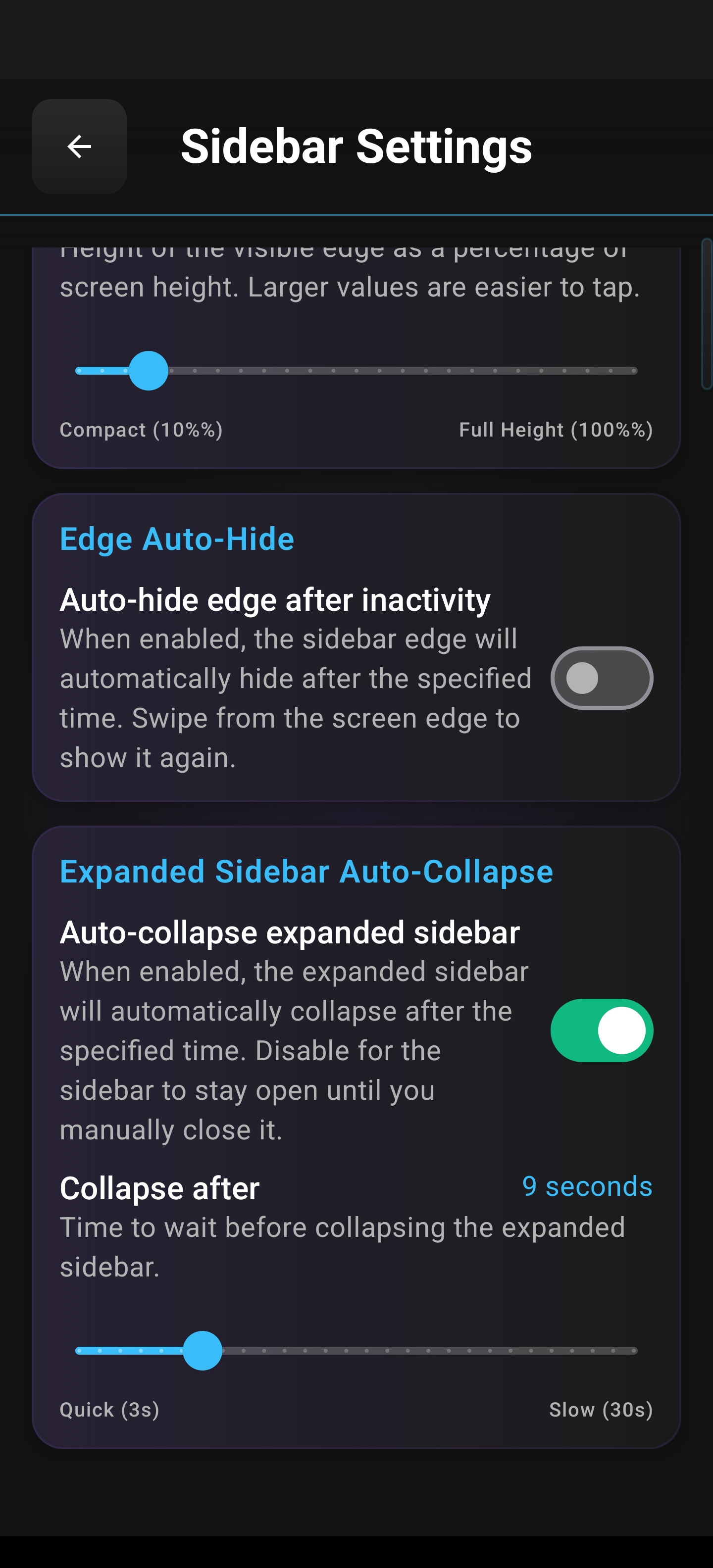
When the sidebar is collapsed, swipe inward from the edge where it sits. The sidebar expands to show a drag handle at the top, your core action buttons (AI Summary, AI Writer, AI Read, Save Content, Chat Screen), and your custom actions in a scrollable grid below. Each action shows its icon and name; only enabled actions appear, in the order you’ve set. Tap any action to run it. Swipe outward or tap outside the sidebar to collapse it. You can also drag the handle to move the sidebar up or down along the edge — the new position is saved for future sessions.
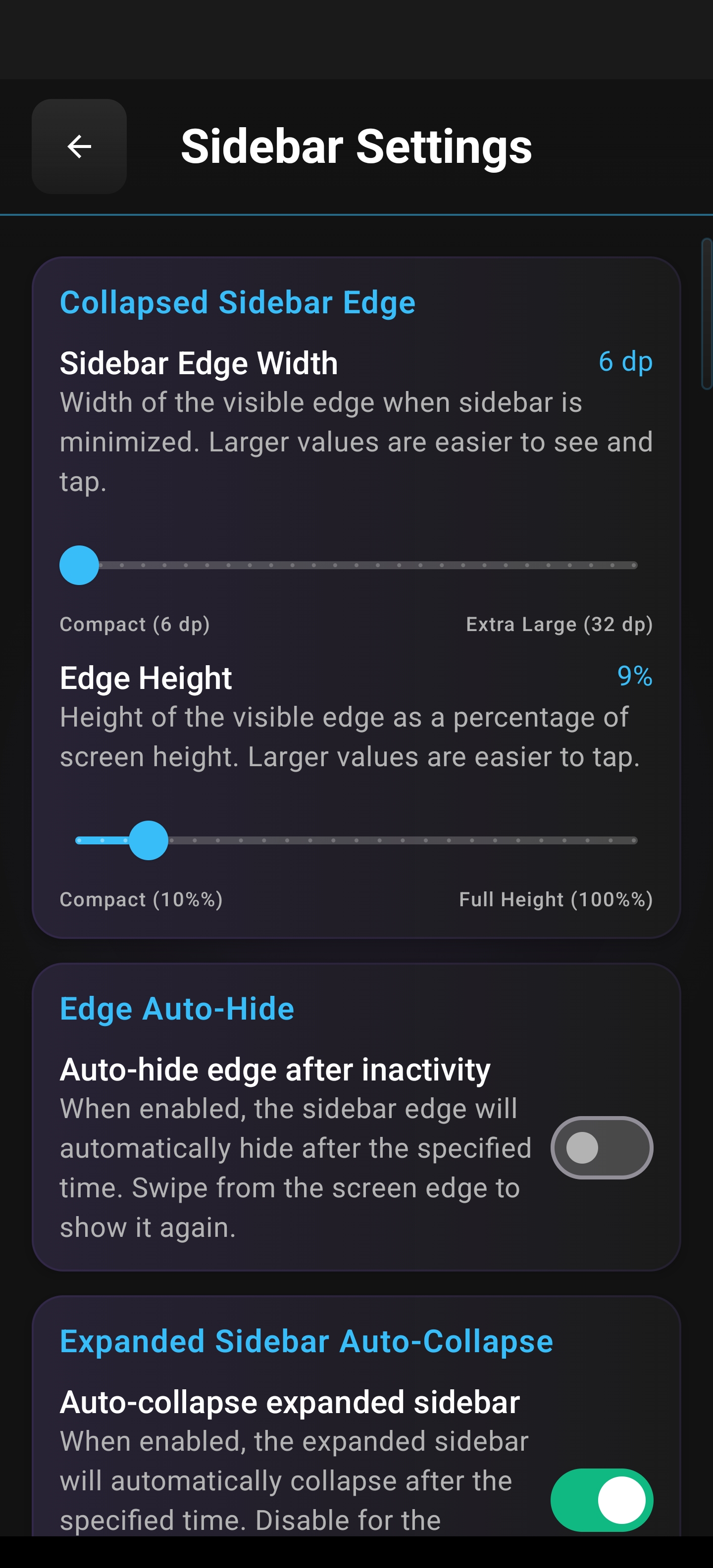
If you enable auto-hide in Sidebar Settings, the collapsed edge will fade out after a delay you choose (from a few seconds up to about 15 seconds) to keep your screen clear. When you need it again, tap the edge area and it fades back in. Auto-hide is automatically turned off when TalkBack is active so the edge stays visible for accessibility.
Repositioning the Sidebar
With the sidebar expanded, touch and hold the drag handle at the top. You’ll feel haptic feedback as you start dragging. Move your finger up or down — the sidebar follows in real time. Release at the spot you want, and it stays there. The position is saved across sessions. The handle is clearly labeled for screen readers.
System Sidebar Integration Mode
If you prefer your device’s native sidebar over Arc’s floating overlay, go to Settings > Sidebar Mode and select “System Sidebar Integration.” Arc will show a confirmation explaining that the floating sidebar will stop and an “Arc AI Actions” shortcut will be created. After you confirm, you add that shortcut to your device’s sidebar (Edge Panel, Shelf, Smart Sidebar, etc.). When you tap it, a menu appears with all your enabled actions. Tap one to run it; the menu dismisses automatically.
Customizing Appearance
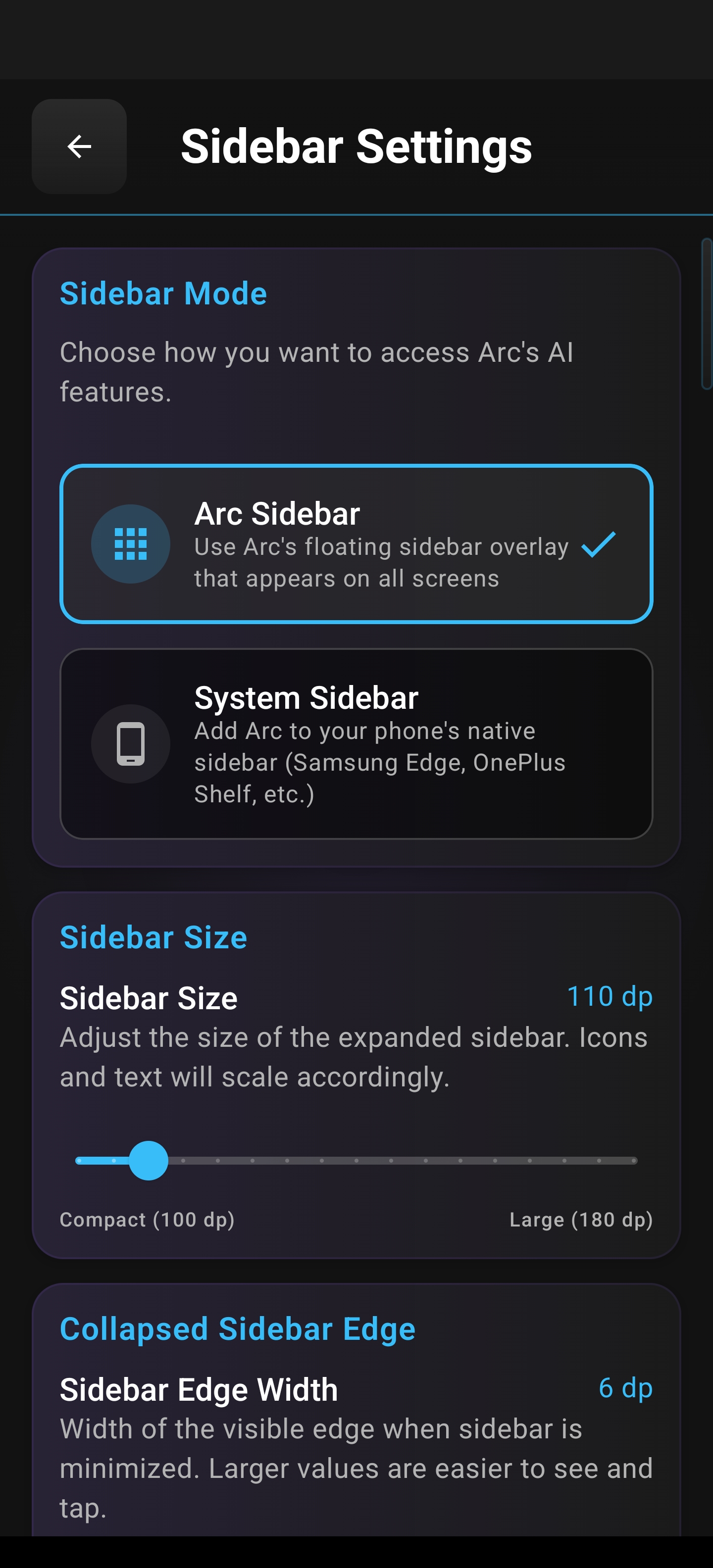
Open Settings > Sidebar Settings to adjust how the sidebar looks and behaves. You can change the sidebar size and button size, choose the starting position (left or right, top, center, or bottom), configure auto-hide and its delay, and switch between Arc Sidebar and System Integration. Changes apply immediately — you’ll see them on the live sidebar as you adjust. Settings are saved automatically.
Sidebar Settings: choose Arc Sidebar (floating overlay) or System Sidebar integration, and adjust sidebar size.
Collapsed edge width and height, plus Edge Auto-Hide and the start of expanded auto-collapse options.
Expanded sidebar auto-collapse: set how long the sidebar stays open before it collapses again.
Restricting the Sidebar in Specific Apps
If you want Arc hidden in certain apps (for example, banking or games), go to Settings > App Management. You’ll see a list of your installed apps with toggles. Turn off Arc for any app where you don’t want the sidebar. When you open a disallowed app, the sidebar hides automatically. When you switch back to an allowed app, it reappears. No manual toggling needed.
Sidebar in Different App Contexts
The sidebar works the same way no matter what app you’re in. In a web browser, you can expand it and tap AI Summary to get a summary of the article you’re reading. In a messaging app, open the compose box, expand the sidebar, and tap AI Writer to generate a reply with conversation context. In a PDF reader, use Save Content to capture the paper and Flashcards to generate study cards. On social media, tap a custom action like “Explain Like I’m 5” to get a simplified explanation of a long post. Context-aware features adapt to whatever is on screen.
Tips
- Use the drag handle to move the sidebar to a spot that feels natural for your thumb or hand.
- Enable auto-hide if the edge feels distracting — a single tap brings it back.
- Try System Sidebar Integration if you already use your device’s native sidebar and want a more integrated experience.
- Use App Management to hide the sidebar in apps where you need full focus or extra privacy.
Related Features
- Custom Actions — Actions you add appear in the sidebar
- Community Actions — Add community actions to your sidebar
- AI Summary — Summarize content from any screen
- AI Writer — Generate text with AI
- AI Read — Have content read aloud
- Save Content — Save content for later
- Chat with AI — Chat from any screen
- Flashcards — Generate study cards from content
- Smart Extract — Extract structured data from text