Flashcards
Turn any on-screen content into AI-generated flashcards. Study with an interactive flip mode, track progress, and build a persistent library of study sets.
Browse all features (13)
Flashcards is an AI-powered study tool that turns any on-screen content into question-and-answer flashcard sets. You can create flashcards from articles, textbooks, notes, and other educational material with a single tap. Generated sets are saved to a persistent library where you can study with an interactive review mode that tracks your learning progress.
Key Capabilities
- Generate flashcards from any screen content via the sidebar
- AI creates question, hint, and answer format automatically
- Preview flashcards before saving
- Persistent flashcard library with saved sets
- Interactive study mode with flip animations
- Progress tracking per flashcard set
- Integration with Unread Queue
- Rename and delete individual sets or bulk delete multiple sets
- Search across your flashcard library
- Regenerate flashcards for alternative question sets
- Optional region selection to focus on specific parts of the screen
How to Use
Generating Flashcards from Screen Content
When you’re viewing educational content — an article in your browser, a PDF textbook, notes in an app — you can generate flashcards right from the Arc floating sidebar. Expand the sidebar and tap Flashcards. Arc captures the visible content and sends it to the AI, which analyzes the material and creates a set of flashcards. You’ll see a processing indicator while the AI identifies key concepts, formulates questions, creates hints to guide recall, and provides concise answers. A typical set includes 5–15 flashcards depending on the length of the content.
Each flashcard contains three parts: a Question (the prompt or query), a Hint (a clue to help you recall), and an Answer (the complete response). For example, from an article about the Solar System, the AI might generate: “How many planets are in our solar system?” with the hint “Count from Mercury outward” and the answer “Eight planets: Mercury, Venus, Earth, Mars, Jupiter, Saturn, Uranus, Neptune.” Another card might ask “Which is the largest planet in our solar system?” with the hint “It’s a gas giant with a famous Great Red Spot” and the answer “Jupiter.” A third could ask “What is the approximate distance from Earth to the Sun?” with the hint “This distance is called an Astronomical Unit (AU)” and the answer “About 150 million kilometers or 93 million miles.”
Previewing and Saving
Before saving, you get a preview screen that shows the full set. The title is auto-generated from the content (e.g., “Quantum Physics Flashcards”), and you can scroll through the list, tap cards to expand and read the full question, hint, and answer, and verify quality and accuracy. If you’re happy with the set, tap Save Set and the flashcards are added to your library. If you want different questions from the same content, tap Regenerate to get a new set with alternative formulations and focus areas. You can regenerate multiple times until you find a set that works for you. Tap Cancel to discard without saving.
Browsing Your Flashcard Library
Open Arc and go to the Flashcards section — via the bottom navigation, Settings, or the Unread Queue. Your library displays all saved flashcard sets in a scrollable list. Each card shows the set title, card count, source (app or URL where it was generated), a progress bar (e.g., “5/12 reviewed”), when it was created, and an unread indicator if you haven’t studied it yet. Sets are grouped by date (Today, This Week, Earlier). Tap any set to open study mode, long-press for rename or delete options, use the search bar to find specific sets, or pull down to refresh. If you have no sets yet, you’ll see an empty state with a prompt to generate flashcards from educational content using the sidebar.
Study Mode with Flip Cards
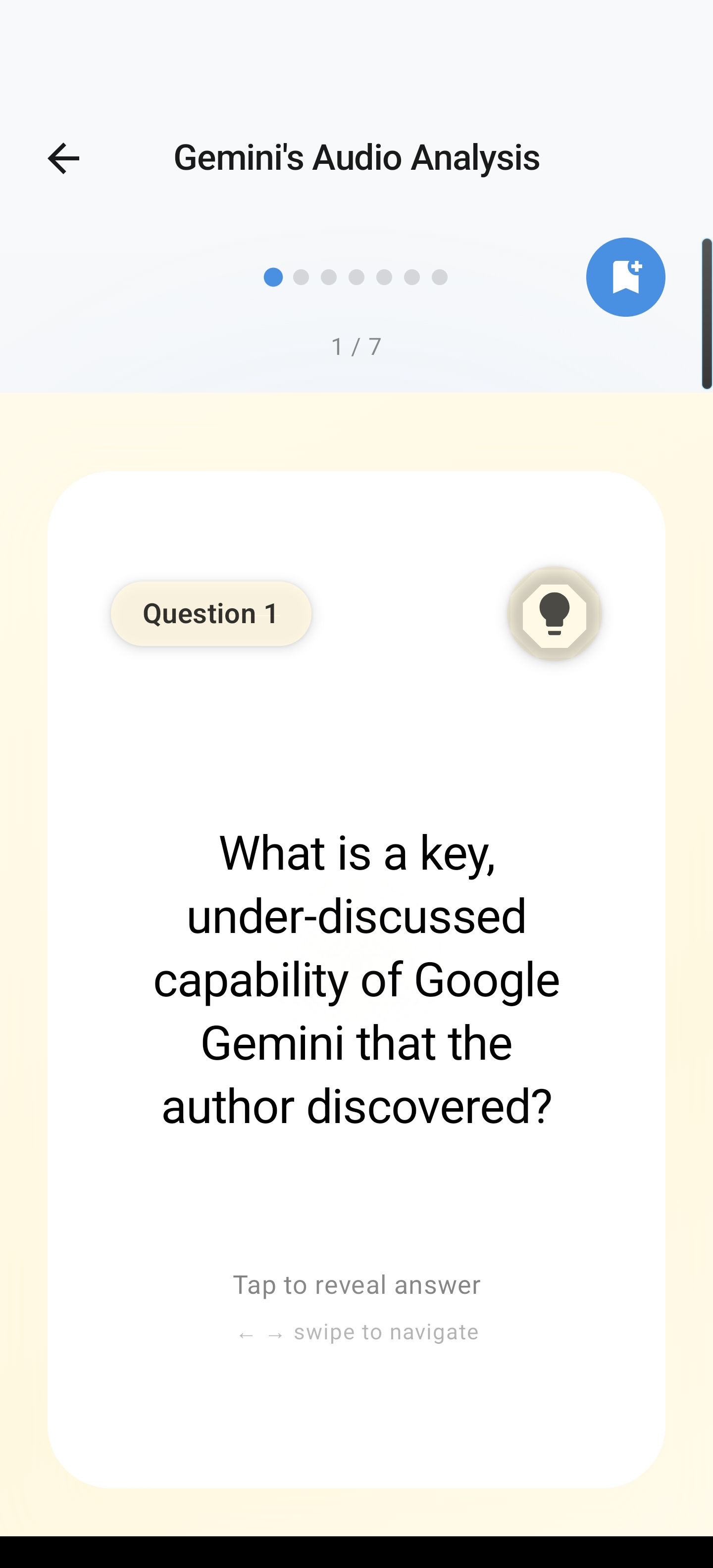
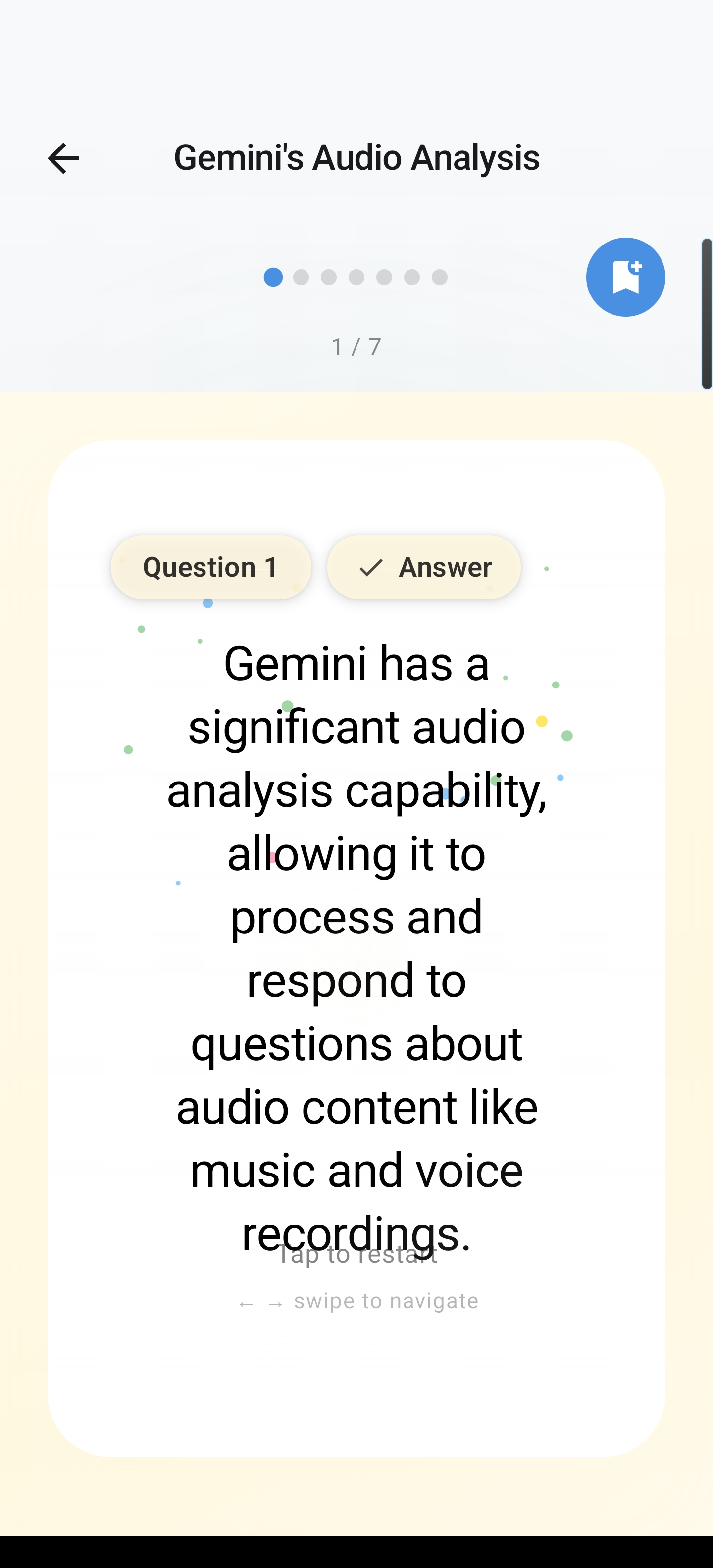
Tap a flashcard set to enter study mode. You’ll see a large card with the question on the front. Read the question, try to recall the answer, then tap Flip Card (or tap the card itself) to reveal the back. The back shows the hint in smaller text at the top and the answer as the main content. You can flip back to the question, move to the next card, or go back to the previous one. A progress counter shows which card you’re on (e.g., “Card 1 of 12”), and a progress bar fills as you move through the set. When you reach the last card, the Next button becomes Finish. Tapping it shows a completion screen with a summary of how many cards you reviewed and options to Study Again (restart from the beginning) or Done (return to the library).
Study mode: question side with progress, hints to tap to reveal the answer and swipe between cards.
After revealing: answer text with optional celebration animation; tap to restart or swipe to the next card.
Progress Tracking
As you view each card (both sides), it’s marked as reviewed. Progress is saved automatically and shown in the library — you can see at a glance how many cards in each set you’ve studied. When you finish a set, the completion screen reflects your progress. If you want to start over, use Reset Progress from the menu in study mode. A confirmation dialog explains that your review progress will be cleared. After confirming, the set resets to 0 and you can study fresh. Alternatively, after completing a set, tapping Study Again automatically resets progress and restarts from the beginning.
Renaming and Deleting Sets
To rename a set, long-press its card in the library. A context menu appears with Rename and Delete. Tap Rename, edit the title in the dialog, and tap Save. The card updates with the new name. To delete a set, long-press and tap Delete, or open the set in study mode, tap the menu icon, and choose Delete Set. A confirmation dialog asks you to confirm, since deletion cannot be undone. After confirming, the set is removed from your library. On some devices, you can also swipe a set card to reveal a delete option.
Bulk Operations
To delete multiple sets at once, long-press any flashcard set card in the library. Multi-select mode activates: checkboxes appear on all cards, and the card you long-pressed is already checked. Tap additional cards to select them, use Select All if needed, then tap the Delete button. A confirmation dialog shows how many sets will be deleted and warns that this cannot be undone. After confirming, the selected sets are removed and multi-select mode exits.
Searching Your Library
Tap the search icon at the top of the Flashcard Library. Type a query such as “physics,” “biology,” or “history.” Results filter in real time as you type — Arc searches through set titles, source URLs and apps, and card content (questions and answers). Matching sets display with a count (e.g., “3 flashcard sets found”). Tap any result to open study mode. Clear the search or tap back to restore the full library.
Regenerating Flashcards
If the preview shows a set that doesn’t quite fit — questions too easy or hard, or you want a different focus — tap Regenerate. The AI creates a new set from the same source content with different question formulations and phrasing. You can save the new set, regenerate again for more options, or cancel if you’re unsatisfied. Each regeneration produces a unique set, so you have flexibility to find the study material that works best for you.
Unread Queue Integration
When you save a new flashcard set, it appears in your Unread Queue alongside saved summaries and other content. The queue card shows the flashcard icon, set title, card count, and an unread badge. You can tap to open study mode directly from the queue or mark it as read. After you study a set, it’s automatically marked as read and removed from the queue, but it remains in your Flashcard Library. If you mark a set as read manually without studying, it’s also removed from the queue; your progress stays at 0 until you actually study it. This integration helps you remember to review new study materials and keeps your workflow consistent across all saved content.
Region Selection
When region selection is available, you can generate flashcards from a specific part of the screen instead of the full view. After tapping Flashcards in the sidebar, a region selection overlay appears. Drag a rectangle to select the area you want — for example, one section of a long article, a specific chapter on a textbook page, or content while excluding ads and navigation. Arc captures only the selected content and generates flashcards from it. This gives you more focused, targeted flashcard sets when the full screen has mixed or lengthy material.
Tips
- Use the preview screen to spot-check a few cards before saving — you can always regenerate if the set doesn’t match your needs.
- Long-press is your shortcut for rename, delete, and bulk select — no need to open a set first for those actions.
- Search works across titles, sources, and card content, so try keywords from the topic or subject.
- Flashcard sets in the Unread Queue are a good reminder to study new material before it piles up.
- Use Reset Progress or Study Again when you want to re-study material for spaced repetition.
Related Features
- Floating Sidebar — Primary entry point for generating flashcards
- Unread Queue — New flashcard sets appear here until you study them
- AI Summary — Summarize content before or alongside flashcards
- Chat with AI — Discuss flashcard content with the AI
- Save Content — Save content for later flashcard generation