Community Actions
Browse and add pre-built AI actions from Arc and the community. Discover translation, summarization, fact-checking, and creative workflows with one tap.
Browse all features (13)
Community Actions is Arc’s library of ready-made AI workflows. You can browse actions created by the Arc team and by other users, then add any of them to your personal collection with one tap. Instead of writing prompts from scratch, you get proven actions for translation, summarization, fact-checking, creative writing, and more — all immediately available in your floating sidebar.
Key Capabilities
- Browse 100+ system-curated actions from the Arc team
- Discover community-contributed actions from other users
- Search and filter by language, category, and recency
- Upvote helpful actions to boost their visibility
- One-tap add to your personal collection
- Actions appear in your sidebar right away
- See creator attribution and whether an action captures screenshots
How to Use
Browsing Community Actions
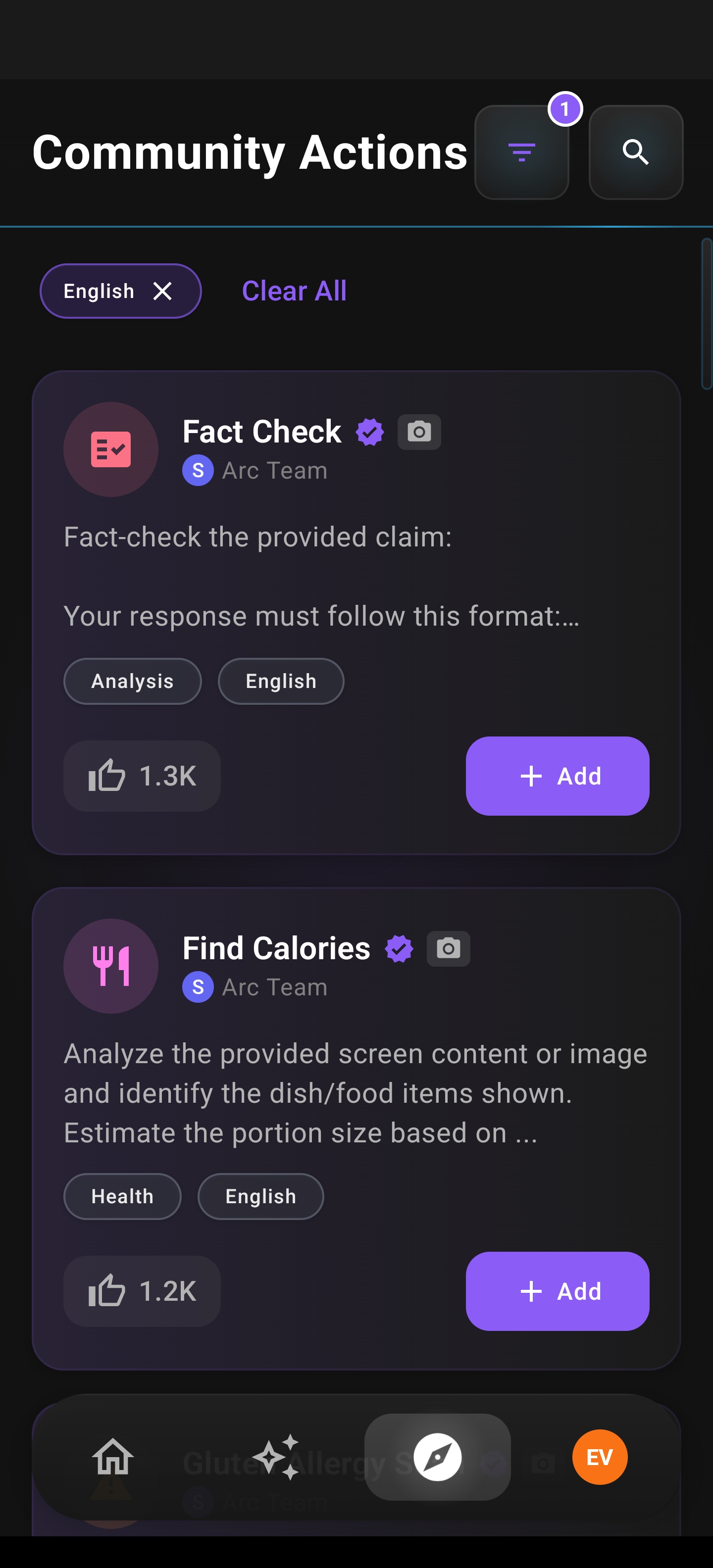
Open Arc and tap the Explore icon in the bottom navigation. The Community Actions screen shows a search bar at the top, filter chips below (Language, Category, Recently Added), and a scrollable list of action cards. System actions from the Arc team show a verified badge; user-published actions show the creator’s name and upvote count. Each card displays the action name, a brief description, and an Add button. Pull down to refresh and load the latest actions.
Browse community actions with language/category filters, verified badges, camera icons for screenshot-capable actions, upvotes, and Add.
Searching and Filtering
Tap the search bar and type a keyword such as “translate,” “summary,” or “email.” Results filter in real time as you type. Use the filter chips to narrow by language (e.g., Spanish, French) or category (Translation, Summary, Writing, Analysis, Creative, Learning, Productivity). Toggle “Recently Added” to see newest actions first. You can combine search and filters — for example, search “email” and filter by “Writing” to find email-related actions.
Viewing Action Details
Tap any action card to open a detail sheet. You’ll see the full description, use cases, and an expandable “View Prompt” section so you can see exactly what the AI will do. The detail view also shows whether screenshot capture or web search is enabled. If the action captures screenshots, a camera badge appears on the card; the first time you add a screenshot-enabled action, a brief info dialog explains what that means. Use this view to decide whether an action fits your needs before adding it.
Adding an Action to Your Collection
Tap the “Add” or “Add to My Actions” button on an action card or in the detail view. Arc copies the action to your Custom Actions list and enables it by default. The button changes to “Added” with a checkmark so you can’t add the same action twice. The action appears in your floating sidebar immediately and works like any custom action. You can edit it locally, but actions added from the community cannot be re-published to avoid duplicates.
Upvoting Actions
If you find an action helpful, tap the upvote button. The count increases and the button shows you’ve upvoted. You can tap again to remove your upvote. Upvotes help surface the most useful community actions. Sign-in is required to upvote.
Pre-Built Actions (English)
Arc ships with 25 ready-to-use actions in English, organized by category. Each one works with a single tap from your sidebar — just open it on any screen and the AI does the rest. Actions marked with 📷 capture a screenshot for visual analysis; actions marked with 🌐 use web search for real-time information.
Analysis
Fact Check 📷 🌐 — Verifies claims by checking their accuracy. Returns a verdict (True, False, Mostly True, etc.), reasoning, and three credible source links.
Devil’s Advocate 🌐 — Challenges your opinion or statement with sharp, logical counter-arguments. Helps you stress-test ideas before posting or sharing.
Pros and Cons — Breaks down any content into clear pros and cons. Useful for product comparisons, decisions, or evaluating arguments.
Education
ELI5 — Explains any concept in the simplest terms, as if to a five-year-old. Great for unfamiliar topics or jargon-heavy content.
Analogy Generator — Takes a complex concept and explains it using a relatable everyday analogy. Makes learning new ideas faster.
Math Solver 📷 — Solves math problems step-by-step with clear reasoning. Works on text or screenshots of equations and word problems.
Generate Quiz Questions — Creates 5 quiz questions (mix of multiple-choice and short-answer) from any content, with answers at the end. Perfect for study prep.
Health
Find Calories 📷 — Identifies food from a photo or description and estimates calories, carbs, protein, and fats — including calories from cooking ingredients like oil, butter, and sauces.
Gluten Allergy Scan 📷 — Scans menus, food labels, or ingredient lists for gluten risks. Flags direct allergens, hidden derivatives, and cross-contamination warnings.
Healthy Alternative Finder 📷 — Suggests healthier swaps for any food item — lower in calories or higher in nutrients, with similar taste so you can substitute easily.
Research
Find Cheaper Alternatives 📷 🌐 — Identifies a product from your screen and searches the web for the same item or well-rated alternatives at a lower price, with links.
Place Identifier 📷 — Identifies a place from a photo — landmarks, cities, buildings, or natural locations — and provides the name, location, and interesting facts.
Outfit Finder 📷 🌐 — Identifies clothing items in a photo, searches the web for similar or matching pieces, and provides links and prices to buy them.
Identify Person 📷 🌐 — Identifies a person from a photo using visual analysis and web search. Covers celebrities, influencers, athletes, scientists, business leaders, and more.
Communication
Conflict Cooler 📷 — Analyzes a tense conversation and suggests a diplomatic, calming response that de-escalates the situation without taking sides.
Smart Reply — Reads a message or conversation and crafts a natural reply that matches the tone — casual, professional, or whatever fits the context.
Flirt Detector — Analyzes chat messages for subtle or obvious flirting cues. Identifies specific signals and explains what they mean — objective and non-judgmental.
Entertainment
Roast Profile 📷 — Analyzes a social media profile (bio, picture, posts) and delivers a witty, savage roast in stand-up comedy style. Funny but not cruel.
Dad Joke Mode — Reads the current conversation topic and generates one perfectly terrible dad joke or pun related to it. Wholesome cringe guaranteed.
Meme Explainer 📷 — Explains what a meme means in plain language, including cultural references, the joke format, and why it’s funny. Ideal when you see a meme and don’t get it.
Creativity
Caption the Image 📷 — Analyzes a photo and generates three engaging, creative captions ready for social media posting.
Accessibility
Menu Simplifier 📷 — Translates fancy restaurant menu items into plain language — what the dish actually is, what’s in it, and how it’s prepared. Also picks the best comfort food option.
Describe Image 📷 — Provides a concise description of any image or screenshot, listing all objects detected with a confidence score. Helpful for understanding visual content.
Summarization
Key Highlights — Reads a long article or text and extracts the single most important section — the core message or takeaway — with a brief explanation of why it matters.
3 Bullet Points — Condenses any content into exactly three concise bullet points, each representing one key takeaway. Quick and scannable.
Tips
- Use the “View Prompt” section in the detail view to understand exactly what an action does before adding it.
- Actions with a camera badge capture screenshots when run — useful for charts and images, but be aware of what will be sent to the AI.
- Filter by “Recently Added” to discover new community contributions.
- Upvote actions you use often so others can find them more easily.
Related Features
- Custom Actions — Create and manage your own actions
- Floating Sidebar — Where added actions appear
- Chat with AI — Discuss results from any action