Chat with AI
Have context-aware conversations about any content on your screen. Discuss summaries, custom action results, or on-screen content with multi-turn dialogue.
Browse all features (13)
Chat with AI lets you have intelligent, context-aware conversations about any content you encounter on your Android device. Whether you’re viewing an article, reading a summary, or exploring custom action results, you can ask questions and get answers in a natural back-and-forth. Each conversation preserves the original context and supports multi-turn dialogue with up to 50 messages per session.
Key Capabilities
- Three chat entry points with automatic context preservation: Screen Chat, Summary Chat, and Custom Action Chat
- Floating input that expands to a full chat interface when you start typing
- Per-message screenshot attachment (you choose when to add visual context)
- Copy AI responses with one tap — full message or selected text
- Persistent chat history with search and organization
- Multi-select bulk delete for cleaning up conversations
- Date grouping and compact card design for easy browsing
- Animations respect reduced motion preferences
How to Use
Screen Chat — Discuss Current Screen Content
When you’re viewing content and want to ask the AI about it, expand the Arc floating sidebar and tap “Chat Screen”. Arc captures the visible text and identifies the source app. A screenshot is not captured automatically — you control when to add one.
The chat interface opens with a small floating input at the bottom. The first message is added automatically: it shows the captured content under an “Original Context” label, with a preview you can expand to view the full text. When you tap the input field and type your first question, the interface smoothly expands to show the full chat area. Type your question (for example, “What are the main points?”) and tap Send. Your message appears in a right-aligned bubble; the AI response appears on the left with a copy button. You can ask follow-up questions, copy responses, or attach a screenshot to your next message. All messages are preserved in chat history.
Example conversation:
[Context] Original Context
"Apple announces new iPhone 15 with improved camera...
The new model features USB-C charging and titanium design..."
(expandable for full content)

User: "What are the main new features?"

AI: "Based on the content, the main new features of iPhone 15 are:
1. Improved camera system
2. USB-C charging (replacing Lightning)
3. Titanium design for durability
4. [Additional features from content...]"

User: "How does the camera compare to iPhone 14?"

AI: "According to the information, the iPhone 15 camera offers...
[Detailed comparison based on content]"
Summary Chat — Dive Deeper into Summaries
When you’ve generated or viewed an AI summary and want more information, tap “Ask Questions” on the summary screen. The chat interface opens with the full summary text as the first message, labeled “Original Context” and marked with a blue Summary Chat badge. Type your question — for example, “Tell me more about [specific point]” or “What’s the significance of [topic mentioned]?” — and the AI responds using the summary as context. You can continue the conversation to explore the content in depth. The session is saved to your chat history with the blue Summary Chat badge and the original summary as the first message.
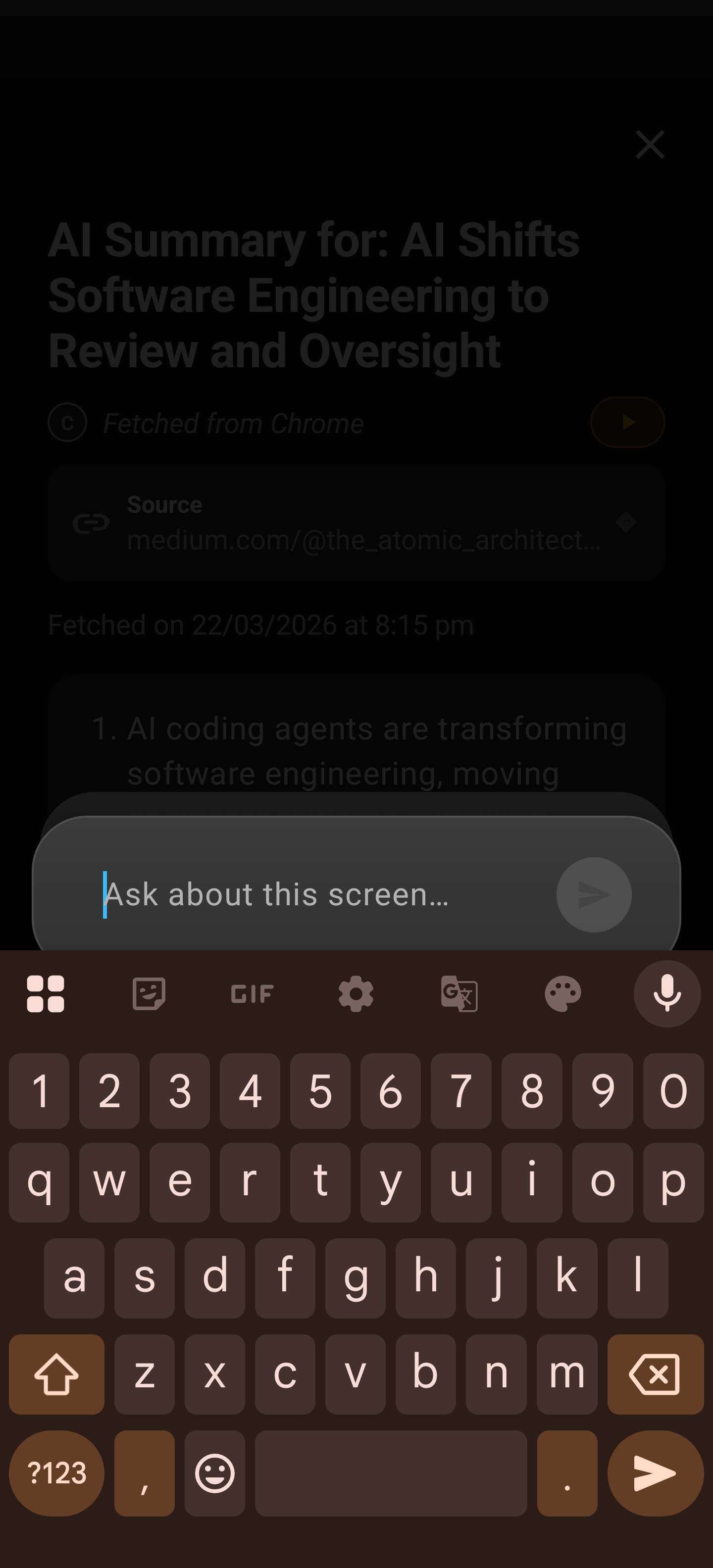
From a summary, the chat field at the bottom lets you ask follow-up questions about the same content (same flow as “Ask questions” on the summary screen).
Example conversation:
[Context] Original Context (Summary Chat)
"This article summarizes recent developments in renewable energy.
Key points: 1) Solar panel efficiency increased to 30%,
2) Wind energy costs dropped 15%, 3) Battery storage improved..."

User: "Why is battery storage important for renewable energy?"

AI: "Battery storage is crucial for renewable energy because..."
[Detailed explanation]

User: "What about the solar panel efficiency improvement?"

AI: "The 30% efficiency improvement in solar panels is significant because..."
[Context-aware explanation based on summary]
Custom Action Chat — Explore Action Results
After you run a custom action (such as “Translate to Spanish”), the result screen shows an “Ask Questions” button. Tap it to open a chat with the action result as the first message, labeled “Original Context” and marked with a purple Custom Action Chat badge. You can ask things like “Explain the differences in this translation,” “What are alternative ways to say this?,” or “Is this translation formal or casual?” The AI responds using the action result as context. The conversation is saved to history with the purple Custom Action Chat badge.
Example conversation:
[Context] Original Context (Custom Chat)
Action: "Translate to Spanish"
Result: "Hola, ¿cómo estás hoy? ¡Espero que tengas un gran día!"

User: "Is this formal or casual Spanish?"

AI: "This is casual/informal Spanish. The use of 'tú' form
(estás, tengas) indicates familiarity. For formal Spanish,
you would use 'usted' form..."

User: "Show me the formal version"

AI: "Here's the formal version: 'Hola, ¿cómo está usted hoy?
¡Espero que tenga un gran día!'..."
Badge color coding: Screen Chat = Green, Summary Chat = Blue, Custom Action Chat = Purple.
Adding Screenshots to Messages
In any active chat, you’ll see a screenshot button (camera icon) to the left of the input field. The first time you use it, a brief info dialog explains that the screenshot will be attached to your message for visual context and is processed privately on your device. You can check “Don’t show this again” to skip the dialog next time.
Tap the screenshot button to capture the current screen. A badge appears on the input area to show a screenshot is attached. Type your message and send. The message displays your text with a screenshot preview below; tap the image to view it fullscreen. The AI receives both your text and the image, so you can ask questions like “What’s wrong with this design?,” “Explain this chart,” or “What does this error mean?” Screenshots are saved with the message in chat history.
Screenshots are attached per message, not to the entire session. You must tap the button to attach — it’s never automatic.
Copying AI Responses
Each AI message has a copy button (clipboard icon) at the top-right of the bubble. Tap it to copy the entire response to your clipboard. A brief confirmation appears, and you can paste the text into any app.
To copy only part of a response, long-press on the AI message text. Use the selection handles to highlight the portion you want, then tap “Copy” in the toolbar. This works well when you need a specific fact or quote from a longer response.
Browsing and Searching Chat History
Open Arc and tap the Chat tab in the bottom navigation. Your conversations appear in a compact list, grouped by date (e.g., “22 November 2024”). Each card shows the chat type icon, the first user message or “Chat with AI” as the title, a preview of the original context, and a footer with the session badge (Green/Blue/Purple), timestamp, and message count. A card at the top shows your total conversation count. Tap any card to open that conversation. Pull down to refresh.
To search, tap the search icon and type a keyword such as “renewable energy,” “translation,” or “iPhone.” Results filter in real time as you type. Arc searches chat titles, conversation content, and original context. Clear the search to see the full list again.
Managing Conversations
Continue a conversation: Tap a conversation card to open it. All previous messages load in order. Scroll to the bottom and type a new message in the input field. The AI has full context of the conversation, and you can keep going for up to 50 messages per session. A “Jump to bottom” button appears when you’ve scrolled up, so you can quickly return to the latest messages.
Delete a single conversation: From the chat history list, swipe a card left or right to reveal the delete button, then tap it. Or open the conversation and tap the delete (trash) icon at the top. Confirm in the dialog to remove it.
Bulk delete: Long-press any conversation card to enter multi-select mode. Checkboxes appear; tap additional cards to select or deselect them, or tap “Select All.” Tap the Delete button, confirm in the dialog, and the selected conversations are removed. This helps you clean up history quickly.
Empty Sessions Auto-Hidden
If you open a chat from any entry point but close it without sending any messages, that session is not saved to your history. Only conversations where you’ve sent at least one message appear in the Chat tab. This keeps your history focused on actual conversations.
Tips
- Use the “Original Context” expand button to review the full captured content before asking questions.
- Attach a screenshot when your question is about something visual — a chart, layout, or error message.
- Search your chat history by topic or keyword to find past insights quickly.
- Long-press to enter multi-select mode when you want to delete several conversations at once.
- The app supports multiple languages; the AI responds in the detected language.
Accessibility
Arc supports TalkBack with labeled messages and buttons, respects reduced motion preferences (animations are disabled when preferred), and provides clear visual separation. You can select and copy text from AI responses using standard Android text selection.
Related Features
- AI Summary — Generate summaries you can discuss in Summary Chat
- Custom Actions — Run actions and explore results in Custom Action Chat
- Floating Sidebar — Access “Chat Screen” from the sidebar
- Save Content — Discuss saved content in chat