Call Insights
Analyze call recordings to get comprehensive transcriptions, summaries, action items, and key insights. Supports two modes: Manual Upload (select audio files for one-time analysis) and Auto Analysis (automatic monitoring of specific folders for new recordings). Transcripts include speaker identification, helping you quickly review important call details without re-listening.
Browse all features (13)
Call Insights turns your call recordings into actionable intelligence. Upload a recording once, or let Arc automatically monitor folders you choose — either way, you get a full transcript with speaker labels, a concise summary, extracted action items, and key insights. No need to re-listen to long calls; you can review what matters in minutes.
Key Capabilities
- Two modes: Manual Upload (pick files on demand) and Auto Analysis (automatic monitoring of folders you select)
- AI-powered transcription with speaker identification (Speaker 1, Speaker 2)
- Automatic extraction of summaries, action items, and key insights
- Detailed call insight reports you can share or search
- Integration with Unread Queue so new insights surface alongside other content
- High-priority notifications when new insights are ready (Auto Analysis)
- Scoped storage: Arc only accesses folders you explicitly grant
- Optional Google Drive backup
How to Use
Uploading a Recording (Manual Mode)
Open Arc and go to Call Insights via Settings or the dedicated tab. You’ll see your list of previously analyzed calls and a prominent Upload Recording button. Tap it to open your device’s file picker, browse to your recording, and select it. Arc supports MP3, M4A, WAV, AAC, OGG, and FLAC — the formats most call recording apps use.
Before analysis starts, you’ll see the filename, file size, and an estimated processing time. Tap Analyze Recording to begin. Arc uploads the file, transcribes the audio, identifies speakers, and extracts the summary, action items, and key insights. When processing finishes, a notification appears and the full Call Insight Report opens automatically. The insight is saved to your list and marked as unread in your Unread Queue.
Files up to 100 MB are supported by default; you can adjust this limit in settings. If a file exceeds the limit, Arc will warn you so you can compress it or change the setting.
Viewing a Call Insight Report
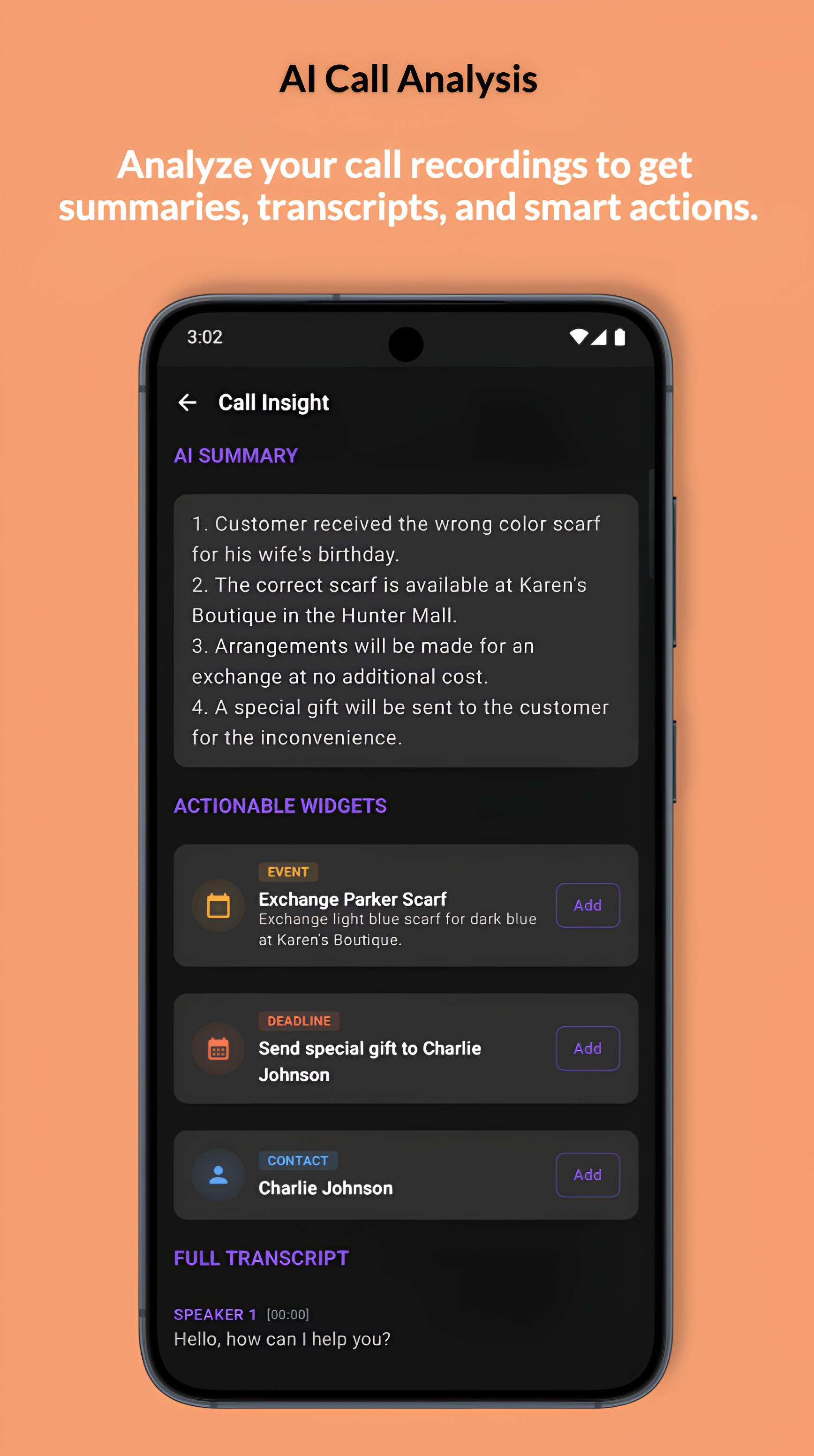
Tap any call insight from the list, Unread Queue, or a notification to open the full report. The header shows the call title, date, time, duration, and whether it came from Manual Upload or Auto Analysis.
The Transcript section displays the conversation with speaker labels in a readable format:
Speaker 1: Hello, thanks for calling. How can I help you today?
Speaker 2: Hi, I wanted to discuss the project timeline.
Speaker 1: Sure, let me pull up the details. The current deadline is March 30th…
Timestamps appear at intervals for longer calls. The Summary gives you a concise overview in a few sentences:
Discussion about project timeline and deliverables. Agreed to extend deadline to April 5th due to additional feature requests. Client approved budget increase for extra work. Follow-up meeting scheduled for March 20th.
The Action Items section lists extracted tasks:
- Update project timeline document with new April 5th deadline
- Send revised budget proposal by March 18th
- Schedule follow-up meeting for March 20th at 2:00 PM
- Contact design team about additional feature mockups
You can optionally check items off as you complete them. Key Insights highlights important points and decisions:
- Budget approved for 15% increase
- Client prioritizes quality over speed
- Design team needs 3 extra days for revisions
- Next milestone: March 25th for review
From the report you can share, copy the transcript, delete the insight, or mark it as read or unread.
Example insight report: AI summary, actionable items (events, deadlines, contacts), and full transcript with speaker labels.
Setting Up Auto Analysis
If you record calls regularly and want them analyzed automatically, switch the Call Insights toggle to Auto Analysis. The setup screen explains that Arc will monitor specific folders you choose and process new recordings automatically.
Tap Add Folder to open your device’s folder picker. Navigate to where your call recordings are stored (for example, a Recordings or Calls folder) and select it. Your device will ask whether to allow Arc to access that folder — Arc only gets access to the folders you explicitly grant, not your entire storage. Add as many folders as you need.
Configure the file size limit (1–100 MB), a cutoff date so Arc ignores older recordings, and how often to check for new files (every 6, 12, or 24 hours). Tap Save or Enable Auto Analysis to activate. Arc will confirm that monitoring is on and will check for new recordings on the schedule you set.
Scoped storage and privacy: Arc can only read files from the folders you grant. It cannot browse other folders or storage. You control access through the folder picker and can revoke it anytime.
How Auto Analysis Works in the Background
When Auto Analysis is enabled, Arc checks your monitored folders on the schedule you configured. It looks for new audio files that match your file size and cutoff date, skips ones already processed, and uploads new recordings for analysis. You don’t need to do anything — processing happens in the background.
When a new insight is ready, you get a high-priority notification. Tap it to open the call insight report directly. If processing fails after several attempts, Arc notifies you so you can retry manually.
Browsing and Searching Call Insights
The Call Insights list shows all your analyzed calls. Each card displays the title, date, duration, source (Manual or Auto), a summary preview, and an unread indicator if you haven’t viewed it yet. Cards are sorted with the newest first and grouped by date (Today, Yesterday, This Week, etc.). Tap a card to open the report, swipe to delete, or long-press to select multiple for bulk delete. Pull down to refresh.
Use the search bar to find specific calls. Search runs across call titles, transcripts, summaries, and action items in real time as you type. For example, search “deadline” to find calls about deadlines, “March 15” for calls from that date, or “budget approval” for budget-related discussions.
If you have no call insights yet, you’ll see an empty state with a prompt to upload a recording or enable Auto Analysis.
Sharing Call Insights
From a call insight report, tap Share. You can share the full transcript, just the summary, just the action items, or the full report. Your device’s share sheet opens so you can send to email, messaging apps, Slack, Teams, Notion, or copy to clipboard. Shared content includes the call title, date, and the sections you chose, with optional attribution to Arc.
Deleting Call Insights
To remove a call insight, open it and tap the menu or Delete button, or swipe the card in the list to reveal delete. A confirmation dialog explains that the transcript and analysis will be permanently deleted. For bulk deletion, long-press to enter multi-select mode, choose the insights you want to remove, and tap Delete. Confirm to complete.
Call Insights in the Unread Queue
New call insights are marked as unread by default and appear in your Unread Queue alongside summaries, saved content, and flashcards. They show a call icon, the title, a summary preview, and a “Call Insight” badge. Tap to open the report. After you view it for a few seconds, it’s automatically marked as read and removed from the queue, but it remains in your Call Insights list for future reference.
Configuring Call Insight Settings
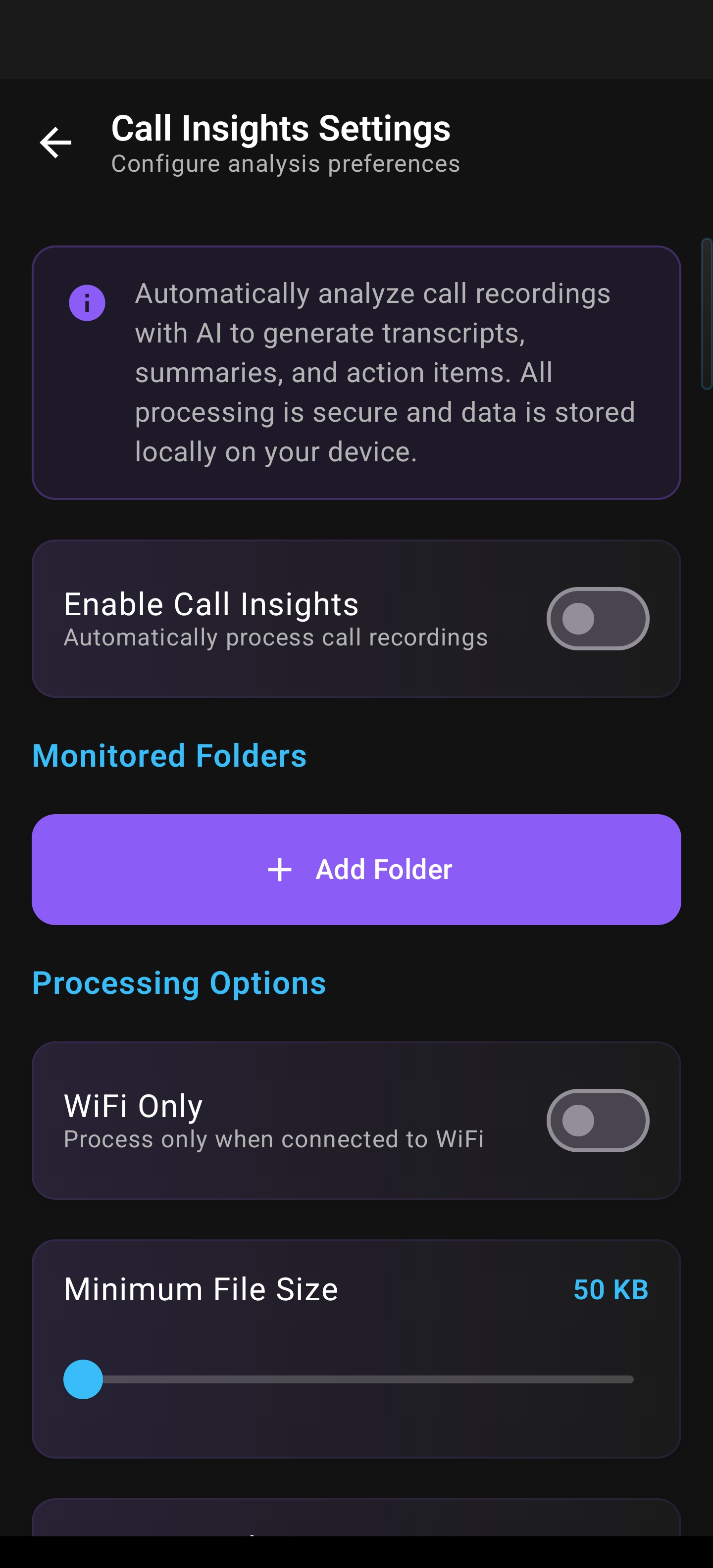
Go to Settings → Call Insight Settings to customize behavior. Switch between Manual Upload and Auto Analysis, manage monitored folders, set the file size limit and cutoff date, and choose how often Arc checks for new recordings. You can enable or disable notifications for new insights and adjust notification priority. Storage settings show how much space call insights use and let you clear all insights if needed. Permission status is visible here, with an option to manage permissions in your device settings.
Call Insights Settings: enable analysis, add monitored folders, WiFi-only processing, and minimum file size.
Tips
- Use the summary and key insights to quickly decide which calls need follow-up without re-listening.
- Enable Auto Analysis if you record calls to a consistent folder — Arc will keep insights up to date automatically.
- Search by topic (e.g., “budget,” “timeline”) to find relevant discussions across multiple calls.
- Share action items with your team so everyone knows next steps without reading the full transcript.
- Arc supports multiple languages for transcription; the AI detects the language and generates summaries and action items accordingly.
- Arc works with TalkBack and respects your system font size for readability.
Related Features
- Unread Queue — New call insights appear here for quick review
- AI Summary — Similar AI-powered summarization for other content
- Save Content — Save and organize content alongside call insights
- Floating Sidebar — Access Arc features from any screen