AI Writer
A system-wide text assistance tool that helps you write, edit, and respond to messages across any Android application with four modes: Rewrite, Fix Grammar, Reply, and Create Post.
Browse all features (13)
AI Writer is Arc’s system-wide text assistance tool that helps you write, edit, and respond to messages across any Android application. It offers four modes: Rewrite (transform text with different tones), Fix Grammar (one-click proofreading), Reply (generate contextual responses), and Create Post (generate social media posts and reviews). AI Writer intelligently extracts conversation context and auto-fills text from your current input field so you can get help without switching apps.
Key Capabilities
- Works in any app with text input fields (messaging, email, social media, notes, and more)
- Four modes: Rewrite, Fix Grammar, Reply, Create Post
- Smart conversation context extraction that identifies who said what
- Auto-fills text from your current input field when you open AI Writer
- Integration with My Info Vault for personalized responses
- Stores previous responses for reuse
- Multi-language support
- One-tap copy to clipboard
How to Use
Opening AI Writer
You can open AI Writer from anywhere. Expand the Arc floating sidebar and tap the AI Writer button. If you’re typing in a text field when you open it, Arc captures that text and pre-fills the input box so you don’t have to copy and paste. Arc also captures surrounding conversation or email content when you’re in a messaging app, which helps Reply mode generate contextually appropriate responses.
The AI Writer panel opens with a mode selector (Rewrite, Fix Grammar, Reply, Create Post), an input textbox, mode-specific options, and a Generate button. Choose your mode, configure any options, tap Generate, and your result appears with Copy and Regenerate buttons. Tap Copy to send the text to your clipboard, then paste it into your app.
Rewrite Mode
Rewrite mode transforms your existing text into different tones and styles. Select Rewrite (it’s often the default), then choose a tone: Rephrase (improve clarity and flow), Professional (formal business language), Polite (courteous and considerate), Shorten (concise version), or Elaborate (expanded with more detail). For custom instructions, tap Custom and type what you want—for example, “Make it more engaging” or “Simplify for beginners.”
Rewrite mode: tone selection (Rephrase, Professional, Polite, Shorten, Custom), optional My Info Vault tag, and Generate.
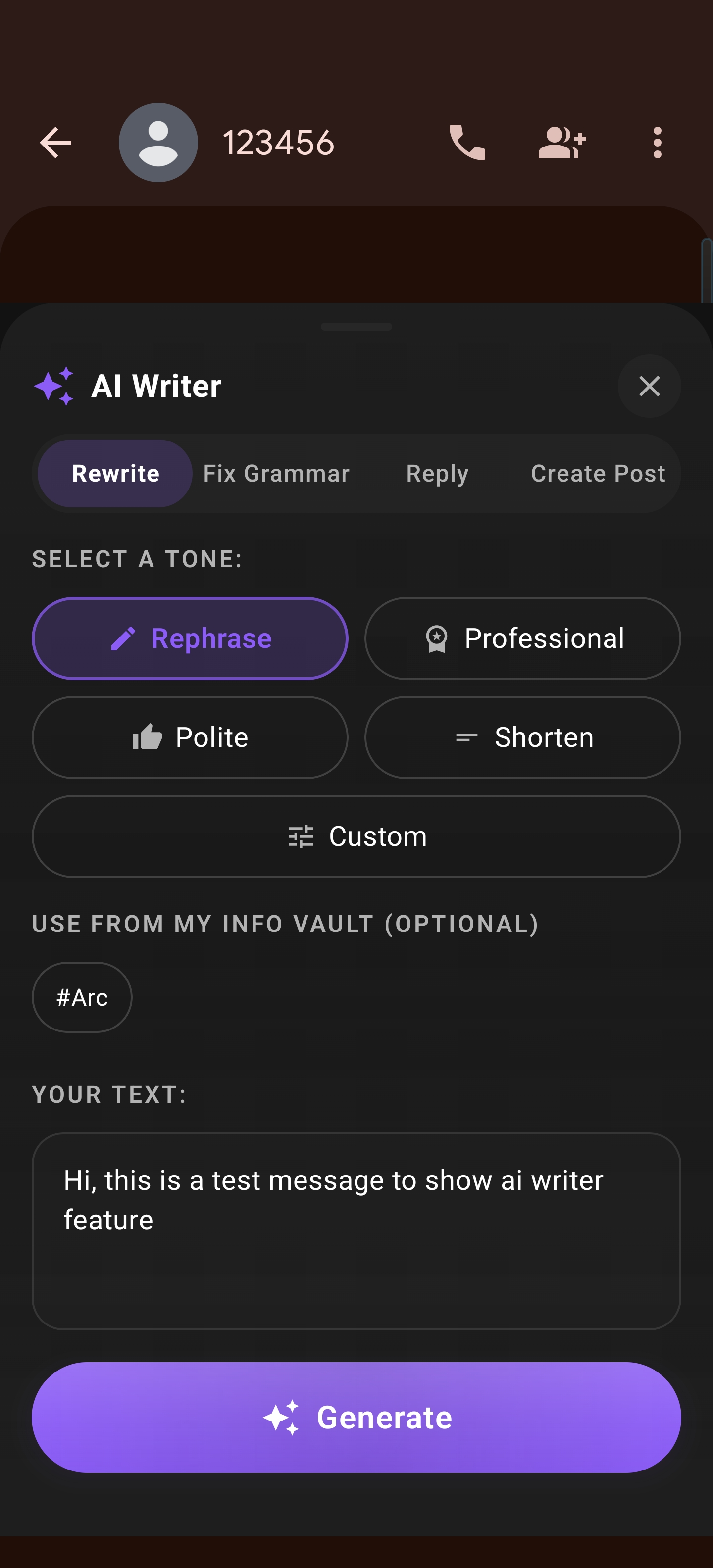
Tap Generate and the AI rewrites your text while preserving the original meaning. You can copy the result, tap Regenerate for an alternative version, change the tone and try again, or edit the result directly before copying.
After generation: rewritten text with Regenerate and Insert to paste back into the app.
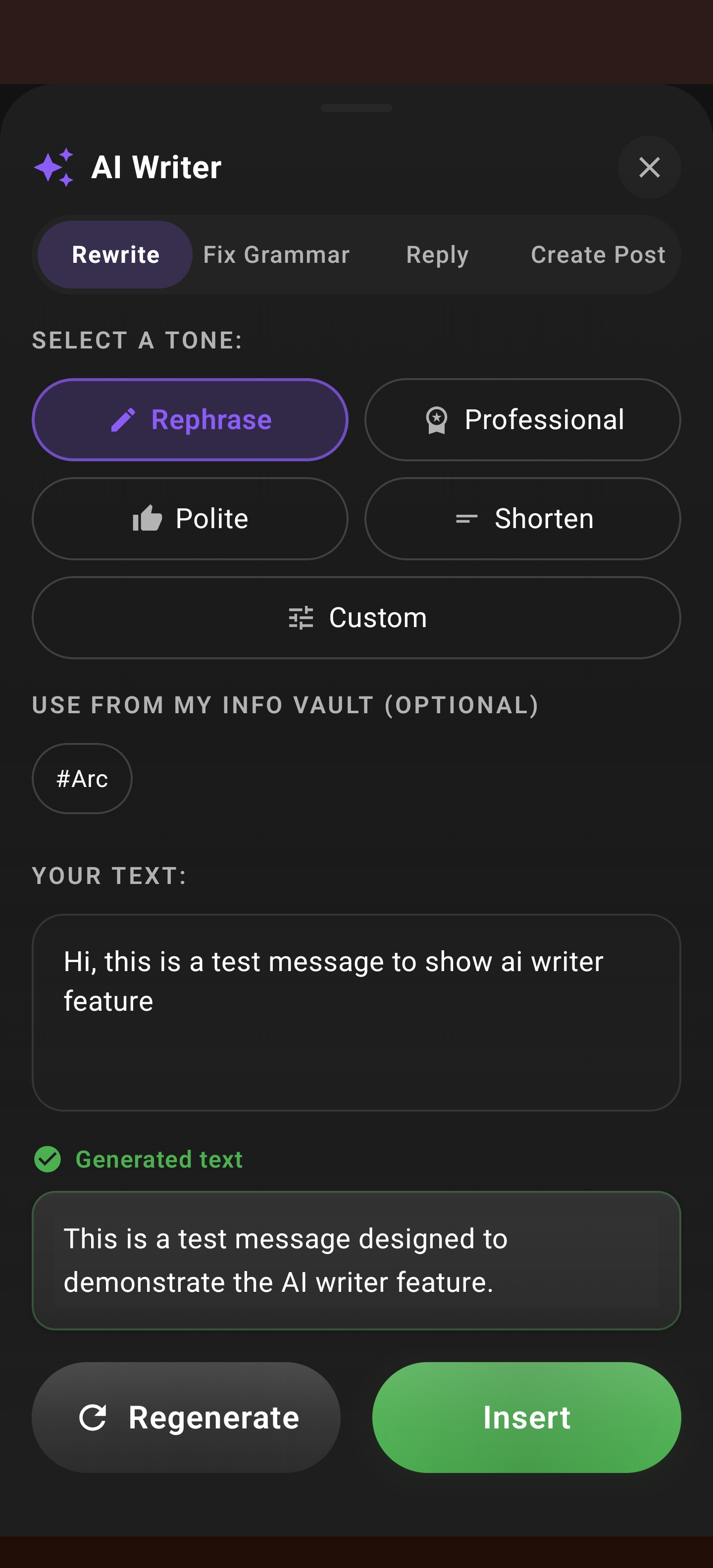
Example — Professional email: Original: “Hey, can you send me those docs when you get a chance?” Professional: “Dear colleague, would you kindly send me those documents at your earliest convenience?”
Example — Shorten for Twitter: Original: “I just finished reading this amazing book about artificial intelligence and its impact on modern society. It really made me think about the future!” Shortened: “Just read an amazing AI book - really thought-provoking about our future! 🤖”
Example — Custom (simplify for beginners): Original: “The algorithm utilizes recursive backtracking to traverse the solution space.” Custom result: “The program tries different paths, stepping back when it hits a dead end, until it finds the answer.”
Fix Grammar Mode
Fix Grammar mode gives you quick proofreading. Switch to the Fix Grammar tab, and if you had text in an input field, it will already be filled in. Tap the Fix Grammar button and the AI corrects spelling, grammar, and punctuation while keeping your tone and meaning. The corrected text appears with a Copy button. If your text was already correct, you’ll see a message saying no errors were found.
Fix Grammar mode: the AI fixes spelling, grammar, and punctuation while preserving your meaning.
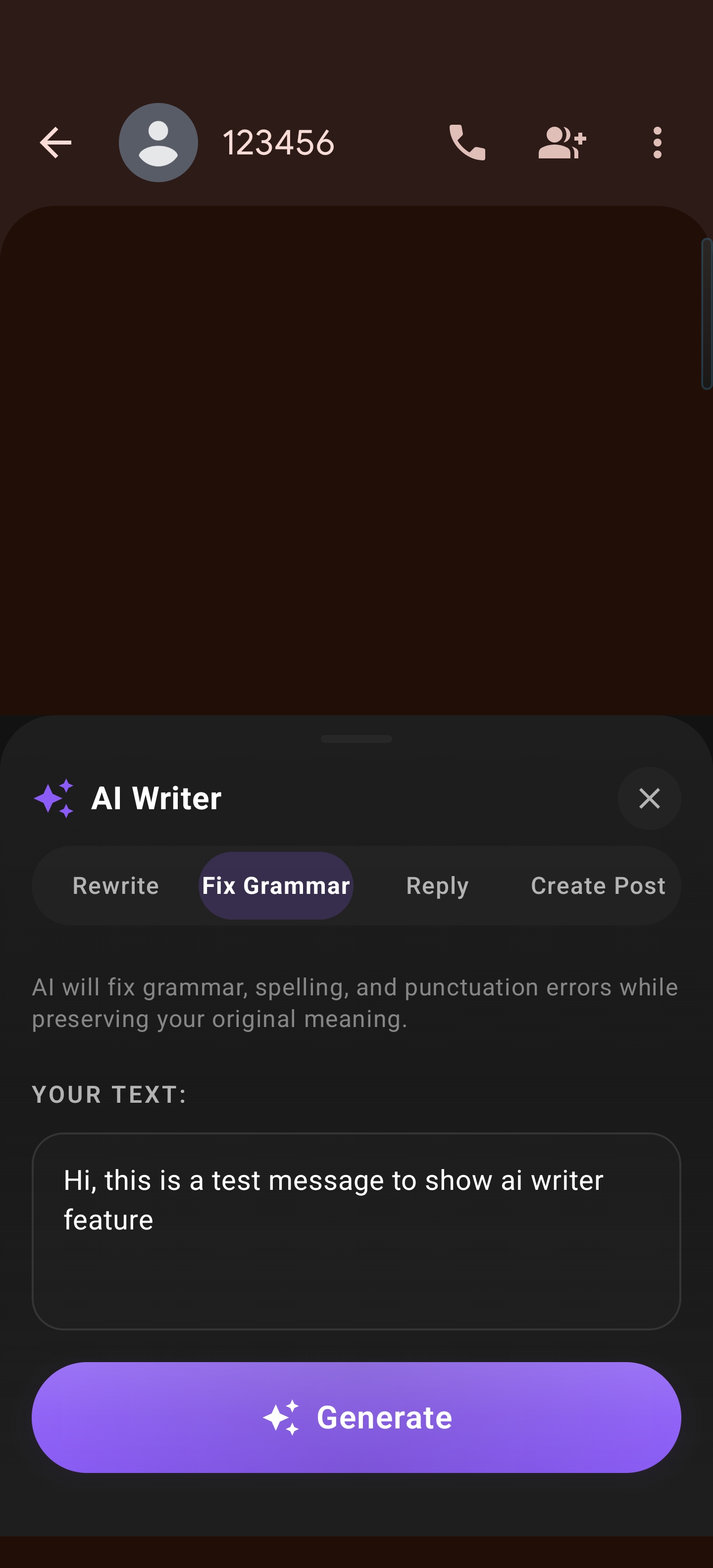
Fix Grammar is especially helpful if you have dyslexia or writing difficulties—it provides quick, non-judgmental assistance while preserving your voice.
Example: Original: “Im going too the store tommorow, do you need anything?” Fixed: “I’m going to the store tomorrow. Do you need anything?”
Reply Mode
Reply mode generates responses based on the conversation you’re viewing. Open AI Writer while in a messaging app, email client, or forum, and Arc extracts the conversation context—including who said what—so the AI can write a reply from your perspective. Reply mode works with chat apps (WhatsApp, Telegram, Instagram, SMS), email (Gmail, Outlook), and forums (Reddit, LinkedIn).
Choose a reply type: Yes / Agree (affirmative), No / Decline (polite declining), Not Interested (for unsolicited messages), or Custom (where you type your own instructions like “Tell him I’m running late by 15 minutes” or “Suggest meeting next week instead”). Tap Generate and the AI creates a reply that fits the conversation. You can expand the context preview to see the full conversation Arc is using.
Reply mode: Quick Actions (Accept, Decline, Thank, Ask), vault tags, and optional instruction text before Generate.
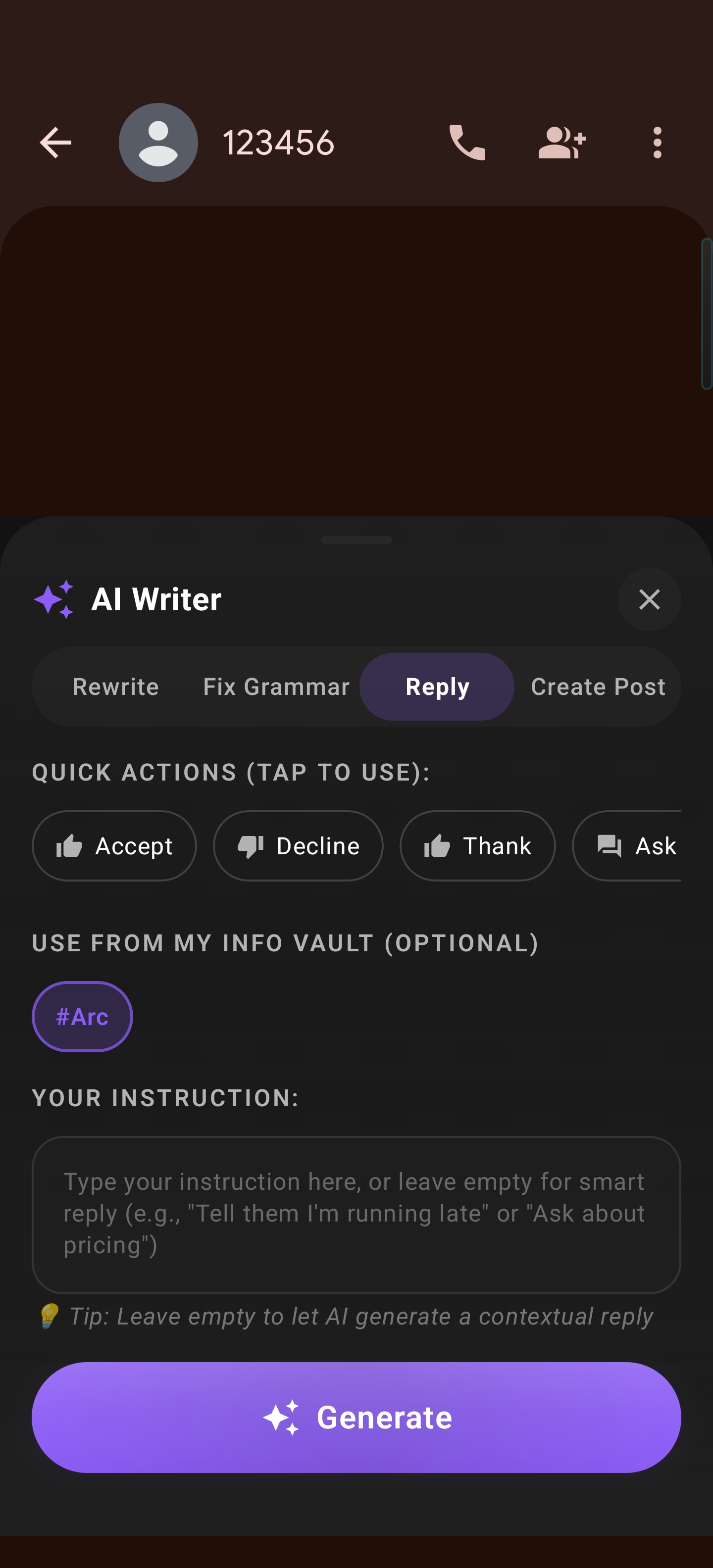
Example — Quick agreement (WhatsApp): Context: Other person asked to grab coffee at 3pm. Reply type: Yes / Agree Generated: “Yes, perfect! I’ll be there at 3pm. See you then! ☕”
Example — Custom decline (email): Context: Meeting invitation. Reply type: Custom — “Decline politely, I have a conflict but suggest next Tuesday” Generated: “Thank you for the invitation. Unfortunately, I have a prior commitment at that time. Would next Tuesday work for you instead? I’m available in the afternoon. Looking forward to connecting.”
Example — Not interested (LinkedIn): Context: Sales pitch message. Reply type: Not Interested Generated: “Thank you for reaching out. I appreciate the offer, but I’m not interested at this time. I wish you the best of luck with your services.”
Reply mode supports right-to-left languages (Arabic, Hebrew, Urdu, Persian) and captures multi-message threads, email threading, and nested forum comments.
Create Post Mode
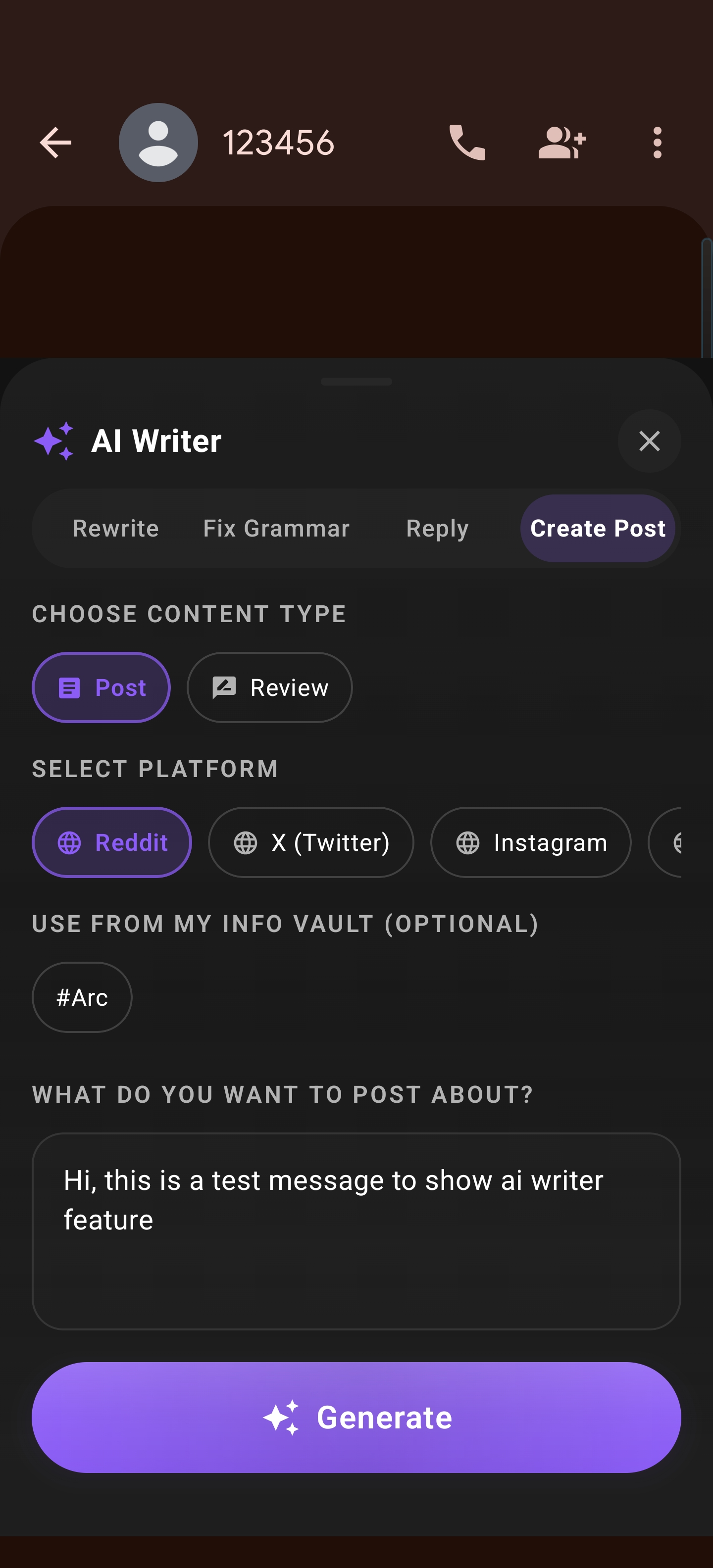
Create Post mode helps you craft social media posts and reviews from what you’re viewing. Switch to the Create Post tab and choose Post or Review. For posts, select your platform (Reddit, Twitter/X, Instagram, LinkedIn, Facebook, or General)—each platform affects tone, formatting, and length. For reviews, select a star rating (1–5) and add any personal notes. The AI uses the screen content (product page, article, etc.) plus your selections to generate platform-appropriate content with the right formatting (hashtags, markdown, character limits).
Create Post: content type (Post / Review), platform chips (e.g. Reddit), vault context, and topic before Generate.
Example — Twitter post from article: Screen content: Article about new smartphone release. Platform: Twitter/X Generated: “Just read about the new XPhone Pro - impressive camera upgrades and 2-day battery life! 📱 This might be my next upgrade. Anyone else excited? #TechNews #Smartphone”
Example — Product review: Screen content: Wireless headphones product page. Content type: Review, 5 stars. User notes: “Great sound quality, comfortable for long use” Generated: A full review with star rating, sound quality, comfort, battery life, and a recommendation.
My Info Vault Integration
If you’ve added personal information in My Info Vault (Settings > My Info Vault), you can use it to personalize AI Writer output. At the bottom of the AI Writer interface, expand the My Info Vault section and check the items you want to include—for example, your name, job title, or interests. When you generate, the AI uses that context to create more personalized, consistent text. Vault data is stored locally and only sent when you explicitly use AI Writer; you control which items are included for each request.
Example — Reply with vault: Vault items: Name (John Doe), Job (Software Engineer at TechCorp). Context: LinkedIn connection request. Reply type: Yes / Agree Generated: “Hi [Name], I’d be happy to connect! I’m John Doe, a Software Engineer at TechCorp. I see we share interests in [topic] - I’d love to learn more about your work. Looking forward to staying in touch!”
Previous Responses
AI Writer keeps a history of your generated text. Tap the Previous Responses button (history icon) at the top to see past generations grouped by date. You can search, filter by mode, tap any item to view the full result, and copy it again. You can also share a previous response or delete it. This helps you reuse successful outputs and stay consistent across similar requests.
Auto-Fill from Input Field
When you’re typing in any app’s text field and open AI Writer, Arc captures what you’ve written so far and pre-fills the input box. You can then use Rewrite to improve it, Fix Grammar to check it, or Elaborate to expand it—without copying and pasting. Your current work stays in place and you get AI help in one flow.
Example — Email composition: You’re typing in Gmail: “Dear Sir, I am writing to inform you about…” Open AI Writer → text is auto-filled → select Professional tone → Generate. Result: A polished, formal version you can paste back.
Example — Tweet draft: You’re typing in Twitter: “Just finished watching this incredible documentary about climate change and…” Open AI Writer → text is auto-filled → select Shorten tone → Generate. Result: A concise tweet that fits the character limit.
Regenerate and Iterate
After generating a result, tap Regenerate to get another version with the same settings. Each regeneration produces slightly different phrasing. You can keep regenerating until you find one you like, or adjust your settings and generate again.
Error Handling
If a request fails—for example, due to no internet, empty input, or text that’s too long—you’ll see a clear error message and a Retry button. Your text and settings are preserved so you can fix the issue and try again.
Tips
- Tap in a text field before opening AI Writer to have your text auto-filled—saves time and avoids copy-paste.
- Use Custom tone or Custom reply when pre-defined options don’t fit; you can give specific instructions.
- Expand the My Info Vault section and select relevant items to personalize replies and posts.
- Check Previous Responses when you need to reuse or reference something you generated before.
- Use Regenerate to explore alternative phrasings without changing your settings.
Related Features
- My Info Vault — Store personal info to personalize AI Writer responses
- Floating Sidebar — Where you open AI Writer from
- Custom Actions — Predefined prompts similar to AI Writer
- Chat with AI — Discuss and refine generated results