AI Summary
Generate instant, concise summaries of any on-screen content using advanced AI. Save, share, listen via TTS, and discuss further via AI chat.
Browse all features (13)
AI Summary generates instant, concise summaries of any on-screen content using advanced AI. You can quickly understand articles, emails, documents, social media posts, and more without reading everything. Summaries can be saved to your library, shared with others, listened to via text-to-speech, and discussed further in a chat with the AI.
Key Capabilities
- Summarizes content from any app on your device
- Automatic category detection (Article, Email, Social Media, Document, and more)
- Source URL and app tracking so you know where each summary came from
- Save summaries to your organized library
- Share summaries with others
- Text-to-speech playback for hands-free listening
- Multi-language support
- Chat with the AI about any summary for deeper understanding
How to Use
Generating a Summary
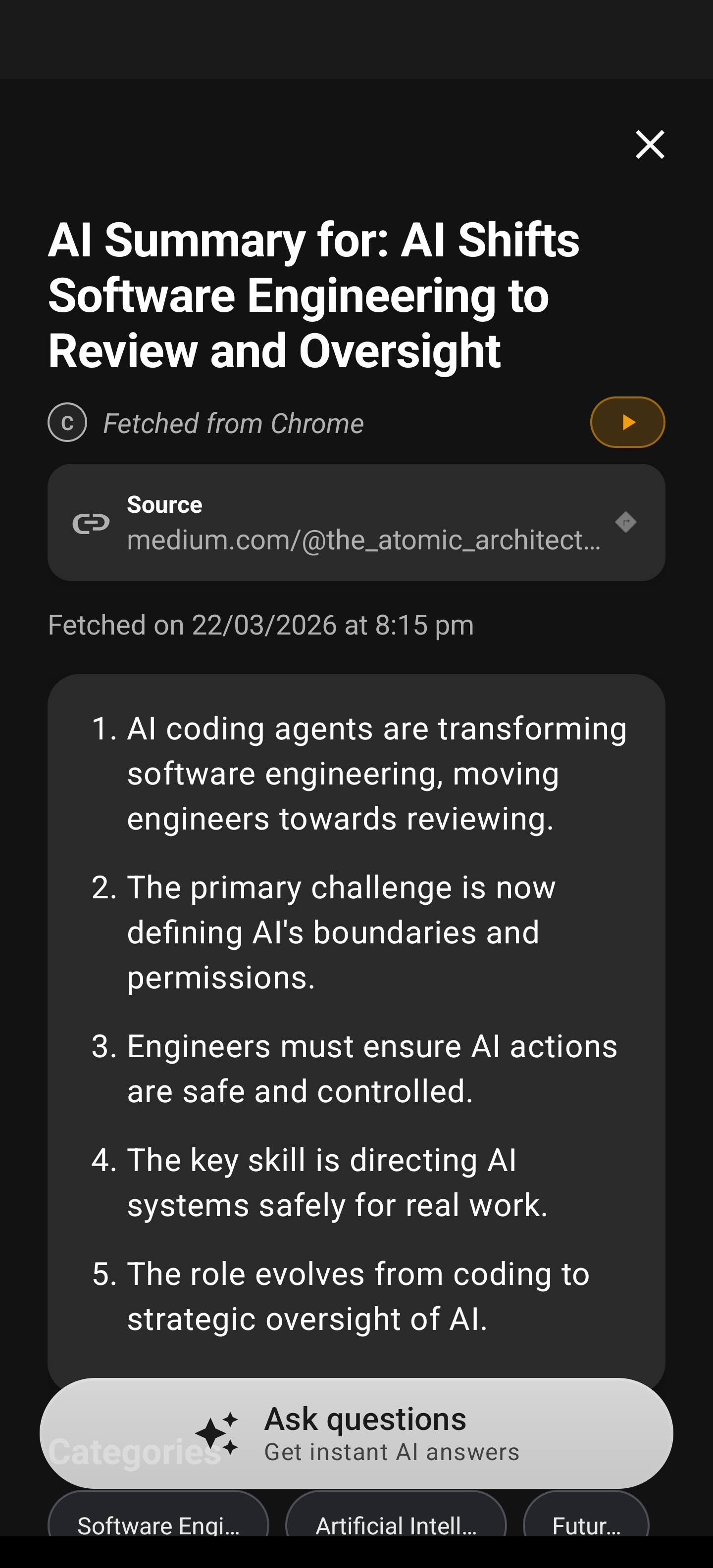
When you’re viewing content you want summarized — whether it’s a long article in your browser, an email, a PDF, or a social media post — swipe to expand the Arc floating sidebar and tap the “AI Summary” button. Arc captures the visible content and sends it to the AI for processing. A loading indicator appears while the summary is being generated. When it’s ready, the summary screen opens with the generated text, a category badge (such as “Article” or “Social Media”), the source app name, and the source URL if available. From there you can read the summary, save it to your library, share it, listen to it, ask the AI questions about it, copy it to your clipboard, or view a screenshot if one was captured.
A generated summary with source URL, fetch time, TTS play control, numbered points, category tags, and the “Ask questions” entry to chat about this content.
Saving Summaries to Your Library
After generating a summary, tap the “Save” button to add it to your library. The first time you save content, Arc may ask whether you want to allow screenshots to be saved alongside summaries — this helps you remember the original context. Once saved, a confirmation appears and the summary shows up in the Home screen under the Summaries tab. Saved summaries are available offline and can appear in your Unread Queue until you mark them as read. If a summary is already saved, the button will show a “Saved” state.
Browsing Your Saved Summaries
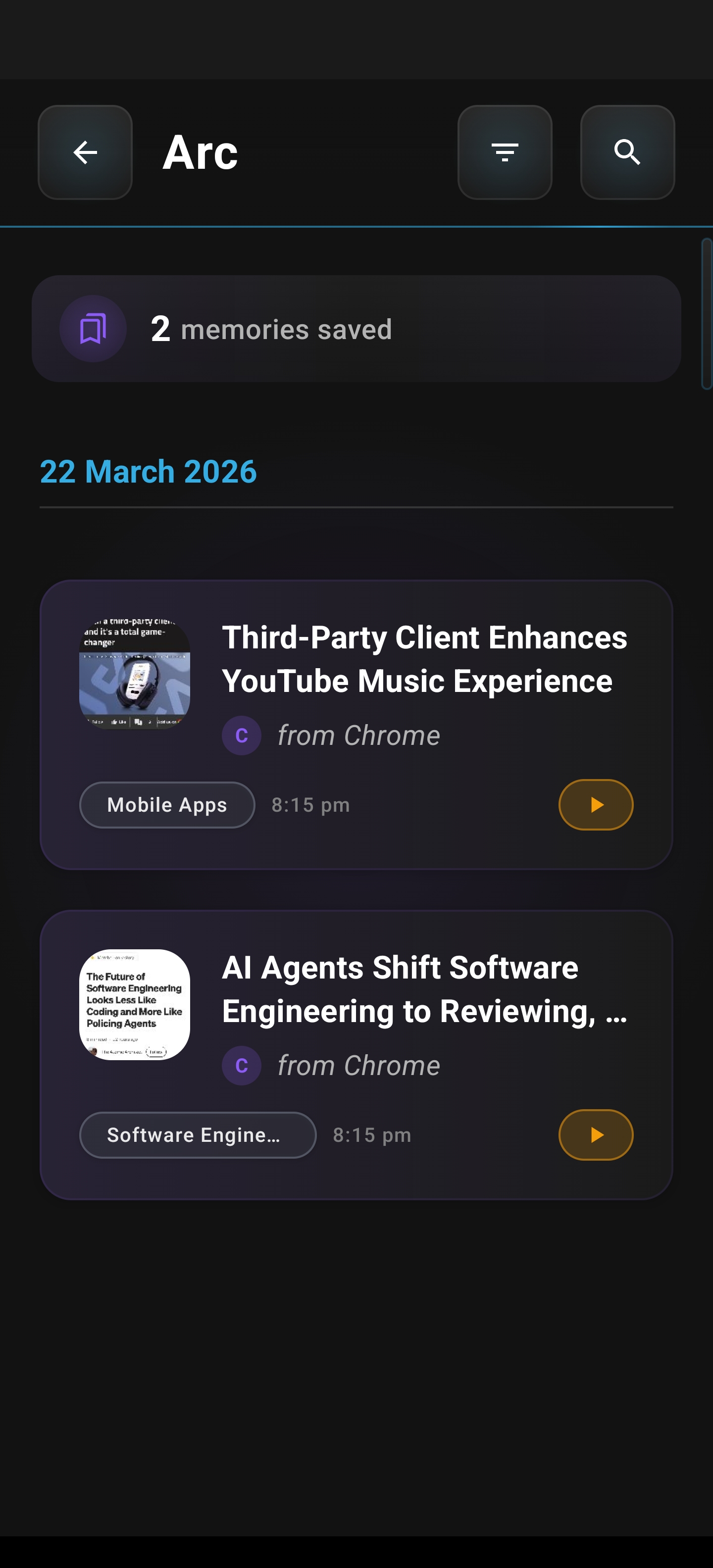
Open Arc and go to the Home screen. The Summaries tab shows all your saved summaries in a list. Each card displays a category badge, a preview of the summary text, the source app icon and name, and when it was saved. Summaries are grouped by date (Today, Yesterday, Last Week). You can scroll through the list, search using the search bar, or filter by category using the category chips. Tap any summary card to open the full detail view, where you’ll see the complete text, metadata, a screenshot viewer if available, and actions like Listen, Share, Ask Questions, and Delete.
Summary library: saved summaries in a timeline with thumbnails, source app, category tags, and listen (TTS) controls on each card.
Listening to Summaries
Tap the “Listen” button on any summary screen to hear it read aloud. Arc prepares the audio and begins playback with a natural voice. Playback controls let you pause, resume, or stop. You can navigate away from the summary and playback continues in the background — you can control it from the media notification. Arc uses your configured voice preferences from Settings > Speech Settings, including auto voice selection for the content language, and respects any custom speech rate or pitch you’ve set.
Sharing Summaries
Tap the “Share” button on any summary to open your device’s share sheet. You can send the summary to messaging apps, email, social media, note apps, or copy it to your clipboard. The shared content includes the summary text, the source URL if available, and attribution that it was generated by Arc. You can also use the Copy button for a quick copy without opening the share sheet. If a screenshot is available, you can share the summary together with the image.
Chatting with the AI About a Summary
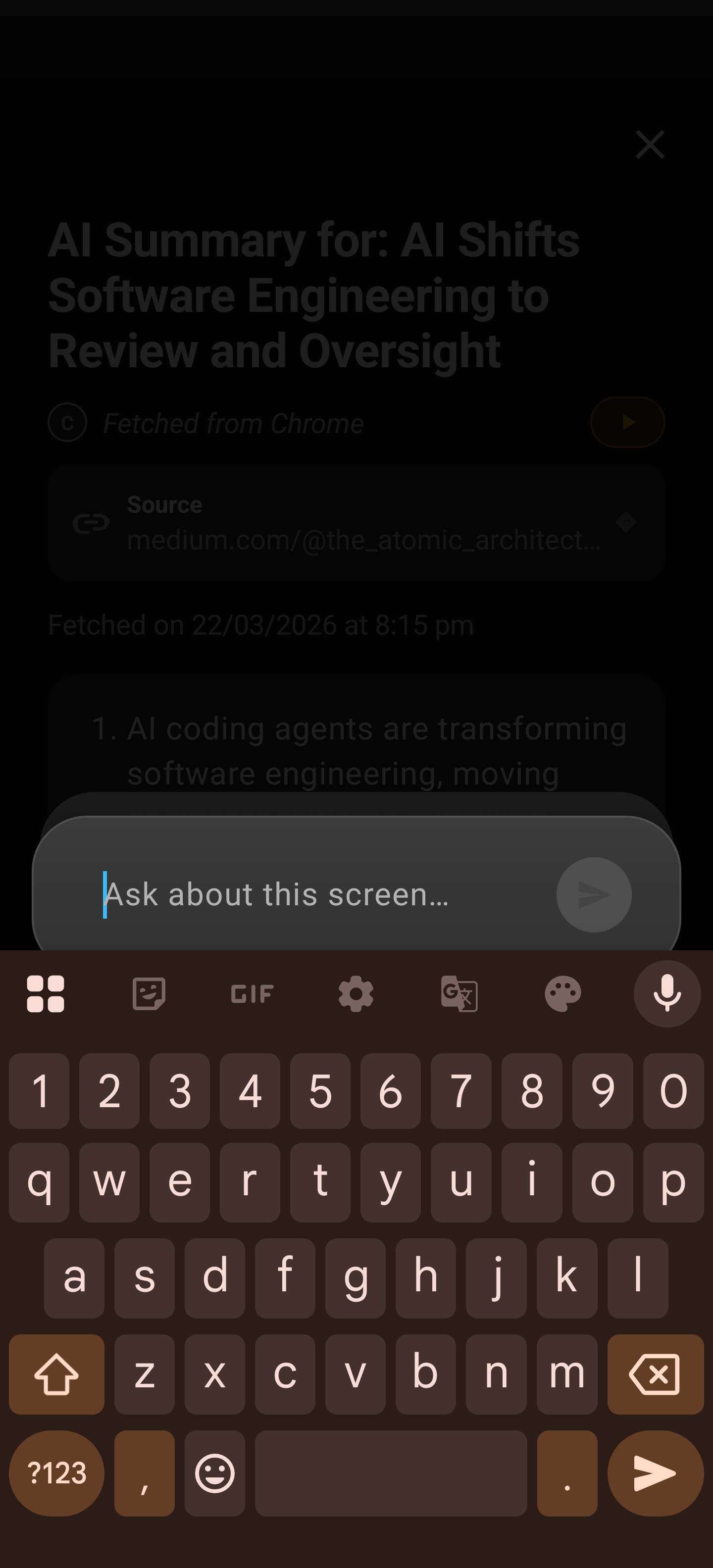
When you want to go deeper on a summary, tap “Ask Questions.” A chat interface opens with the full summary automatically included as context. You can type questions, ask for clarification on specific points, request more details on topics, or get related information. The AI responds with context-aware answers. The conversation is saved to your Chat History as a “Summary Chat” session, so you can return to it later. For example, if your summary is about electric vehicles, you might ask “What are the main advantages mentioned?” or “Tell me more about the environmental benefits” and get answers based on the summary without re-reading the original content.
Follow-up chat from a summary: the input is active at the bottom (“Ask about this screen…”) with the keyboard open, ready to send a question about the summary.
Summaries with Visual Content
When the content on screen includes images, infographics, or charts, Arc can capture both the text and a screenshot. The AI analyzes both to produce a more comprehensive summary that includes insights from the visuals. The summary screen shows a thumbnail of the screenshot — tap it to view full size — and you can save the summary with the screenshot for context.
Categories and Organization
Arc automatically detects the type of content and assigns a category: Article, Email, Social Media, Document, Chat, Shopping, Education, or Other. Each summary displays a colored category badge. When you save summaries, they’re stored with this metadata. In your library, you can filter by category using the chips above the list, see badges on every card, and search within specific categories. No manual tagging is required.
When Something Goes Wrong
If summary generation fails — for example, due to no internet connection, content that’s too short, or a temporary server issue — an error screen appears with a clear message and a “Retry” button. Tap Retry to try again, or Cancel to go back. Common messages include “No internet connection. Please check your connection and try again,” “Not enough content to summarize. Please try with longer text,” and “Something went wrong. Please try again in a moment.”
Searching Your Summaries
In the Summaries tab, tap the search bar and type your query. Results filter in real time as you type. Arc searches through the summary text, source URLs, and app names. If no results match, you’ll see a “No summaries found” message. Clear the search to see all summaries again.
Deleting Multiple Summaries
To remove several summaries at once, open the Summaries tab and long-press any summary card. Multi-select mode activates with checkboxes on each card. Tap additional cards to select or deselect them. The top bar shows how many are selected. Tap the Delete button, confirm in the dialog (this action cannot be undone), and the selected summaries are removed. Tap the X or back button to exit selection mode without deleting.
Tips
- Use “Ask Questions” when a summary sparks curiosity — the AI has the full context and can elaborate on any point.
- Allow screenshots when prompted if you often need to recall the original layout or visuals.
- Filter by category when your library grows to quickly find the type of content you need.
- Listen to summaries while multitasking — playback continues in the background.
- Search works across summary text, URLs, and app names, so try different keywords if you’re not finding something.
Related Features
- Floating Sidebar — Where the AI Summary button lives
- Save Content — How content is saved to your library
- Chat with AI — Full chat capabilities when you ask questions
- AI Read — Text-to-speech for summaries and other content
- Unread Queue — Where saved summaries can appear
- Custom Actions — Alternative summary workflows