AI Read (Text-to-Speech)
Convert any on-screen text into natural-sounding speech with TTS. Includes automatic language detection, multiple voice options, playback controls, and background playback.
Browse all features (13)
AI Read converts any on-screen text into natural-sounding speech. You can listen to summaries, saved content, articles, emails, and any other text across all Android apps. The feature includes automatic language detection, multiple voice options, playback controls, and background playback so you can keep listening while using other apps.
Key Capabilities
- Natural AI-generated voices
- Automatic language detection and voice selection
- Works with summaries, saved content, and any screen text
- Background playback with notification controls
- Adjustable speech rate and pitch
- Multi-language support (dozens of languages)
- Accessibility-focused design
- Hands-free content consumption
How to Use
Listening to Summaries and Saved Content
When you generate an AI summary or view a saved summary, you’ll see a Listen button (speaker icon). Tap it and Arc prepares the content for playback. The app extracts the plain text, detects the language, and selects the best voice for that language if auto voice selection is on. Playback starts right away with play, pause, and stop controls on screen and in an Android notification.
You can pause, resume, or stop playback at any time. If you navigate away or switch apps, playback continues in the background and you can control it from the notification. When the summary ends, playback stops automatically and the controls return to the initial Listen button state.
In the summary library, each saved summary shows a TTS play control so you can listen without opening the full detail view first.
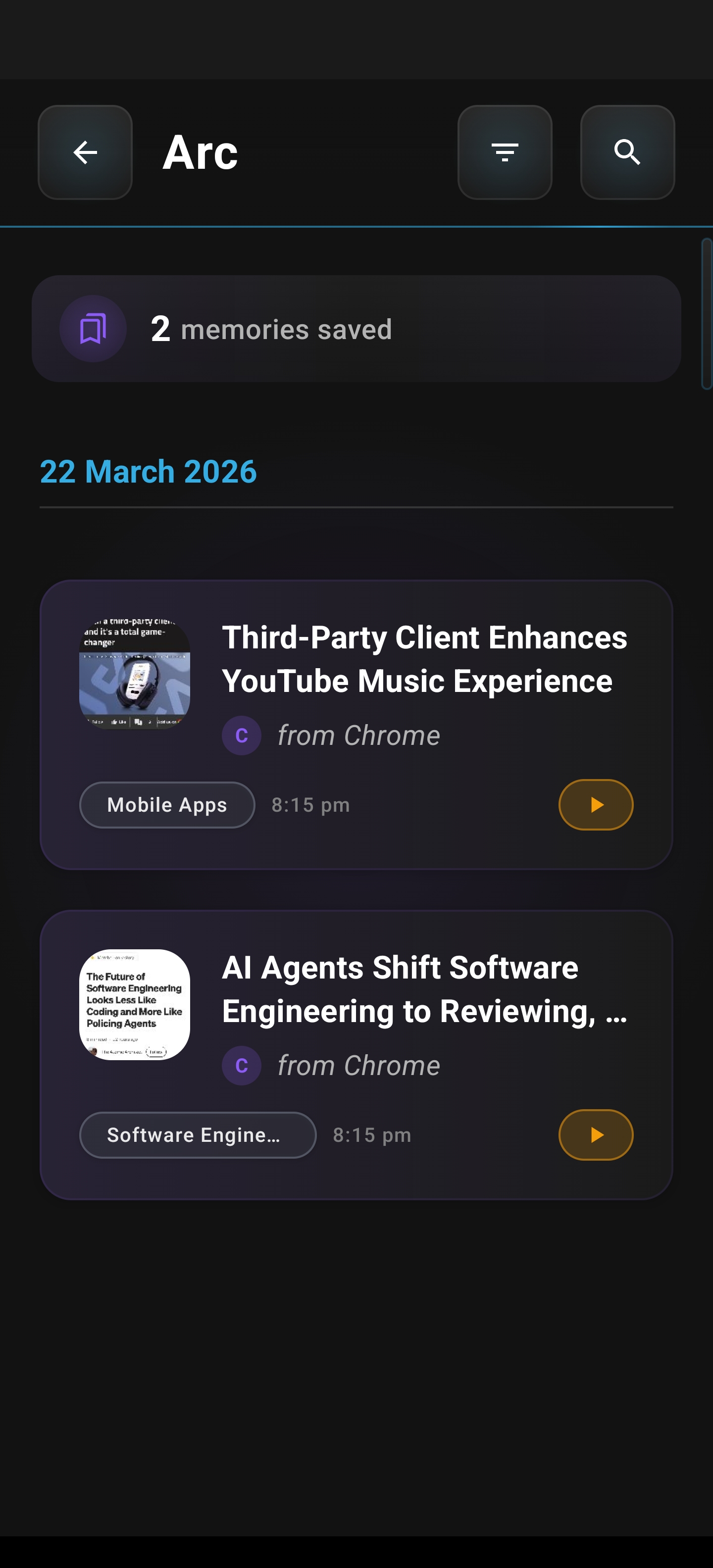
For saved content, open the Home screen and go to the Unread Queue or Summaries tab. Each content card shows a Listen button. Tap it directly on the card to start playback without opening the detail view. You can keep browsing while listening, and control playback from the card or the notification. If you tap Listen on a different item, the current playback stops and the new content starts. You can also enable continuous playback mode so that when one item finishes, the next in the queue plays automatically.
Reading Any Screen Content
You can listen to any content on screen, not just summaries. Open the Arc floating sidebar while viewing a web article, email, PDF, or other app. Tap the AI Read button to read the current screen directly. Arc extracts the readable text, filters out navigation and ads, and focuses on the main content. After a brief “Extracting content…” indicator, playback begins immediately. You hear the full content in order with natural pauses at punctuation. This is different from generating a summary first: direct AI Read gives you the complete text, while Summary + Read gives you a concise summary to listen to.
Auto Voice Selection for Multi-Language Content
Arc can automatically pick the right voice for the content language. When you tap Listen on any content, Arc detects the primary language (e.g., Chinese, Hindi, Spanish, Arabic) and selects an appropriate voice. For example, Chinese content is read in a Chinese voice, Spanish content in a Spanish voice, and so on for many languages. If you turn off auto voice selection in Settings, Arc uses your default voice for all content, which may sound less natural for non-native languages.
Example: If you read an English article and generate a Chinese summary, with auto voice on the summary is read in a Chinese voice with proper pronunciation. With auto voice off, it would use your default voice and may mispronounce Chinese.
You can enable or disable auto voice selection under Settings → Speech Settings. When disabled, you choose a default voice manually from the voice list, which shows available voices grouped by language with sample playback so you can preview them.
Adjusting Speech Rate and Pitch
Go to Settings → Speech Settings to customize how fast and how high or low the voice sounds. Use the Speech Rate slider to speed up (e.g., 1.5x–2.0x for quick review) or slow down (e.g., 0.75x–0.9x for learning or note-taking). Use the Pitch slider to make the voice deeper or higher. Tap the Preview button to hear a sample with your current settings before saving. Changes apply to all future TTS playback.
Background Playback and Notification Controls
Once playback starts, a notification appears with play, pause, and stop controls. You can press Home or switch to another app and Arc keeps playing. The notification stays visible so you can control playback from anywhere. You can also use lock screen media controls or a Bluetooth headset’s play/pause button. Tapping the notification returns you to Arc. When playback completes, the notification dismisses or shows a completion message.
Visual Highlighting While Listening
If you’re viewing the text on screen while listening, Arc can highlight the current word or sentence as it’s being read. The highlight moves in sync with the audio. You can tap any word or sentence to jump playback to that position. This helps with comprehension, language learning, and accessibility. You can enable or disable highlighting and choose word-level or sentence-level highlighting in Speech Settings.
Listening to AI Responses in Chat
In a chat conversation, each AI message has a small Listen button. Tap it to hear that specific response read aloud. Only the selected message is read, not the whole conversation. Playback controls appear on the message bubble and in the notification. You can listen to multiple messages one after another by tapping Listen on each, and you can continue the conversation while listening.
When Something Goes Wrong
If playback fails to start, Arc shows a clear error message. For example, if there’s no internet and you’re using cloud TTS, you may see “No internet connection” with options to retry or use an offline voice. If your selected voice isn’t available, Arc falls back to a system voice. Very short content may show “Content too short to read aloud.” If playback stops unexpectedly, you’ll see a “Restart” option. Arc tries to recover automatically when possible and keeps your position if you were mid-playback.
Tips
- Use Listen directly on content cards for the fastest way to start playback without opening details.
- Enable continuous playback mode in the queue to listen to multiple saved articles or summaries in sequence.
- Use the Preview button in Speech Settings to test rate and pitch before applying.
- Turn on visual highlighting if you want to follow along while listening, especially for language learning.
- Auto voice selection is on by default and gives the best pronunciation for multilingual content.
Related Features
- AI Summary — Generate summaries you can listen to
- Save Content — Save content to read later with AI Read
- Unread Queue — Quick playback from your saved queue
- Chat with AI — Listen to AI responses in conversations
- Floating Sidebar — Access AI Read from any screen
- Smart Extract — How Arc extracts text for reading