Your AI assistant on every screen
Arc lives on top of any Android app as a floating sidebar. Summarize content, extract key details, chat with AI, draft replies, create flashcards, and analyze calls — powered by Google Gemini, without ever switching apps.
Everything you need, one tap away
Arc packs powerful AI features into a lightweight floating sidebar that's always accessible.
AI Summary
Get instant AI-powered summaries of any screen — articles, emails, notifications, PDFs, and more. Save, share, or listen aloud via text-to-speech.
Smart Extract
Automatically pull out events, reminders, deadlines, contacts, meeting links, locations, and even verification codes (OTP) — each tappable to act on.
AI Chat
Have a contextual conversation with AI about what's on your screen. Arc uses your screen content and screenshot as context. Save chats to revisit later.
Call Insights
Upload call recordings (M4A, MP3, WAV, and more) to get full transcripts, speaker-labeled summaries, and extracted action items.
AI Writer
Draft text right in any input field. Four modes: Rewrite, Fix Grammar, Reply to conversations, and Create Post — with tone and length options.
Flashcards
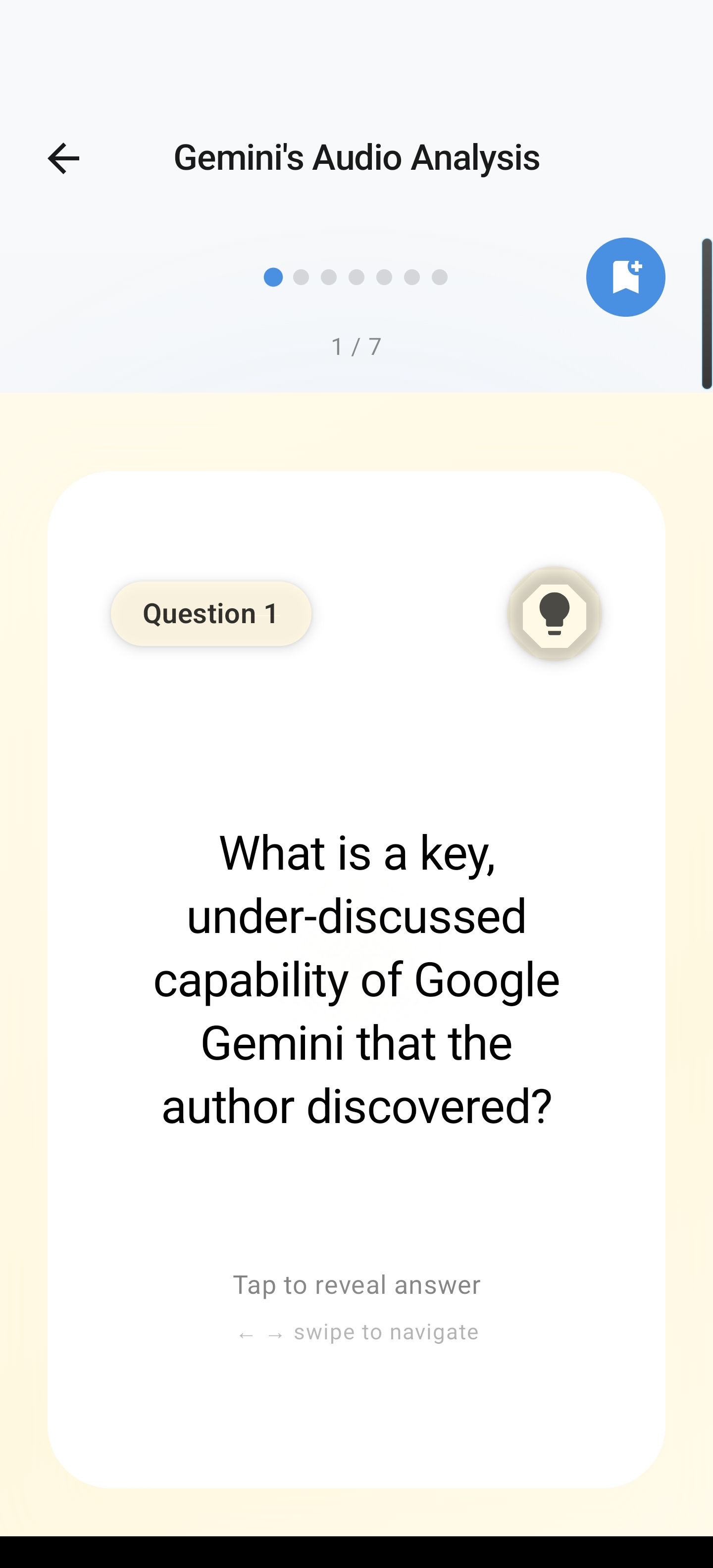
Turn any screen content into study flashcards. Swipe through them in the viewer, mark what you know, and focus on what you don't.
Floating Sidebar
Swipe from the screen edge to expand Arc in any app. Drag to reposition. Choose which apps Arc appears in with per-app control.
Custom Actions
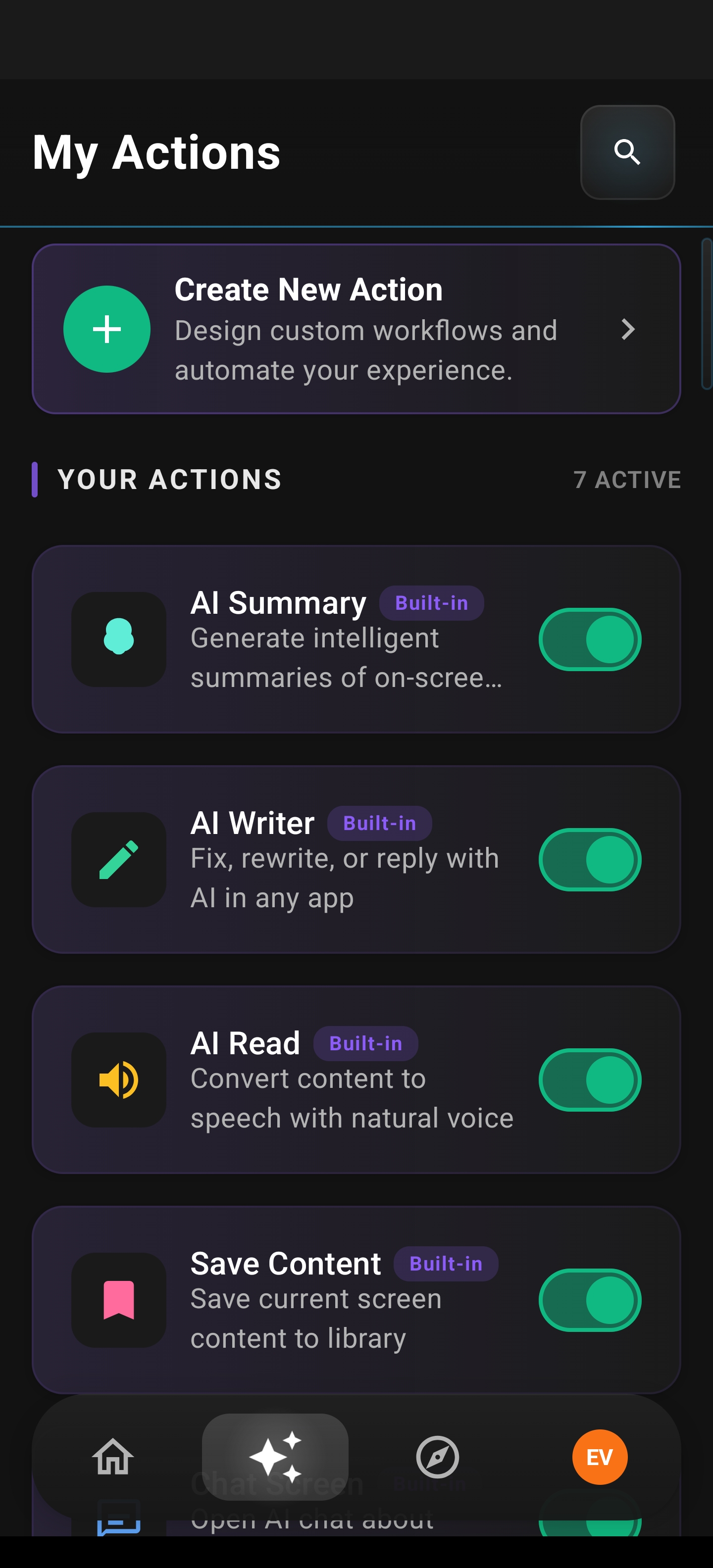
Create your own AI actions with custom prompts, or browse 250 community actions across 16 categories — with upvoting and search.
AI Read
Listen to a summary of any screen. Arc reads and summarizes the content, then plays it back via text-to-speech — perfect for multitasking.
Save Content
Save any screen to your library with a single tap — with optional screenshots. Build a personal knowledge base without generating a summary.
Community Actions
Browse and add AI actions created by the community. Discover workflows for productivity, writing, translation, and more — available in 10 languages.
Info Vault
Store reusable personal details that AI Writer pulls from automatically. Define items like "About me", "My role", or "Writing preferences" to personalize drafts.
Want to learn every detail?
Read our complete feature documentation with step-by-step guides and flows.
Get started in seconds
Arc is designed to be intuitive. Here's how to make the most of it.
Install & Set Up in Minutes
Download Arc from Google Play and grant accessibility and overlay permissions. Arc walks you through an interactive tutorial with demos of every feature.
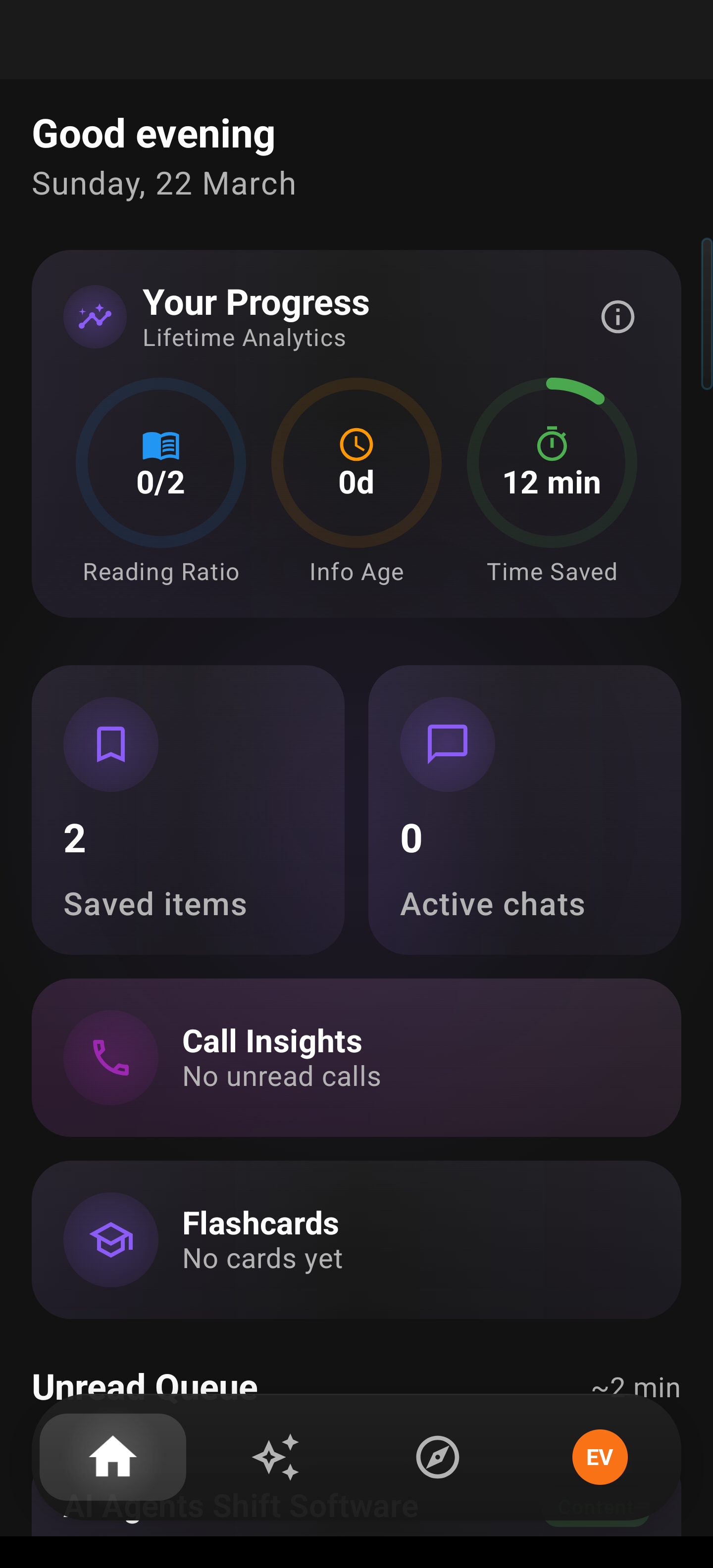
Swipe to Open the Sidebar
A floating bar sits on the edge of your screen in any app. Swipe inward to expand it and see all your AI actions. Drag it to reposition anywhere along the edge.
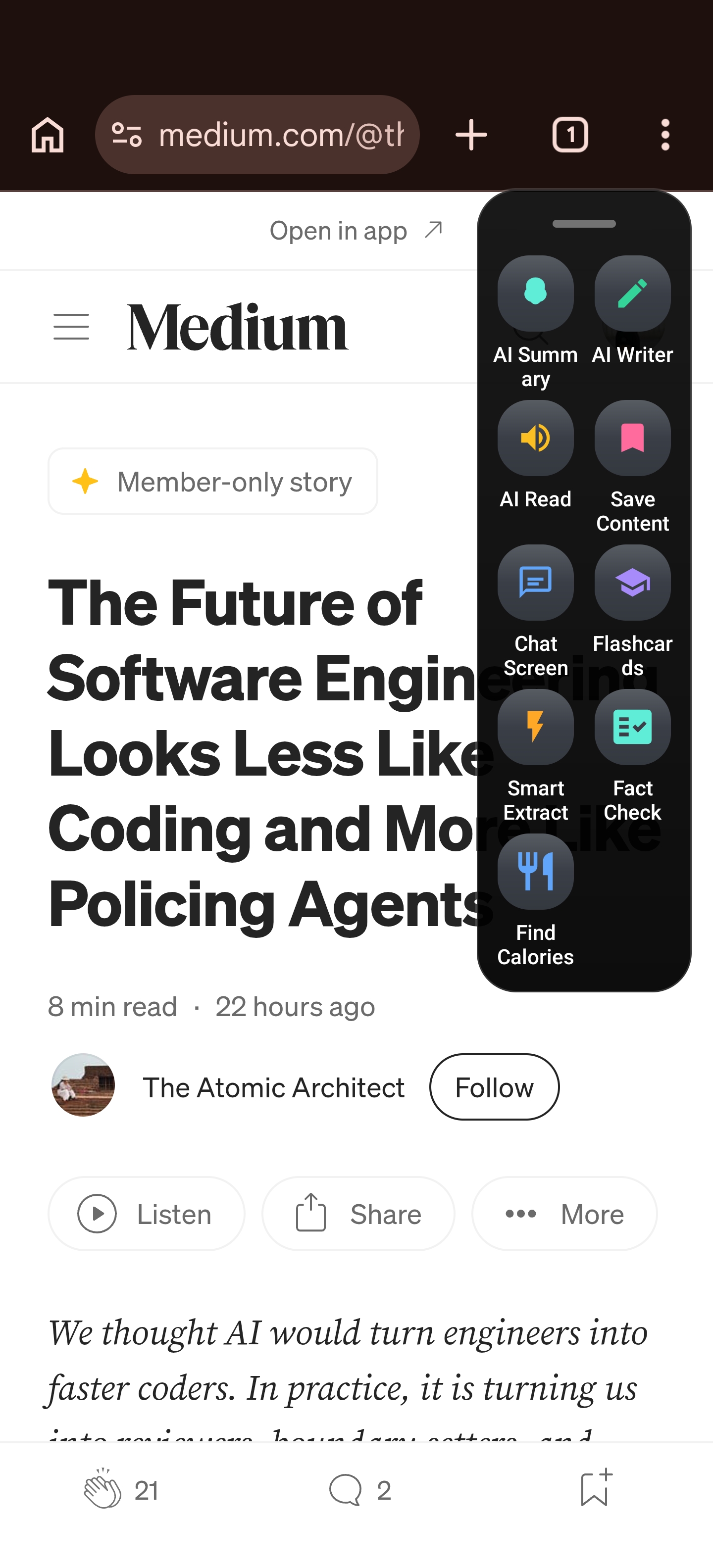
Summarize or Listen Aloud
Tap AI Summary for a concise text summary with categories, or tap AI Read to hear a summary via text-to-speech while you do other things. Save, share, or ask follow-up questions.
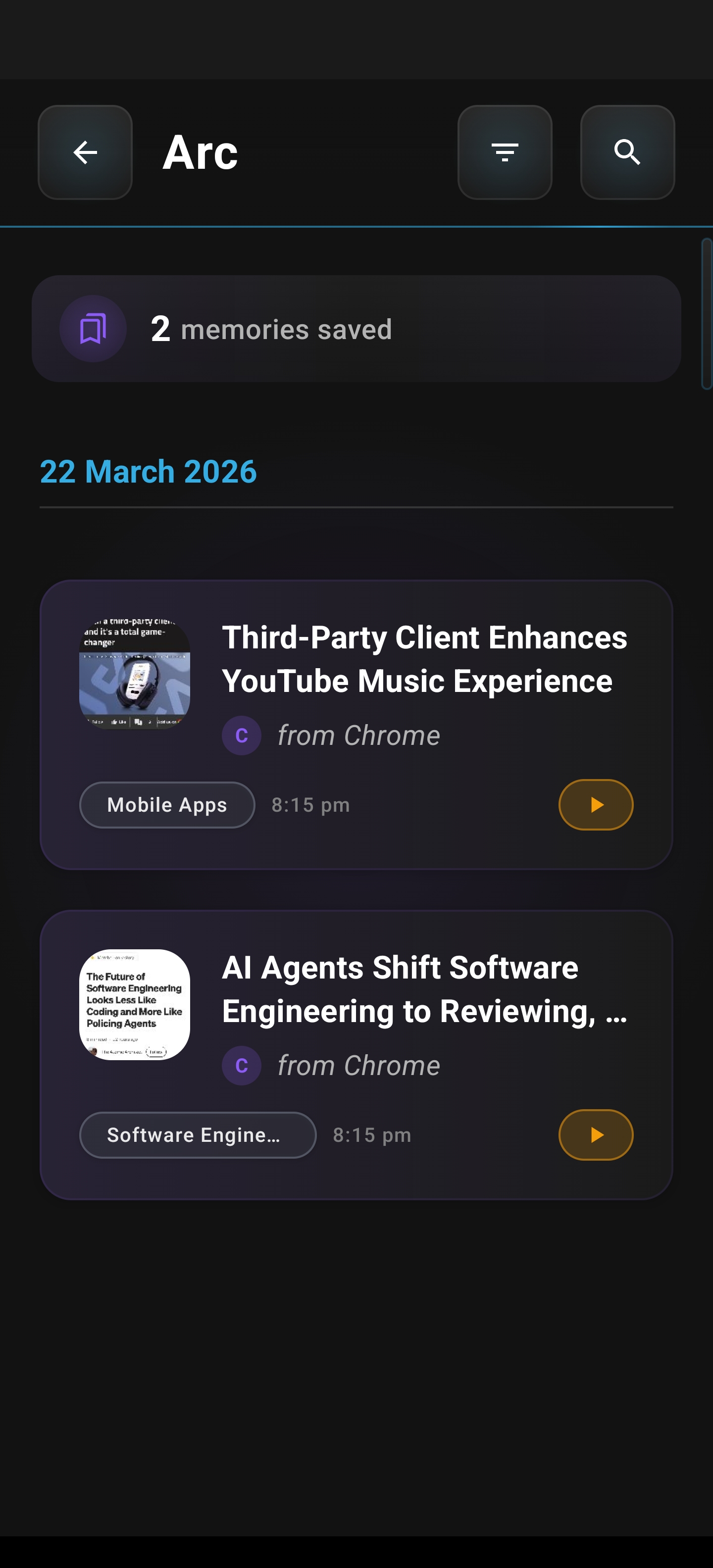
Extract, Chat & Write
Use Smart Extract to pull out events, deadlines, contacts, and OTPs into categorized, tappable results. Open AI Chat for follow-up questions. Use AI Writer to draft text in four modes: Rewrite, Fix Grammar, Reply, or Create Post.
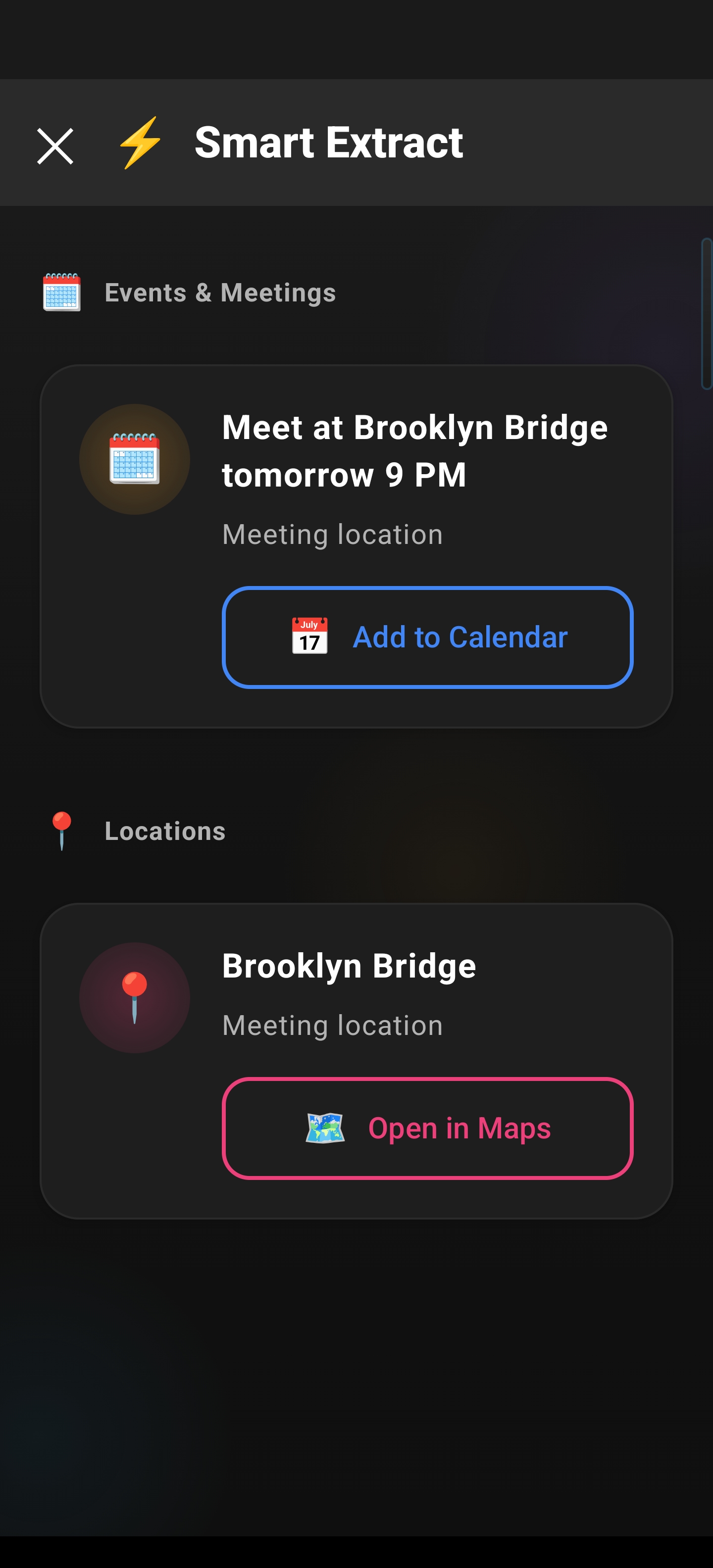
Create Flashcards & Save Content
Turn any screen content into study flashcards and swipe through them in the viewer. Or tap Save to add content to your library with optional screenshots — build a personal knowledge base.
Customize with Actions & Info Vault
Create your own AI actions with custom prompts, or browse 250 community actions across categories like productivity, writing, and translation. Set up your Info Vault so AI Writer personalizes drafts with your details.
Frequently asked questions
Is Arc free to use?
Does Arc work with all Android apps?
Is my data private and secure?
What Android version do I need?
How is Arc different from other AI assistants?
Does Arc work with Samsung Edge Panel, OnePlus Shelf, or OPPO Smart Sidebar?
What AI model does Arc use?
Can I create my own AI actions?
What audio formats does Call Insights support?
Does Arc support multiple languages?
Try Arc today
Download Arc from the Google Play Store and experience the power of AI on every screen.
Download on Google Play